Make the tool you're missing
Tools are here. Describe the one you're missing and use it live
Explore toolsMake the tool you're missing
Tools are here. Describe the one you're missing and use it live
Explore toolsSmall, focused tools you can use right here. Live tools run free in your browser and never upload your files. In Fuser, describe the tool you are missing in plain words and it builds itself.
86 tools shown
Adjust one video’s exposure, contrast, saturation, temperature, tint, shadows, and highlights to produce a graded video.
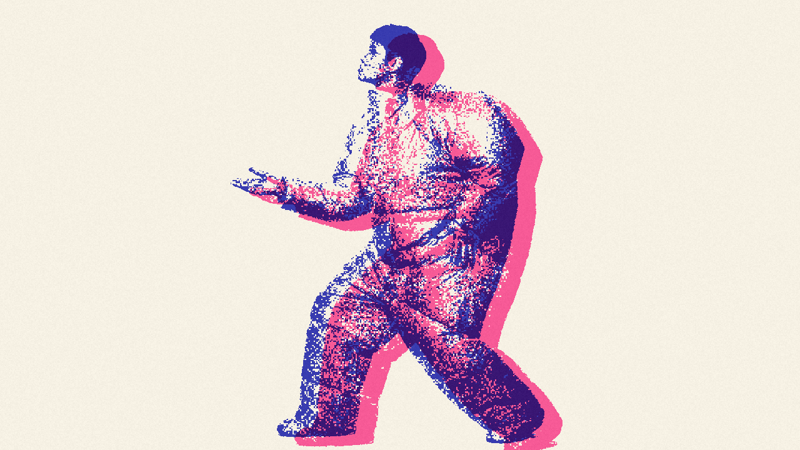
Turn one image into a two-color risograph result with selectable inks, adjustable thresholds, grain, and horizontal or vertical misregistration.
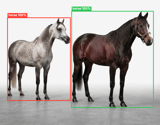
Upload one image to detect and count separate objects, preview them, and receive metadata plus extracted object images.
Upload a video with a colored background, choose a preset, and get a video with that background color removed.
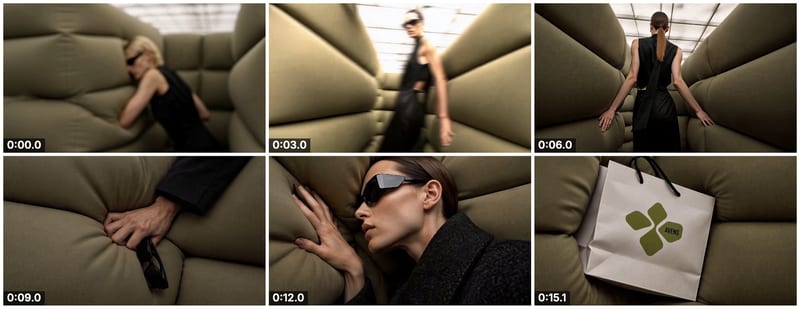
Add a video to create an image contact sheet, with controls for the number of frames and columns.
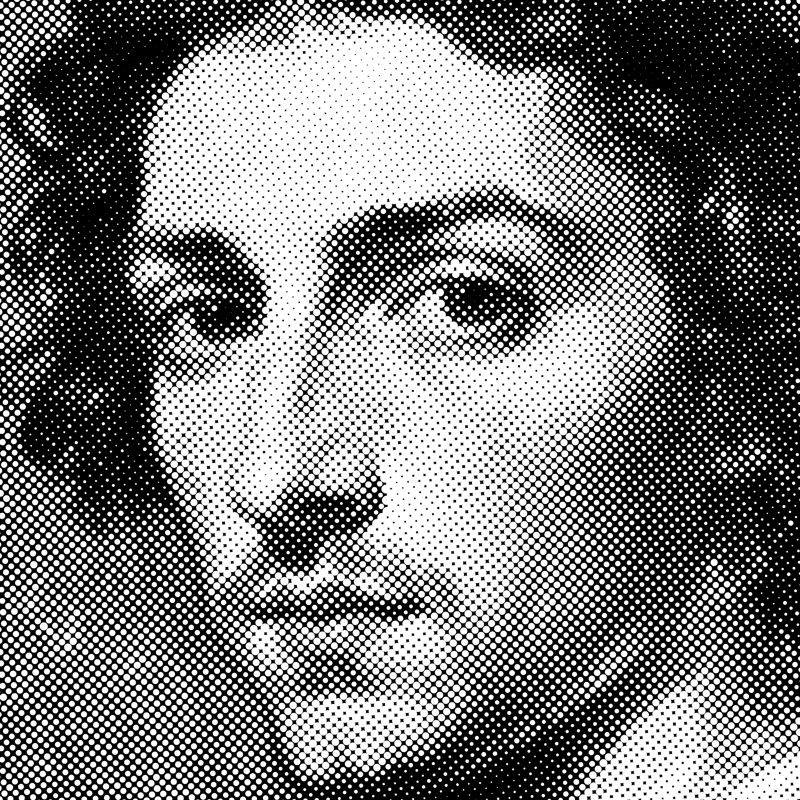
Turn an image into a halftone result with adjustable dot size, angle, color mode, and inversion.
Add one video and adjust the crossfade duration to produce a video with a smoother, more seamless loop transition.
Add two or more videos and get one combined video, with the output frame rate set by a slider.
Upload a video and adjust glitch controls to create a datamoshed result with pixel distortion, streaks, and color bleed.
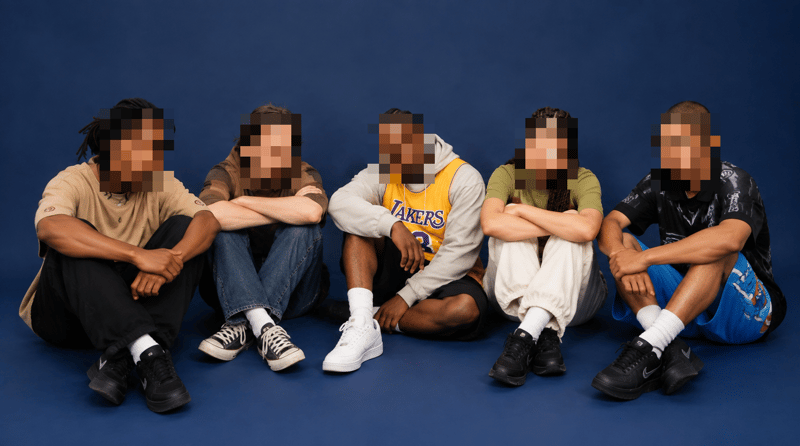
Upload an image containing faces and receive a pixelated image with adjustable block size and face padding.
Upload multiple images to create an animated GIF, then adjust frame duration and output size for the result.
Apply a selectable color filter to a video and adjust its strength to create a subtle filtered video result.
Add a video and get a result with detection boxes over bright, dark, or moving blobs, plus optional labels and connecting lines.
Add a transparent image watermark to a video, adjust its placement and appearance, and get a watermarked video.
Upload a tall or wide image and get a scrolling video with adjustable direction, duration, frame rate, easing, and aspect ratio.
Loop or boomerang a video
Create a light trail video
Trim a video
Turn video into a point cloud
Create a styled QR code
Emboss an image with metal

Convert video to GIF
Add a Y2K VHS look
Convert WebM to MP4
Create an image contact sheet
Make a sticker sheet
Describe a video in text
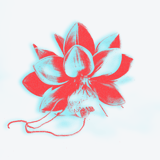
Riso anaglyph effect
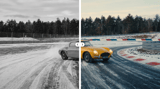
Create a before and after split
Describe an image
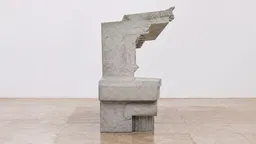
Create a flipbook video
Blur an image
Add lens distortion to images
Turn video into stop motion
Change an image's aspect ratio
Extract a frame from video

Extract a color palette
Resize video aspect ratio

Color balance an image
Missing a step? Describe the tool you need and Fuser builds it. It runs live, so every change shows as you make it, and its result goes wherever your work goes next.
A tool is a small app you describe in plain words. Fuser designs its controls, writes it and tests it, then hands you a working node with inputs, sliders, dropdowns and a result you can wire into the rest of your canvas.
Live tools run in your browser and update as you drag a control, for free, and your files are never uploaded. Cloud tools use an AI model to understand content, such as describing an image or finding objects, so they run on Fuser’s servers when you press Run and use credits shown on the button.
Yes. Live tools on these pages run right here in your browser. Open one in Fuser to keep it on your canvas, connect it to images, video or text from other nodes, and change it.
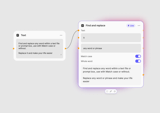
Yes. Add a Tool node, describe what it should do and which controls you want, and press Generate. You can also wire in a reference image or clip as inspiration. Building or editing a tool uses credits for the AI that writes it. Learn how to build a tool.
Describe the change, such as “add a switch to keep the original colors”, and Fuser rebuilds the tool in place. Every edit is saved as a new version in your Tools library, so the earlier one is still there.
Tools fit inside Recipes: a model generates an image, a Live tool adds the border and caption, and a Cloud tool writes the alt text. The whole process then runs as one step.