Recipev1
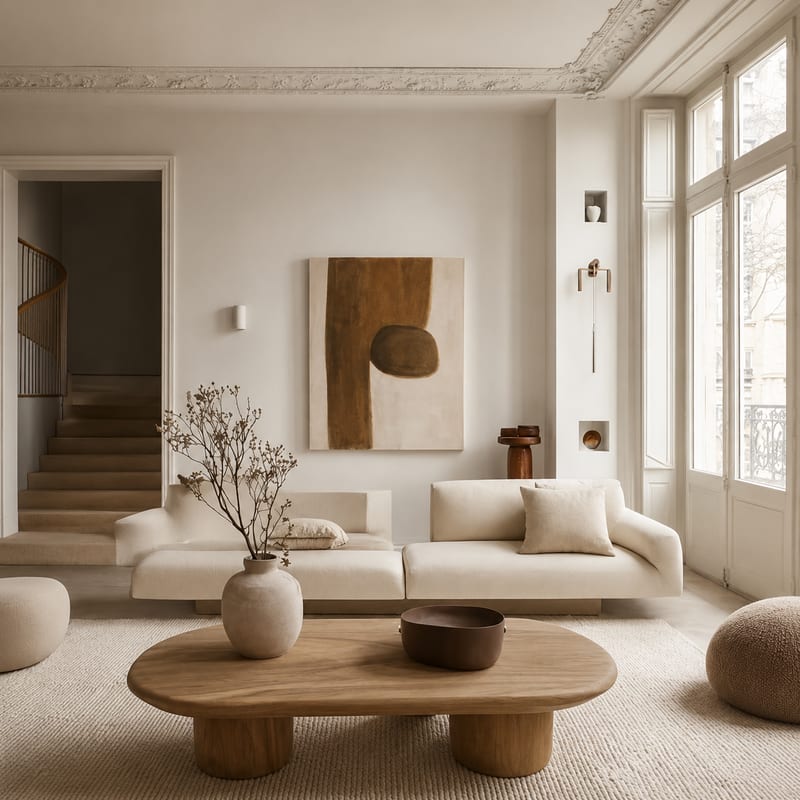
Replace Furniture with DWR Style
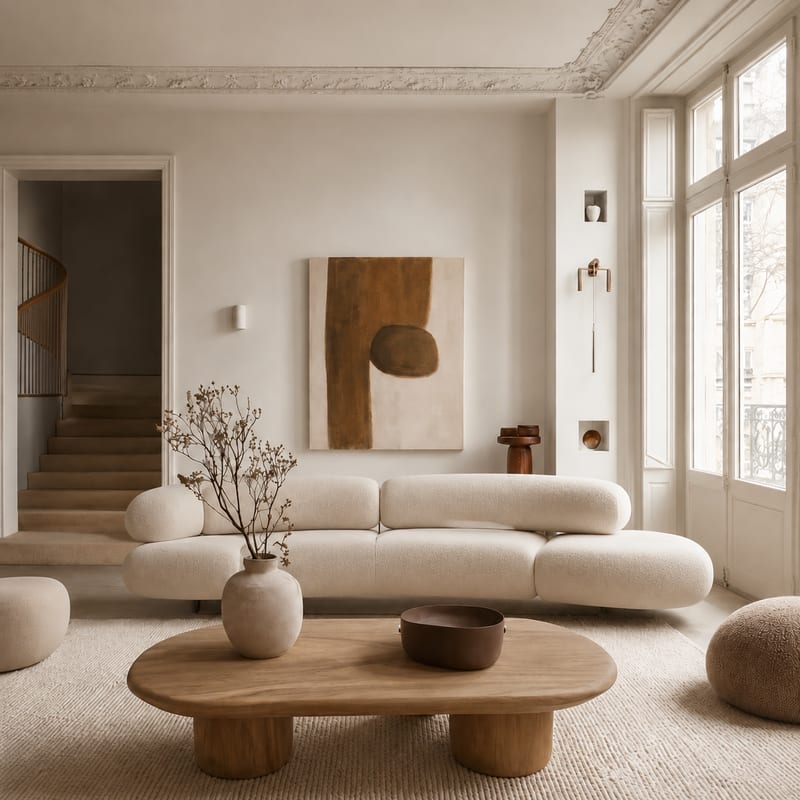
Image Out
One click, whole workflow
Recipes are here. Package a whole workflow and run it in one click
Explore recipesInterior furniture
Use a furniture image and text description to create an image showing a DWR-style replacement.
Image Out
A recipe turns a reusable workflow into a simple set of inputs and outputs. Start with a community recipe and make it your own in Fuser.
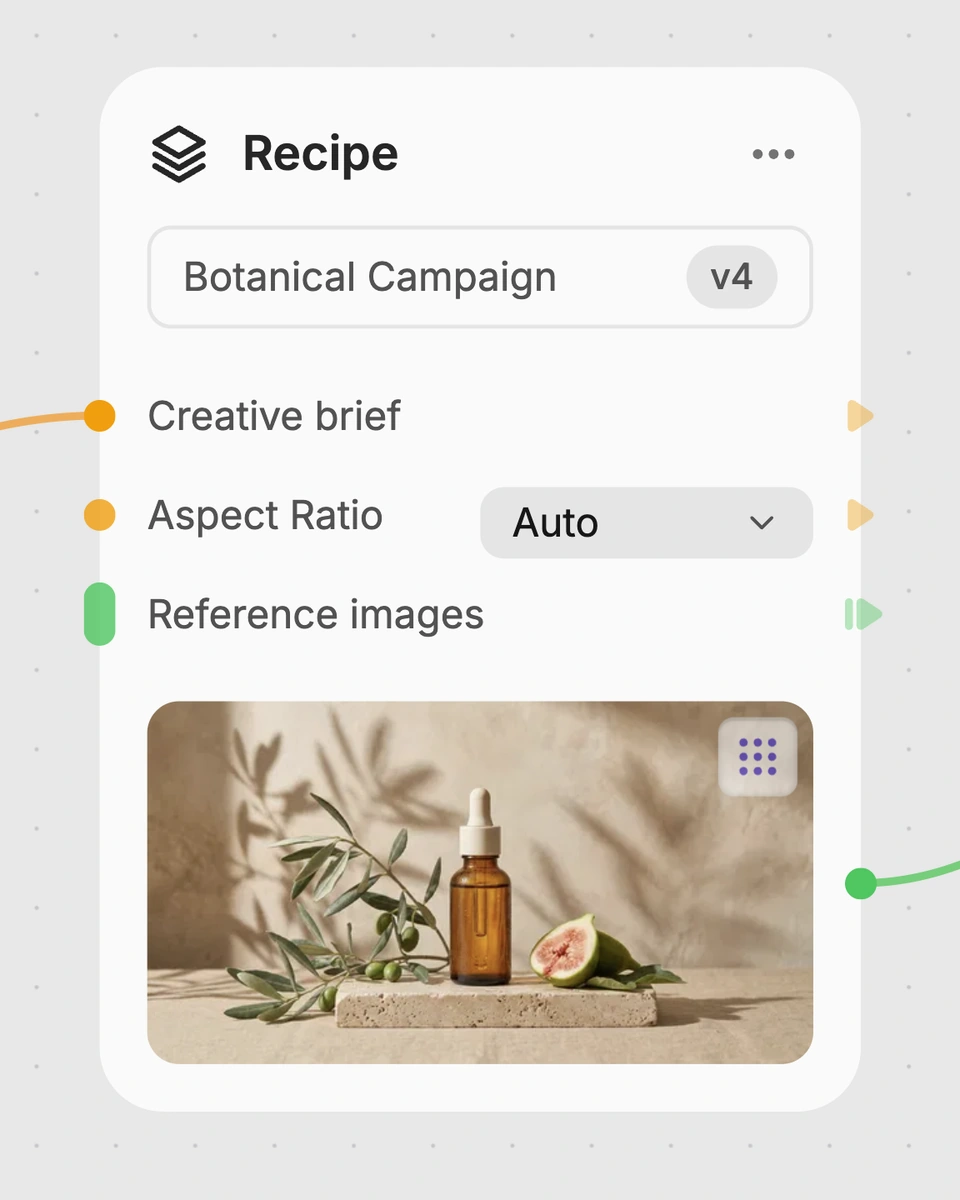
1. Choose a recipe
Find a workflow for the result you want. Review what it does and how to use it before opening it in Fuser.
2. Make it your own
Check the recipe’s available inputs. Add your own text or media where supported, or start with the saved defaults.
3. Run and refine
Run it in Fuser and review the result on your canvas. Tweak the inputs to try another direction.
Apply the furniture replacement workflow to interior concepts, presentations, and room updates.
It uses an image and a text description of the furniture to create an output image showing a similar replacement in a Design Within Reach-style or comparable home-furnishings direction. The saved example uses “couch” as its furniture description.
It is useful for interior designers, decorators, furniture shoppers, and anyone exploring a room update. The output is an image concept for considering a replacement, not a product listing or a confirmed match to a specific store item.
Provide an image containing the furniture you want to replace and a text description identifying it. The saved input says “couch,” but you can change the exposed text input in Fuser to describe another furniture piece.
Yes. The text input is editable in Fuser, so you can replace “couch” with a description such as chair, table, or another furniture type. The recipe also accepts an editable image input for the interior or furniture context.
The saved output is an image created from the connected furniture image and the text “couch.” It demonstrates the recipe’s replacement concept; a new run uses the inputs you provide in Fuser.
Use it to explore room refreshes, compare furniture directions, prepare interior design concepts, or support a conversation about selecting similar home furnishings. It is best treated as a visual reference rather than proof of a specific product’s availability, dimensions, or exact identity.
No exact product, model, or store listing is specified by this recipe. It is intended to show a similar DWR-style or comparable home-furnishings replacement in an image.
Bring an interior image and a clear furniture description to Fuser to create a replacement concept for your next room update.
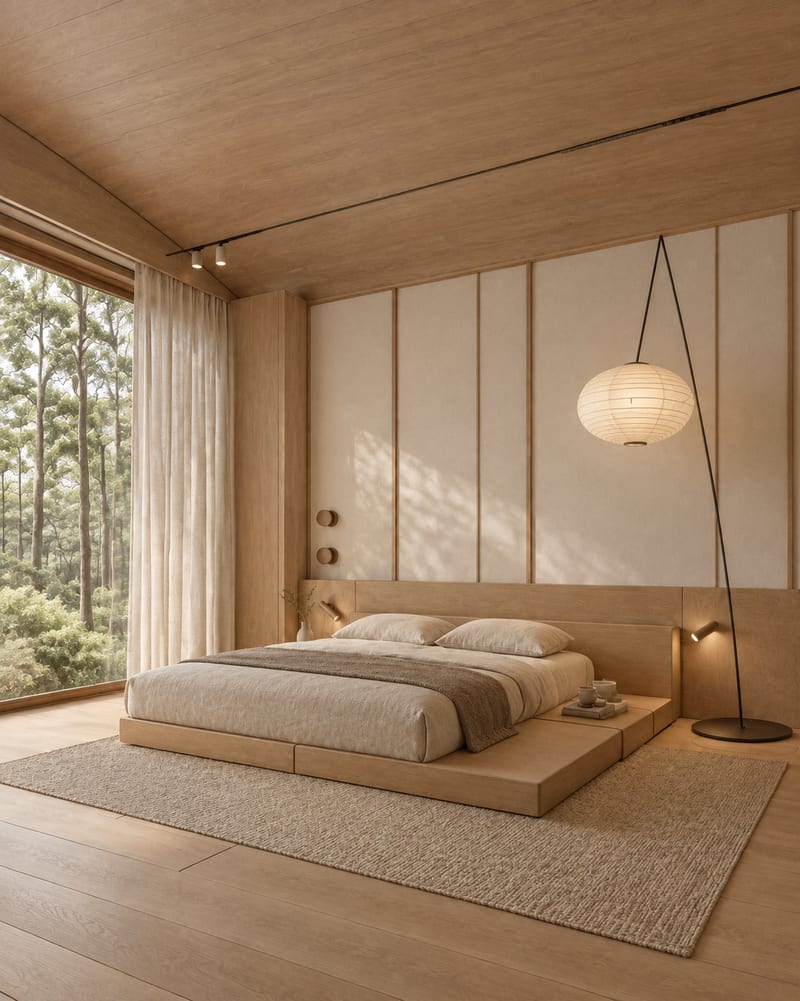
Upload one room image to explore Japandi, Art Deco Maximalist, Dark Academia, Classical, and Mid Century Modern variations.
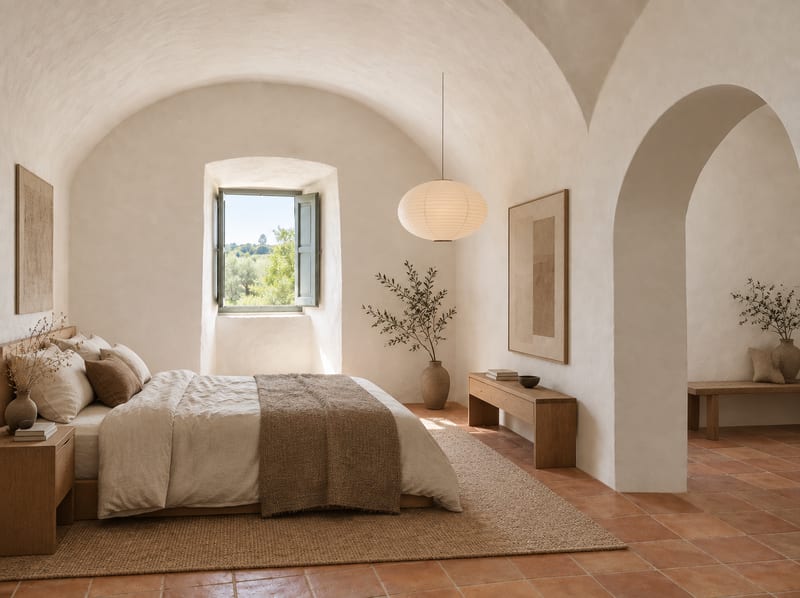
Turn an empty room image and room type into a Japandi-style furnished room concept.
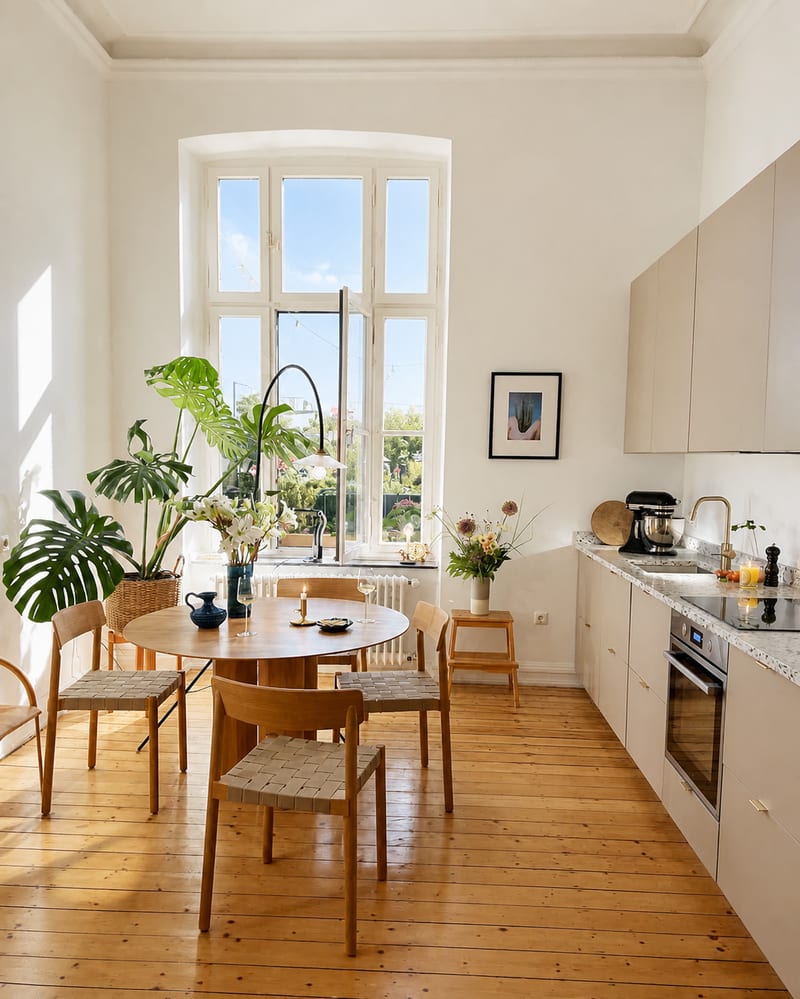
Turn an interior source photo into a polished real estate listing image with a bright, clean, inviting presentation.