Recipev2
Real Estate Listing Photo
Real Estate Listing Style
One click, whole workflow
Recipes are here. Package a whole workflow and run it in one click
Explore recipesReal estate photography
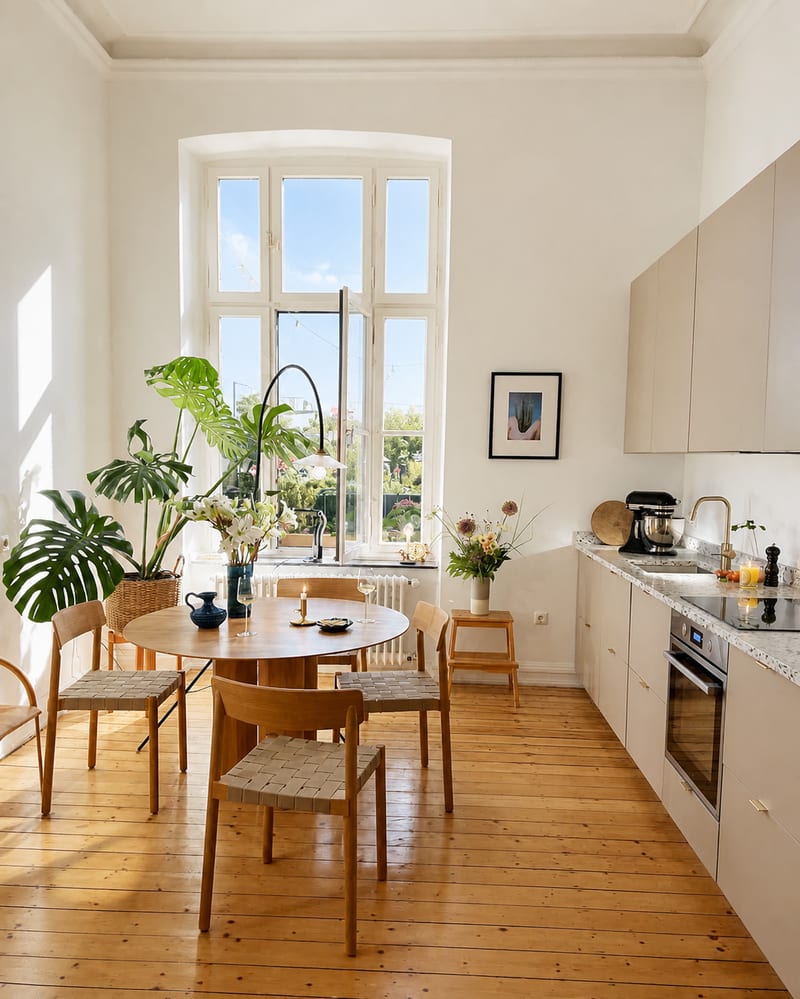
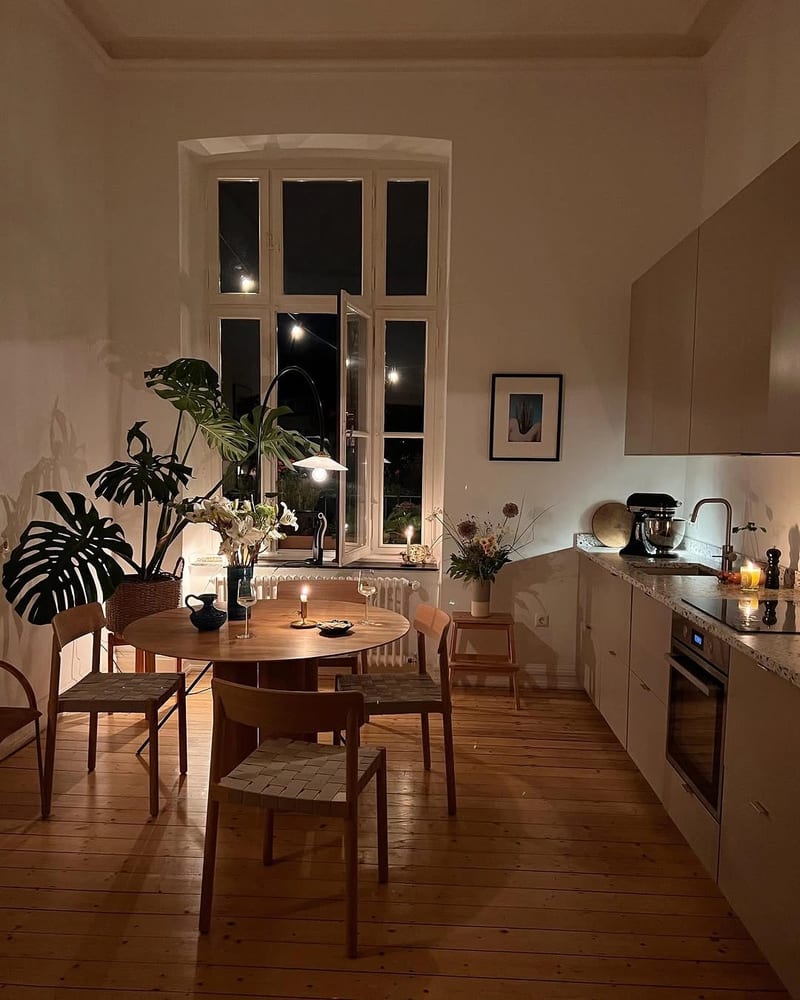
Turn an interior source photo into a polished real estate listing image with a bright, clean, inviting presentation.
Real Estate Listing Style
A recipe turns a reusable workflow into a simple set of inputs and outputs. Start with a community recipe and make it your own in Fuser.
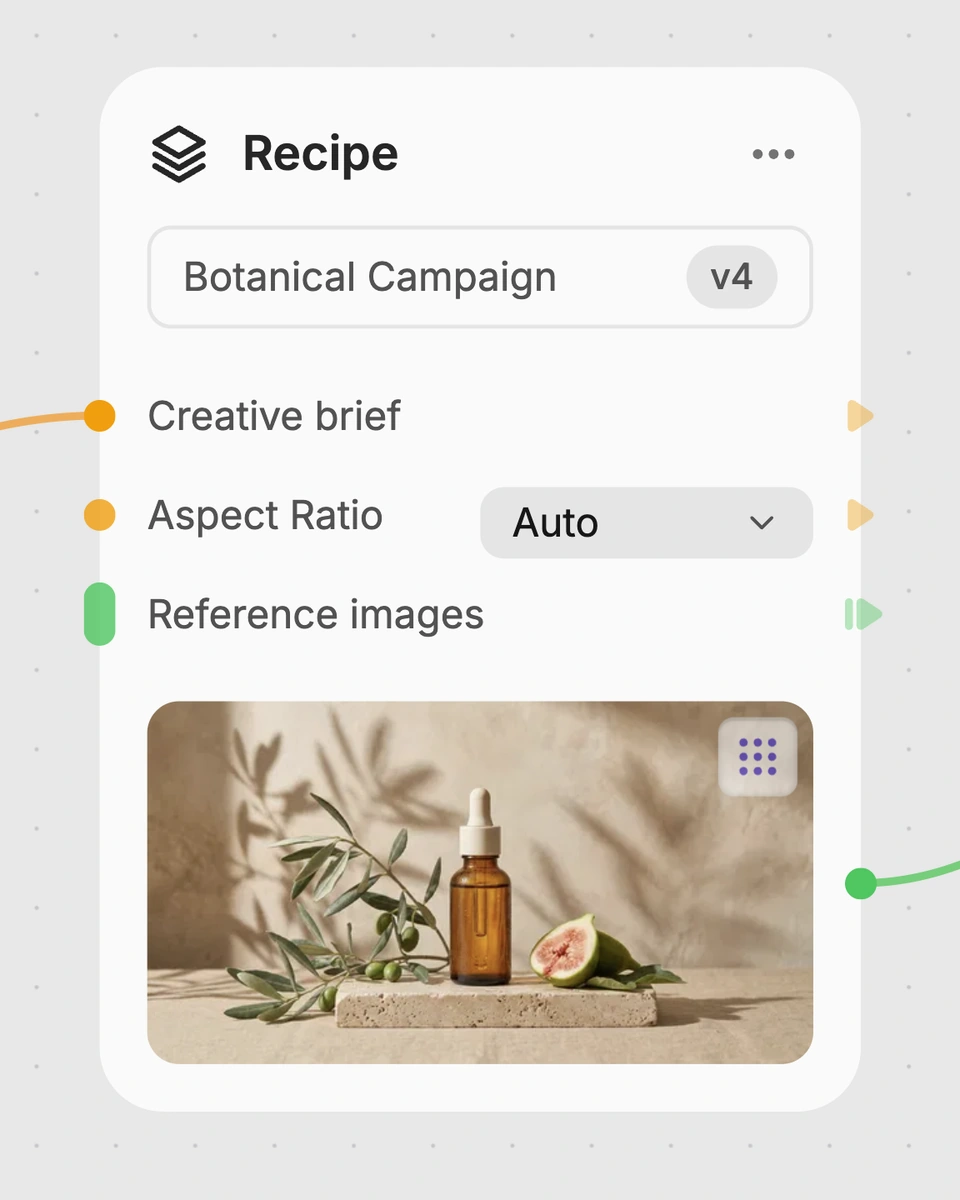
1. Choose a recipe
Find a workflow for the result you want. Review what it does and how to use it before opening it in Fuser.
2. Make it your own
Check the recipe’s available inputs. Add your own text or media where supported, or start with the saved defaults.
3. Run and refine
Run it in Fuser and review the result on your canvas. Tweak the inputs to try another direction.
Use one interior photo to create a more presentation-ready image for common real estate marketing tasks.
It transforms one source interior photo into a real estate listing-style image with a polished, bright, clean, and inviting presentation. The saved example shows this input connected to the recipe’s image output.
It is intended for real estate agents, property marketers, photographers, and others preparing interior imagery for property promotion. The result can support listing presentations, brochures, social posts, and other marketing materials.
You need one image for the Source Image input, ideally an interior photo relevant to a property listing. Visitors can replace that exposed image input in Fuser when using the recipe with a different room or property.
The recipe produces one image labeled Real Estate Listing Style. It is designed to present the source interior photo in a polished, bright, clean, and inviting listing style; the saved preview represents the default example rather than a new run.
Yes. Source Image is the exposed editable input, so you can change it in Fuser to use another interior photo. The recipe remains focused on transforming that image into a real estate listing-style result.
It is suitable for property listings, real estate marketing materials, agent presentations, brochures, and social media posts featuring interiors. It is most relevant when the starting asset is an interior photograph and the desired result is listing-ready imagery.
The recipe has one named input, Source Image, and one image output, Real Estate Listing Style. It does not expose separate inputs for text, branding, layouts, or additional property information.
Bring an interior source photo to Fuser and use this recipe to prepare a clean, inviting real estate image.
Explore interior moods, material palettes and architectural concepts. Turn room references and sketches into clear client presentation boards in Fuser.
Develop pitches, campaign assets and interactive client work in Fuser. Combine AI generation, editable design and reusable processes across your agency.
Create product images, lifestyle scenes and campaign assets for your next ecommerce launch. Keep branding editable and reuse creative setups in Fuser.

Develop campaign concepts, image and video ads, and editable channel layouts. Create meaningful creative variations in Fuser without rebuilding every asset.
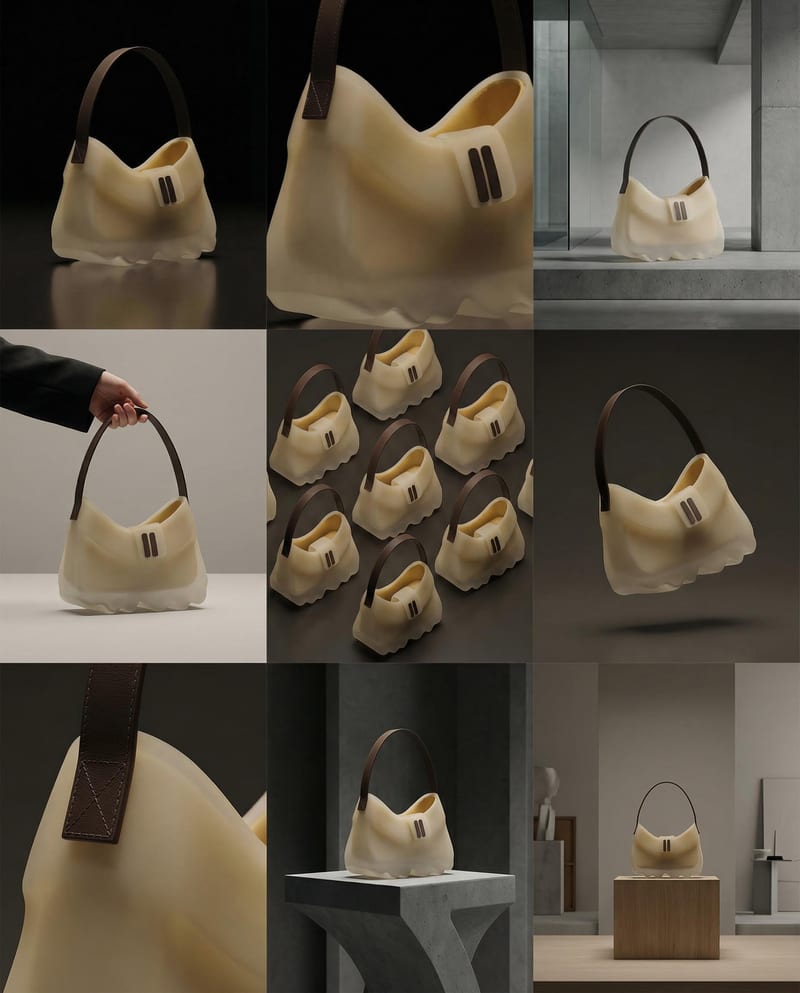
Turn a product image into a product photography grid for fashion campaign concepts and content planning.

Turn a source image and chosen video duration into six scene images and a commercial montage video.
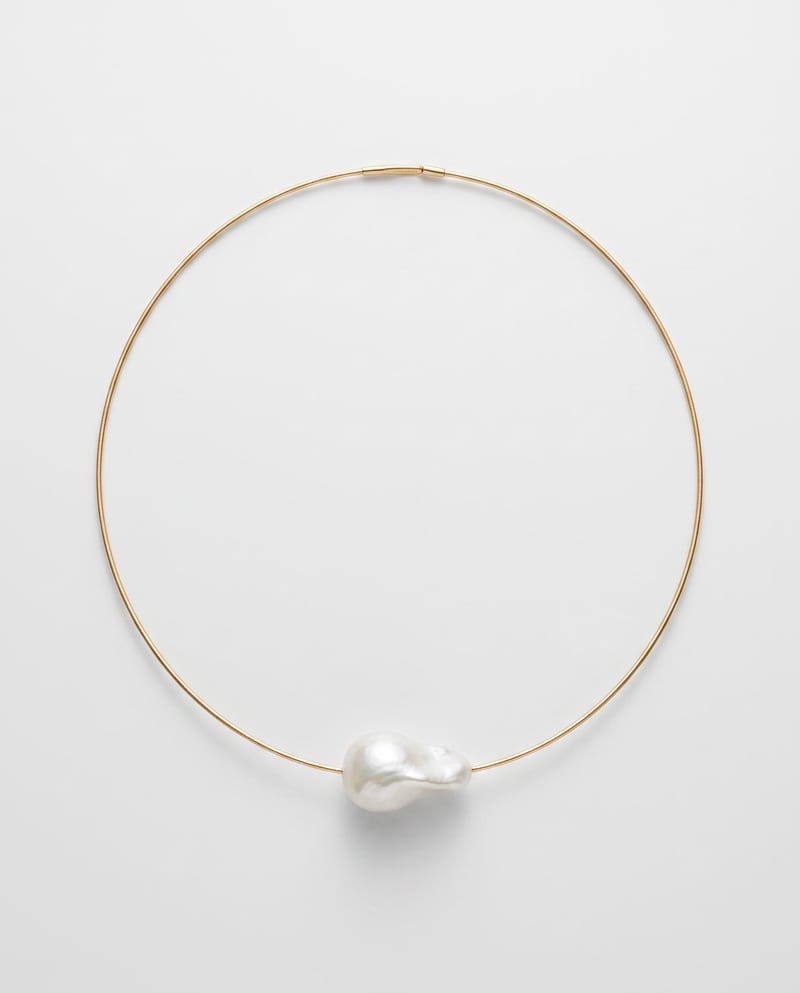
Upload one necklace image to create polished studio, detail, and on-neck product images while preserving its existing design and appearance.