Recipev4
Retro Logo Generator
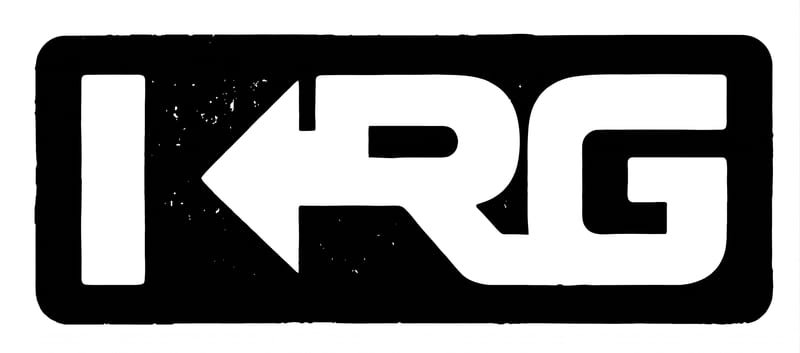
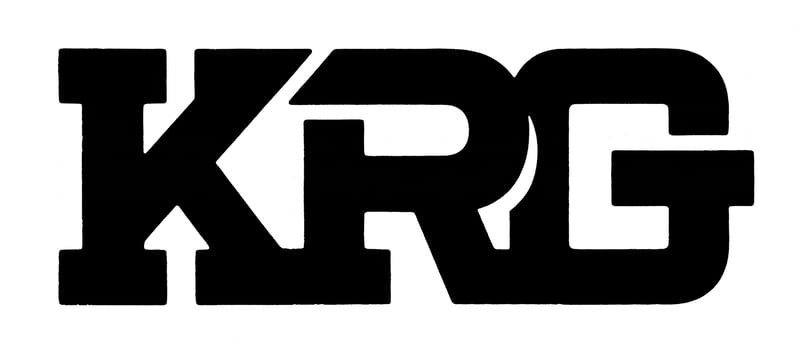
Generated Image 3
One click, whole workflow
Recipes are here. Package a whole workflow and run it in one click
Explore recipesRetro Logo Design
Turn editable text into black-and-white retro logo images for early branding concepts and lettering exploration.
Generated Image 3
A recipe turns a reusable workflow into a simple set of inputs and outputs. Start with a community recipe and make it your own in Fuser.
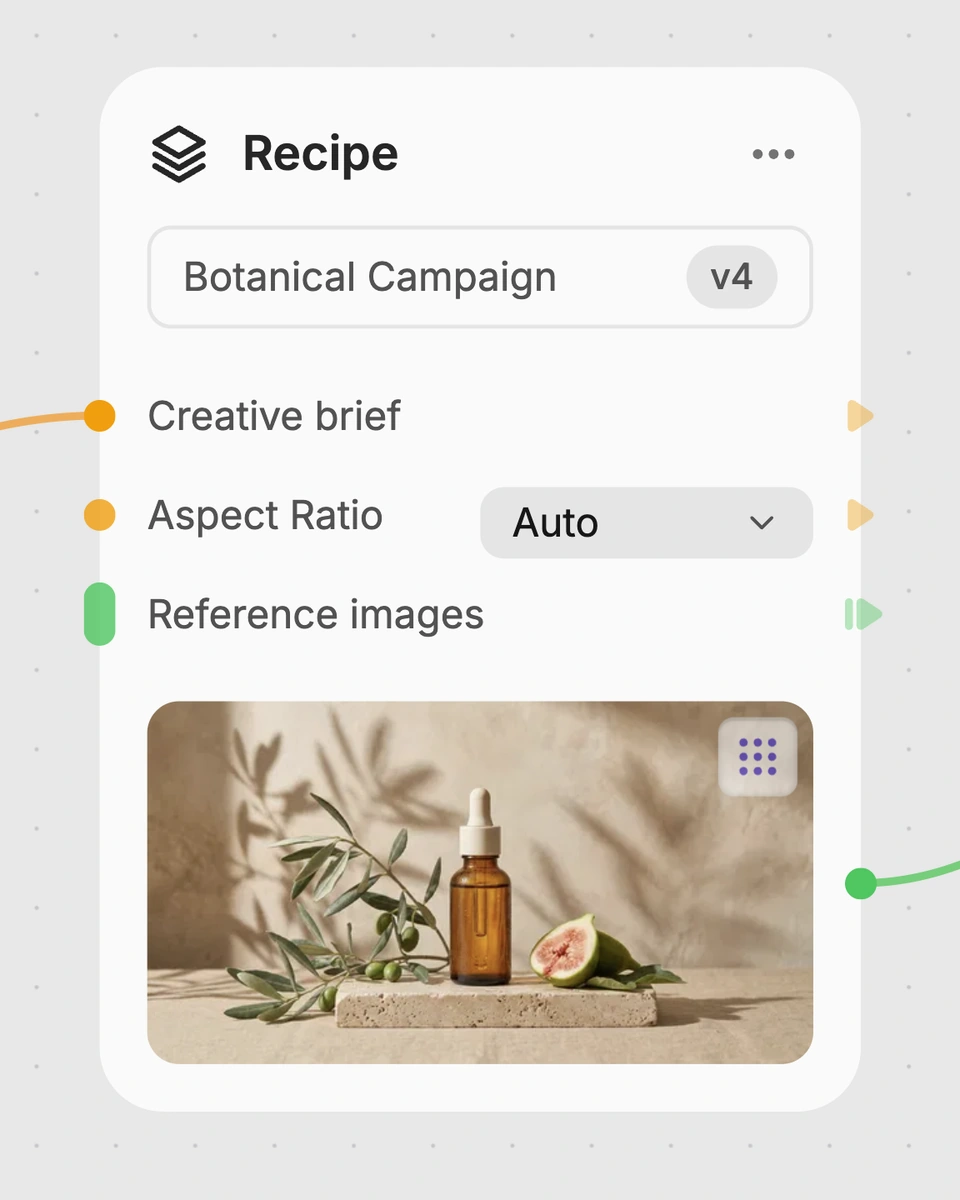
1. Choose a recipe
Find a workflow for the result you want. Review what it does and how to use it before opening it in Fuser.
2. Make it your own
Check the recipe’s available inputs. Add your own text or media where supported, or start with the saved defaults.
3. Run and refine
Run it in Fuser and review the result on your canvas. Tweak the inputs to try another direction.
Use text-based logo images to explore early identity directions, lettering treatments, and presentation ideas.
It turns text into black-and-white retro logo images. The saved example uses “KRG” as its text input and produces two generated image outputs.
It is intended for people exploring early branding and identity directions, including designers, founders, and teams working with names or initials. The results are best treated as starting points for lettering and logo discussions.
Enter the word, name, abbreviation, or initials you want represented in the logo. The saved example uses the short text “KRG,” but you can replace it with your own text in Fuser.
Yes. Text is the recipe’s exposed editable input, so you can change it in Fuser before using the recipe. No other editable inputs are listed for this recipe.
It demonstrates the input-to-output path using “KRG”: the entered text is connected to two generated image outputs. A new run uses the text you enter rather than changing the saved example itself.
They can support early identity exploration, stamp-style branding studies, monogram ideas, lettering comparisons, and moodboards. They are useful for discussing directions before developing a final brand system.
The recipe exposes only a Text input, so the listed customization is changing the text. Color, layout, and other design controls are not provided as editable inputs here.
Replace the saved text with a name, abbreviation, or initials to explore a black-and-white retro logo direction in Fuser.
Explore a brand’s visual identity, refine typography and build real applications. Combine AI imagery with editable design and reusable workflows in Fuser.
Develop pitches, campaign assets and interactive client work in Fuser. Combine AI generation, editable design and reusable processes across your agency.
Build working product demos, launch pages and brand visuals in Fuser. Help a small startup team turn the next idea into something people can try.
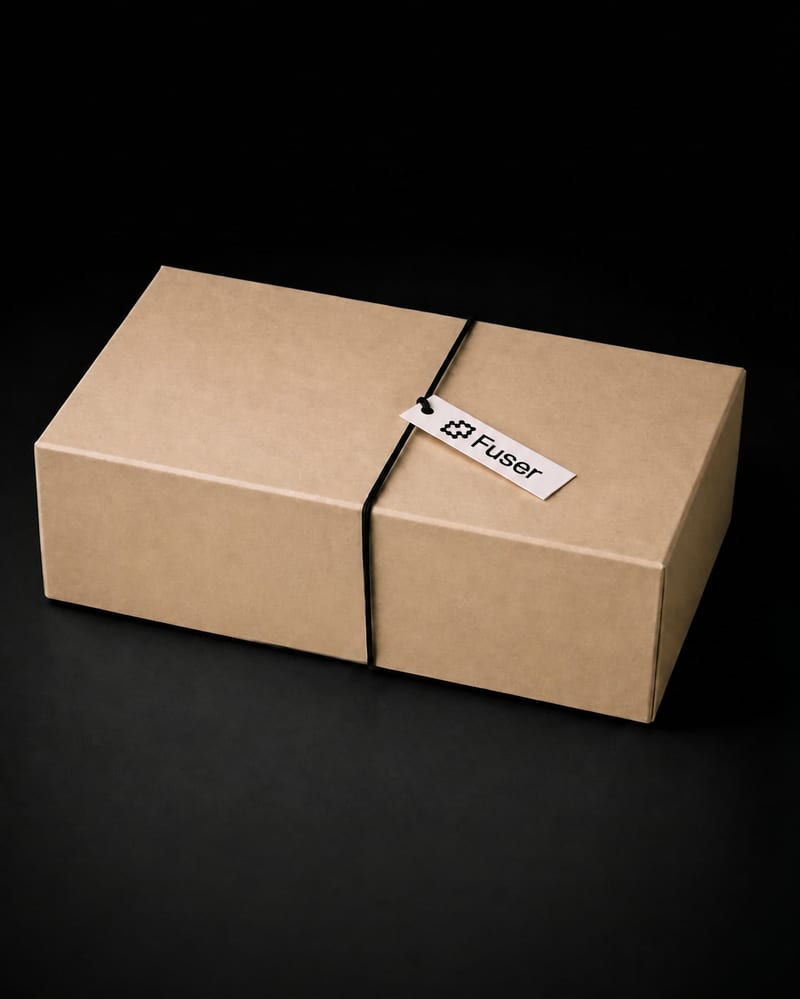
Upload a brand logo to create label, sticker, tag, and tape images for packaging presentations.
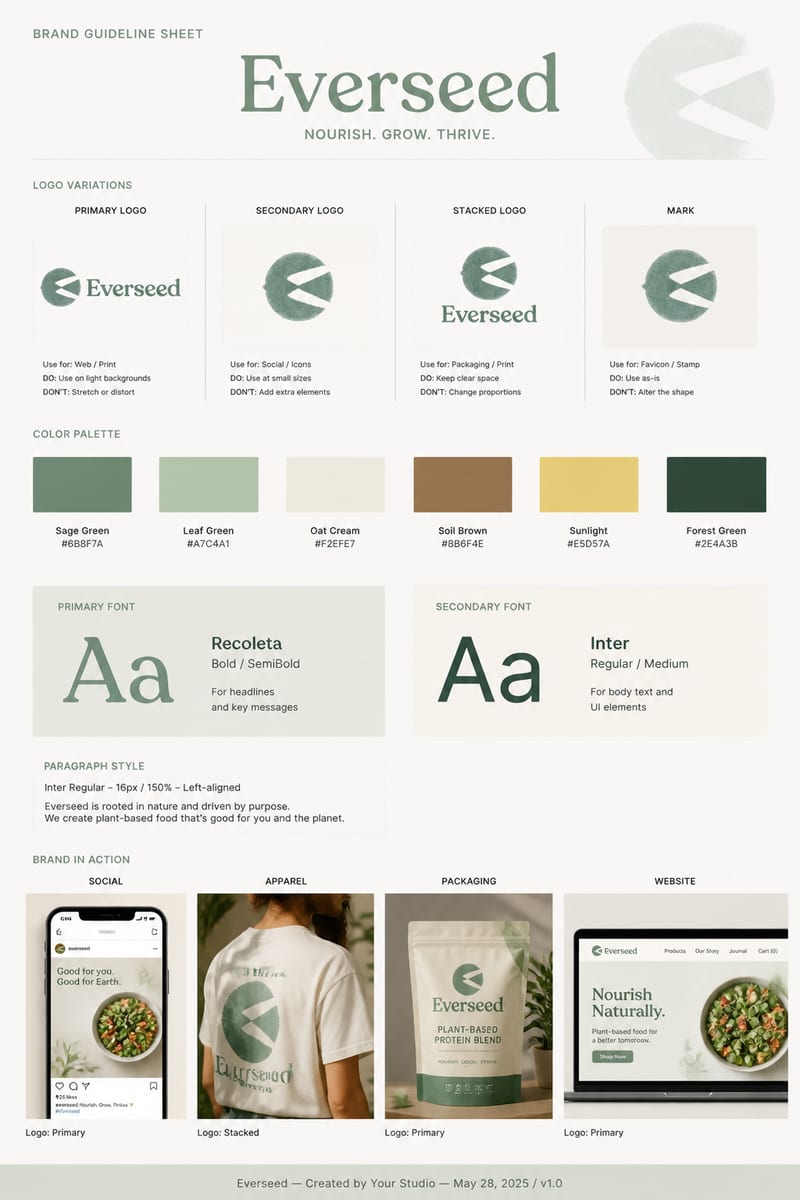
Create a brand guideline sheet from your logo, brand name, and concept for a sustainable lifestyle or plant-based food identity.
Place one UI design image into phone, tablet, and desktop mockups for realistic product presentation previews.