Recipev4
Billboard Mockup
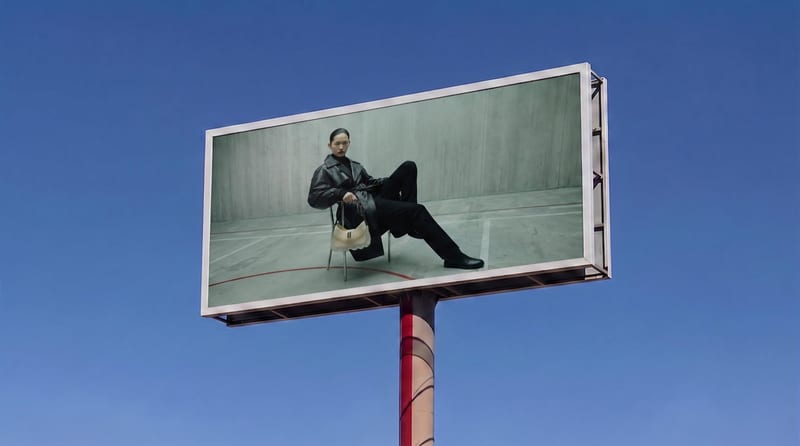
Billboard Visualization
One click, whole workflow
Recipes are here. Package a whole workflow and run it in one click
Explore recipesBillboard Advertising
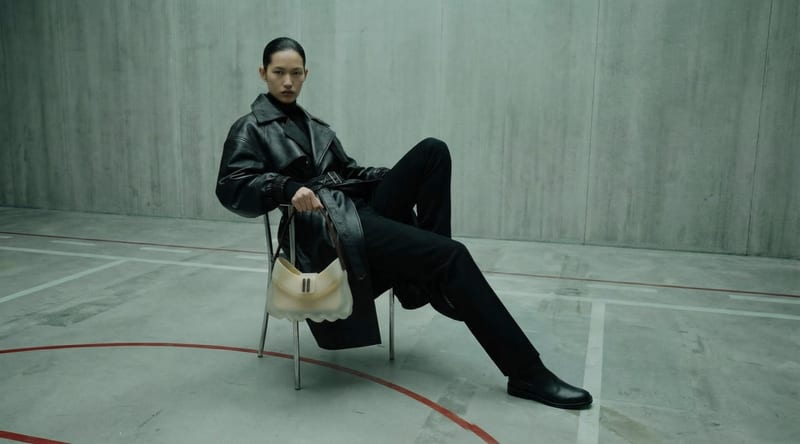
Place a source image onto a billboard screen for a realistic visualization with perspective, lighting, reflections, and scene integration.
Billboard Visualization
A recipe turns a reusable workflow into a simple set of inputs and outputs. Start with a community recipe and make it your own in Fuser.
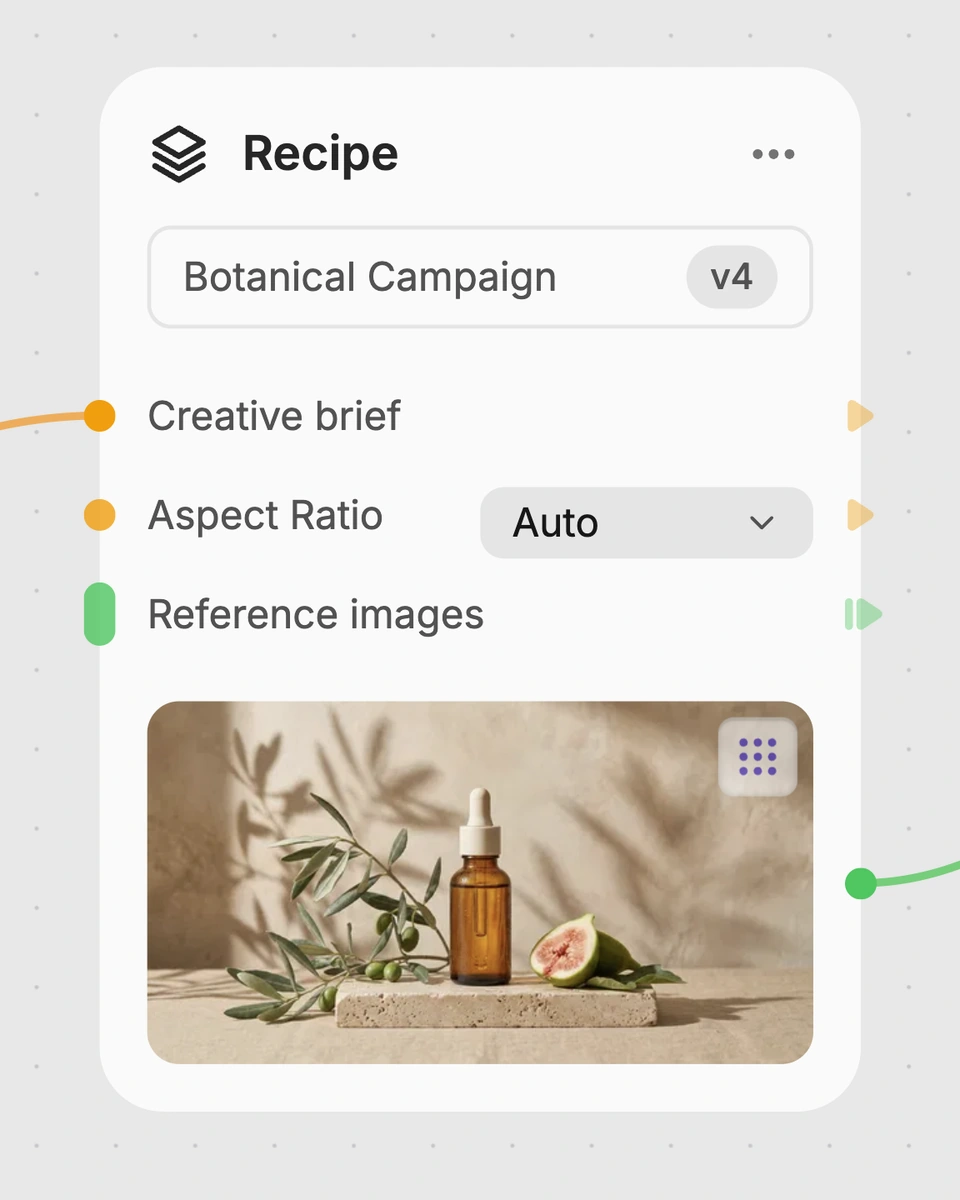
1. Choose a recipe
Find a workflow for the result you want. Review what it does and how to use it before opening it in Fuser.
2. Make it your own
Check the recipe’s available inputs. Add your own text or media where supported, or start with the saved defaults.
3. Run and refine
Run it in Fuser and review the result on your canvas. Tweak the inputs to try another direction.
Use a billboard visualization to review and present advertising concepts in a recognizable display setting.
It places a source image onto a billboard screen and returns a billboard visualization. The recipe is intended for presenting advertising or other visual concepts in an integrated billboard scene.
Marketing teams, advertisers, designers, and presenters can use it to show how an image may appear on a billboard. It is also relevant to architecture and spaces work involving billboard placement or scene presentation.
Prepare one image as the Source Image. This can be the artwork or visual you want placed on the billboard screen; the recipe returns it as a Billboard Visualization image.
Yes. Source Image is an exposed editable input, so you can change it in Fuser when using the recipe. Each new source image is used to create a new billboard visualization.
The saved example shows the recipe’s connected Source Image input and Billboard Visualization output. It demonstrates the intended input-to-output structure, rather than representing a live generation on this page.
The recipe is designed to integrate the source image into the billboard scene with realistic perspective, lighting, reflections, and seamless scene integration. The result is an image showing the source artwork as a billboard visualization.
The output can support advertising concept reviews, client presentations, campaign presentation materials, and portfolio mockups. It helps communicate how a source image could appear on a billboard screen.
Bring a source image into a billboard scene and present it as an integrated visualization in Fuser.
Create product images, lifestyle scenes and campaign assets for your next ecommerce launch. Keep branding editable and reuse creative setups in Fuser.
Explore interior moods, material palettes and architectural concepts. Turn room references and sketches into clear client presentation boards in Fuser.
Develop pitches, campaign assets and interactive client work in Fuser. Combine AI generation, editable design and reusable processes across your agency.
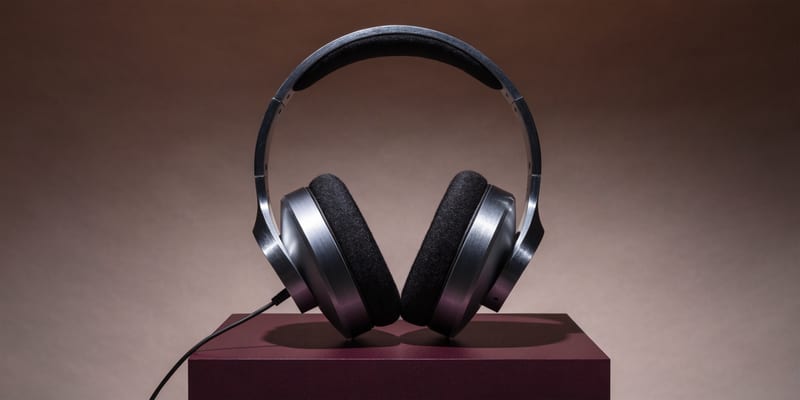
Develop campaign concepts, image and video ads, and editable channel layouts. Create meaningful creative variations in Fuser without rebuilding every asset.
Create studio-style product images, lifestyle scenes and motion studies. Combine reference-led generation with precise, editable composition in Fuser.

Add front and back label designs plus a wine description to create bottle mockups in four presentation views.
Combine a bottle image, logo, drink type, and duration to create branded bottle visuals and a pouring product video.
Use a style reference and custom poster copy to create an original poster design with headline, subtitle, and details.