Recipev2
Jewelry Photography (Earrings)
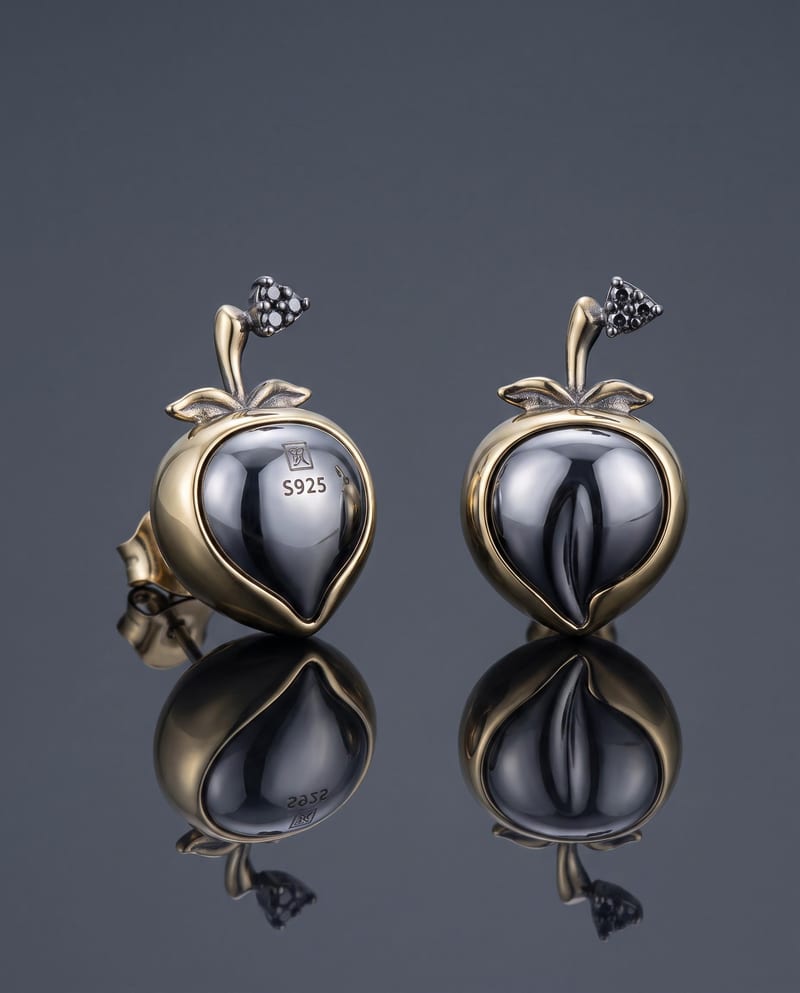
Studio Shot
One click, whole workflow
Recipes are here. Package a whole workflow and run it in one click
Explore recipesEarring photography
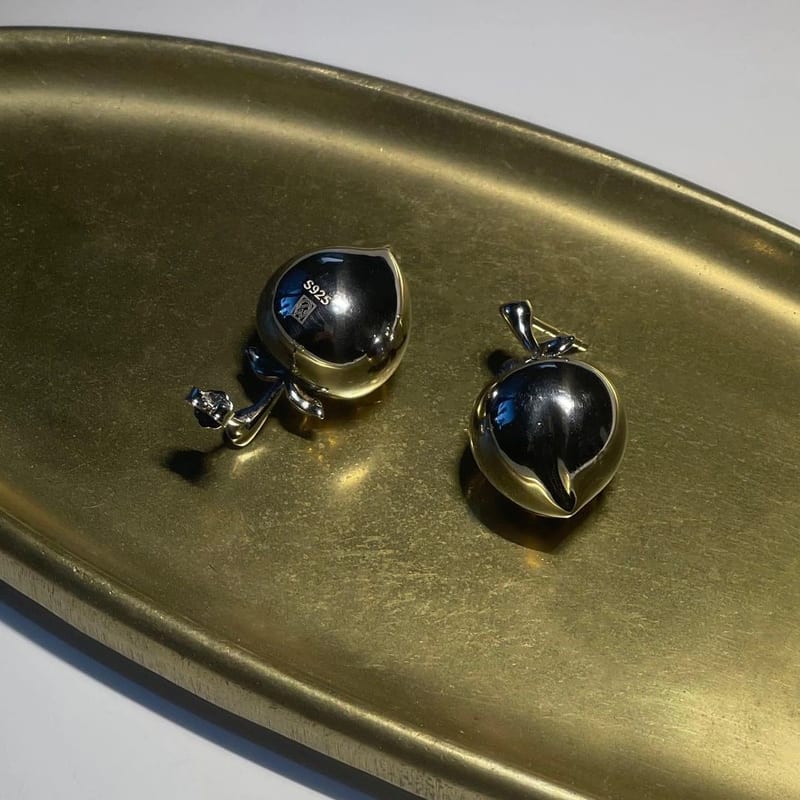
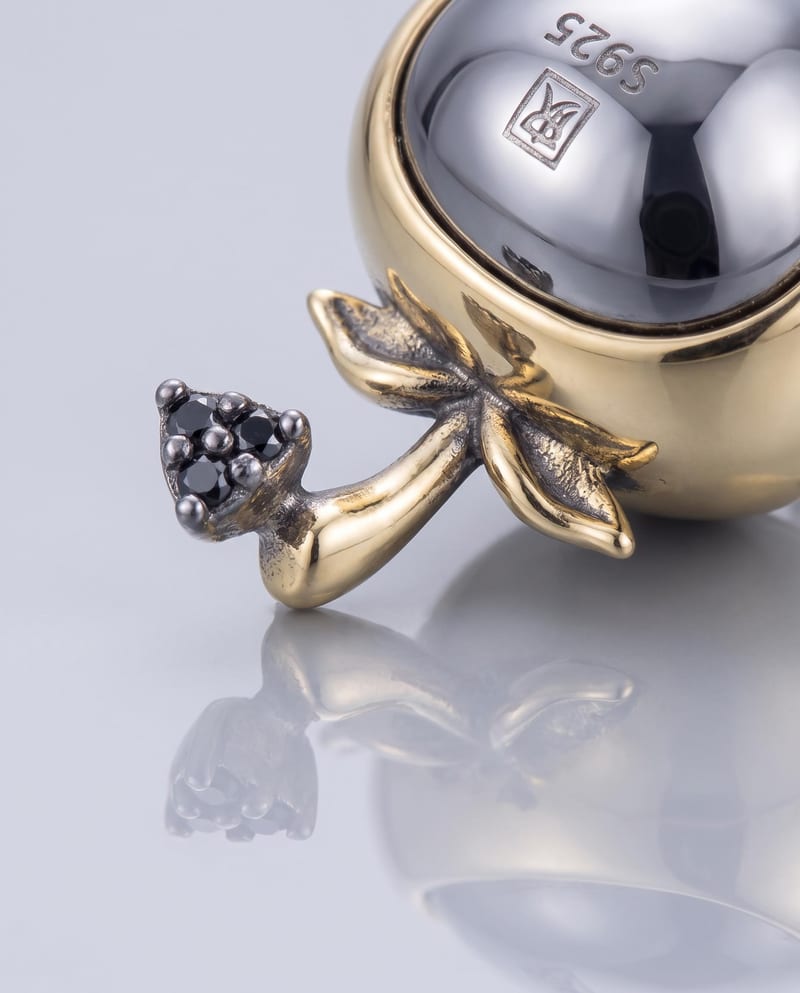
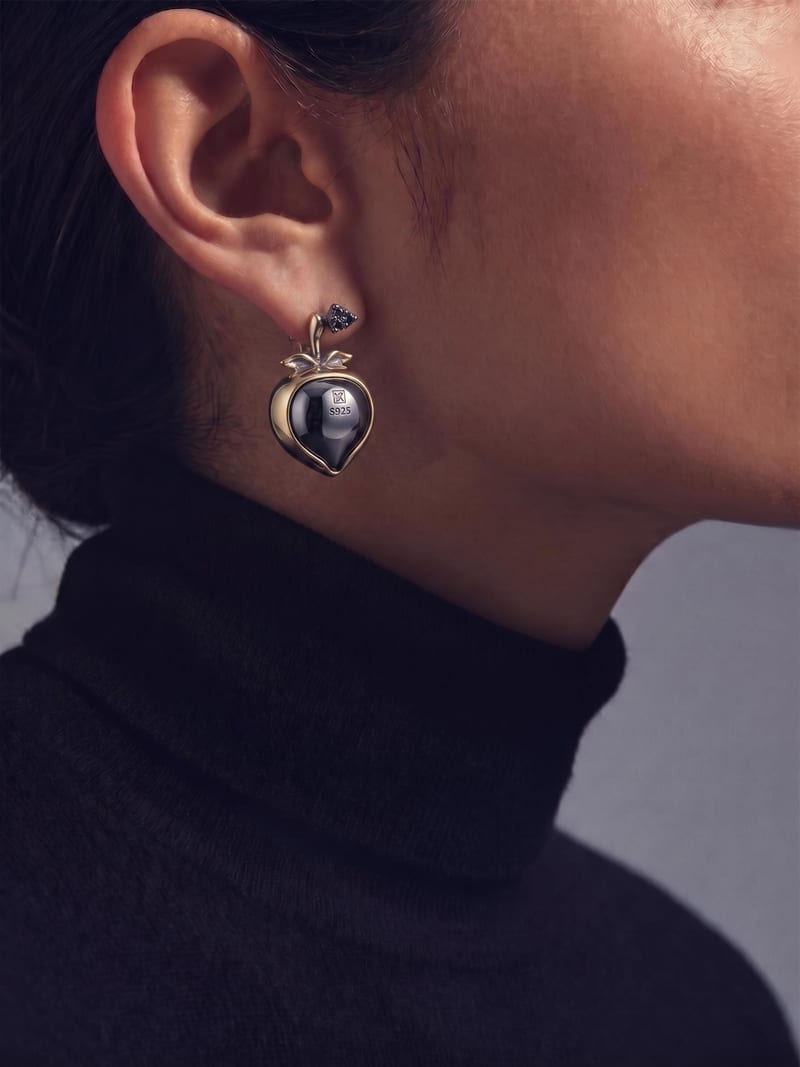
Upload one earring image to create polished studio, detail, and on-ear product images while keeping the existing design intact.
Studio Shot
A recipe turns a reusable workflow into a simple set of inputs and outputs. Start with a community recipe and make it your own in Fuser.
1. Choose a recipe
Find a workflow for the result you want. Review what it does and how to use it before opening it in Fuser.
2. Make it your own
Check the recipe’s available inputs. Add your own text or media where supported, or start with the saved defaults.
3. Run and refine
Run it in Fuser and review the result on your canvas. Tweak the inputs to try another direction.
Use the three generated image types to present the same earrings across product, merchandising, and marketing contexts.
It takes one image of the earrings and generates three product images: a Studio Shot, a Detail Shot, and an On-Ear Shot. The recipe is intended to preserve the earrings’ existing design, appearance, and details while creating a more polished product image set.
It is useful for jewelry brands, retailers, merchandisers, and marketers who need several product-image views from a single earring image. The three outputs support product listings, presentations, and marketing materials without changing the named subject.
Prepare one image of the earrings and add it as the Source Image. The saved example is a default connection from that single image input to the three named image outputs; a new run uses the source image you provide.
The recipe provides three image outputs: Studio Shot, Detail Shot, and On-Ear Shot. Together, they represent polished product presentation, closer design detail, and a worn earring view.
Yes. Source Image is the exposed editable input, so you can change it in Fuser to use a different earring image. The saved example remains the default example, while a new run uses your selected source image.
The saved example shows one Source Image connected to the Studio Shot, Detail Shot, and On-Ear Shot outputs. It demonstrates the recipe’s intended input-to-output structure rather than serving as a live generation.
The outputs can support ecommerce product pages, jewelry catalogs, retailer presentations, and marketing asset selection. Use the Studio Shot for an overall product view, the Detail Shot for design-focused presentation, and the On-Ear Shot for worn context.
The recipe exposes one editable image input, so visitors can change the source image but cannot separately provide instructions or additional inputs through this recipe. The generated set is limited to the three named image outputs and is intended for the earrings shown in the source image.
Log in to Fuser to use your earring image as the Source Image and generate the recipe’s three product-image outputs.
Develop pitches, campaign assets and interactive client work in Fuser. Combine AI generation, editable design and reusable processes across your agency.
Create product images, lifestyle scenes and campaign assets for your next ecommerce launch. Keep branding editable and reuse creative setups in Fuser.
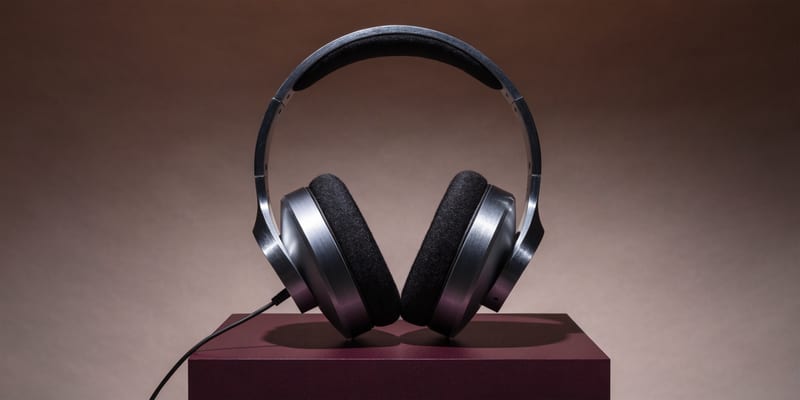
Develop campaign concepts, image and video ads, and editable channel layouts. Create meaningful creative variations in Fuser without rebuilding every asset.
Create studio-style product images, lifestyle scenes and motion studies. Combine reference-led generation with precise, editable composition in Fuser.
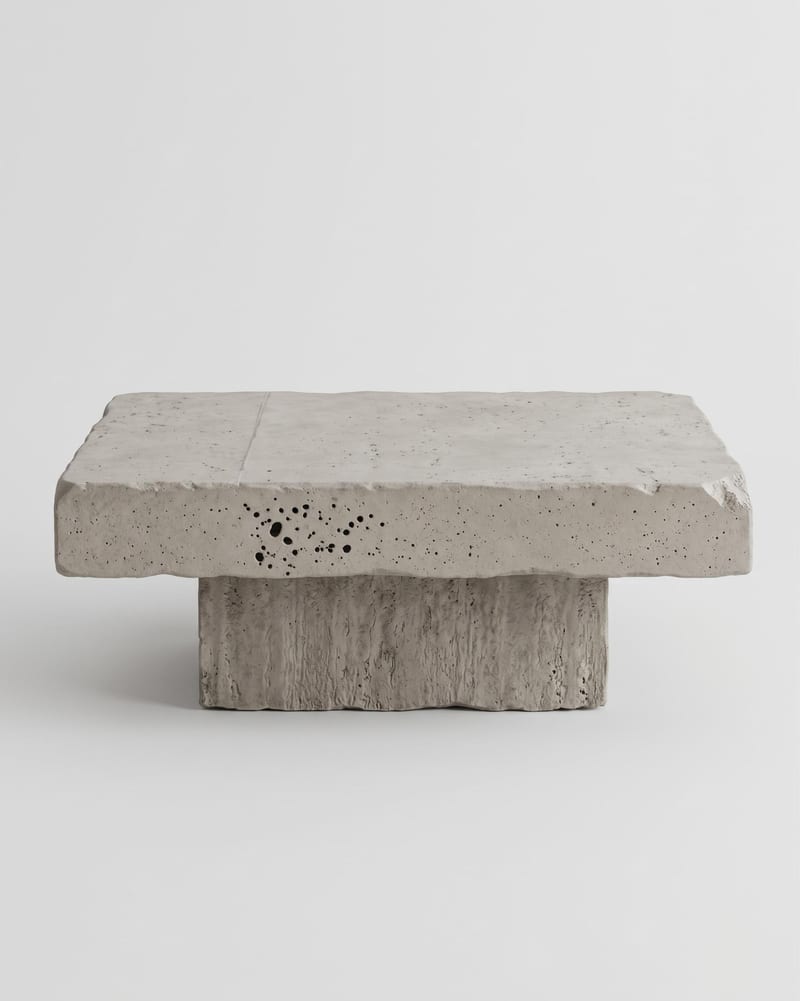
Upload one product or object image to create front, side, back, top, and three-quarter turnaround views.
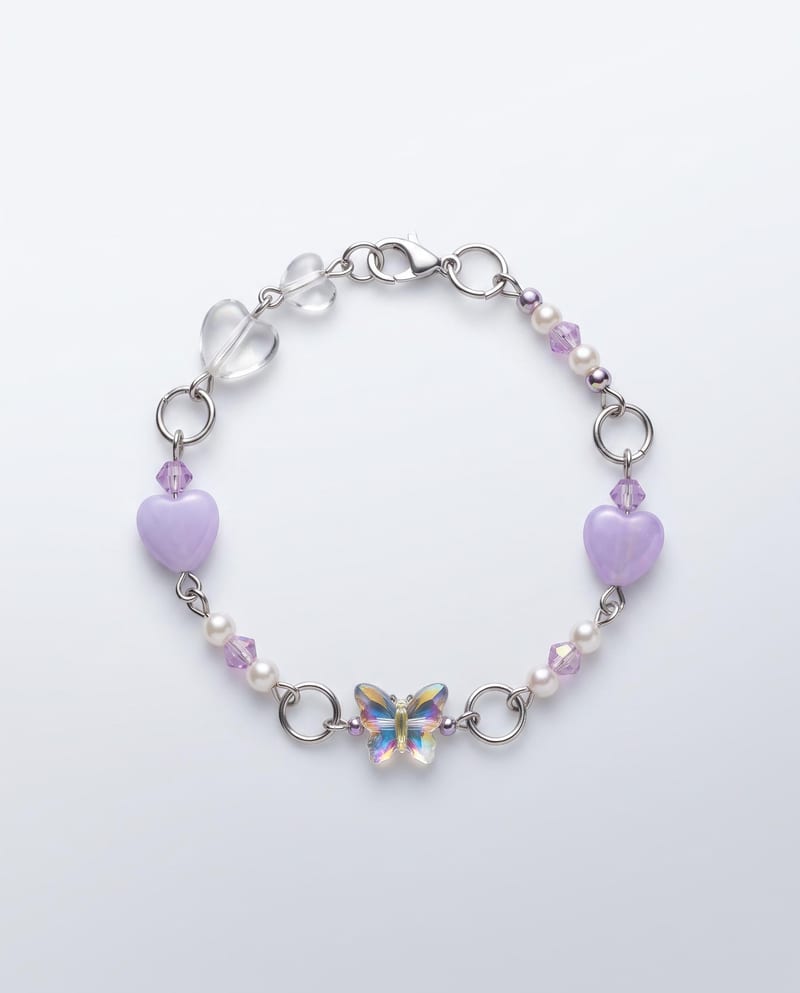
Upload one bracelet image to create ready-to-use product images in studio, detail, and on-hand formats.
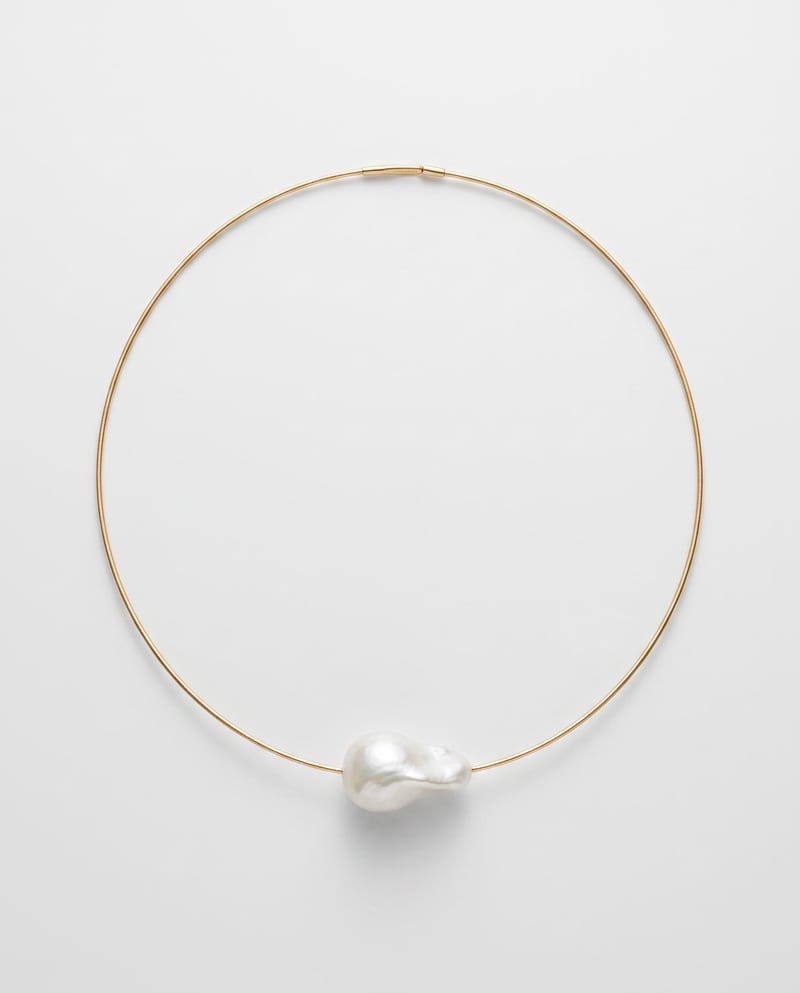
Upload one necklace image to create polished studio, detail, and on-neck product images while preserving its existing design and appearance.