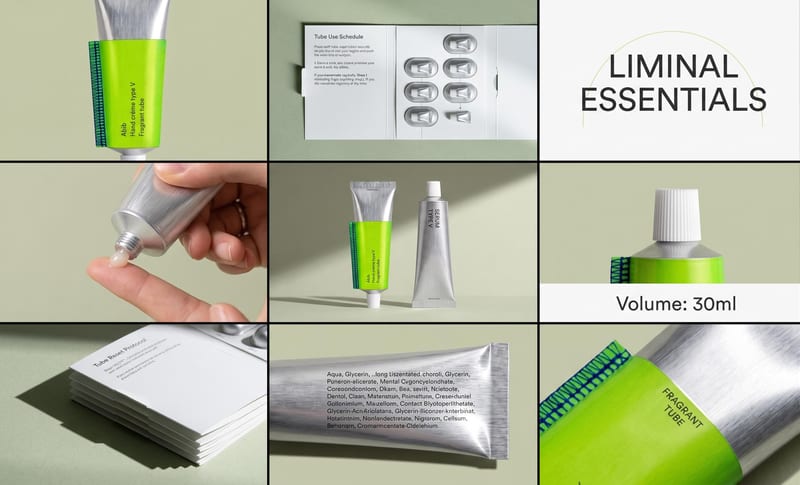
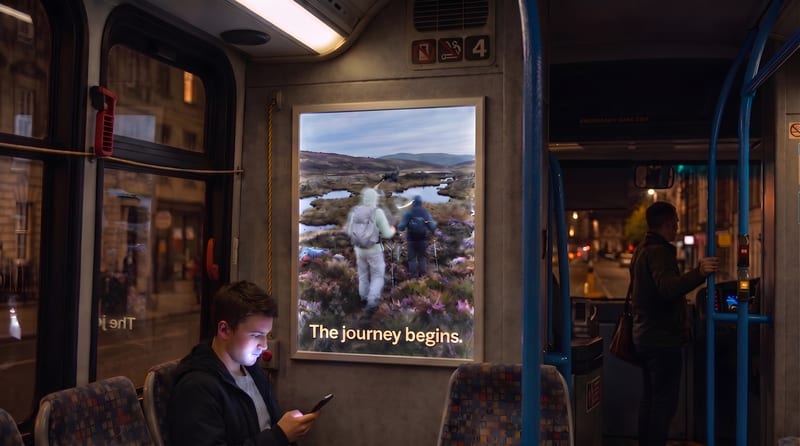
Recipev3
Product E-Commerce Photography
Product Image
One click, whole workflow
Recipes are here. Package a whole workflow and run it in one click
Explore recipesE-commerce product photography
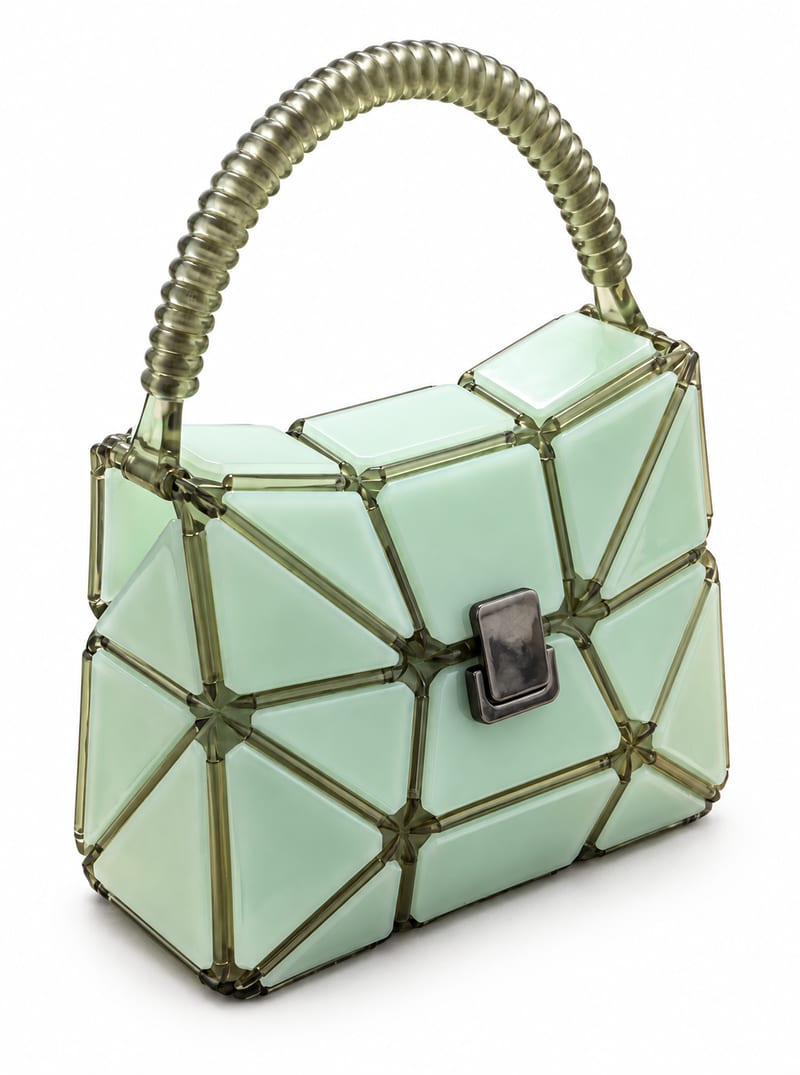
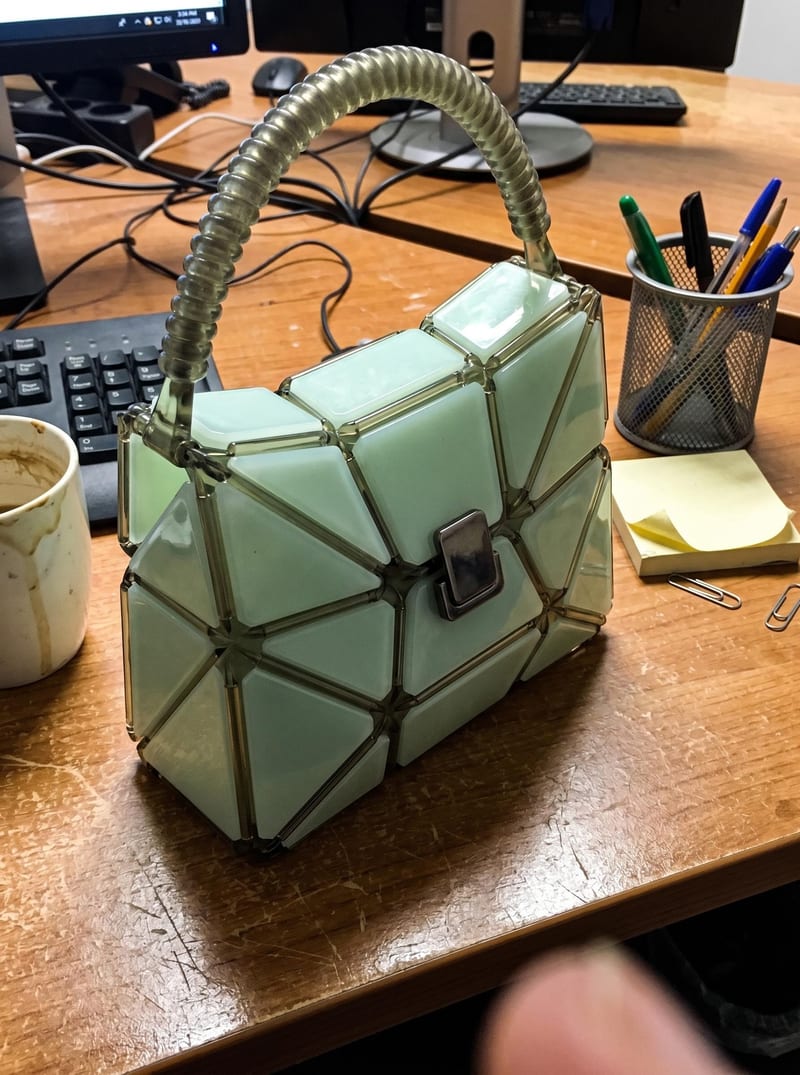
Transform a product image into website-ready front, side, and back product photos with a background color you choose.
Product Image
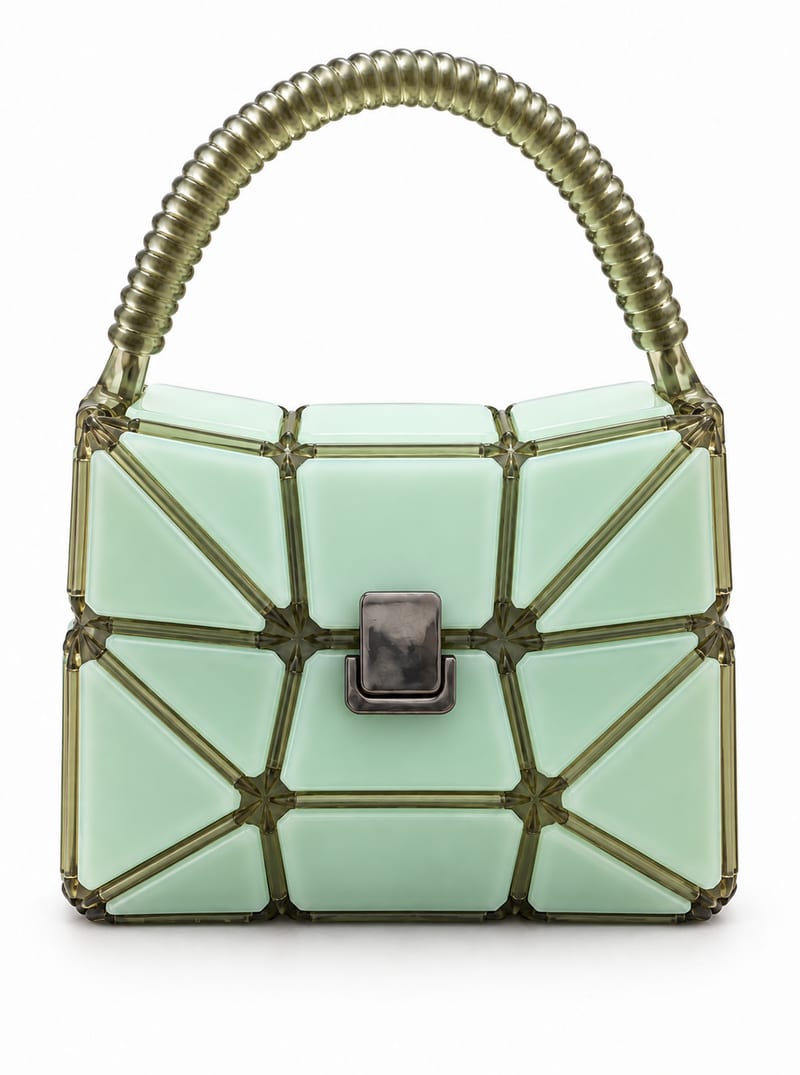
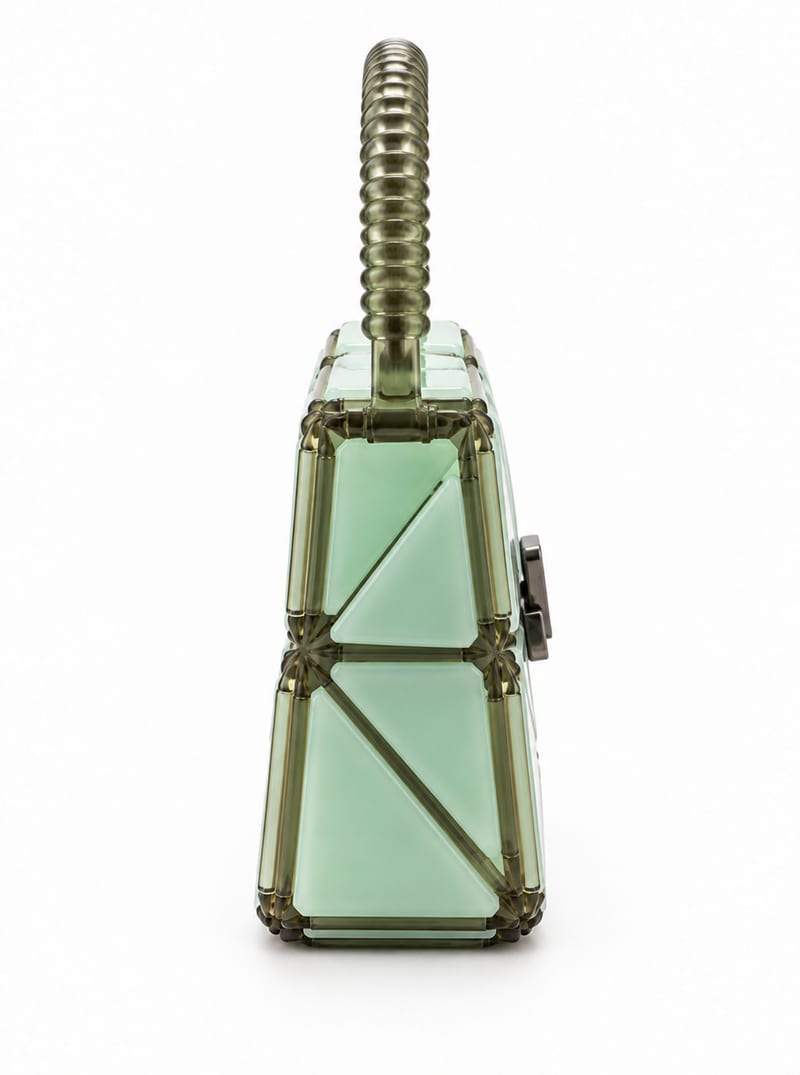
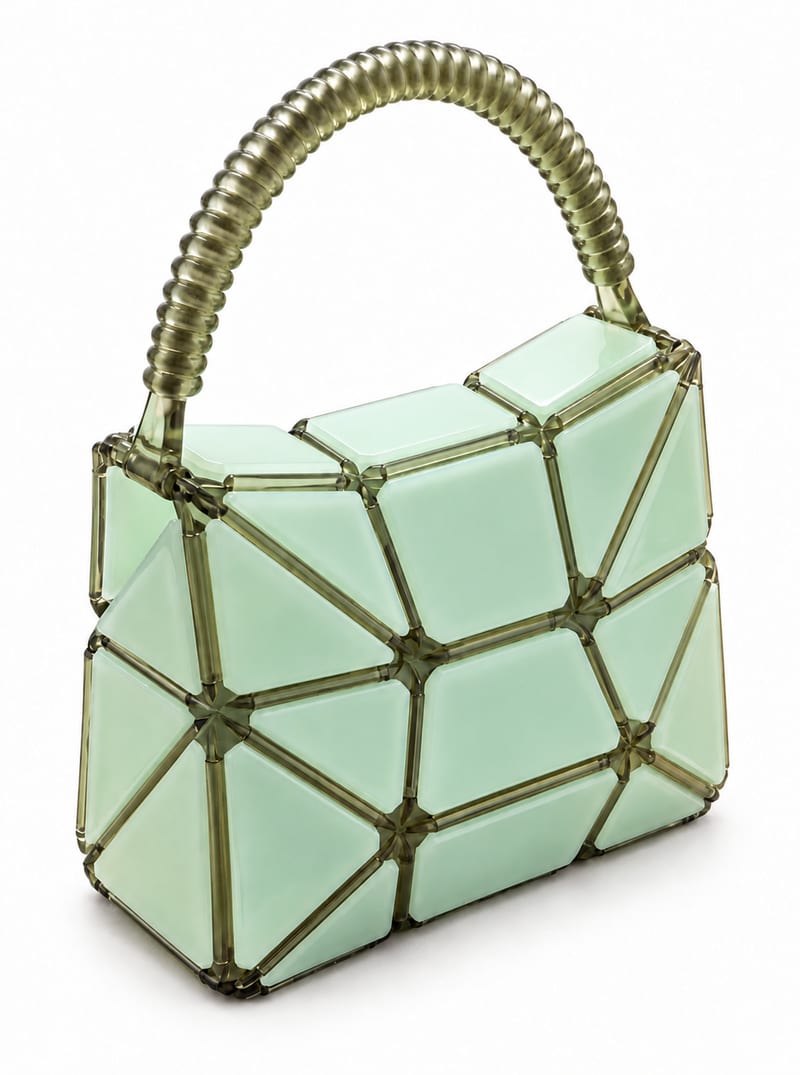
A recipe turns a reusable workflow into a simple set of inputs and outputs. Start with a community recipe and make it your own in Fuser.
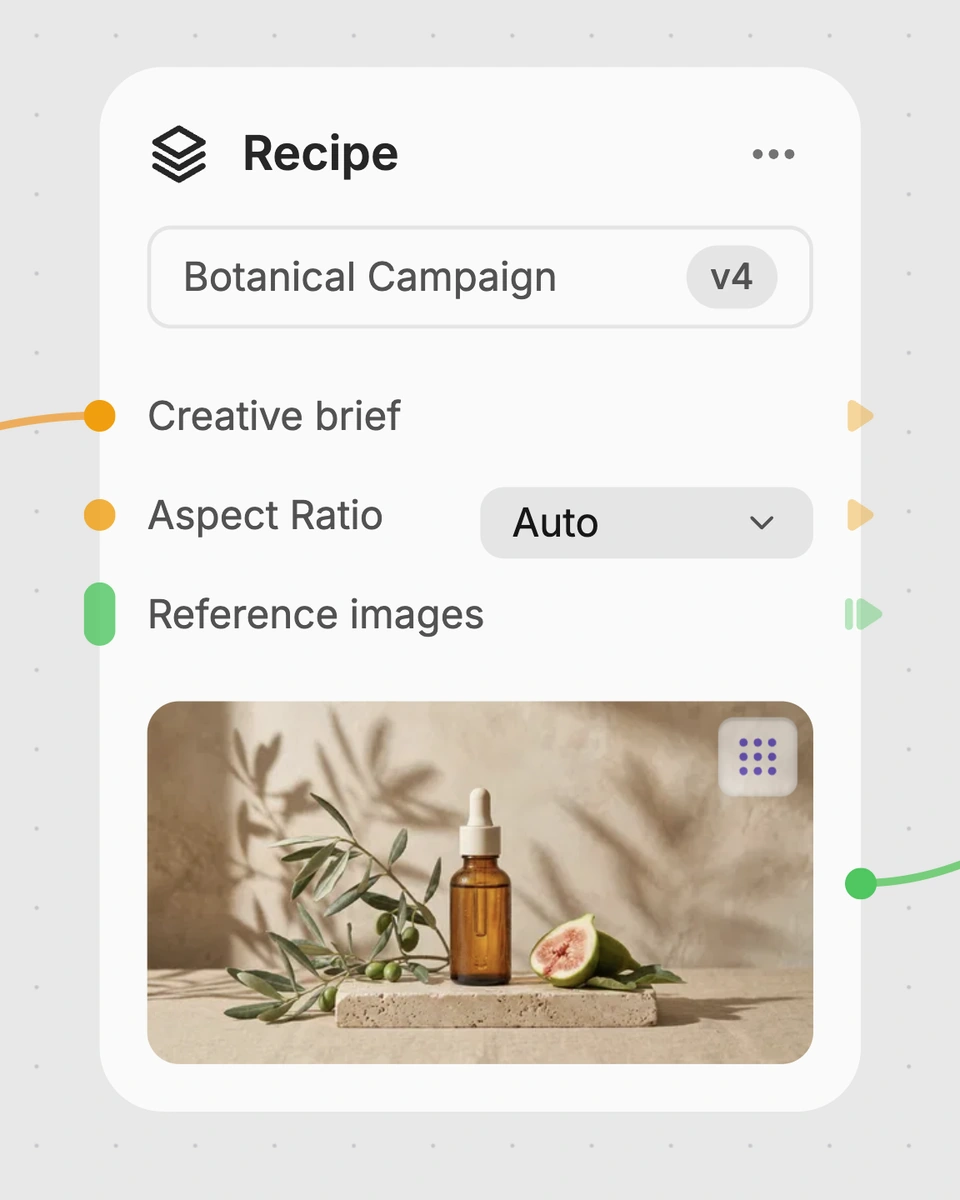
1. Choose a recipe
Find a workflow for the result you want. Review what it does and how to use it before opening it in Fuser.
2. Make it your own
Check the recipe’s available inputs. Add your own text or media where supported, or start with the saved defaults.
3. Run and refine
Run it in Fuser and review the result on your canvas. Tweak the inputs to try another direction.
Use the generated product views across common e-commerce and social content tasks.
It is designed for people preparing product images for e-commerce websites, online catalogs, listings, and social content. It is useful when one product image needs to become a broader set of labeled product views.
You need a product image and a background color. The saved example uses #FFFFFF, and you can change the Background Color text input in Fuser for a different color.
The recipe produces four image outputs labeled Product Image, Product Image Front, Product Image Side, and Product Image Back. The saved example demonstrates these outputs from its connected product image and white background color.
Yes. Background Color is an exposed text input that you can edit in Fuser; the saved default is #FFFFFF. Your chosen value is used in place of that saved default for a new run.
Yes. Product Image is an exposed image input, so you can replace the saved example image with the product image you want to process. The outputs for a new run are then generated from that selected input.
The outputs are suited to website product pages, online catalogs, marketplace listings, and social product content. The front, side, and back labels can help you organize the views when choosing images for each placement.
The exposed inputs are limited to the product image and background color, so those are the controls visitors can change in Fuser. There are no additional listed inputs for changing the output labels, adding elements, or specifying other image treatments.
Log in to Fuser to use your product image and chosen background color with this e-commerce photography recipe.
Develop pitches, campaign assets and interactive client work in Fuser. Combine AI generation, editable design and reusable processes across your agency.
Create social graphics, carousel artwork and short videos with a recognizable brand style. Keep copy editable and recurring content easier to produce in Fuser.
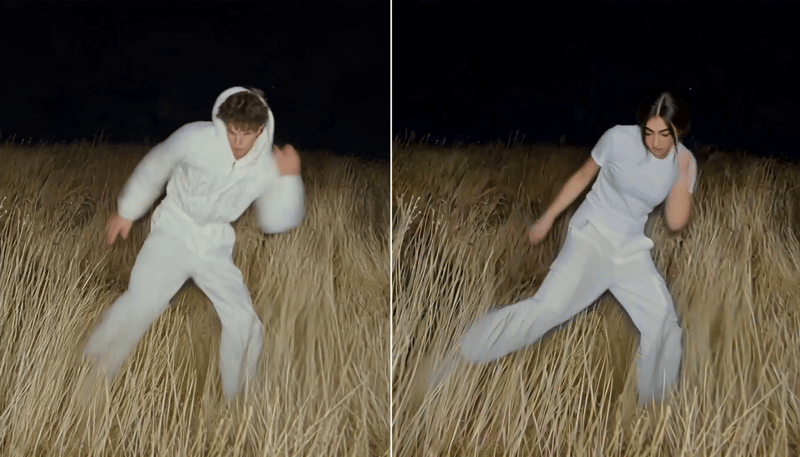
Replace the main character in a video using two character reference images to create a character-swapped video.
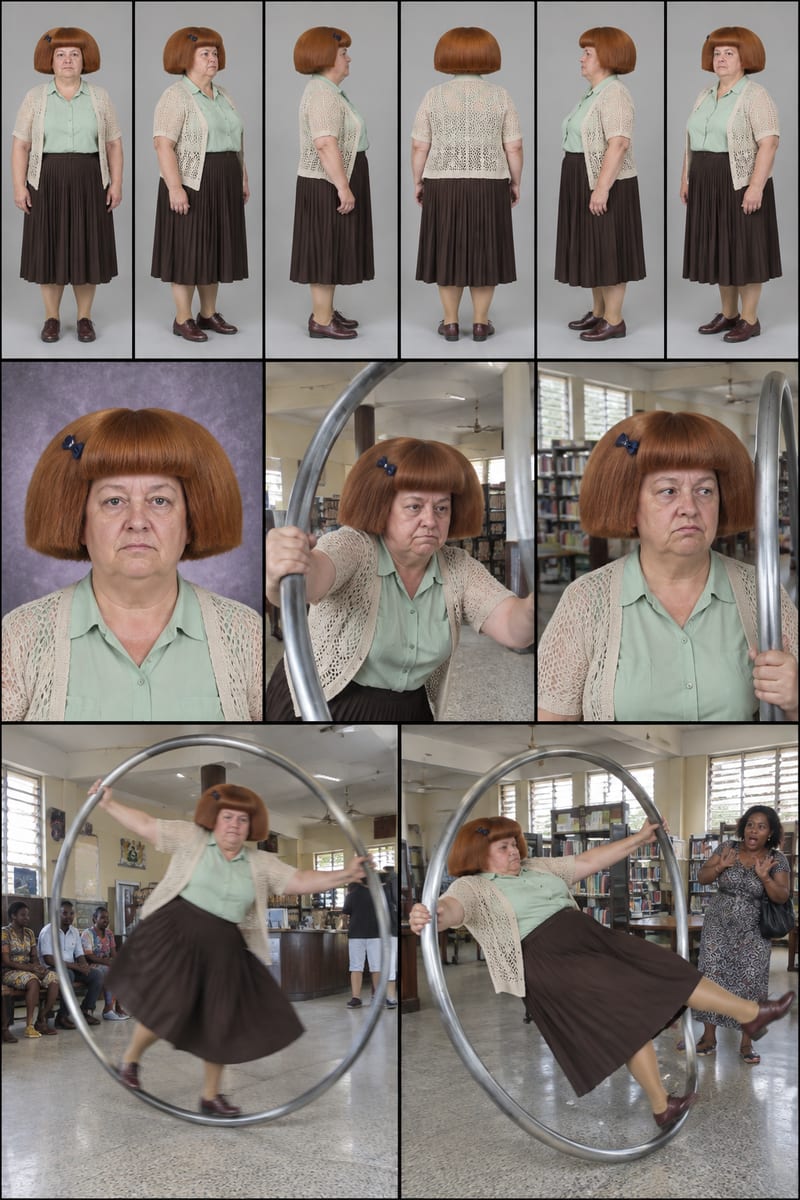
Enter a character idea—or leave SURPRISE ME—to create three character sheets and written profiles for social content.

Use three character reference images to create a video that puts a chosen person into the recipe’s Justin Bieber role.