Image Grid
LiveImages to arrange
Background color
Columns
Padding
Image fit
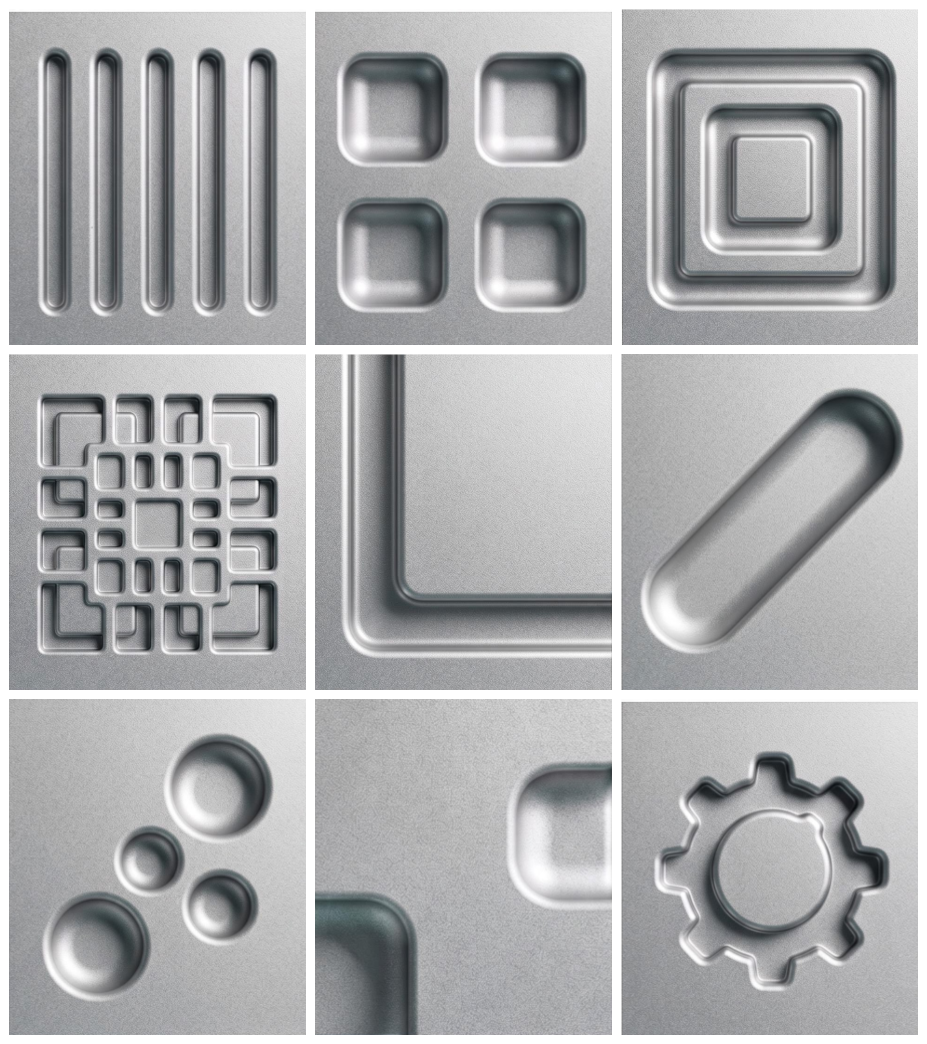
One click, whole workflow
Recipes are here. Package a whole workflow and run it in one click
Explore recipesImage layout
Arrange multiple images into one grid image, with controls for columns, padding, fit, and an optional background color.
Runs in your browser. Your files are never uploaded.
A tool is a small app you describe in plain words. Try this one here, then keep it on your Fuser canvas and connect it to the rest of your work.
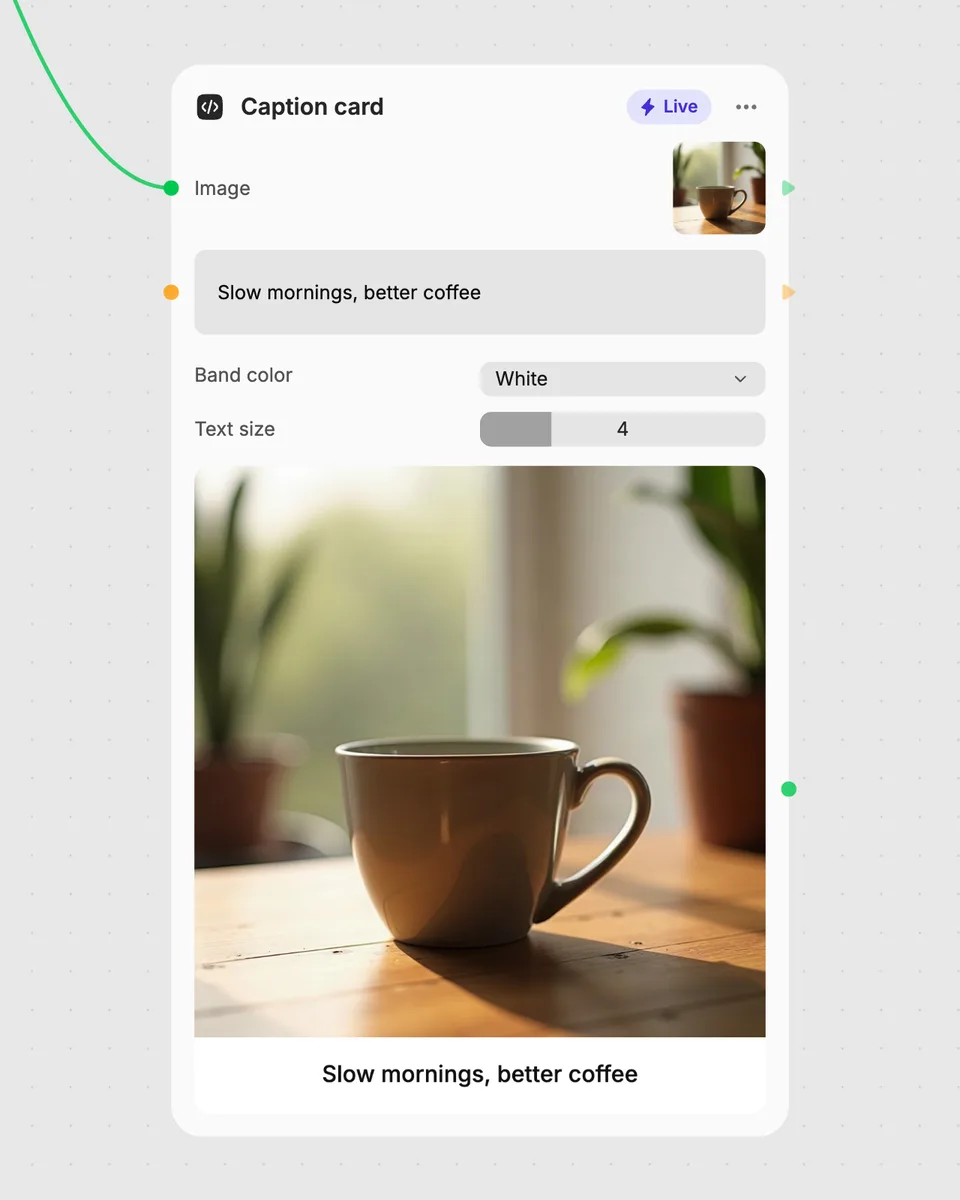
1. Try it here
Add your own file or text and adjust the controls. Live tools run in your browser, so nothing is uploaded.
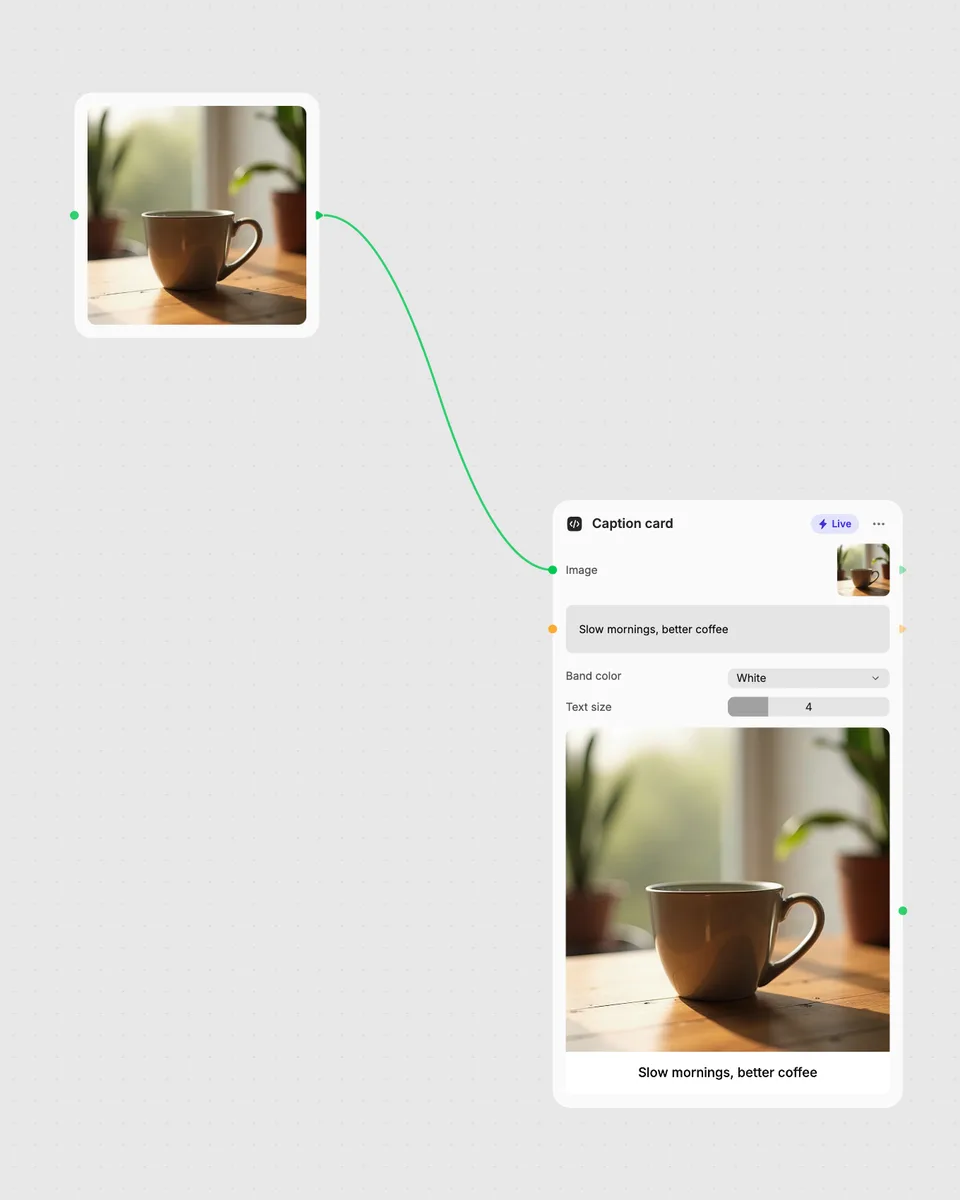
2. Open it in Fuser
Sign up free and the tool opens on your canvas with this example wired in, ready to connect to images, video or text from other nodes.
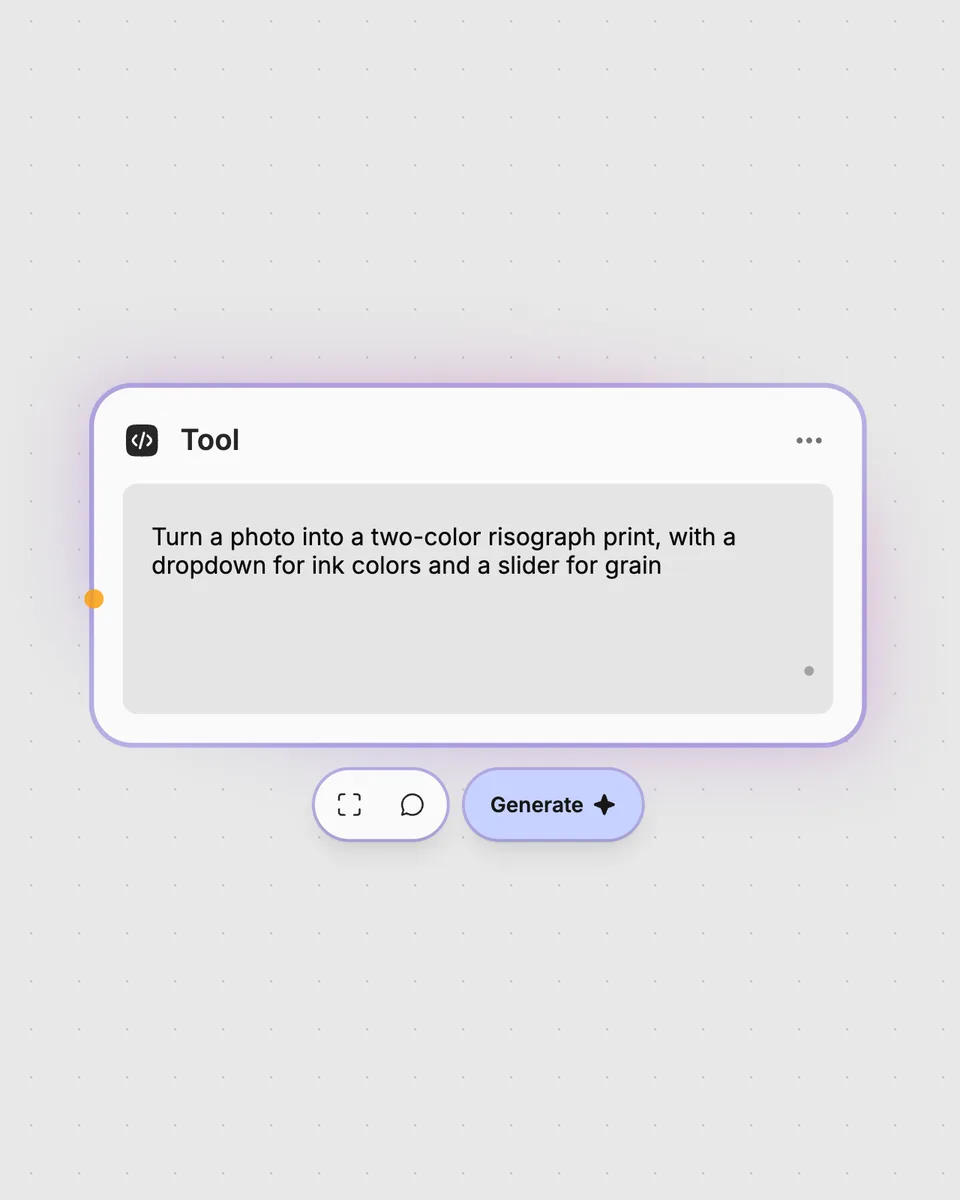
3. Describe your own
Need something different? Describe the tool you want and Fuser builds it, with the controls you asked for.
Turn a set of separate images into a single arranged result for different visual and organizational tasks.
It takes multiple images and arranges them into one grid image. You can choose the number of columns, the padding between images, how images fit, and an optional background color.
Provide the images you want to arrange. You can also enter a background color, but that input is optional.
Columns sets how many columns the grid uses, from 1 to 12. Padding changes the spacing, while Image fit switches between contain and cover.
Yes. This Live tool runs in your browser, and the grid result updates as you move the controls. It is free to try on this page.
No account is needed to try the tool on this page. Downloading more than once or opening it in Fuser asks you to sign up.
Open the tool in Fuser and combine it with other nodes. You can pass image results into the grid, then use its single grid image result in a later step.
Try the live grid, adjust its controls, and combine this image result with other nodes in Fuser.
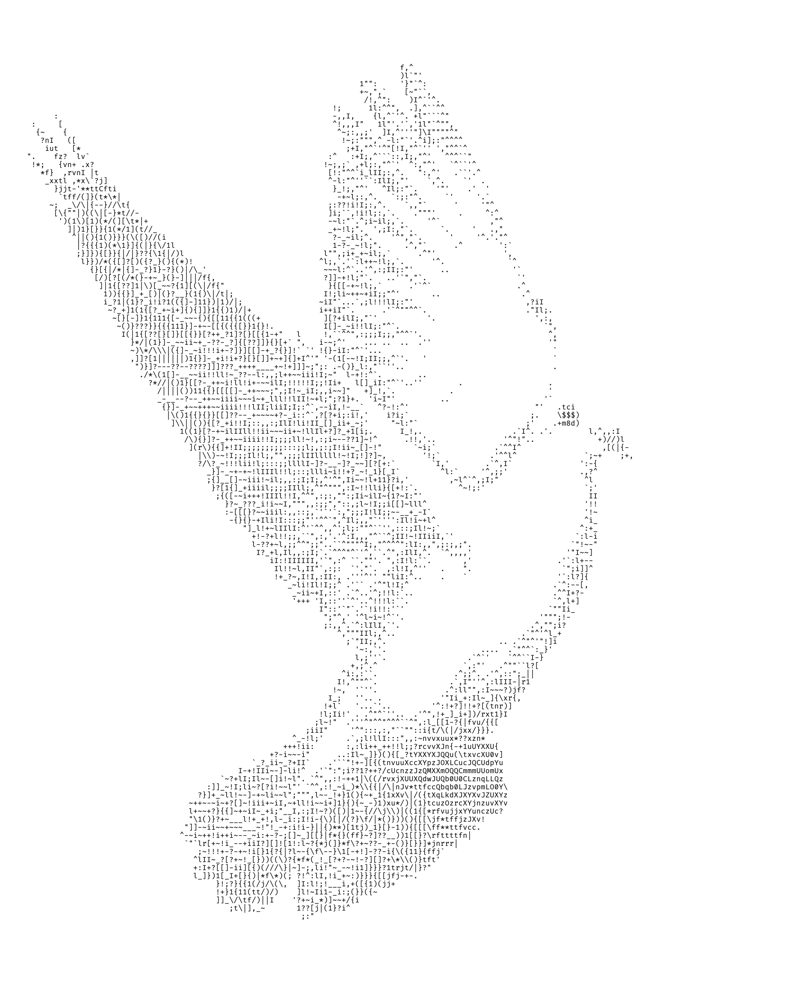
Convert an image into a character-based ASCII image with adjustable width, contrast, and character set controls.
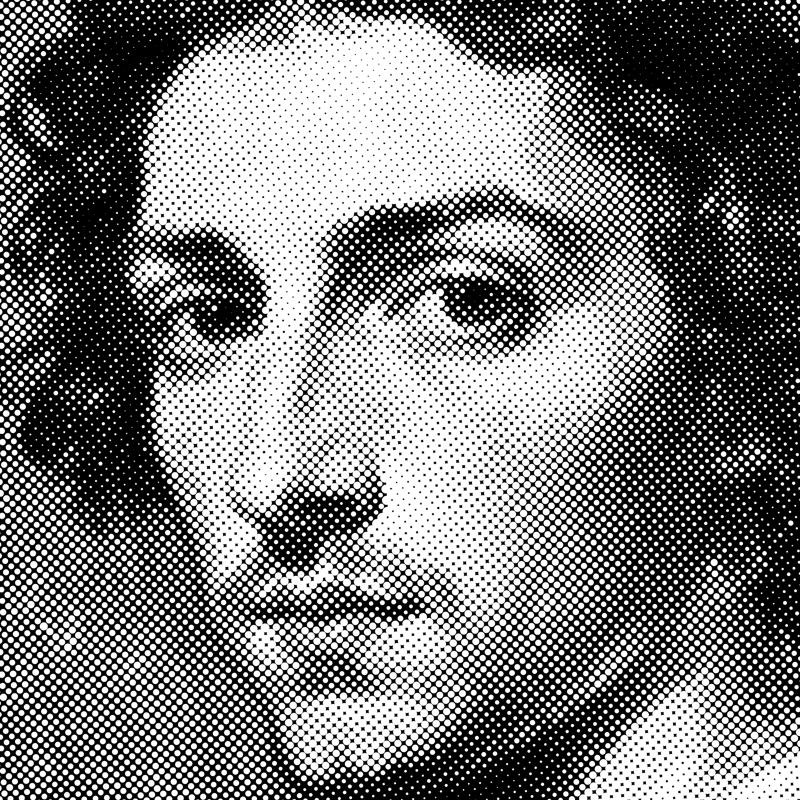
Turn an image into a halftone result with adjustable dot size, angle, color mode, and inversion.
Upload an image and get a colorized rainbow image with adjustable hue, bands, angle, phase, vividness, amount, and mode.