Point cloud Gaussian splat video
LiveVideo
Density
Splat size
Depth
Orbit
Style
Dark background
Seed
One click, whole workflow
Recipes are here. Package a whole workflow and run it in one click
Explore recipesVideo effect
Upload a video to create a point-cloud-inspired video, with controls for density, splat size, depth, orbit, style, background, and seed.
Runs in your browser. Your files are never uploaded.
A tool is a small app you describe in plain words. Try this one here, then keep it on your Fuser canvas and connect it to the rest of your work.
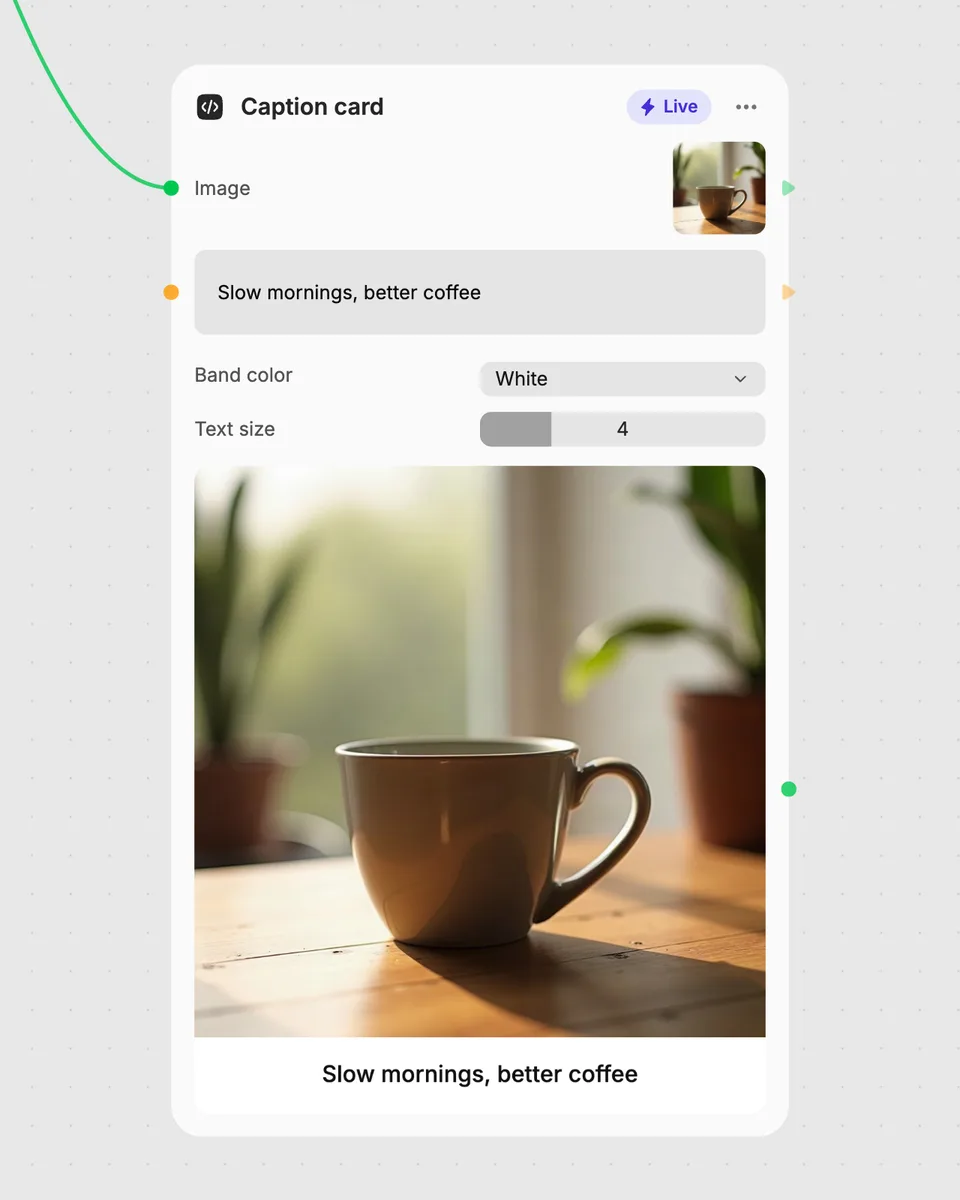
1. Try it here
Add your own file or text and adjust the controls. Live tools run in your browser, so nothing is uploaded.
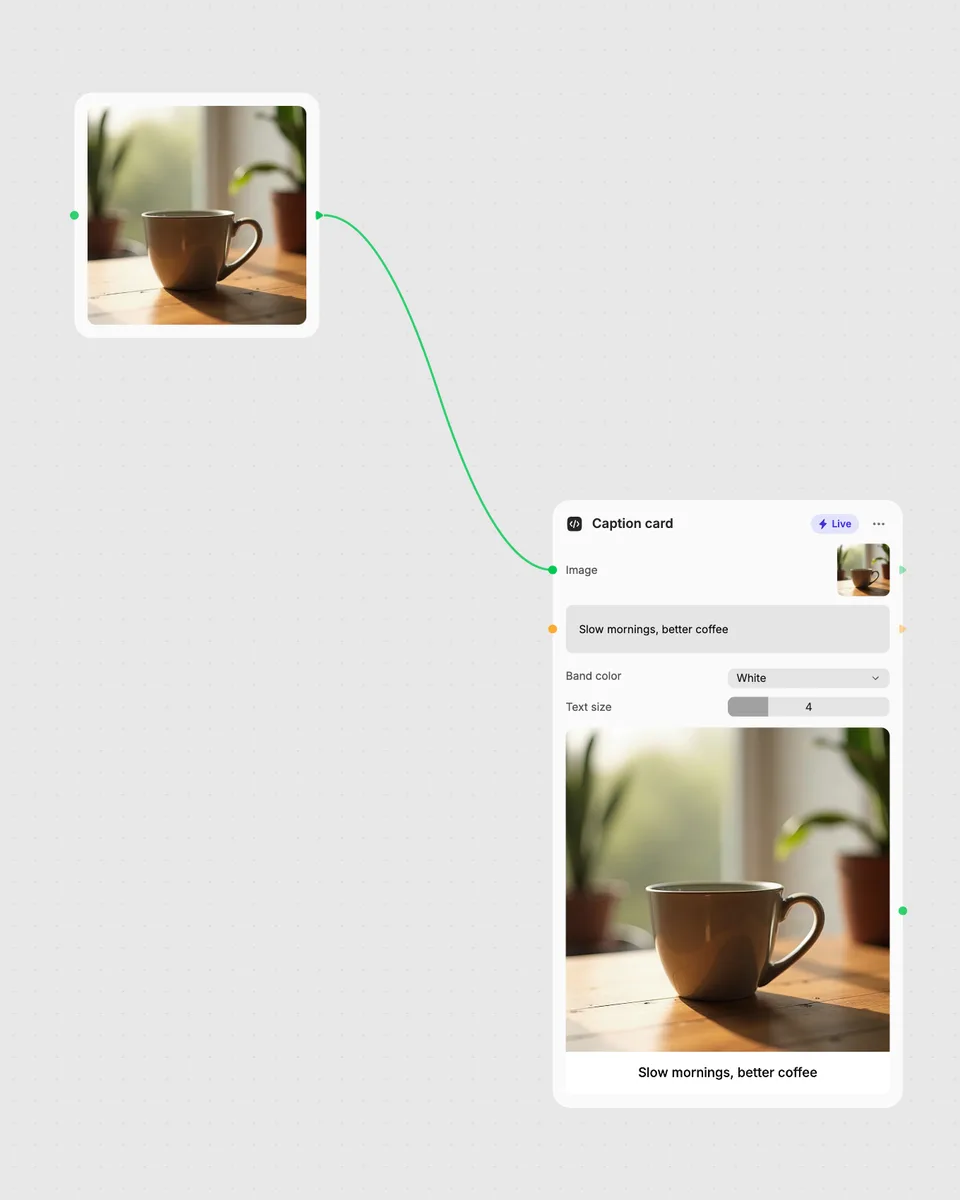
2. Open it in Fuser
Sign up free and the tool opens on your canvas with this example wired in, ready to connect to images, video or text from other nodes.
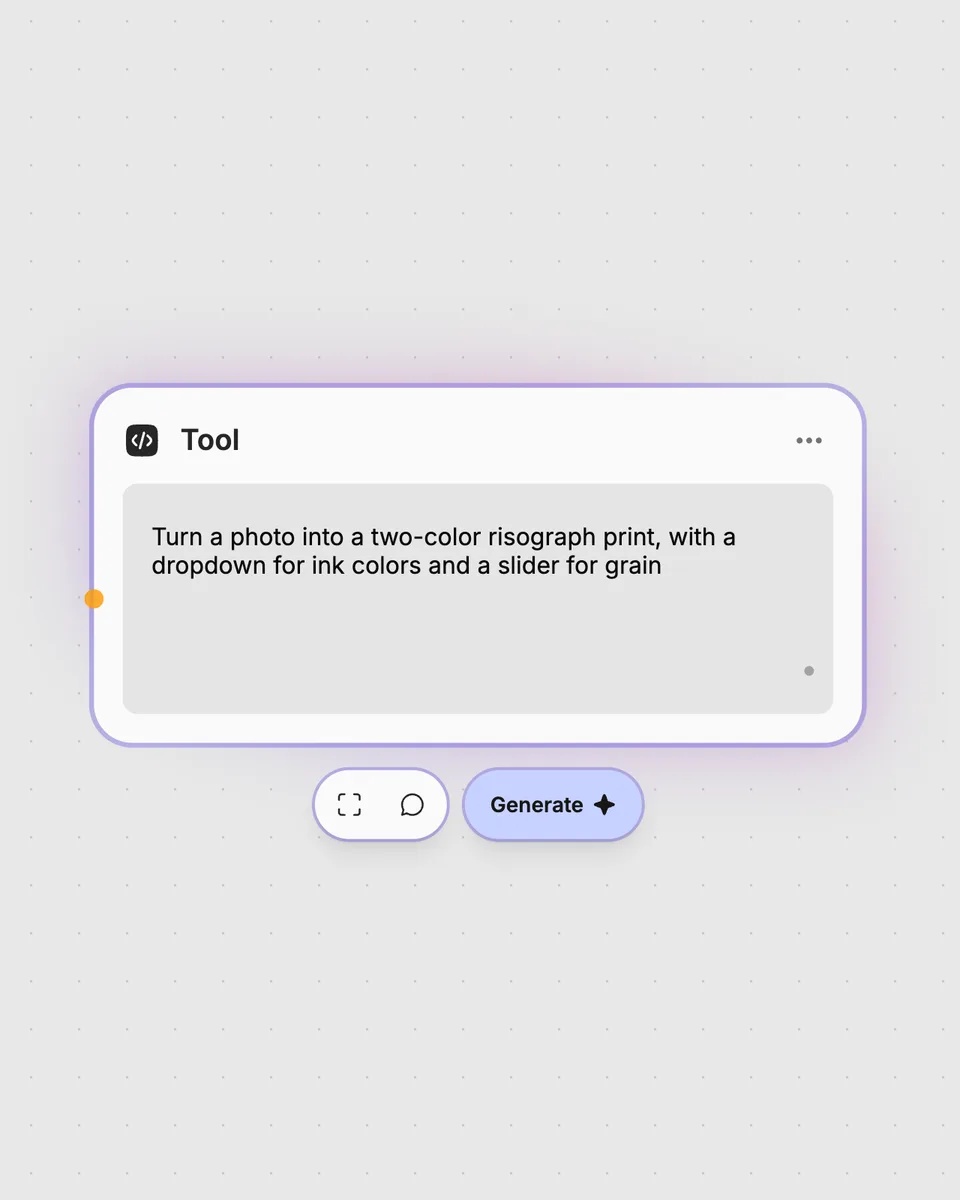
3. Describe your own
Need something different? Describe the tool you want and Fuser builds it, with the controls you asked for.
Shape ordinary video into different point-based treatments by adjusting the visual controls and choosing between splats and points.
It takes one video input and returns a video with a point-cloud or Gaussian-splat-inspired appearance. You can choose between splat and points styles and adjust the available visual controls.
Prepare the video you want to transform and provide it as the tool’s video input. No other input is required.
Density, splat size, depth, orbit, and seed each provide adjustable settings for the generated result. The style dropdown selects splat or points, and the dark background switch turns the dark background option on or off.
Yes. The Live tool runs in your browser, updates as you move the controls, and is free to try on this page without an account. Downloading more than once or opening it in Fuser asks you to sign up.
Yes. Open the tool in Fuser, use it as a node, and connect its video result to another node in your workflow. You can also use another node’s video output as this tool’s input.
This tool changes a video into a point-cloud-inspired visual result. Its output is a video, with depth and orbit available as controls for shaping the look.
Try the live tool in your browser, adjust the look as it updates, and combine its video result with other Fuser nodes.
Add a video and an image, adjust their size, position, and opacity, and produce a new video with the image layered over it.
Add a video and get a light-trail video built by stacking frames with lighten blending.
Add one video and adjust the crossfade duration to produce a video with a smoother, more seamless loop transition.