Video trimmer
LiveVideo
Start
End
One click, whole workflow
Recipes are here. Package a whole workflow and run it in one click
Explore recipesVideo utility
Choose a video, set its start and end points, and get a trimmed video result directly in your browser.
Runs in your browser. Your files are never uploaded.
A tool is a small app you describe in plain words. Try this one here, then keep it on your Fuser canvas and connect it to the rest of your work.
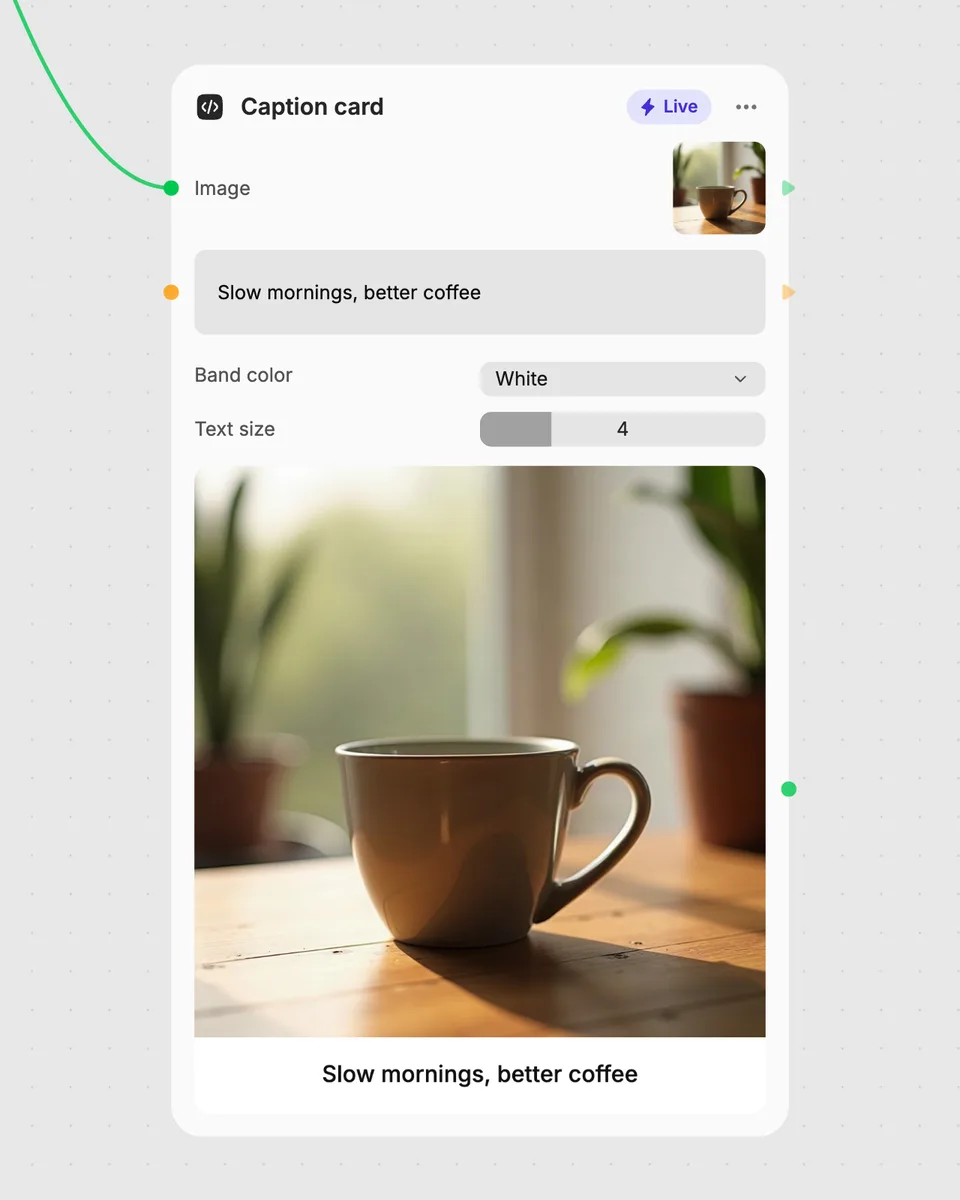
1. Try it here
Add your own file or text and adjust the controls. Live tools run in your browser, so nothing is uploaded.
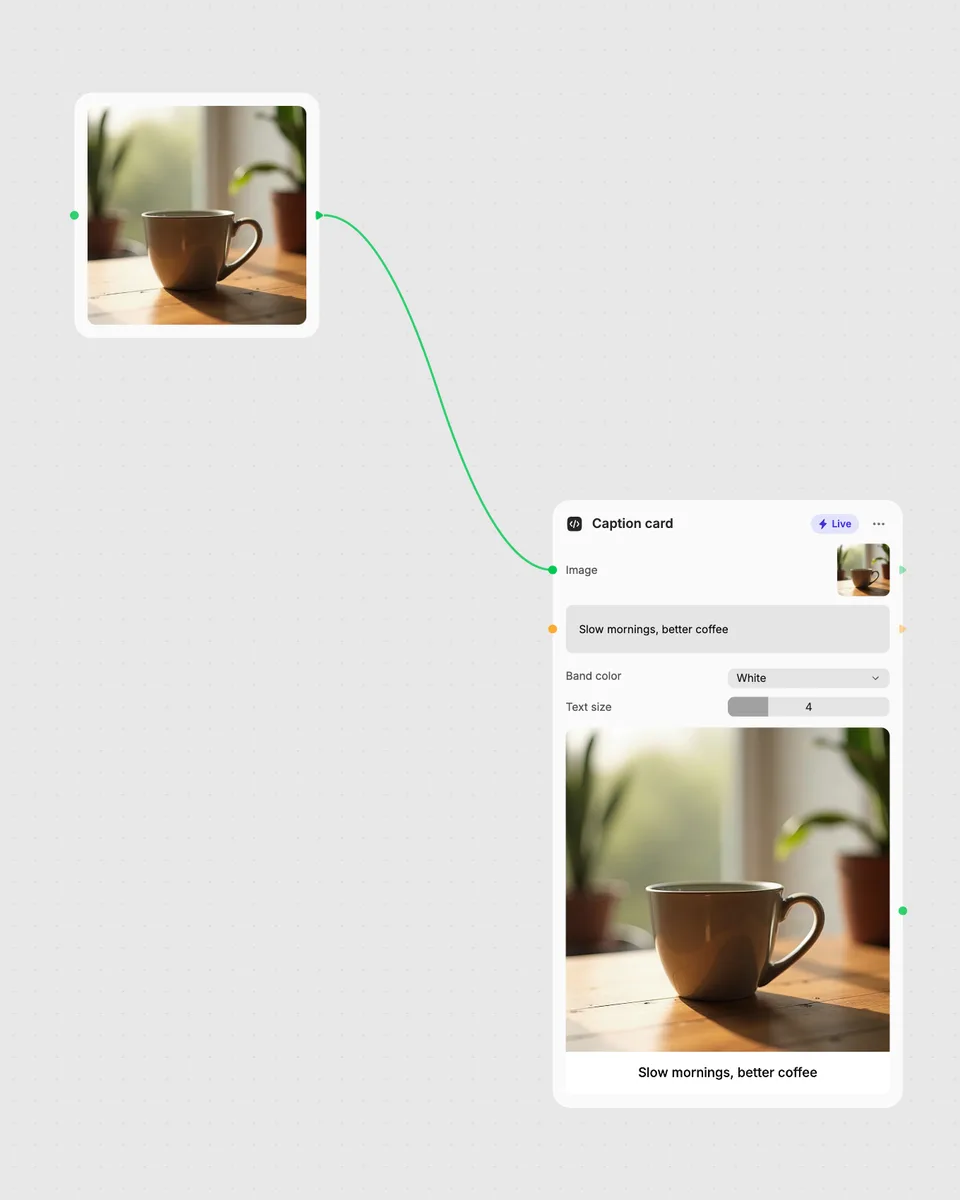
2. Open it in Fuser
Sign up free and the tool opens on your canvas with this example wired in, ready to connect to images, video or text from other nodes.
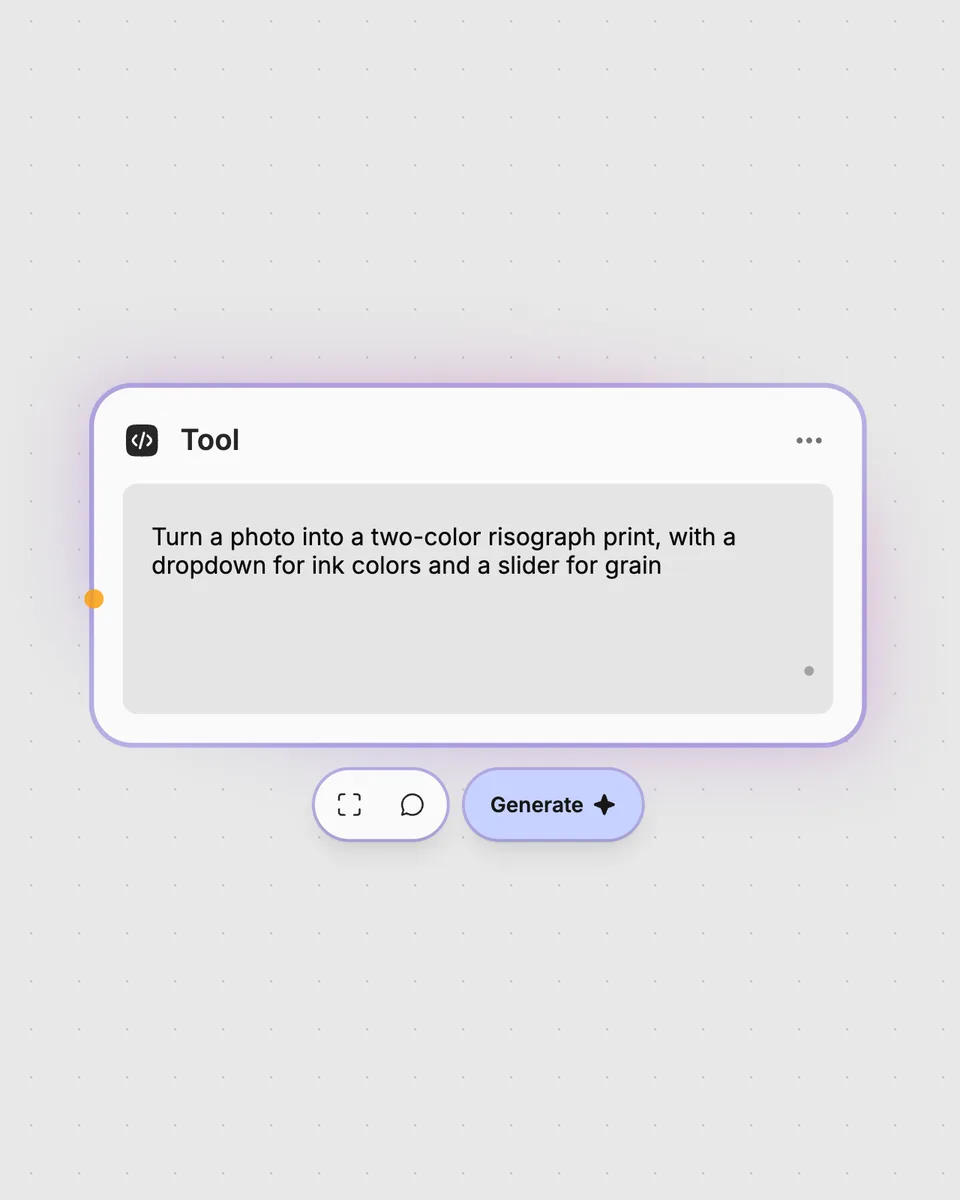
3. Describe your own
Need something different? Describe the tool you want and Fuser builds it, with the controls you asked for.
Keep only the section you need by adjusting the beginning and ending points of a video.
It takes one video input and produces one trimmed video result. You choose where the result starts and ends using the Start and End controls.
Move the Start slider to set where the trimmed video begins, then move the End slider to set where it finishes. You can scrub through the video while choosing those points.
Start changes the beginning boundary of the result, while End changes its ending boundary. Because this is a Live tool, the video result updates as you move the controls.
Yes. The tool runs in your browser, is free to use, and you can try it on this page without an account. Downloading more than once or opening it in Fuser asks you to sign up.
Use a video as this tool’s input, then combine its video result with other nodes in Fuser. This lets the trimmed section become the video input for the next step in your workflow.
Open the live video trimmer, adjust the Start and End controls, and combine its result with other Fuser nodes.
Apply a selectable color filter to a video and adjust its strength to create a subtle filtered video result.
Adjust one video’s exposure, contrast, saturation, temperature, tint, shadows, and highlights to produce a graded video.
Upload a video and adjust its playback speed from 0.25× to 4× to produce a slowed-down or sped-up video.