Recipev1
Hand Drawn Logo Generator
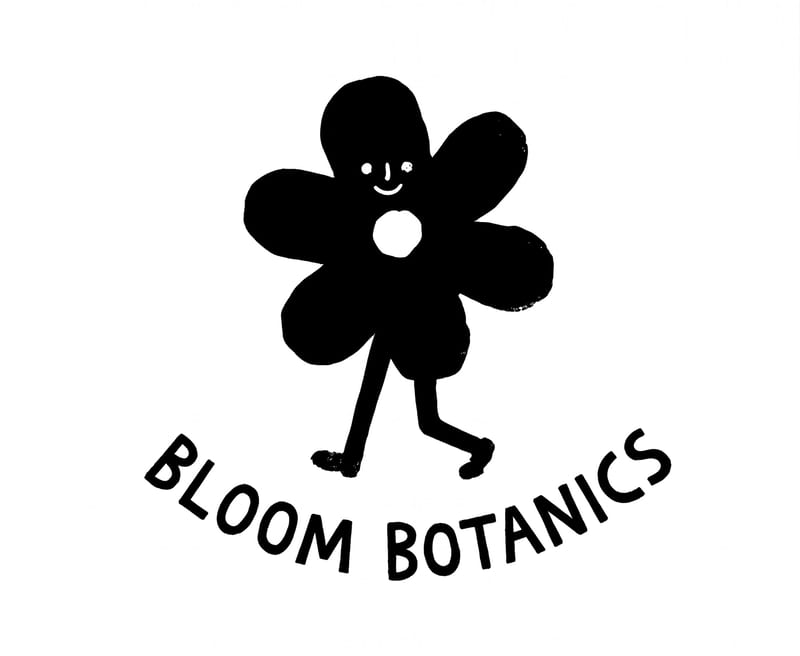
Logo option #1
One click, whole workflow
Recipes are here. Package a whole workflow and run it in one click
Explore recipesBranding & Identity
Enter a logo subject, such as a flower shop, to create two hand-drawn logo options for branding and social content.
Logo option #1
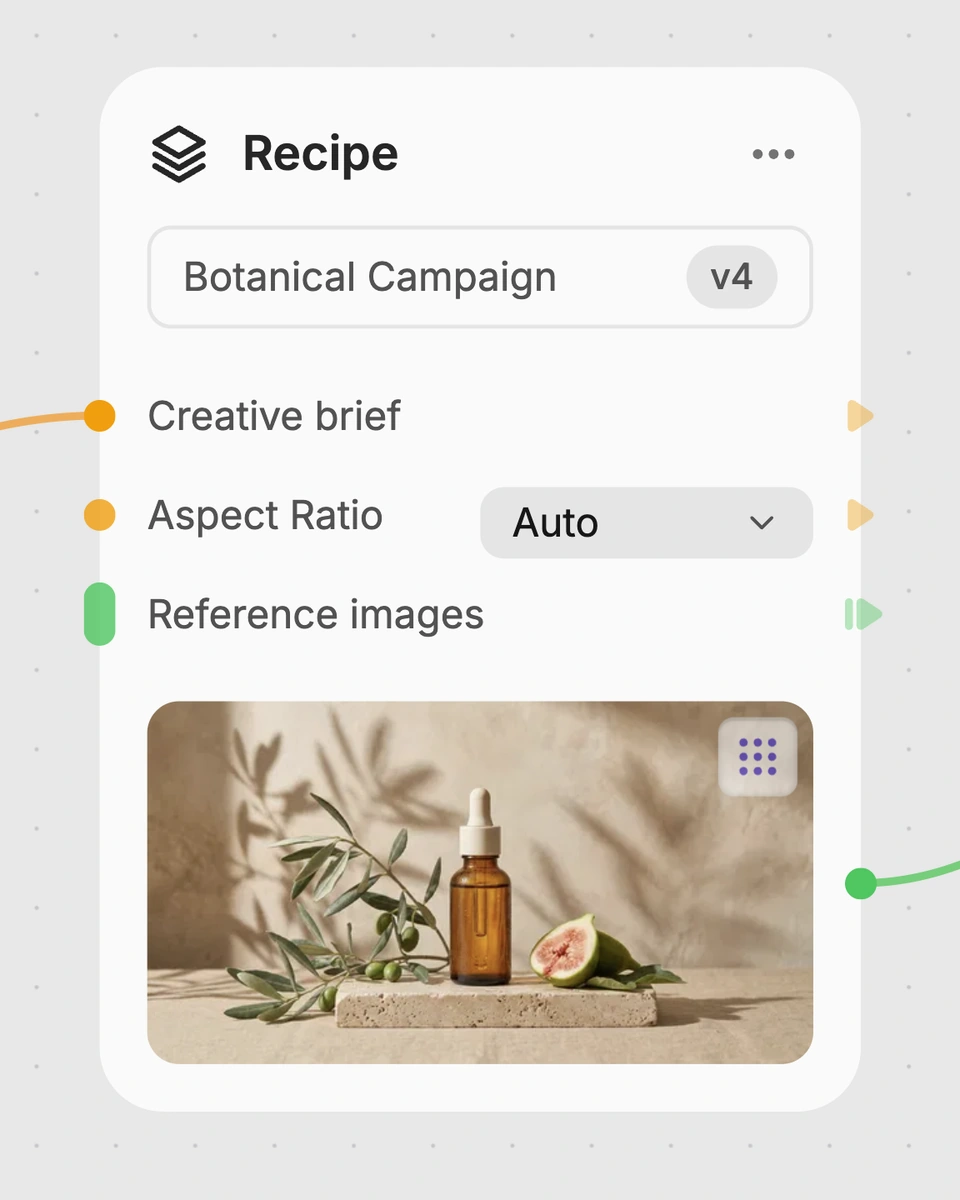
A recipe turns a reusable workflow into a simple set of inputs and outputs. Start with a community recipe and make it your own in Fuser.
1. Choose a recipe
Find a workflow for the result you want. Review what it does and how to use it before opening it in Fuser.
2. Make it your own
Check the recipe’s available inputs. Add your own text or media where supported, or start with the saved defaults.
3. Run and refine
Run it in Fuser and review the result on your canvas. Tweak the inputs to try another direction.
Use the two image outputs to explore logo directions for a specific brand subject across early identity and social content work.
It takes one text input called “logo subject” and creates two image outputs: Logo option #1 and Logo option #2. The saved example uses “a flower shop” as the subject.
It is suited to people exploring branding and identity ideas, as well as social content concepts that need a logo direction. It can help when you want to compare two hand-drawn options for one subject.
Enter the subject you want the logo options to represent, such as “a flower shop.” Keep the input focused on the business, organization, or idea you want to explore.
Yes. The “logo subject” is an exposed text input that you can change in Fuser before using the recipe. A new subject replaces the saved example’s “a flower shop” input.
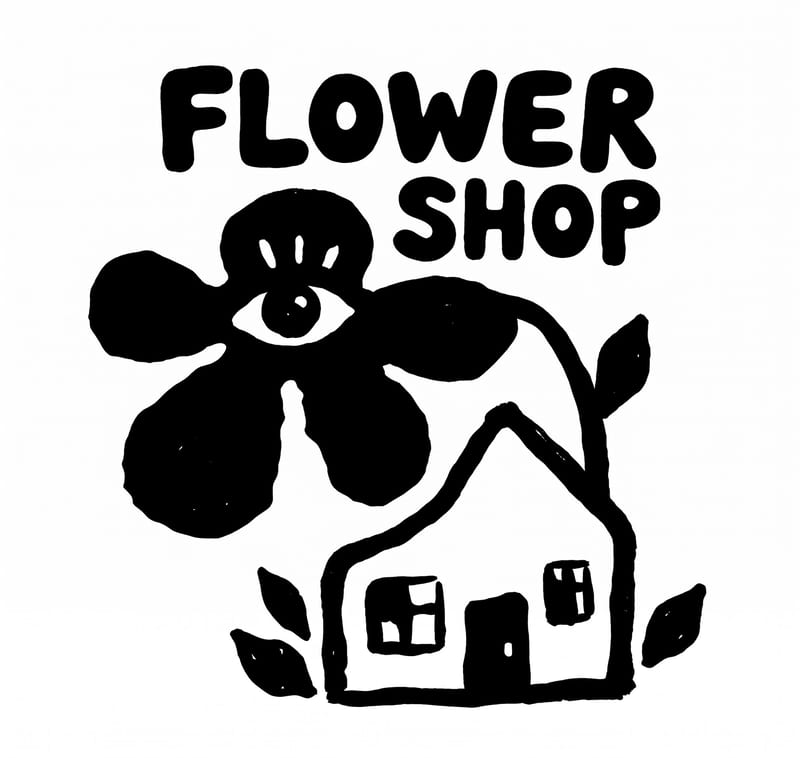
The saved example connects the subject “a flower shop” to two image outputs, labeled Logo option #1 and Logo option #2. It demonstrates the recipe’s input-to-output structure rather than a live generation.
You can compare them as early branding directions, use them in a concept discussion, or consider them for social content planning. The recipe provides two options for the same subject, so it is useful for initial exploration rather than selecting a final identity system.
The recipe exposes one text input and returns two image logo options. It does not expose additional inputs for changing the subject beyond editing that text field, so more specific brand requirements are not represented by the saved recipe.
Log in to Fuser to use your own logo subject and create two image options for branding or social content exploration.
Develop pitches, campaign assets and interactive client work in Fuser. Combine AI generation, editable design and reusable processes across your agency.
Build working product demos, launch pages and brand visuals in Fuser. Help a small startup team turn the next idea into something people can try.
Explore a brand’s visual identity, refine typography and build real applications. Combine AI imagery with editable design and reusable workflows in Fuser.
Create social graphics, carousel artwork and short videos with a recognizable brand style. Keep copy editable and recurring content easier to produce in Fuser.

Turn a wine bottle image into a social media-ready video showing wine being poured.
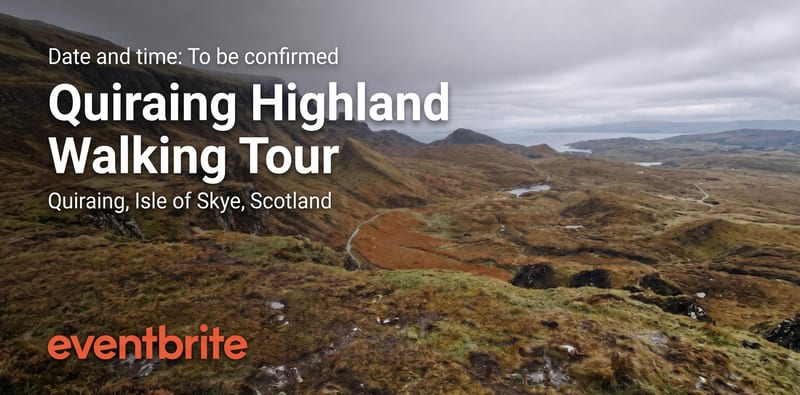
Turn a source image into an Eventbrite event banner that reflects your event’s theme, atmosphere, and visual identity.
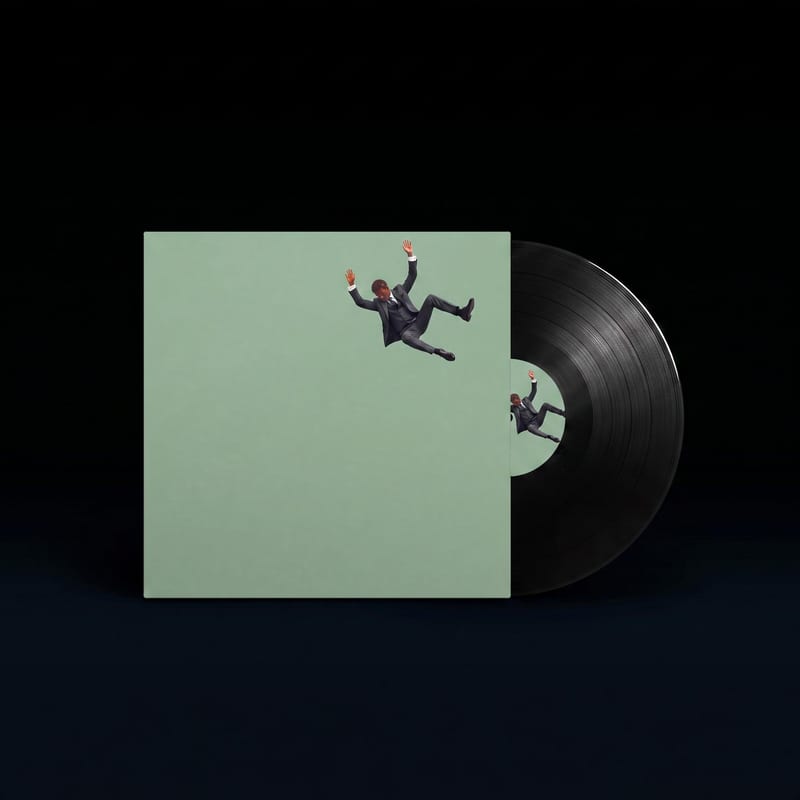
Upload front and back album cover designs to see them presented as vinyl, cassette, and CD mockup images.