Recipev3
Professional Site Photo Editor

Edited Photo - Color
One click, whole workflow
Recipes are here. Package a whole workflow and run it in one click
Explore recipesSite photo editing
Upload an iPhone-quality site photo and receive an edited color image prepared for website use.
Edited Photo - Color

A recipe turns a reusable workflow into a simple set of inputs and outputs. Start with a community recipe and make it your own in Fuser.
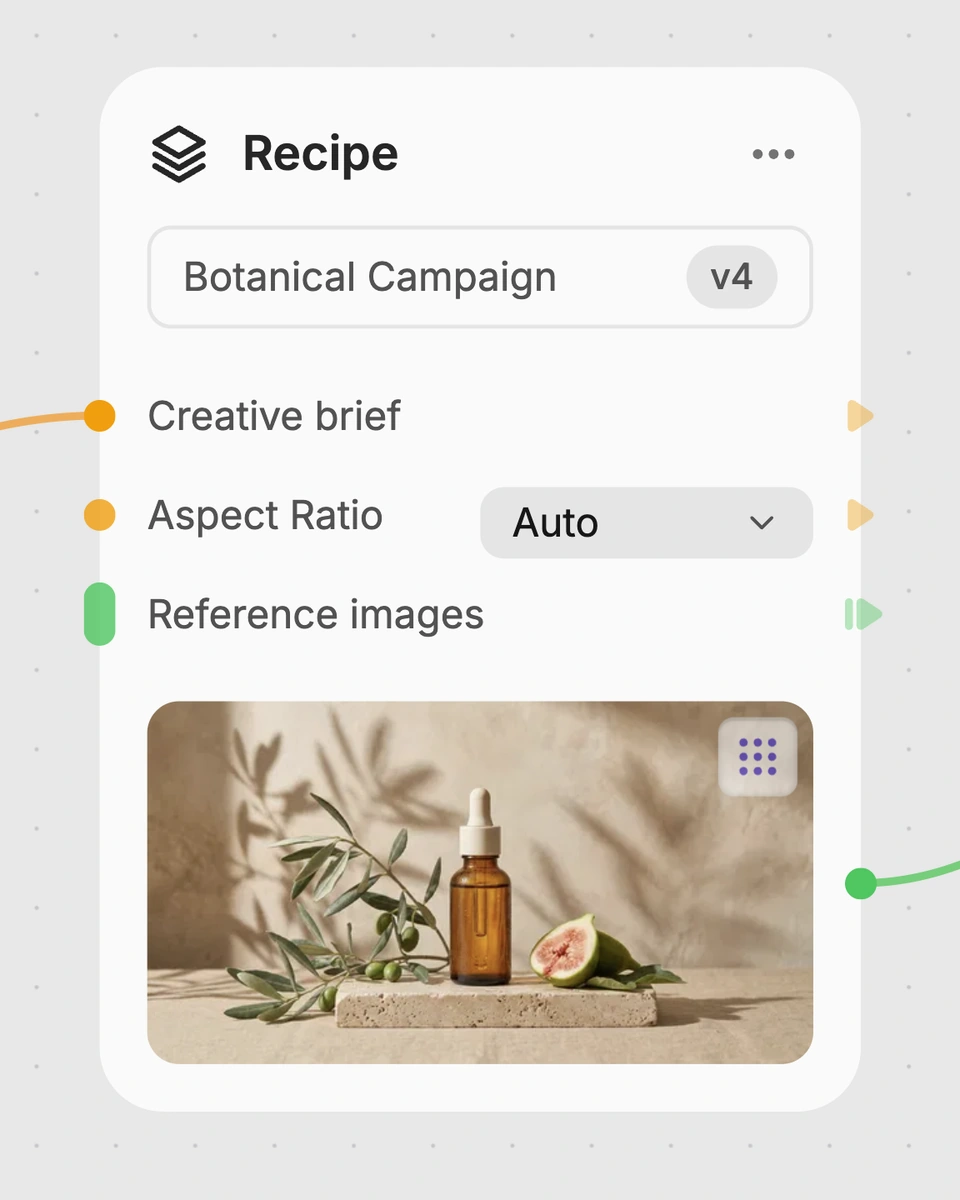
1. Choose a recipe
Find a workflow for the result you want. Review what it does and how to use it before opening it in Fuser.
2. Make it your own
Check the recipe’s available inputs. Add your own text or media where supported, or start with the saved defaults.
3. Run and refine
Run it in Fuser and review the result on your canvas. Tweak the inputs to try another direction.
Use an edited color site photo across practical website and content workflows.
It takes one Site Photo image and produces an Edited Photo - Color image. The recipe is intended for preparing iPhone-quality site photos for website and related content use.
It is useful for people creating websites, project pages, portfolios, case studies, or content from site documentation. It can help turn an existing site photo into a more presentable color image for those materials.
Prepare the site photo you want to edit as an image. The recipe names one exposed input, Site Photo, and the saved example uses that input to create an Edited Photo - Color output.
Yes. In Fuser, you can replace the exposed Site Photo input with another image before using the recipe. No additional editable inputs are listed for this recipe.
The saved example shows a Site Photo connected to an Edited Photo - Color result. It documents the recipe’s default input-to-output setup; it is not a live run or a promise about a new photo.
The listed output is Edited Photo - Color, so the saved recipe is described for color editing. A black-and-white output is not listed among this recipe’s outputs.
The output is suited to website-oriented uses such as project pages, portfolios, case studies, and other content built around site photos. The recipe does not list separate outputs or formats for specific publishing platforms.
Bring a site image into Fuser and use this recipe to create an edited color photo for your website content.
Develop pitches, campaign assets and interactive client work in Fuser. Combine AI generation, editable design and reusable processes across your agency.
Build working product demos, launch pages and brand visuals in Fuser. Help a small startup team turn the next idea into something people can try.
Turn a UI or UX idea into a working web prototype. Create its visual assets, refine the interaction and share a live Fuser App for feedback.
Create social graphics, carousel artwork and short videos with a recognizable brand style. Keep copy editable and recurring content easier to produce in Fuser.
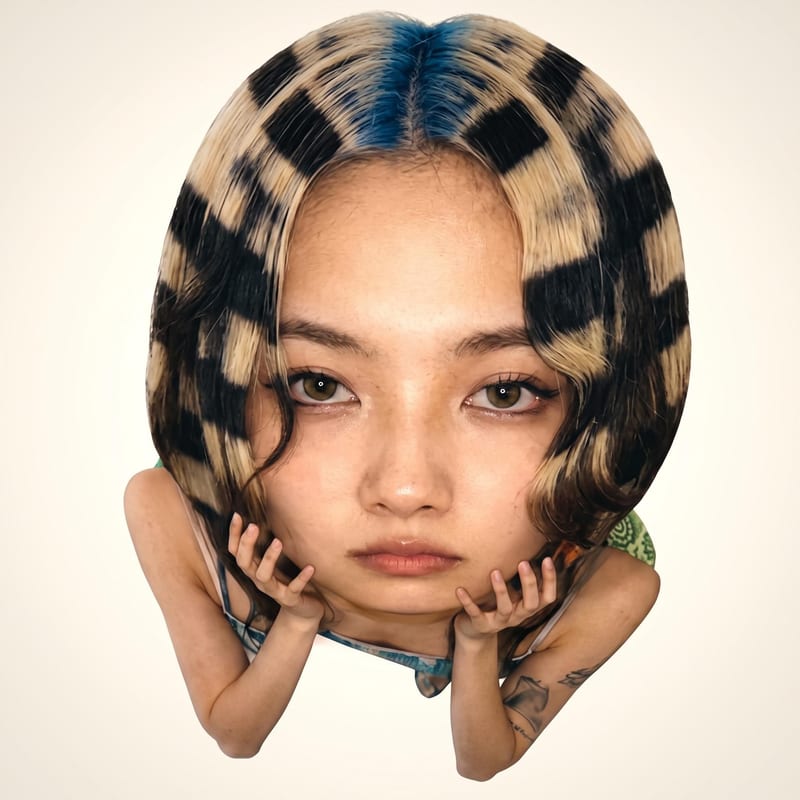
Upload one source image to create five image versions for social media, web layouts, and entertainment content in different aspect ratios.
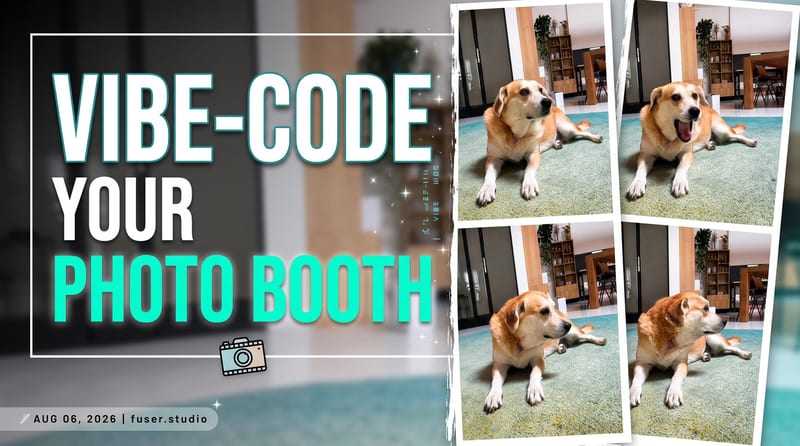
Turn a source image and custom thumbnail text into a bold YouTube thumbnail image for video promotion.

Add a content creator or character image, write a script, and generate UGC-style video with or without subtitles.