Recipev4
UGC Video with Script + Creator Image
0:00 / 0:00
UGC Video without subtitles
One click, whole workflow
Recipes are here. Package a whole workflow and run it in one click
Explore recipesSocial & Content
Add a content creator or character image, write a script, and generate UGC-style video with or without subtitles.
UGC Video without subtitles

A recipe turns a reusable workflow into a simple set of inputs and outputs. Start with a community recipe and make it your own in Fuser.
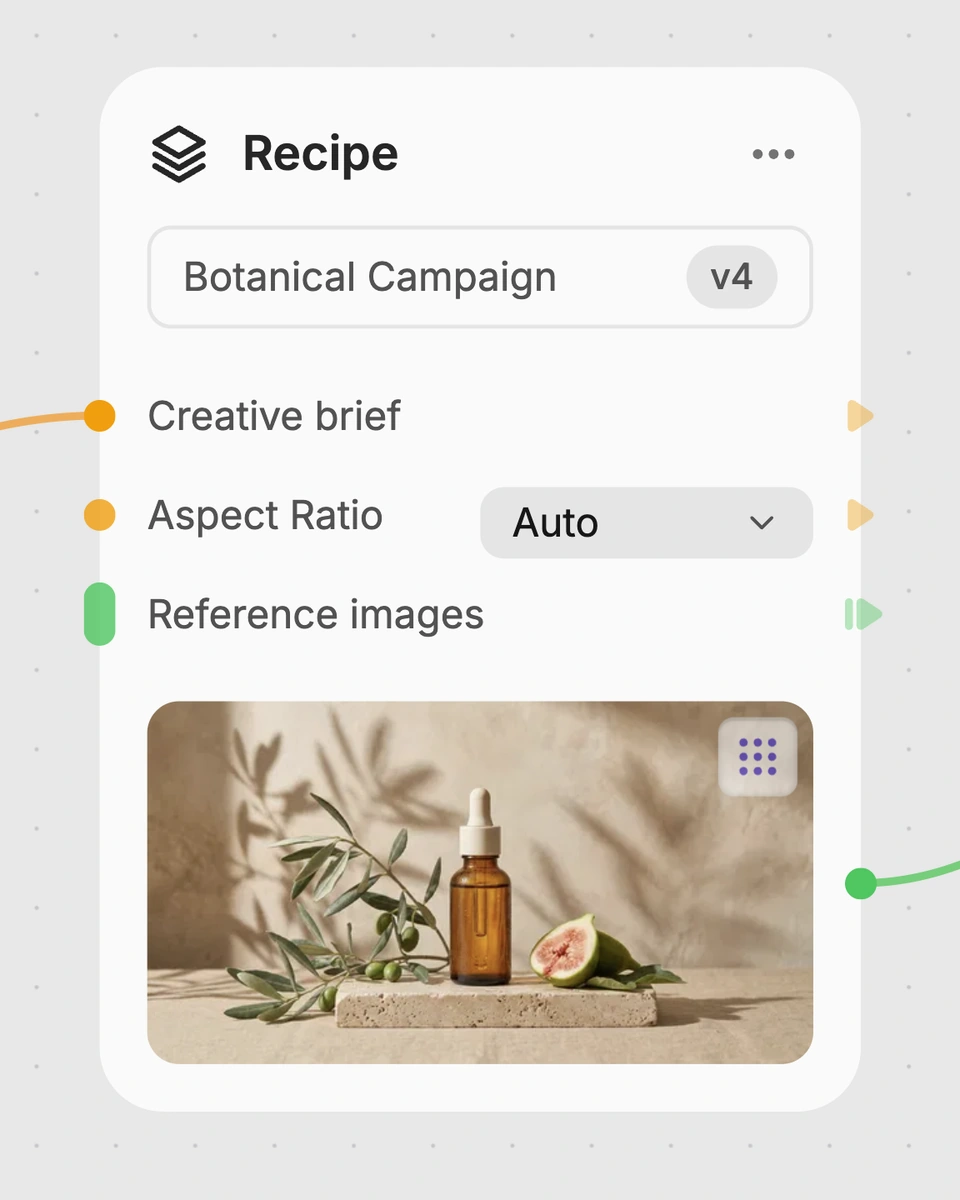
1. Choose a recipe
Find a workflow for the result you want. Review what it does and how to use it before opening it in Fuser.
2. Make it your own
Check the recipe’s available inputs. Add your own text or media where supported, or start with the saved defaults.
3. Run and refine
Run it in Fuser and review the result on your canvas. Tweak the inputs to try another direction.
Use the recipe to turn a character image and prepared script into UGC-style video concepts for social and content workflows.
It takes an image of a content creator or character, a written script, and a video duration value, then produces two video outputs. One version has no subtitles, while the other includes subtitles.
It is intended for people creating social and content concepts around a creator or character. It can help you turn a prepared UGC script and a matching image into a video example.
Prepare an image of the content creator or character you want to use, including the desired background if appropriate, and write the UGC script that should be delivered. The saved example uses a script explaining the character-based UGC process.
You can change the Image of Content Creator or Character, the Script, and the Video Duration inputs in Fuser. The duration is a text input; make it longer or shorter to suit the length of your script.
The saved default example uses a creator or character image, the included UGC character test script, and a Video Duration value of 10. Its outputs show the same scripted video in versions with and without subtitles; a new run depends on the inputs you provide.
Use the subtitled output when you want to review or present the scripted video with the spoken content shown as subtitles. The recipe also provides a version without subtitles for cases where that treatment is not wanted.
The recipe is centered on one creator or character image, one script, and one duration value, with video outputs in two subtitle treatments. It does not describe additional controls or outputs beyond those exposed inputs and saved results.
Bring a creator or character image and your script to Fuser, then adjust the video duration for your content idea.
Develop pitches, campaign assets and interactive client work in Fuser. Combine AI generation, editable design and reusable processes across your agency.
Create social graphics, carousel artwork and short videos with a recognizable brand style. Keep copy editable and recurring content easier to produce in Fuser.
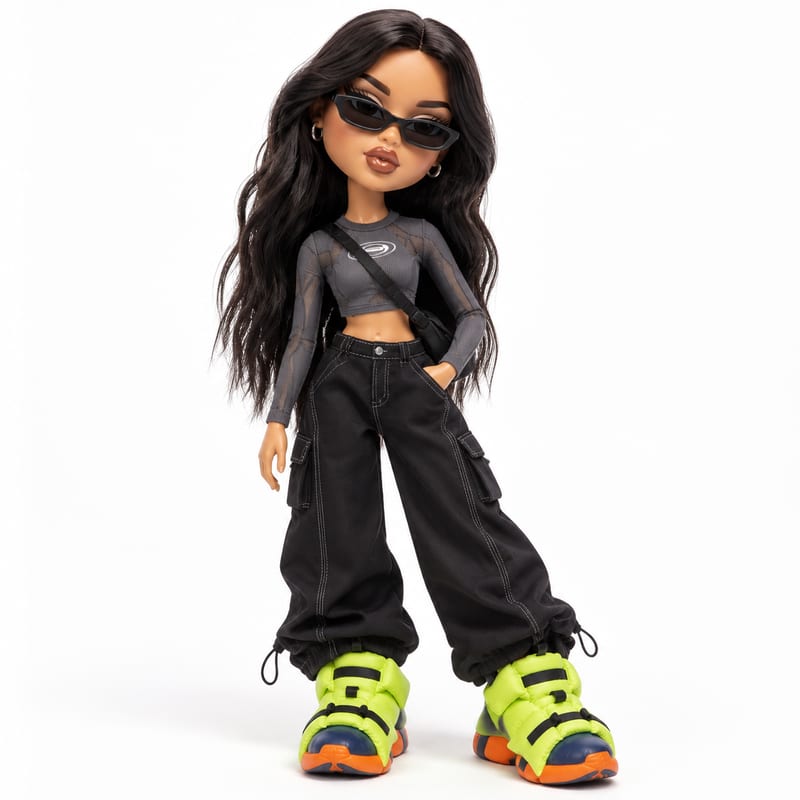
Upload one image of a person and receive a generated image that reimagines the pictured subject in Bratz-style doll form.
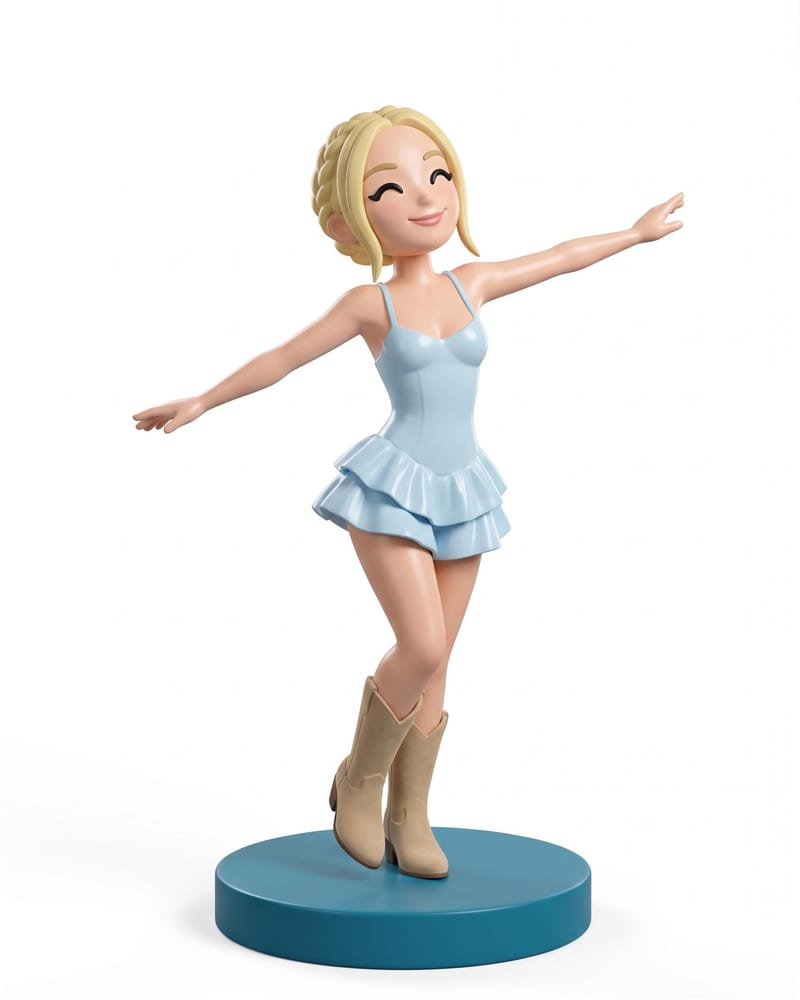
Transform a full-body portrait into a 3D collectible figure image and a 3D figure model while retaining its look, outfit, pose, and style.
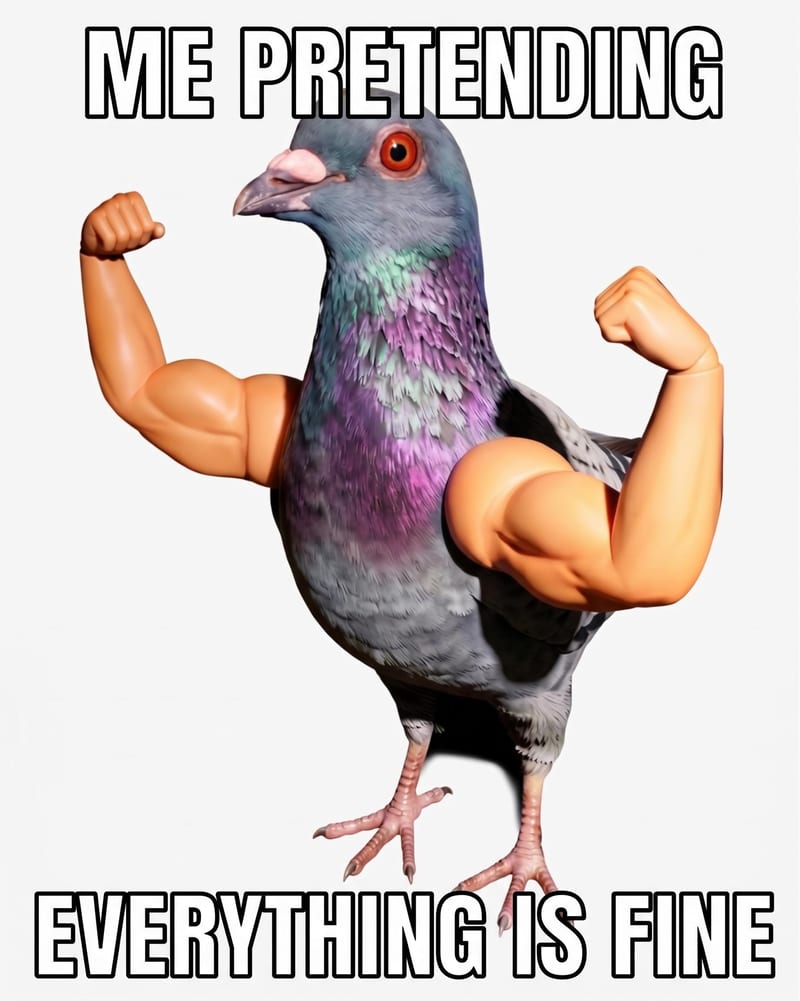
Add custom meme text to a source image and receive a meme image for social and community content.