Draw a shape
LiveImage
Fill color
Outline color
Shape
Center X
Center Y
Width
Height
Rotation
Fill opacity
Outline thickness
One click, whole workflow
Recipes are here. Package a whole workflow and run it in one click
Explore recipesImage utility
Place a chosen shape over an optional image, then adjust its position, size, colors, opacity, rotation, and outline.
Runs in your browser. Your files are never uploaded.
A tool is a small app you describe in plain words. Try this one here, then keep it on your Fuser canvas and connect it to the rest of your work.
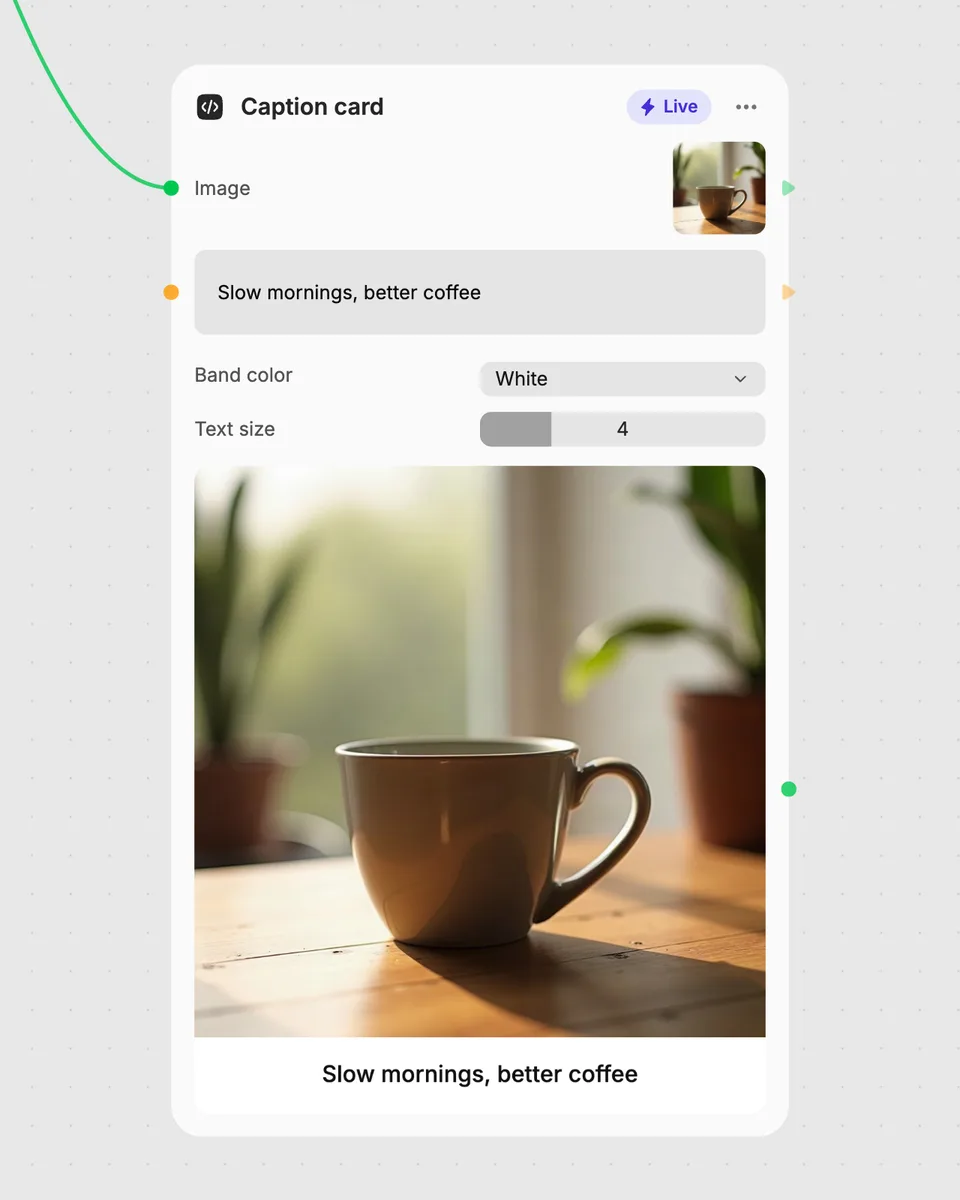
1. Try it here
Add your own file or text and adjust the controls. Live tools run in your browser, so nothing is uploaded.
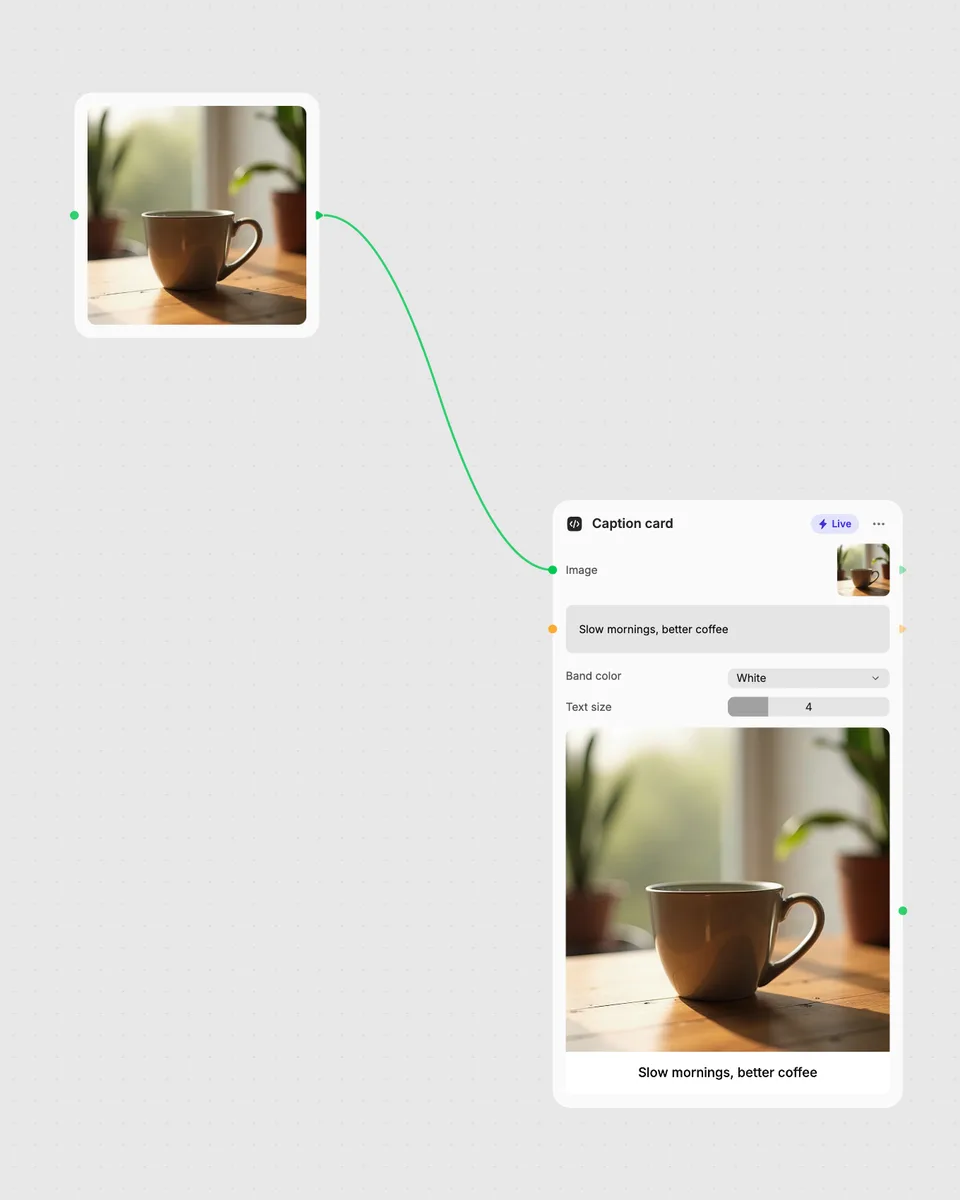
2. Open it in Fuser
Sign up free and the tool opens on your canvas with this example wired in, ready to connect to images, video or text from other nodes.
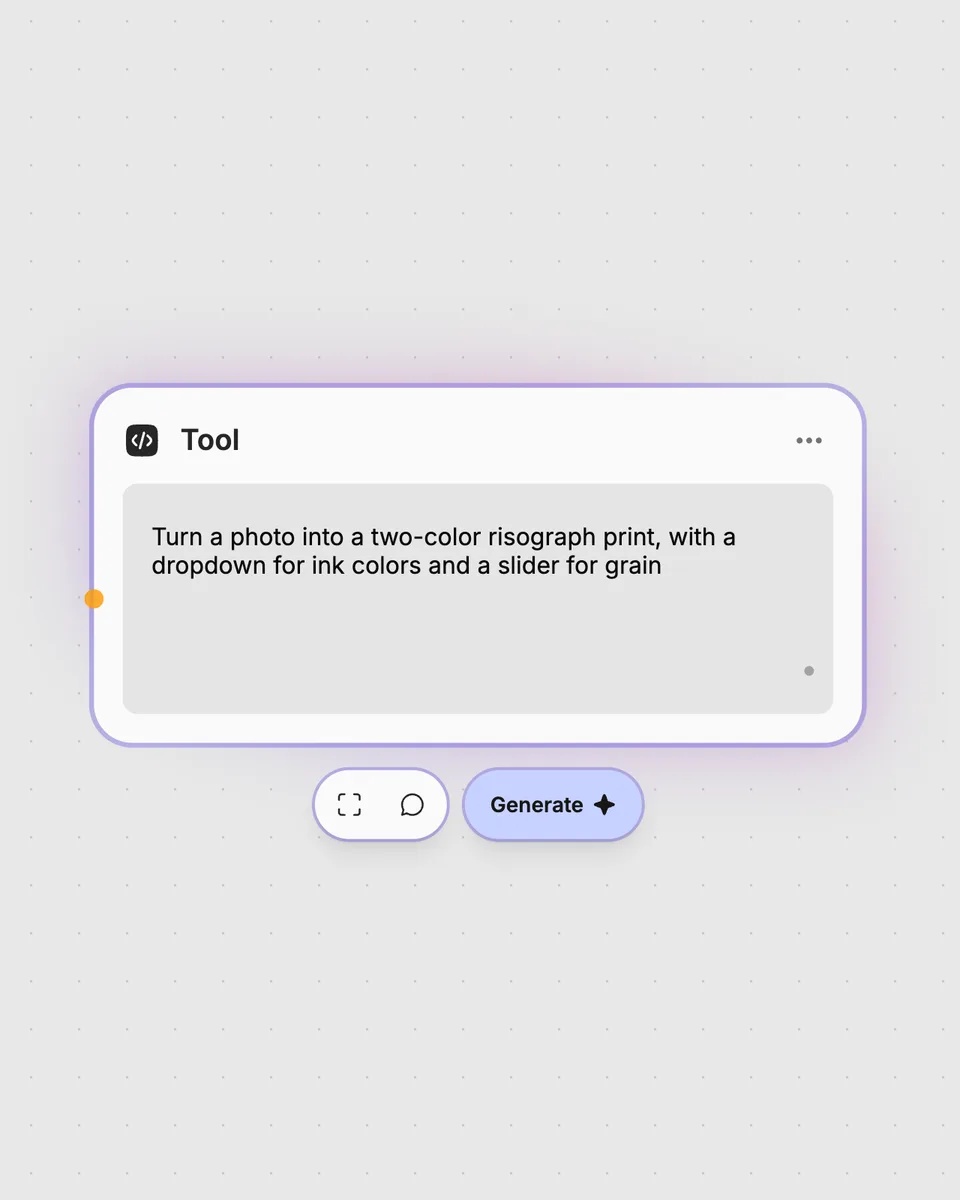
3. Describe your own
Need something different? Describe the tool you want and Fuser builds it, with the controls you asked for.
Choose a shape and tune its placement and appearance for different image-marking tasks.
It produces an image result with a selected shape, such as a rectangle, ellipse, star, line, or arrow. You can control the shape's position, dimensions, rotation, fill opacity, and outline thickness.
The image input is optional. You can also enter optional fill and outline colors using the corresponding text inputs.
The Shape dropdown selects the available shape type. Center X, Center Y, Width, Height, and Rotation adjust placement and geometry, while Fill opacity and Outline thickness change its appearance.
You can try it in your browser without an account, and it is free. Downloading more than once or opening it in Fuser asks you to sign up.
Yes. Open the tool in Fuser, connect an image into its optional image input, and use its image result with other nodes in your workflow.
Adjust the shape live in your browser, then combine its image result with other nodes in a larger Fuser workflow.
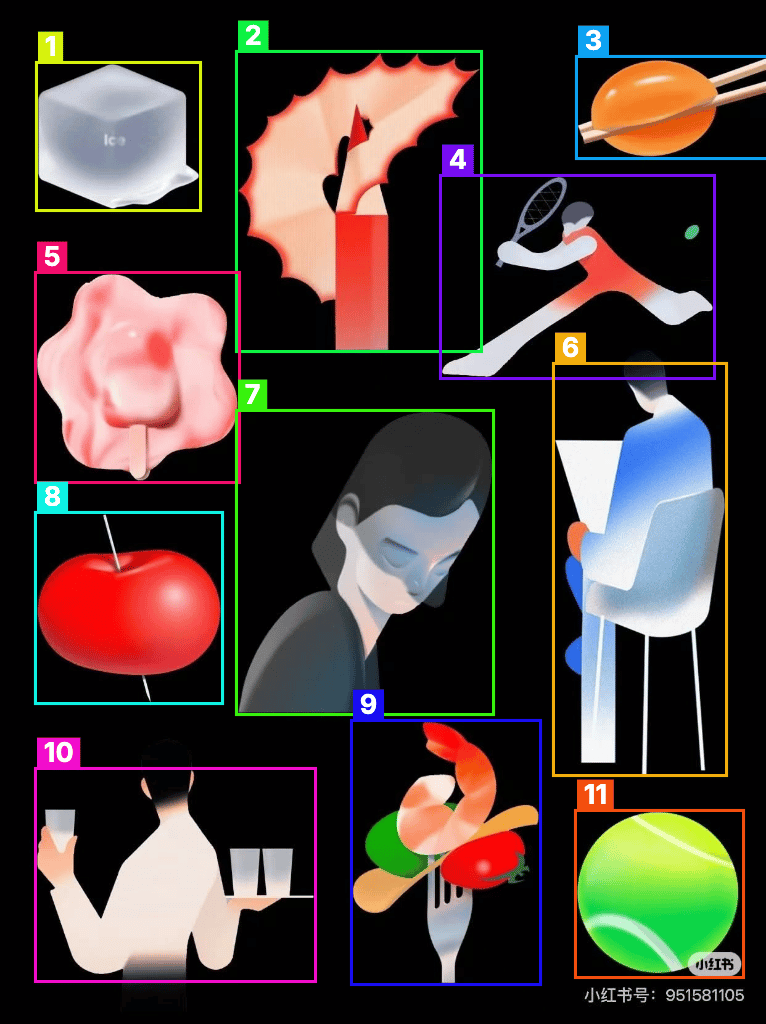
Upload one image to detect and count separate objects, preview them, and receive metadata plus extracted object images.
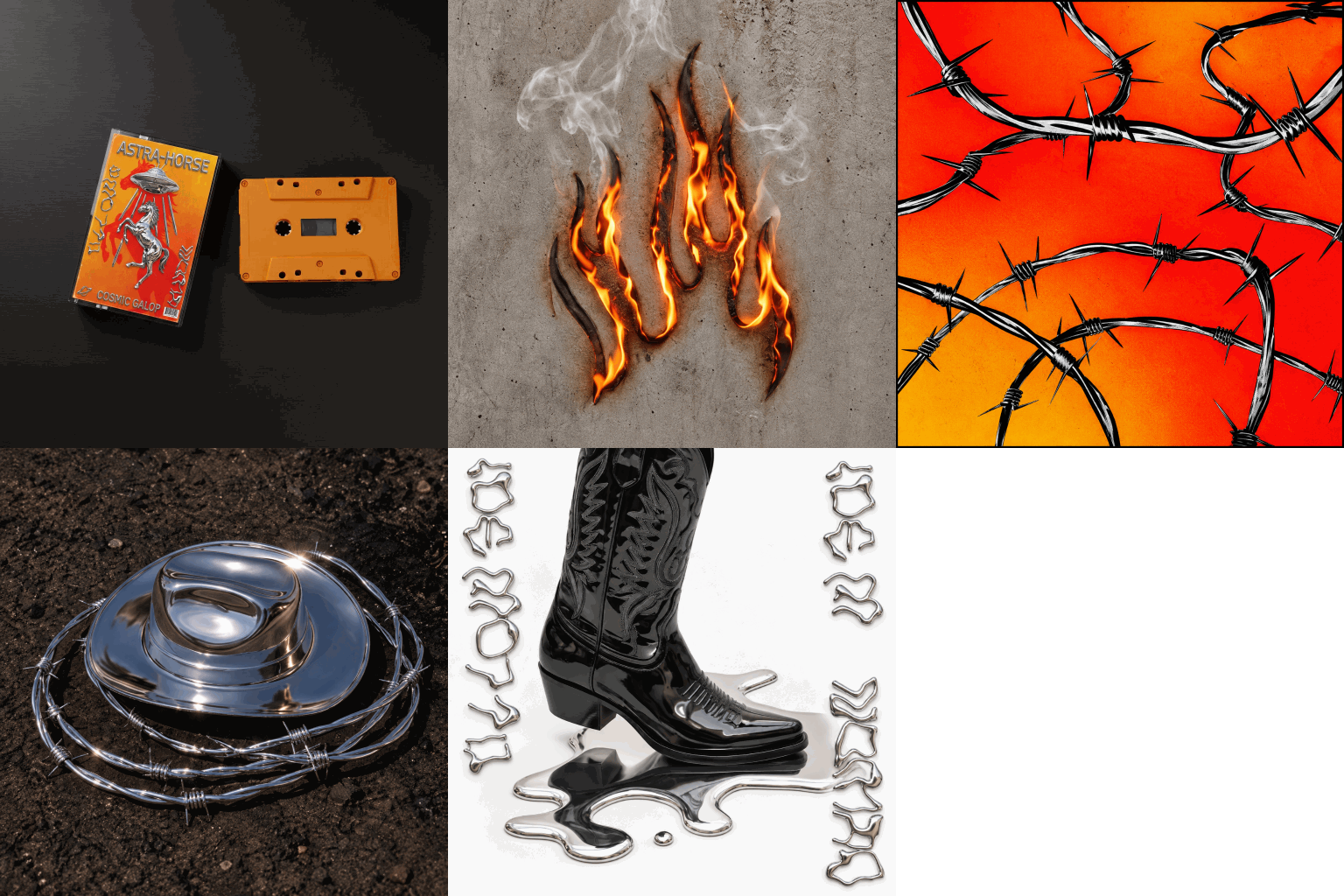
Upload multiple images to create an animated GIF, then adjust frame duration and output size for the result.
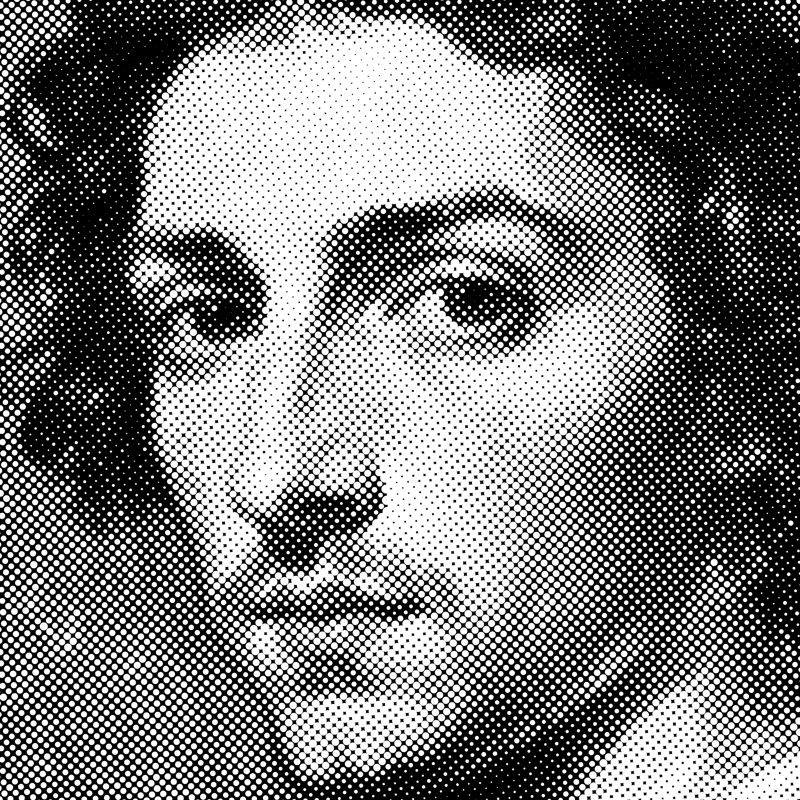
Turn an image into a halftone result with adjustable dot size, angle, color mode, and inversion.