Image utility

Describe an image

Upload an image and get a text description with your choice of short, normal, or detailed output.

Image

Image describer

Cloud
Image
Detail
Set against a sleek, textured black surface, a bright orange cassette tape lies beside its jewel case featuring artwork for an album titled "Astra-Horse: Cosmic Galop." The vibrant orange cover displays striking retro-futuristic imagery of a chrome flying saucer beaming light down onto a rearing metallic horse. The stark contrast between the vivid orange objects and the moody, dark backdrop evokes a nostalgic yet energetic sci-fi aesthetic.
Uses AI on Fuser’s servers. This is a saved example.

How tools work

A tool is a small app you describe in plain words. Try this one here, then keep it on your Fuser canvas and connect it to the rest of your work.

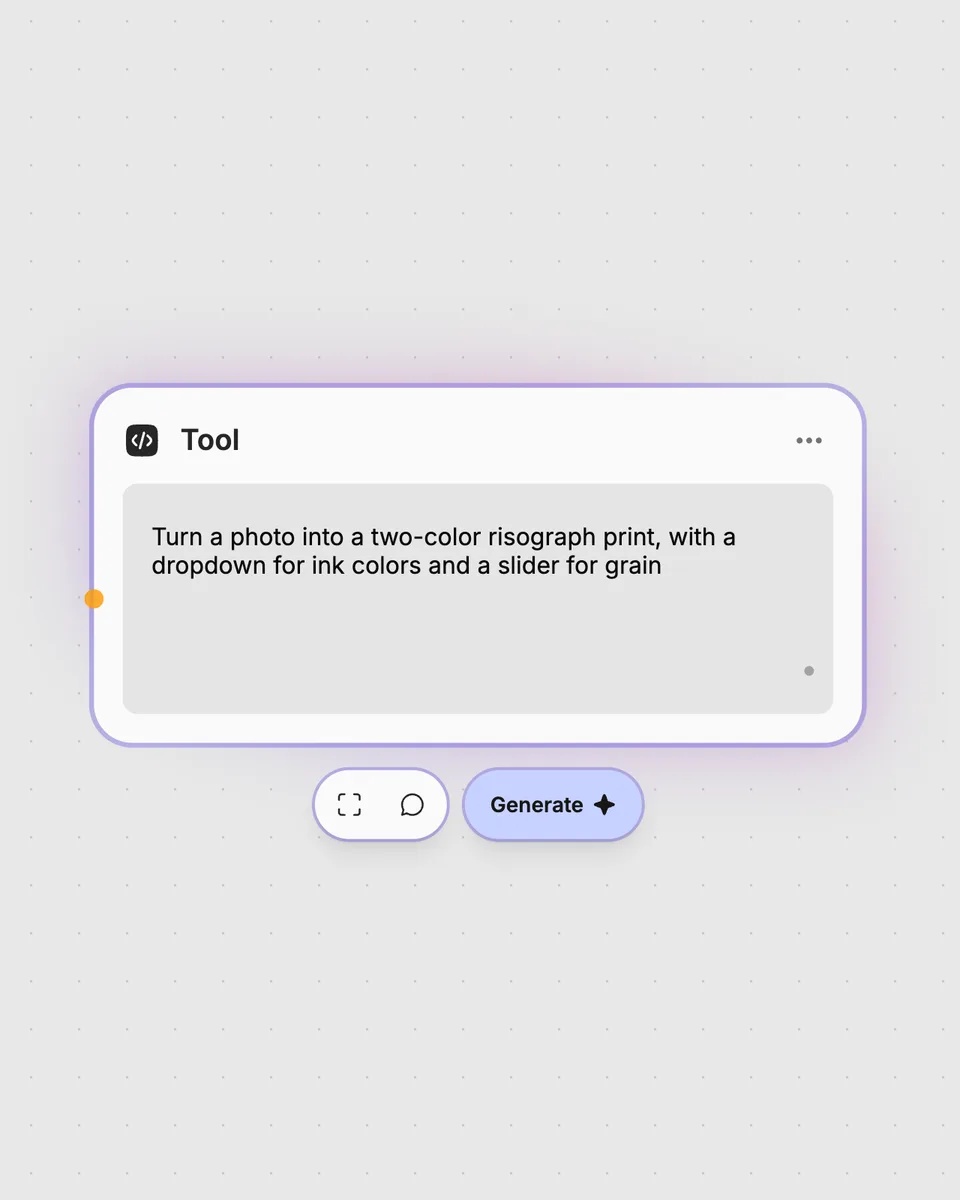
A tool on the Fuser canvas with its controls and result

1. Try it here

Add your own file or text and adjust the controls. Live tools run in your browser, so nothing is uploaded.

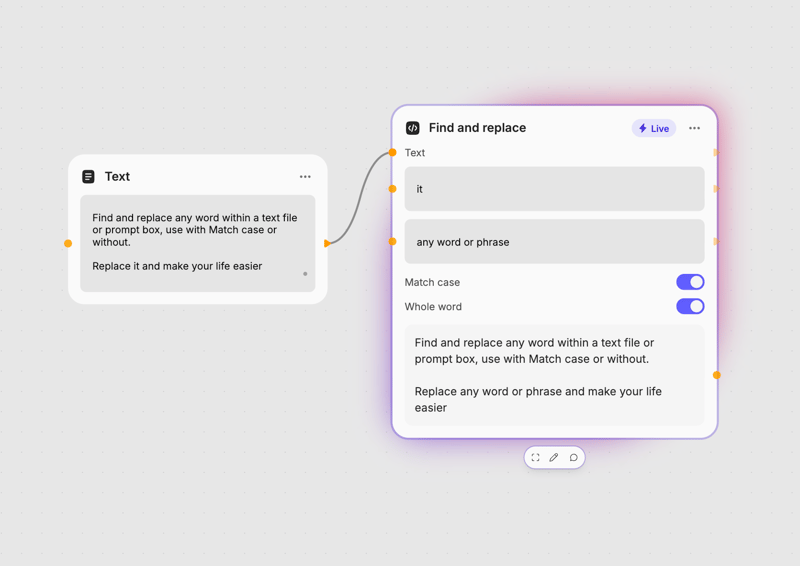
Two tools chained together on the Fuser canvas

2. Open it in Fuser

Sign up free and the tool opens on your canvas with this example wired in, ready to connect to images, video or text from other nodes.

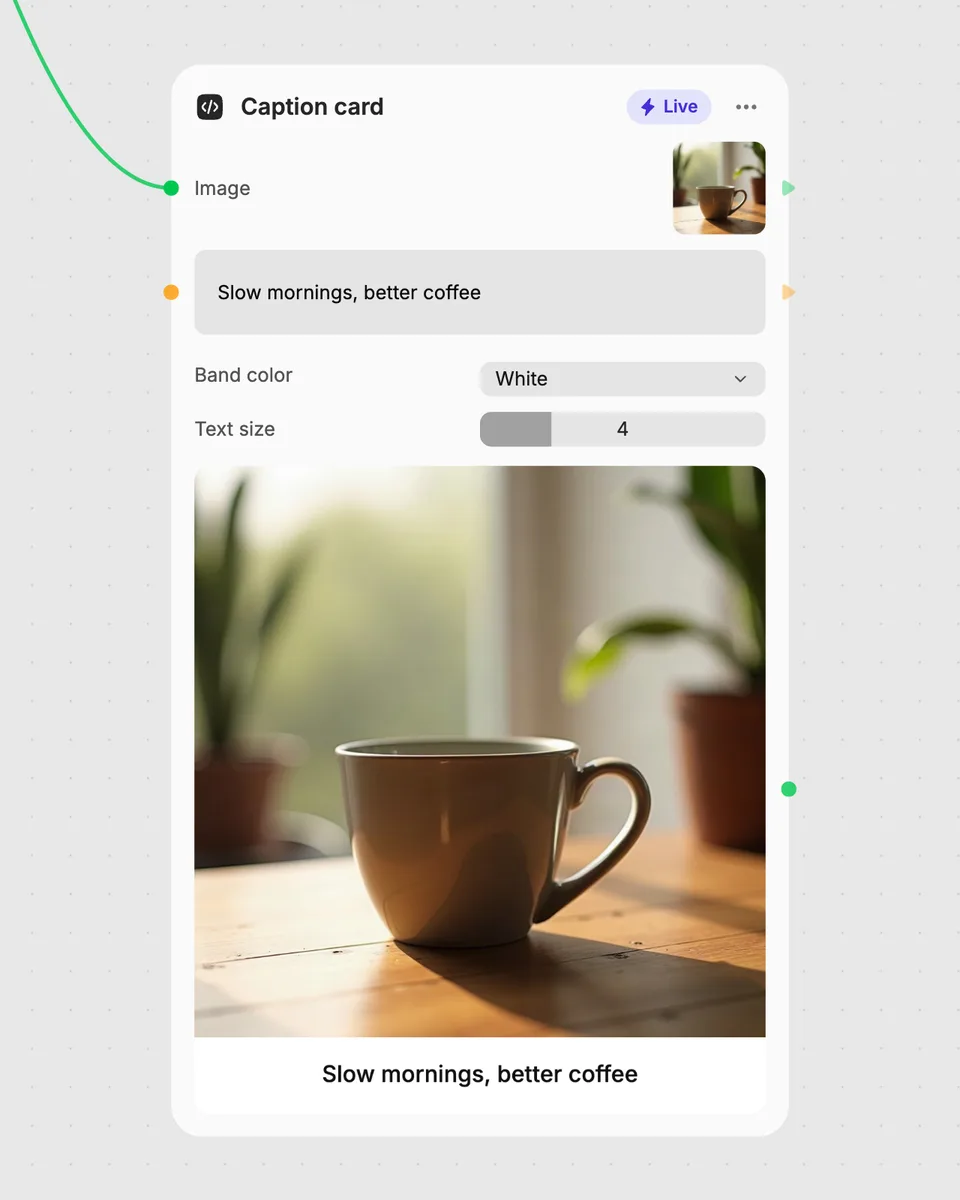
A Tool node with a description of the tool to build

3. Describe your own

Need something different? Describe the tool you want and Fuser builds it, with the controls you asked for.

Ways to use this image describer

Turn visual inputs into written descriptions for review, organization, and downstream Fuser steps.

Summarize a photo

01

Generate a short written overview of what appears in a photo.

Draft image descriptions

02

Create a starting point for describing images before editing or publishing the text.

Review visual content

03

Use a normal-detail description to quickly understand an image without inspecting it manually.

Capture more visual detail

04

Choose detailed output when you need a fuller written account of the image.

Create concise notes

05

Choose short output to turn an image into a compact text note.

Pass descriptions to another step

06

Use the text result as input for a larger Fuser workflow that works with written content.

Frequently asked questions

It takes one image as input and returns a text description. The Detail control lets you choose short, normal, or detailed output.

Provide one image using the required image input. The saved example on this page shows how the tool produces its text result.

Short, normal, and detailed select the requested level of description. Short is more concise, while detailed asks for a fuller text result.

Yes. Sign in to Fuser to run the tool with your own image. It uses AI on Fuser’s servers, and each run costs credits.

Yes. The tool produces text, so its result can be connected to a later step that accepts text. This lets you combine image description with other Fuser nodes.

Open the image describer in Fuser

Sign in to try it on your own image, then combine the text result with other nodes in a larger workflow.

Explore all tools