Video utility

Describe a video in text

Add a video and get a written description, with optional sound coverage and brief, standard, or detailed output.

Video

Video describer

Cloud
Video
Detail
Include sound
The video presents a static view inside an underground cave or bunker with pale, carved limestone walls and fluorescent strip lights across the ceiling, equipped with elevated metal mesh walkways with railings. Massive vertical arrays of concert speakers are embedded directly into hollowed-out alcoves along the rock walls, remaining completely still in what appears to be an eerie sound installation or subterranean testing chamber. The audio consists of a loud, continuous industrial soundscape marked by harsh electronic buzzing, mechanical hums, and low-frequency resonant droning, with no speech or conventional music present.
Uses AI on Fuser’s servers. This is a saved example.

How tools work

A tool is a small app you describe in plain words. Try this one here, then keep it on your Fuser canvas and connect it to the rest of your work.

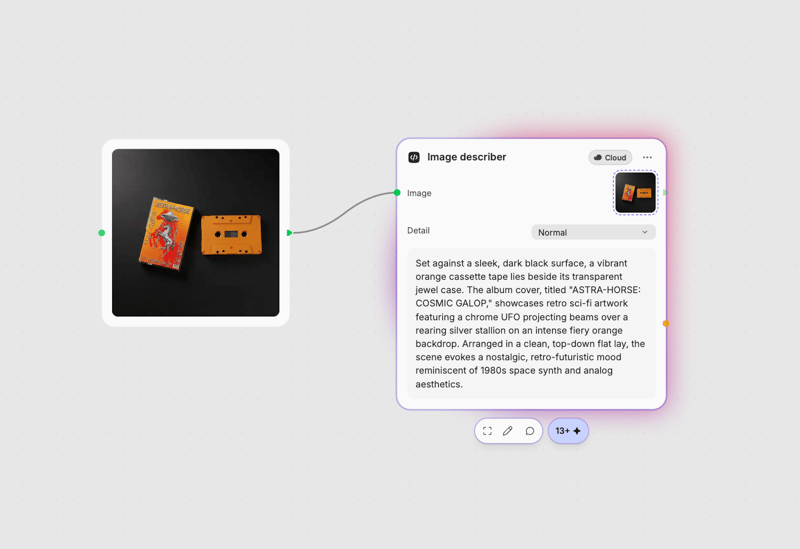
A tool on the Fuser canvas with its controls and result

1. Try it here

Add your own file or text and adjust the controls. Live tools run in your browser, so nothing is uploaded.

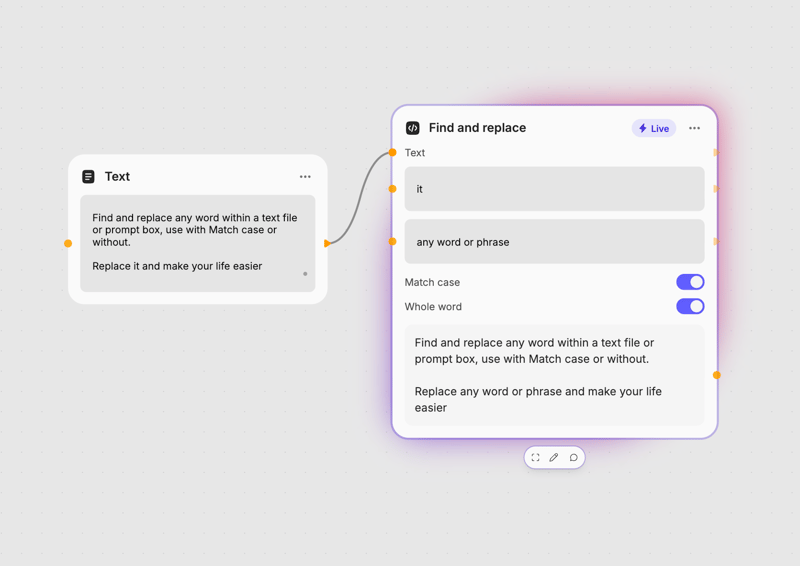
Two tools chained together on the Fuser canvas

2. Open it in Fuser

Sign up free and the tool opens on your canvas with this example wired in, ready to connect to images, video or text from other nodes.

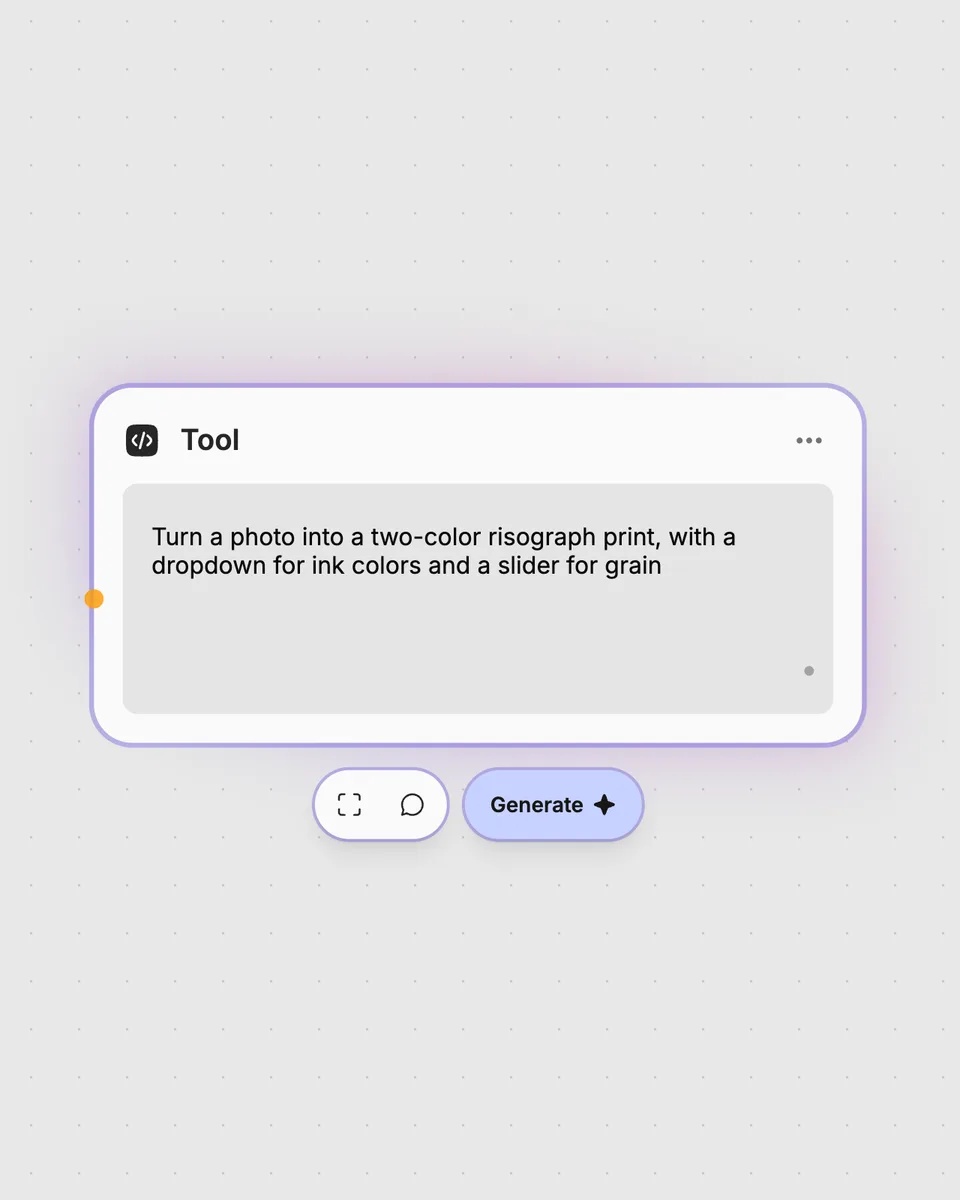
A Tool node with a description of the tool to build

3. Describe your own

Need something different? Describe the tool you want and Fuser builds it, with the controls you asked for.

Ways to use this video describer

Turn video content into text for review, handoffs, and downstream Fuser workflows.

Create a plain-language description

01

Add a video to produce a written account of what it contains.

Include sound in the result

02

Keep Include sound enabled when the description should account for audio as well as visual content.

Choose a quick overview

03

Select Brief when you need a shorter description of the video.

Add more descriptive detail

04

Select Detailed when a fuller written account is more useful for reviewing the video.

Prepare notes for a handoff

05

Turn a video into text that can give collaborators context before they review the original.

Pass video context into a workflow

06

Use the text result as an input for another step in a larger Fuser workflow.

Frequently asked questions

It takes one video as input and returns a written description. The result can be brief, standard, or detailed, and can optionally include sound.

Provide the video you want described. A video is required for each run; no other input is specified.

Detail sets the requested output level: brief, standard, or detailed. Include sound controls whether sound should be considered in the description.

Yes. The page shows a saved example, while your own run requires signing in to Fuser and providing a video. This is a Cloud tool, so runs use AI on Fuser’s servers and cost credits.

Use the returned text as the result of this node and connect it to another node that accepts text. This lets the description become context for a later workflow step.

Open the video describer in Fuser

Sign in to run it on your own video, then combine the text result with other nodes in a Fuser workflow.

Explore all tools