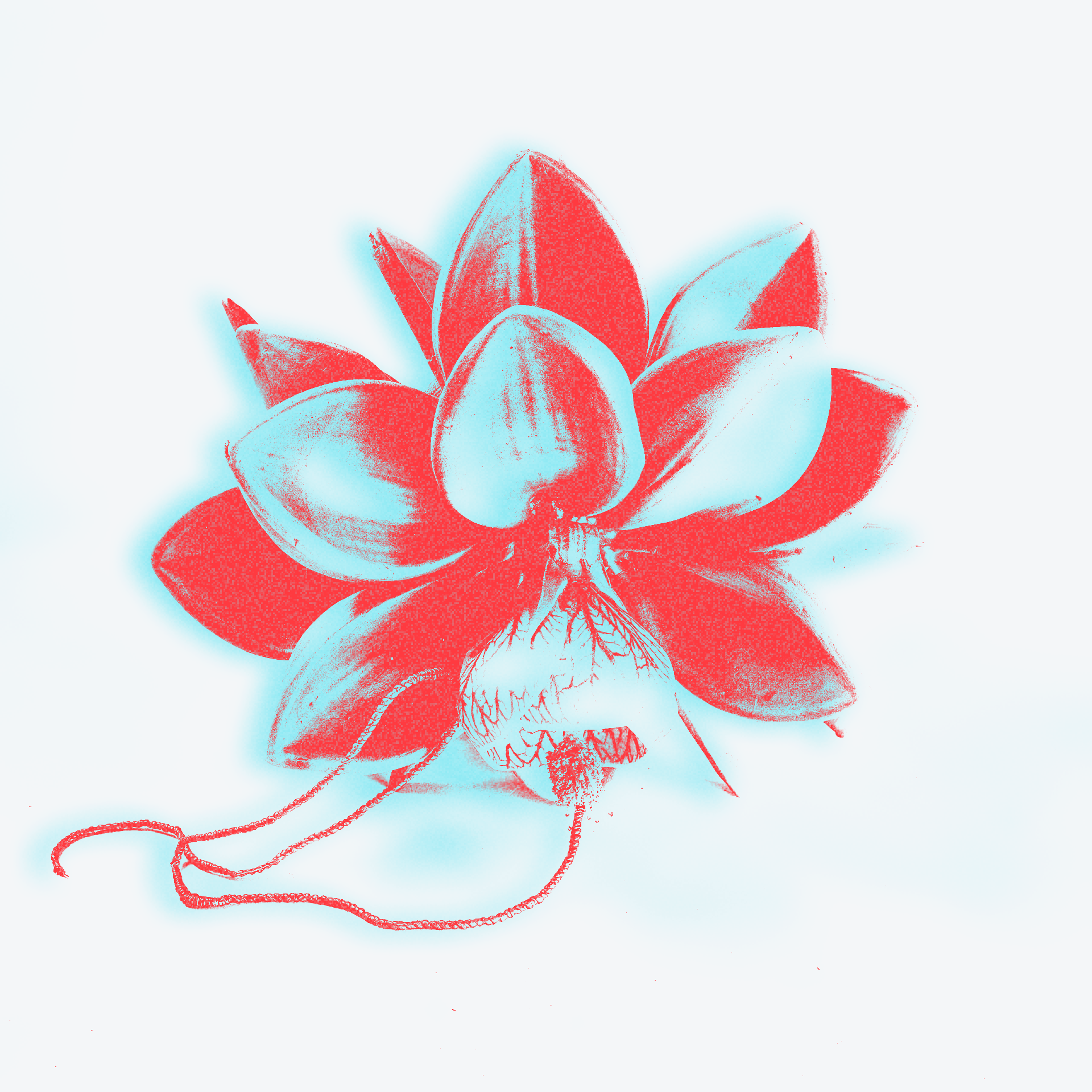
Riso thermal anaglyph
LiveImage
Coral hex
Cyan hex
Background hex
Threshold
Cyan glow
Grain
Color shift
One click, whole workflow
Recipes are here. Package a whole workflow and run it in one click
Explore recipesImage effect
Upload an image and get a coral-and-cyan anaglyph-style result with adjustable threshold, glow, grain, and color shift.
Runs in your browser. Your files are never uploaded.
A tool is a small app you describe in plain words. Try this one here, then keep it on your Fuser canvas and connect it to the rest of your work.
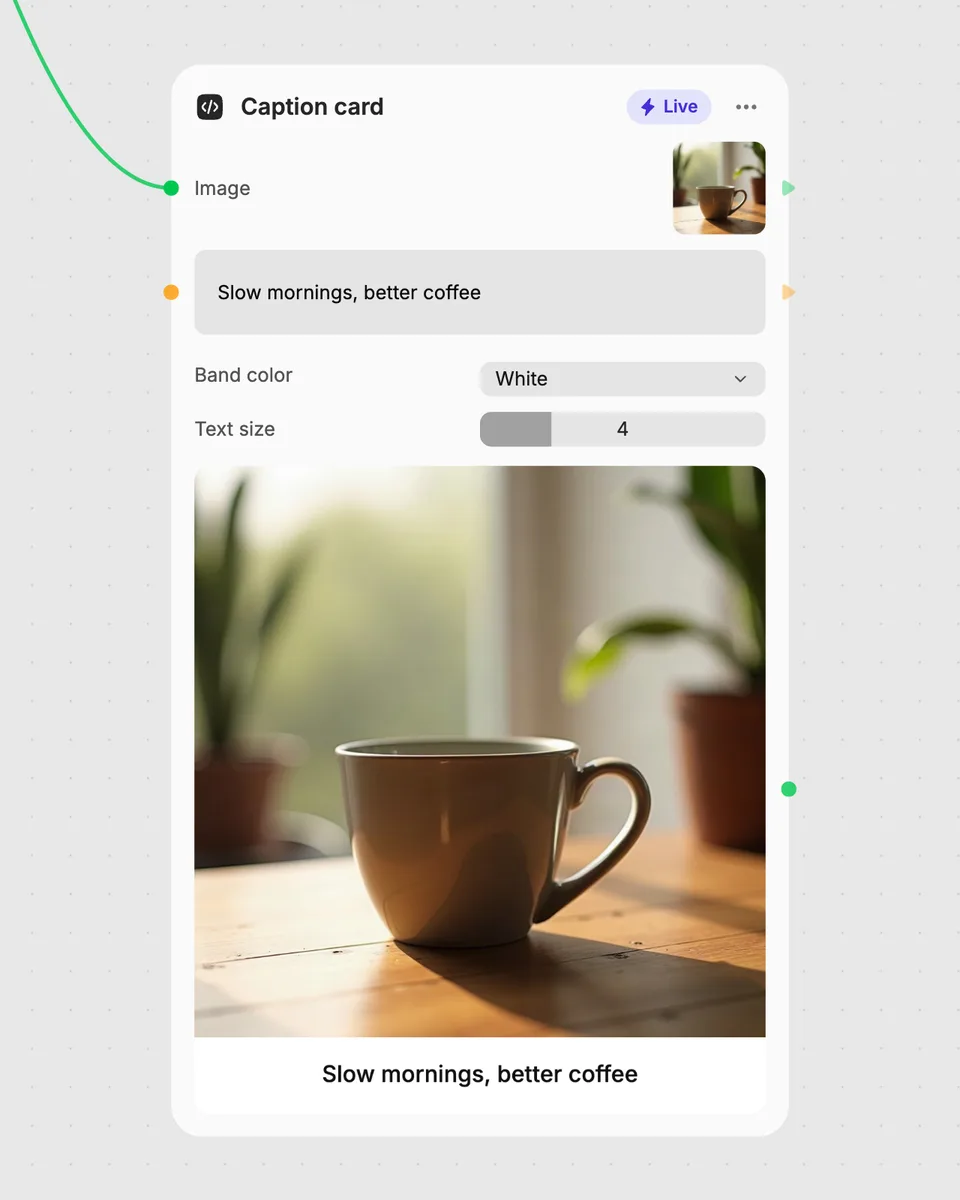
1. Try it here
Add your own file or text and adjust the controls. Live tools run in your browser, so nothing is uploaded.
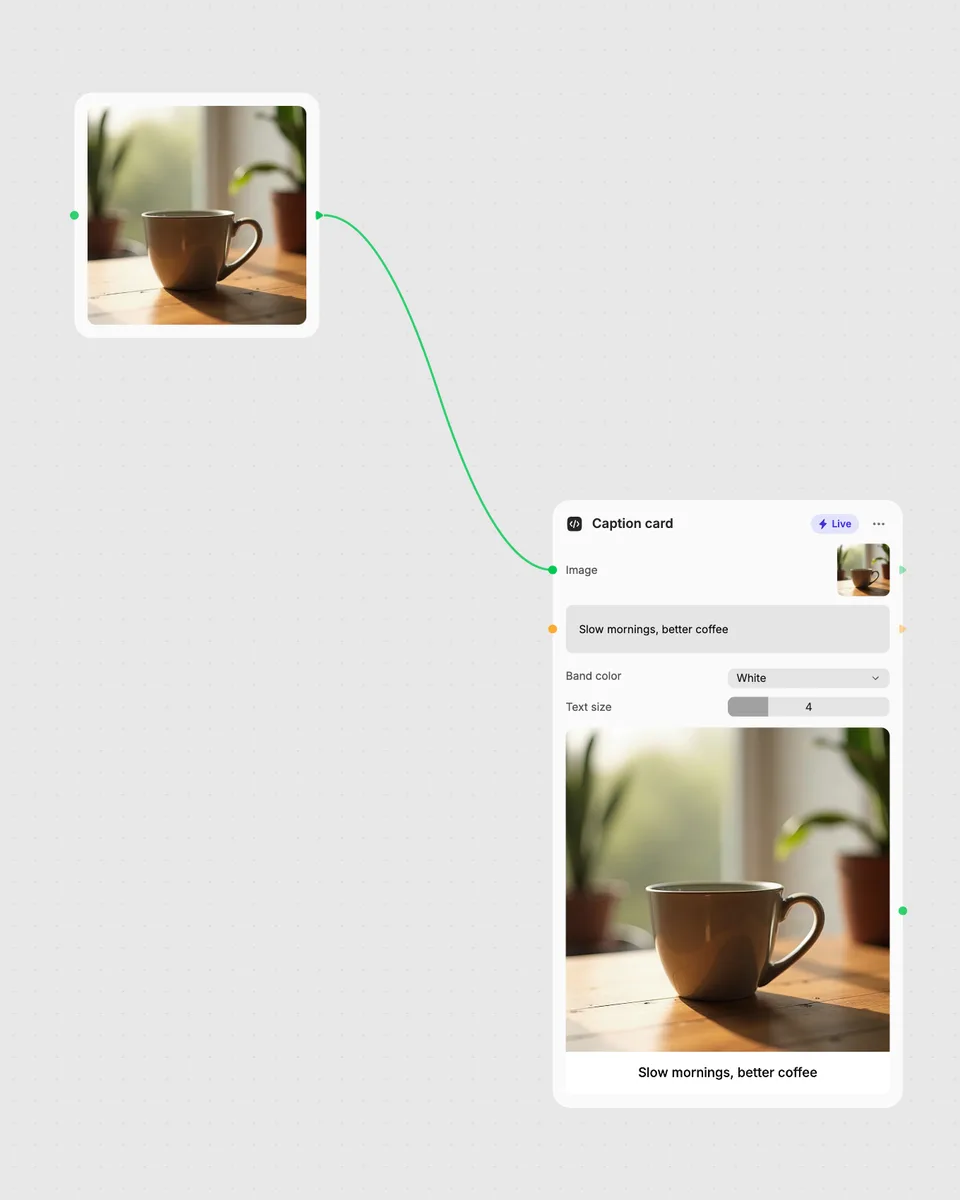
2. Open it in Fuser
Sign up free and the tool opens on your canvas with this example wired in, ready to connect to images, video or text from other nodes.
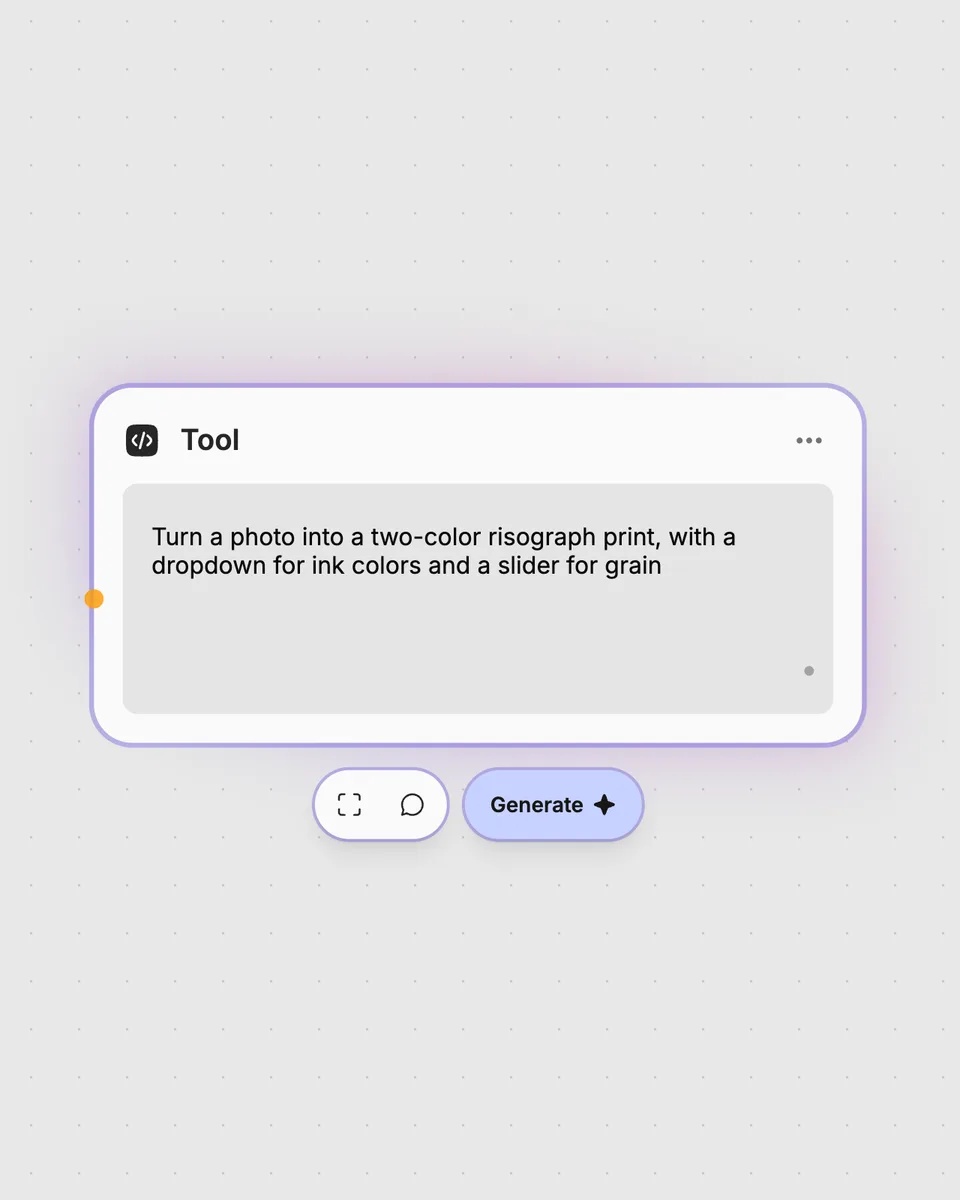
3. Describe your own
Need something different? Describe the tool you want and Fuser builds it, with the controls you asked for.
Explore the controls and color inputs to create different coral, cyan, and paper-background treatments from an image.
It takes one image and produces one image result. The result uses coral, cyan, and a background color, with sliders for threshold, cyan glow, grain, and color shift.
You need to provide an image. Coral, cyan, and background hex values are optional, so you can use the available color inputs when you want to customize the palette.
Threshold, Cyan glow, Grain, and Color shift are adjustable sliders ranging from 0 to 100. Move them to change the corresponding treatment in the image result.
No account is needed to try the tool on this page. Downloading more than once or opening it in Fuser asks you to sign up.
Open the tool in Fuser and connect its image result with other nodes in your workflow. You can use the generated image as part of a larger sequence of image transformations.
Try the image controls, then combine this coral-and-cyan result with other nodes in a larger Fuser workflow.
Upload multiple images to create an animated GIF, then adjust frame duration and output size for the result.
Upload one photo to create square, portrait, and story image results with adjustable detection, fill, headroom, and seam controls.
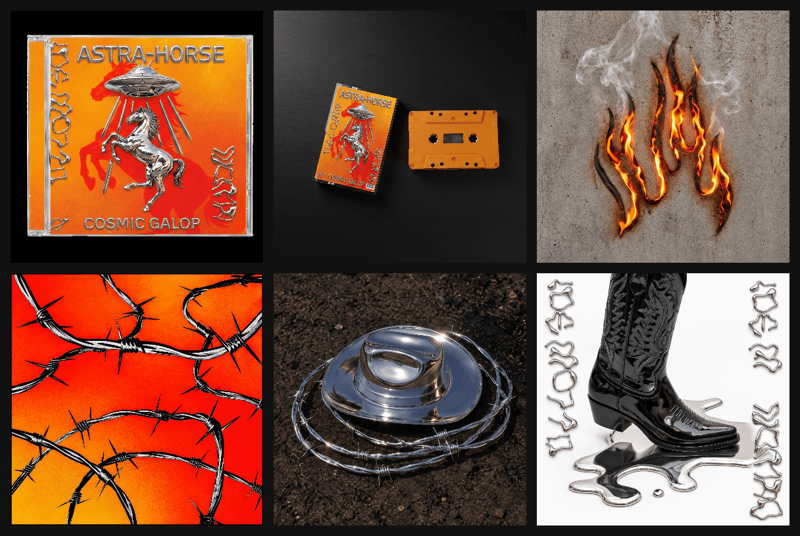
Arrange multiple images into a single contact sheet with adjustable columns, cell size, spacing, and background color.