Video to GIF Converter
LiveVideo
Frame rate
Loop

One click, whole workflow
Recipes are here. Package a whole workflow and run it in one click
Explore recipesVideo conversion
Upload a video and get an image result as a GIF, with controls for frame rate and looping.
Runs in your browser. Your files are never uploaded.
A tool is a small app you describe in plain words. Try this one here, then keep it on your Fuser canvas and connect it to the rest of your work.
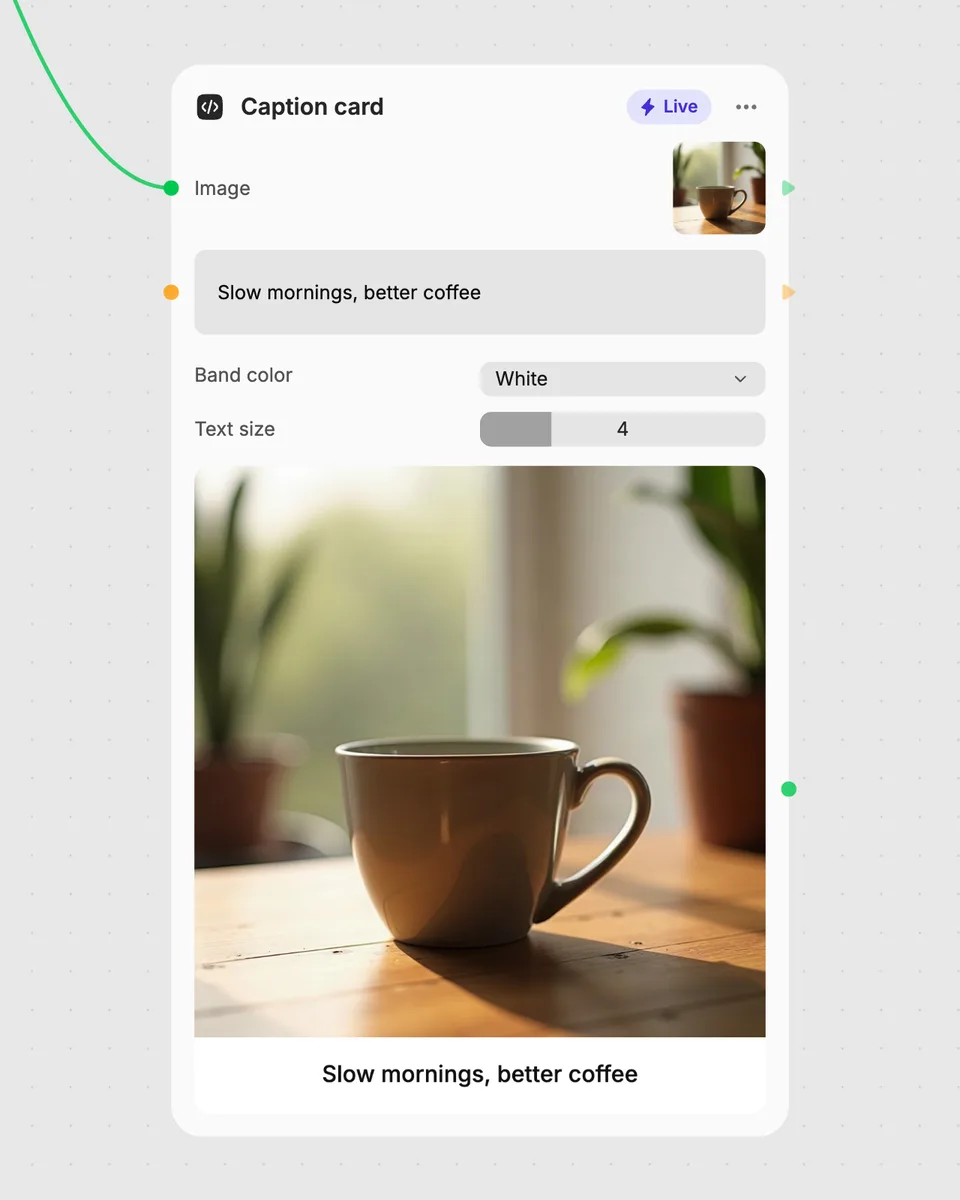
1. Try it here
Add your own file or text and adjust the controls. Live tools run in your browser, so nothing is uploaded.
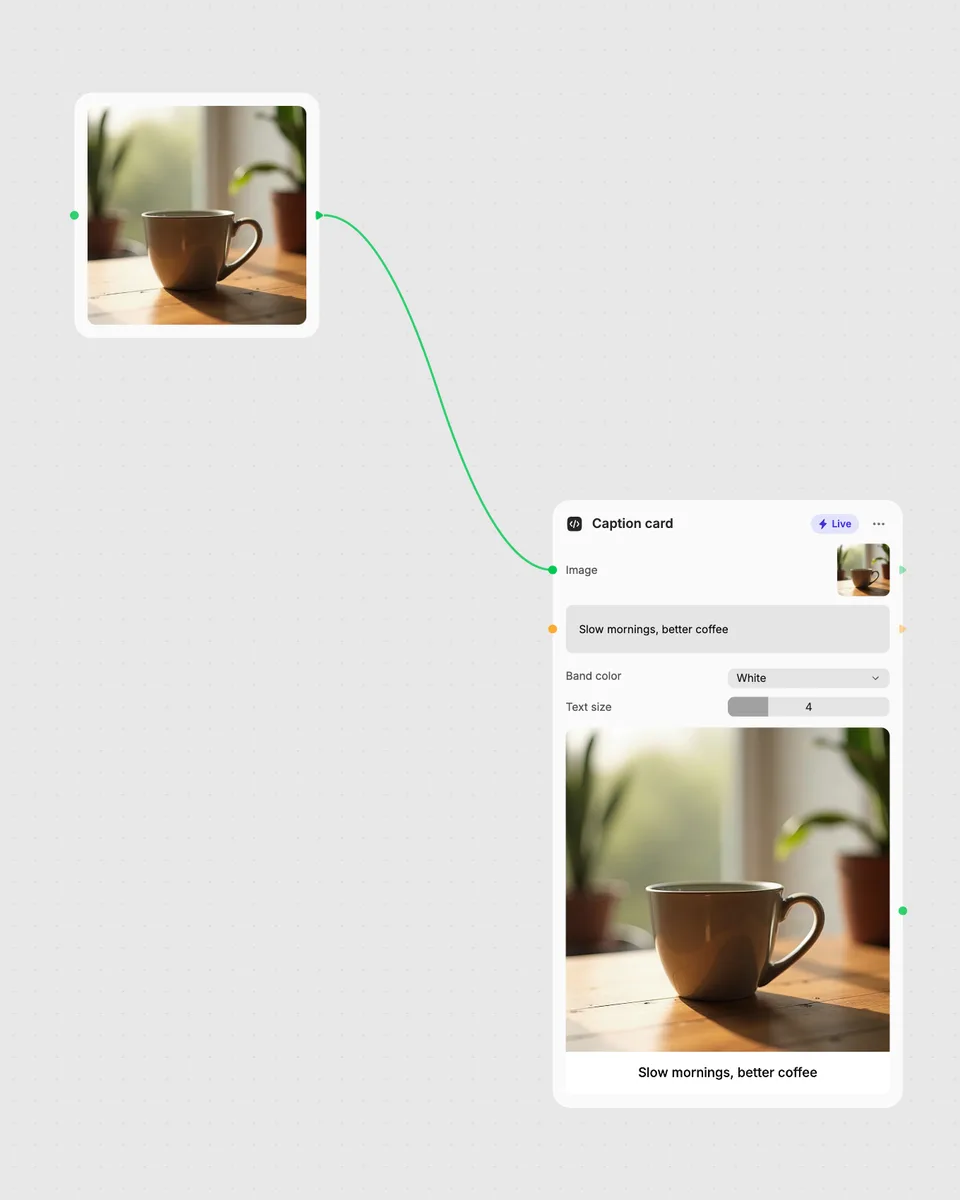
2. Open it in Fuser
Sign up free and the tool opens on your canvas with this example wired in, ready to connect to images, video or text from other nodes.
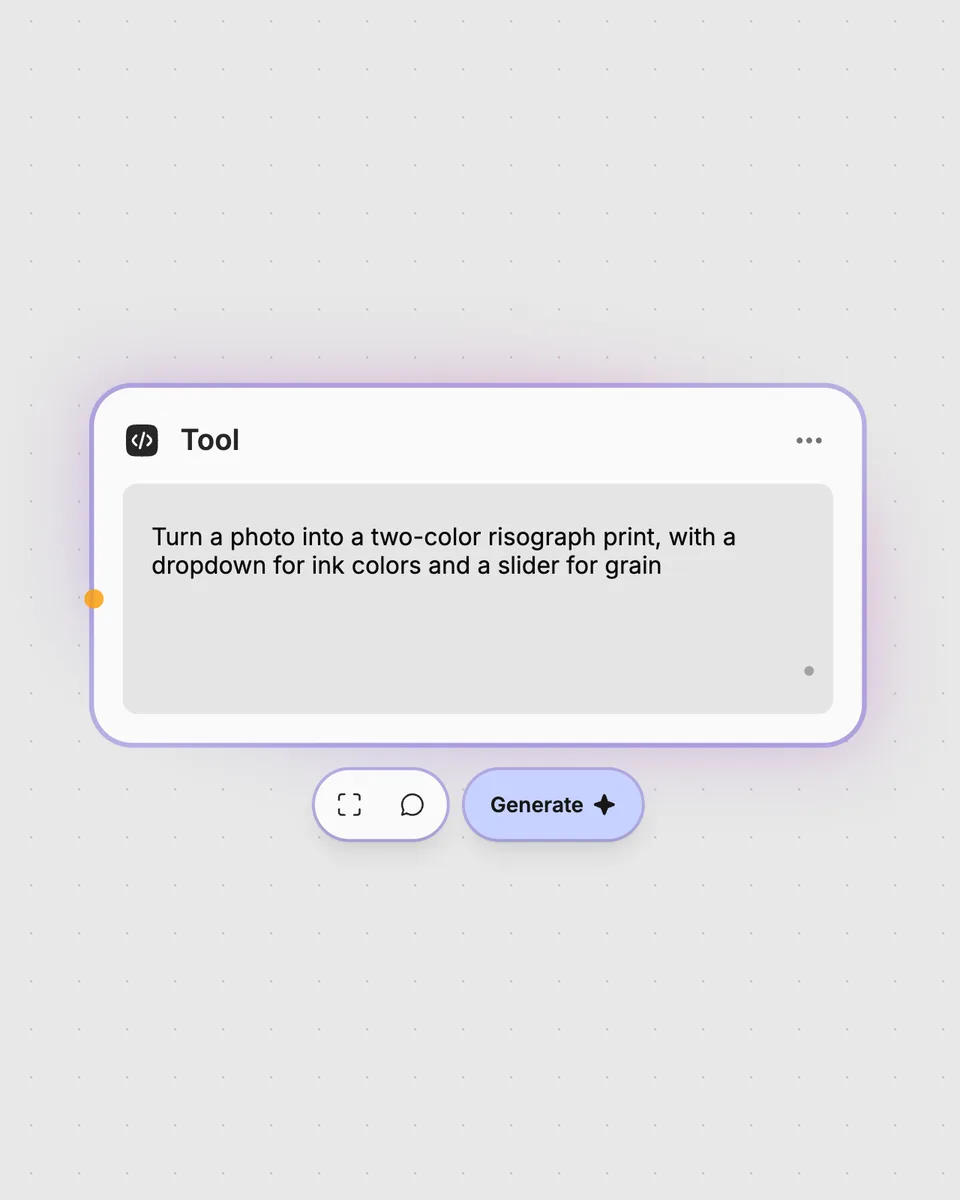
3. Describe your own
Need something different? Describe the tool you want and Fuser builds it, with the controls you asked for.
Use the converter for short, repeatable visual moments wherever an image-based GIF is useful.
It takes one uploaded video and produces an image result as a GIF. You can change the frame rate and choose whether the GIF loops.
Prepare one video to upload as the tool’s required input. No additional inputs are needed.
Frame rate sets the result from 1 to 30 frames per second, with 10 fps as the default. Loop controls whether the GIF repeats, and it is enabled by default.
You can try the tool in your browser for free on this page without an account. Downloading more than once or opening it in Fuser asks you to sign up.
Open the tool in Fuser and connect its image result to another node. This lets the GIF become the next step in a workflow that combines multiple nodes.
Adjust the frame rate, choose looping, and combine the GIF result with other nodes in Fuser.
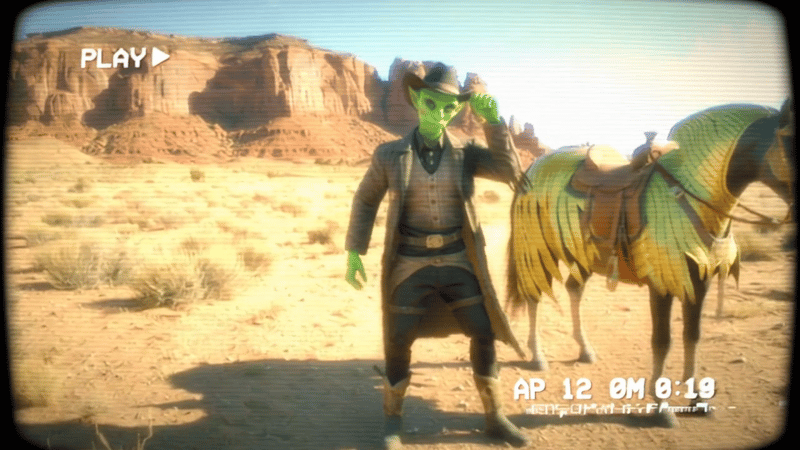
Add a video, choose a position from 0 to 100, and get the corresponding frame as an image.

Turn a video into one stacked-exposure image by sampling frames and combining them with your chosen blend mode.
Upload an image containing faces and receive a pixelated image with adjustable block size and face padding.