Pixelate faces in image
CloudImage containing faces
Pixel block size
Face padding
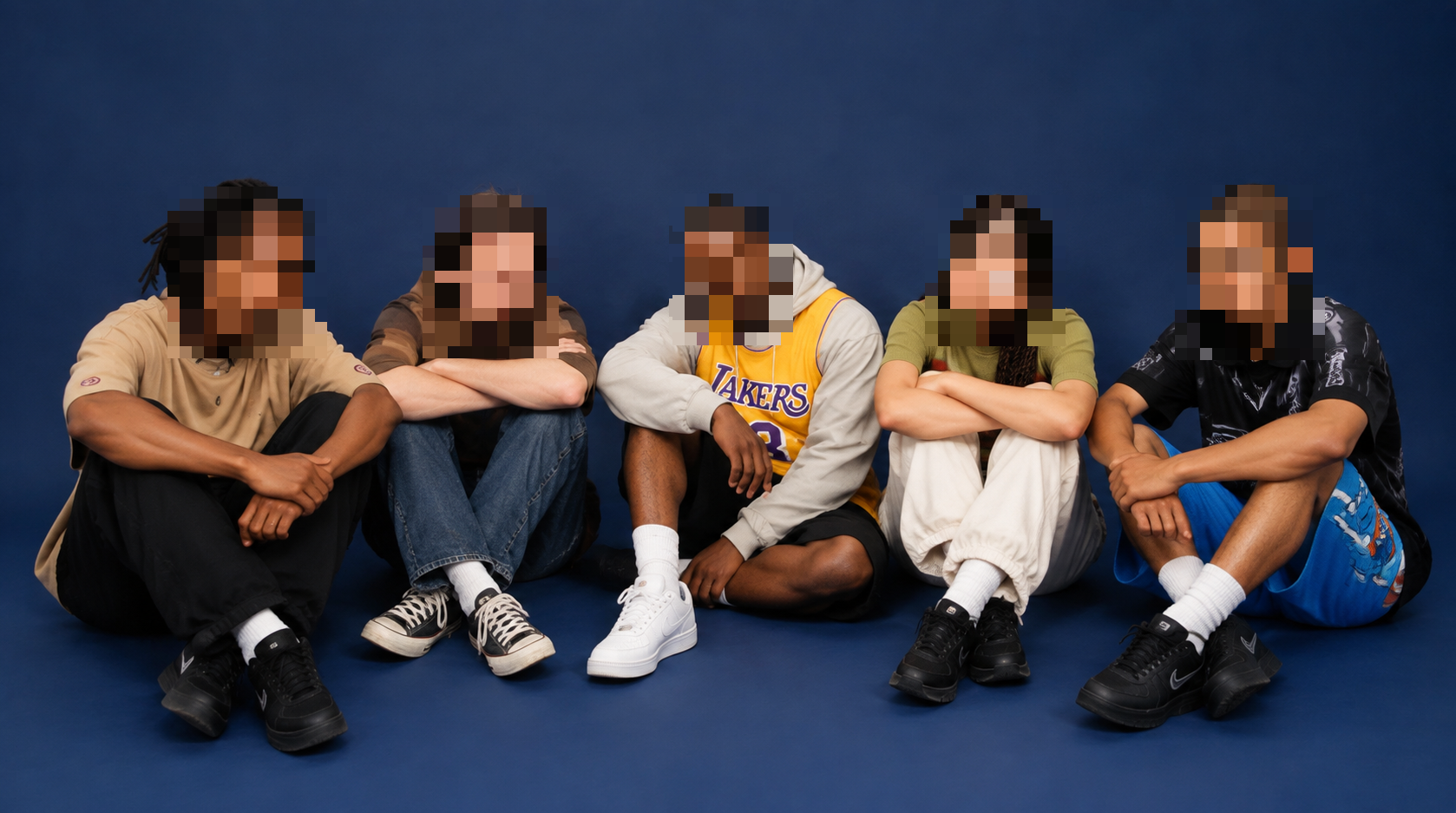
One click, whole workflow
Recipes are here. Package a whole workflow and run it in one click
Explore recipesImage effect
Upload an image containing faces and receive a pixelated image with adjustable block size and face padding.
Uses AI on Fuser’s servers. This is a saved example.
A tool is a small app you describe in plain words. Try this one here, then keep it on your Fuser canvas and connect it to the rest of your work.
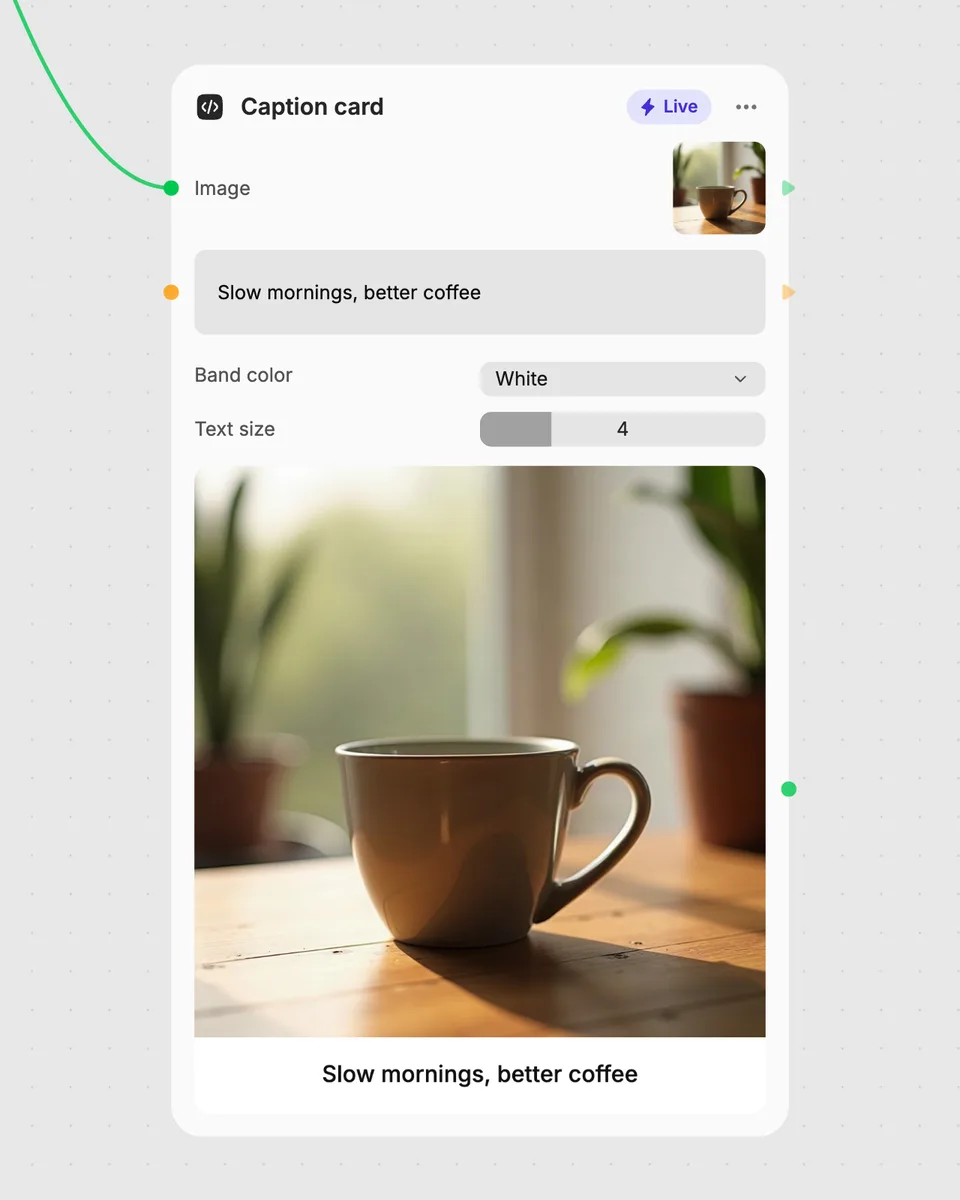
1. Try it here
Add your own file or text and adjust the controls. Live tools run in your browser, so nothing is uploaded.
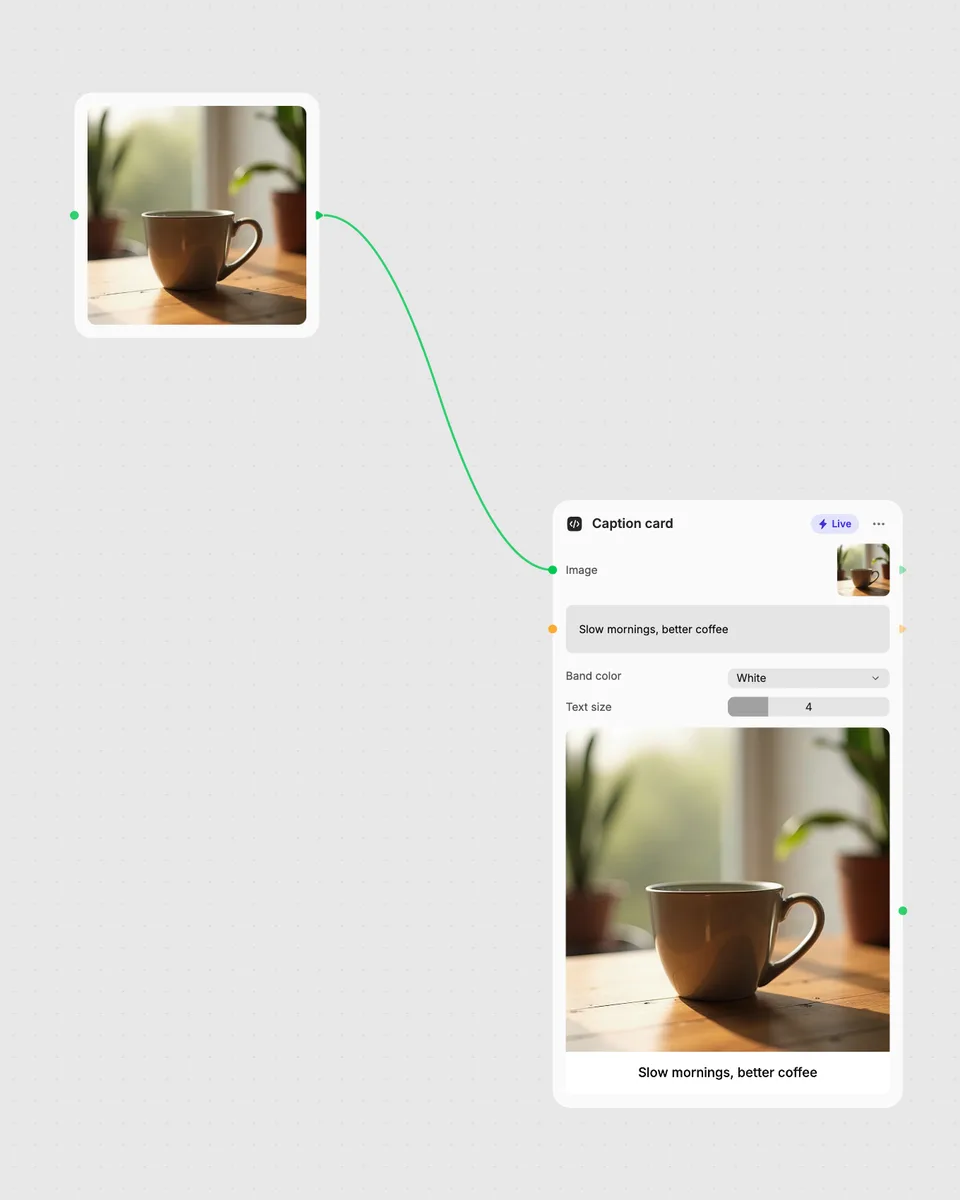
2. Open it in Fuser
Sign up free and the tool opens on your canvas with this example wired in, ready to connect to images, video or text from other nodes.
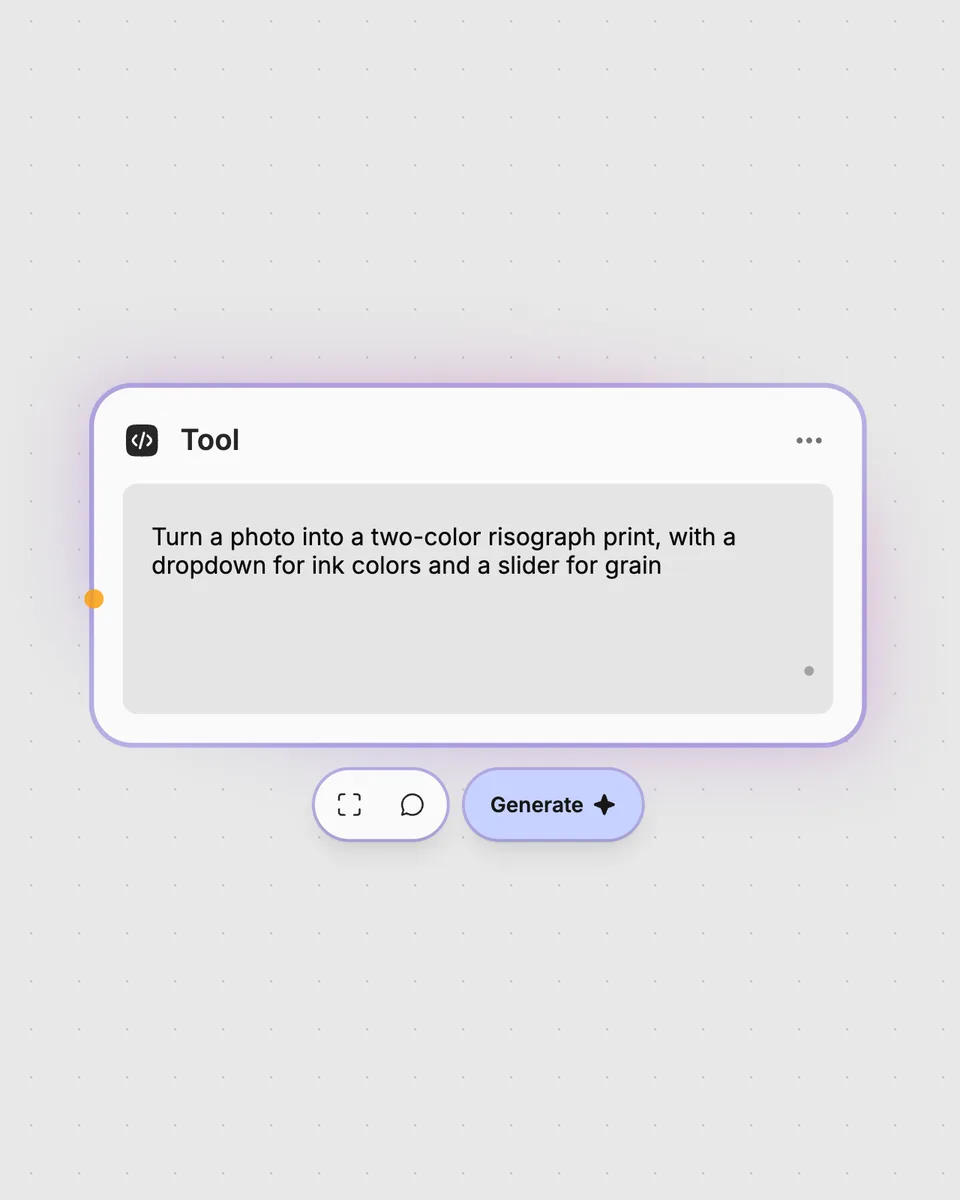
3. Describe your own
Need something different? Describe the tool you want and Fuser builds it, with the controls you asked for.
Apply the tool to images where faces need a pixelated treatment before sharing, presenting, or adding the result to another workflow.
It takes one image containing faces and returns one pixelated image. The result applies a pixelated treatment to the faces in the input.
Provide an image containing the faces you want to pixelate. The tool accepts one image input at a time.
Pixel block size controls the size of the pixel blocks, from 4 to 64, with a default of 16. Face padding controls the padding around faces, from 0 to 80, with a default of 12.
The page displays a saved example, while your own run requires signing in to Fuser. Once signed in, provide your image and choose the control values before running the tool.
Yes. This is a Cloud tool that uses AI on Fuser’s servers, and each run costs credits.
Open the tool in Fuser and connect it with other nodes in a workflow. Its pixelated image result can then continue into the next connected step.
Open the tool in Fuser, run it on your own image after signing in, and combine it with other nodes for a connected workflow.
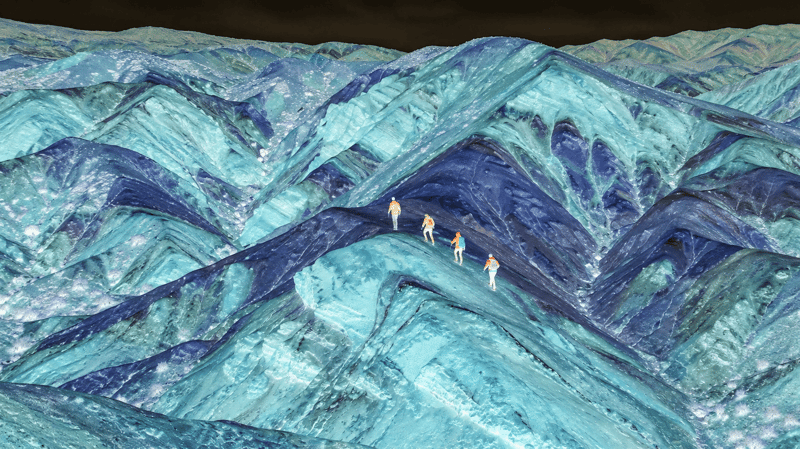
Upload an image and adjust the inversion amount to create a new image with partially or fully inverted colors.
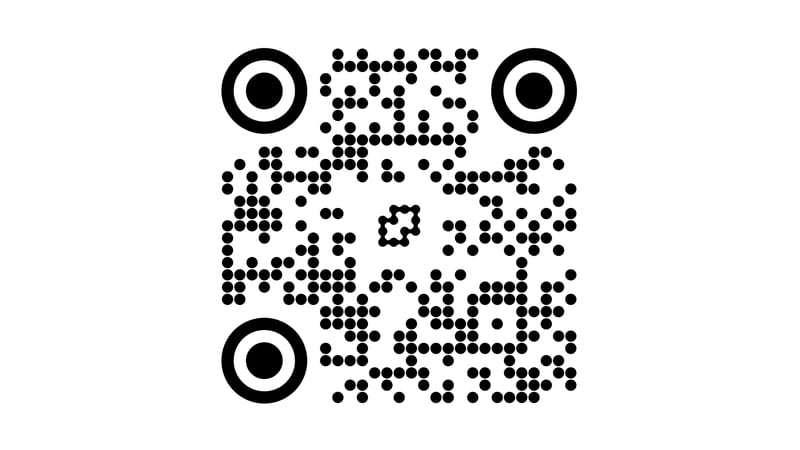
Enter a URL and optionally add a logo to generate a QR code with adjustable dots, colors, margins, and background.
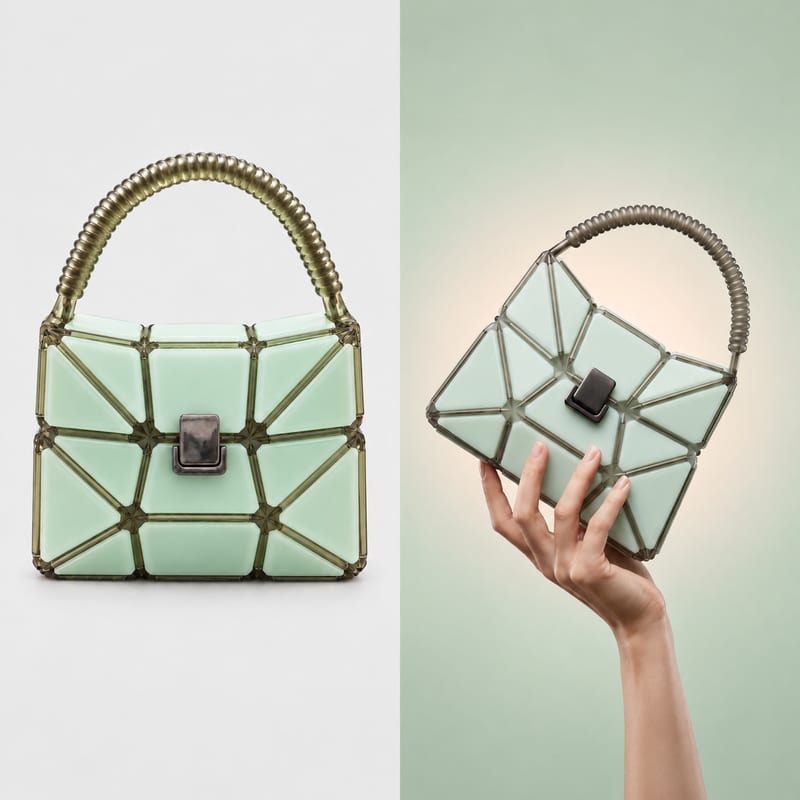
Combine two images into one result, placing them horizontally or vertically with adjustable spacing, fit behavior, and background choice.