Recipev1
3D Cute Printable Charm or Keychain
3D model
Generated 3D Keychain
One click, whole workflow
Recipes are here. Package a whole workflow and run it in one click
Explore recipes3D keychain design
Describe a cute keychain or charm in text and create a 3D mesh that can be downloaded as an STL file.
Generated 3D Keychain
A recipe turns a reusable workflow into a simple set of inputs and outputs. Start with a community recipe and make it your own in Fuser.
1. Choose a recipe
Find a workflow for the result you want. Review what it does and how to use it before opening it in Fuser.
2. Make it your own
Check the recipe’s available inputs. Add your own text or media where supported, or start with the saved defaults.
3. Run and refine
Run it in Fuser and review the result on your canvas. Tweak the inputs to try another direction.
Use a short character or object description to develop 3D charm concepts for personal, product, and collectible projects.
It turns a text description of a desired keychain or charm into a generated 3D mesh. The recipe description identifies the downloadable result as an STL file.
It is useful for people developing cute charms, keychains, collectible concepts, or small product ideas. The Product & Industrial and Toys & Collectibles categories reflect its focus on designed physical objects and playful forms.
Enter a plain-language explanation of the keychain or charm you want, such as “A dumpling with a cute face.” In Fuser, you can change this exposed text input to describe a different subject or concept.
The saved default example uses the description “A dumpling with a cute face” and connects it to the generated 3D keychain output. It shows one example of the recipe, rather than a live generation for a new prompt.
Yes, the exposed customization is the text description of the keychain you want. Changing that description lets you request a different subject, while the recipe continues to produce a generated 3D keychain mesh.
The recipe description says the generated result can be downloaded as an STL file, a format commonly used in 3D-printing workflows. The recipe does not specify separate print settings or guarantee that every generated mesh will be ready to print without further checking.
It fits cute keychain and charm concepts, collectible design explorations, personalized gift ideas, and early product prototypes. It is focused on creating a 3D mesh from a described object rather than producing unrelated images or documents.
Describe the keychain or charm you want, then use the generated mesh as an STL-based starting point for your project.
Develop pitches, campaign assets and interactive client work in Fuser. Combine AI generation, editable design and reusable processes across your agency.
Create product images, lifestyle scenes and campaign assets for your next ecommerce launch. Keep branding editable and reuse creative setups in Fuser.
Create studio-style product images, lifestyle scenes and motion studies. Combine reference-led generation with precise, editable composition in Fuser.
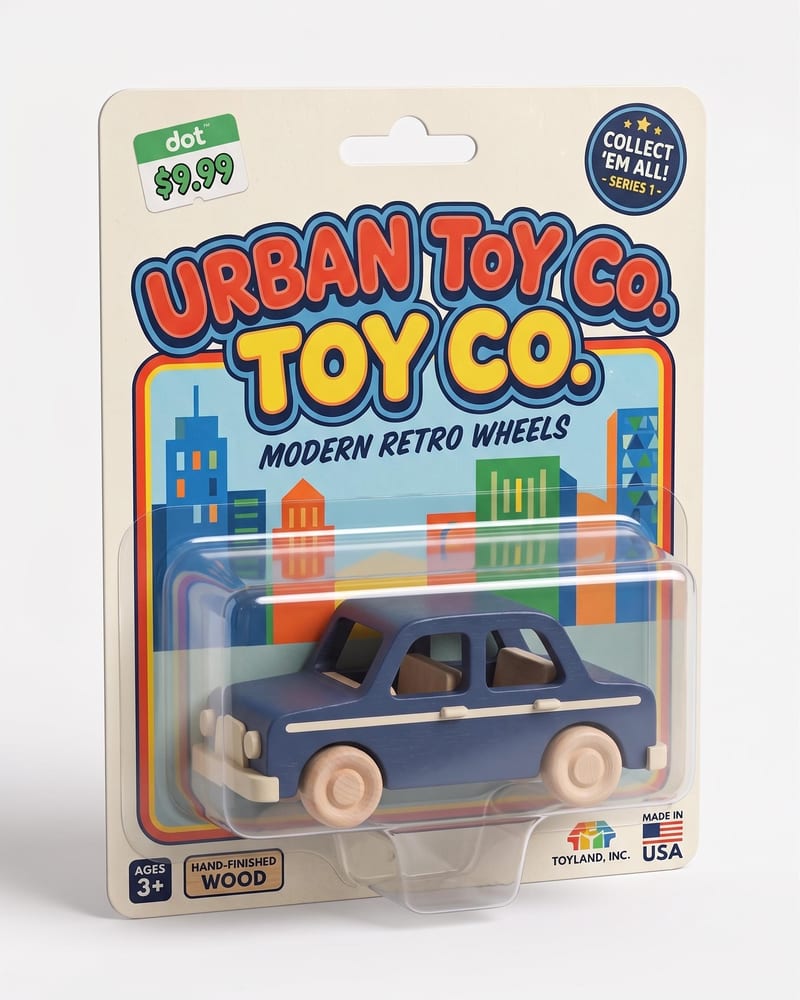
Turn a character or product image into a realistic toy package with molded plastic vacuum-form packaging and a polished retail-ready look.
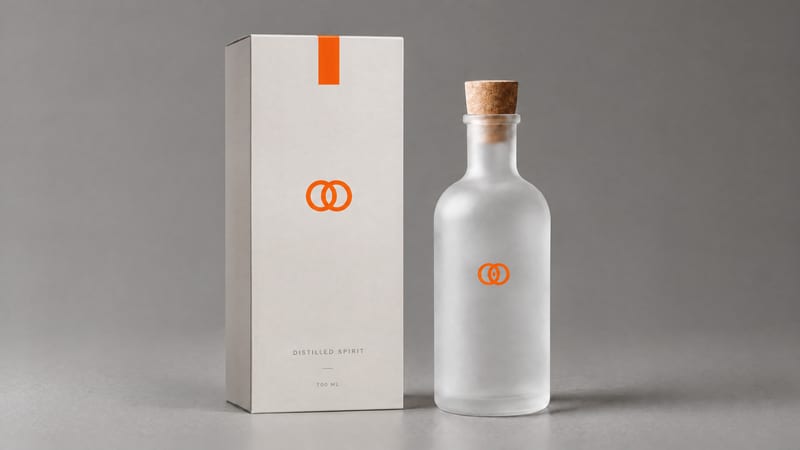
Combine a product image and logo image to create a professional minimalist packaging design for product presentation and marketing work.
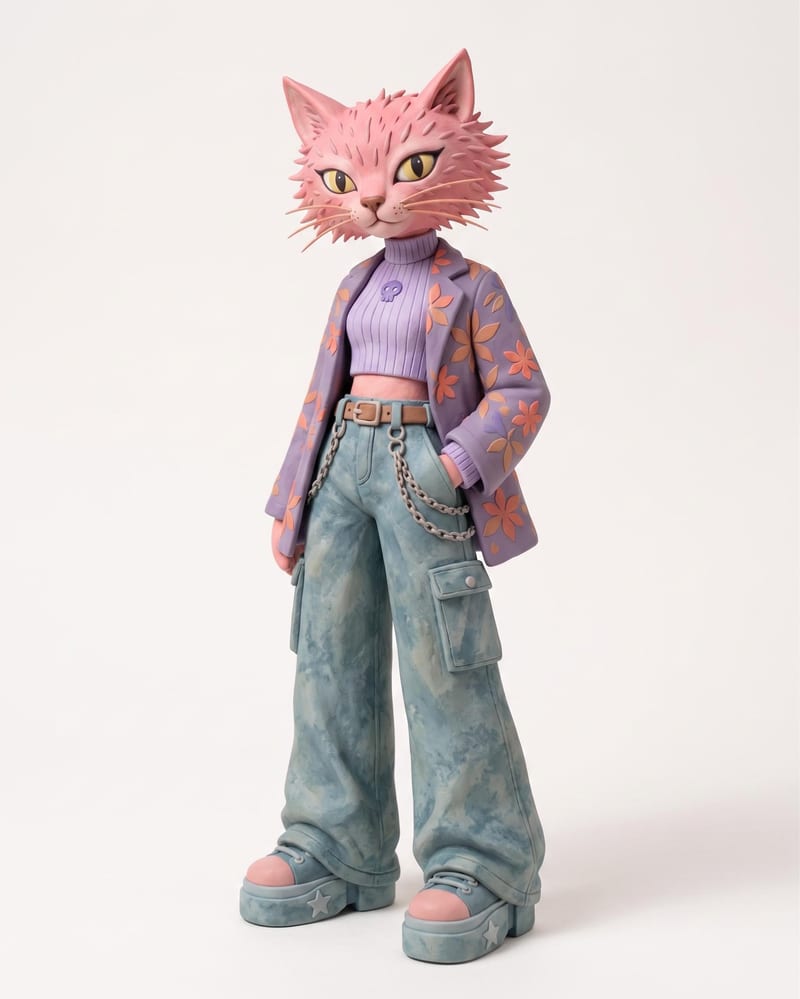
Use an animal name and clothing or color reference images to create a claymation character and character sheet.