Recipev3
AI Image Upscaler

Upscaled Image
One click, whole workflow
Recipes are here. Package a whole workflow and run it in one click
Explore recipesArt & Photography
Upload an original image and choose a scale factor to create an upscaled image with enhanced resolution and clarity.
Upscaled Image
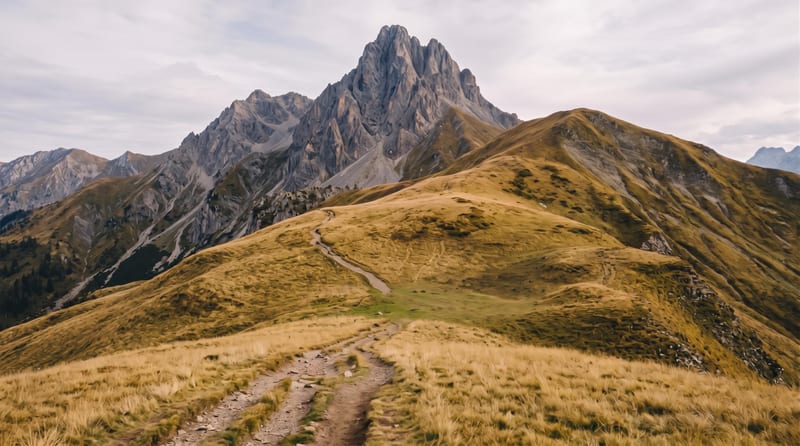
A recipe turns a reusable workflow into a simple set of inputs and outputs. Start with a community recipe and make it your own in Fuser.
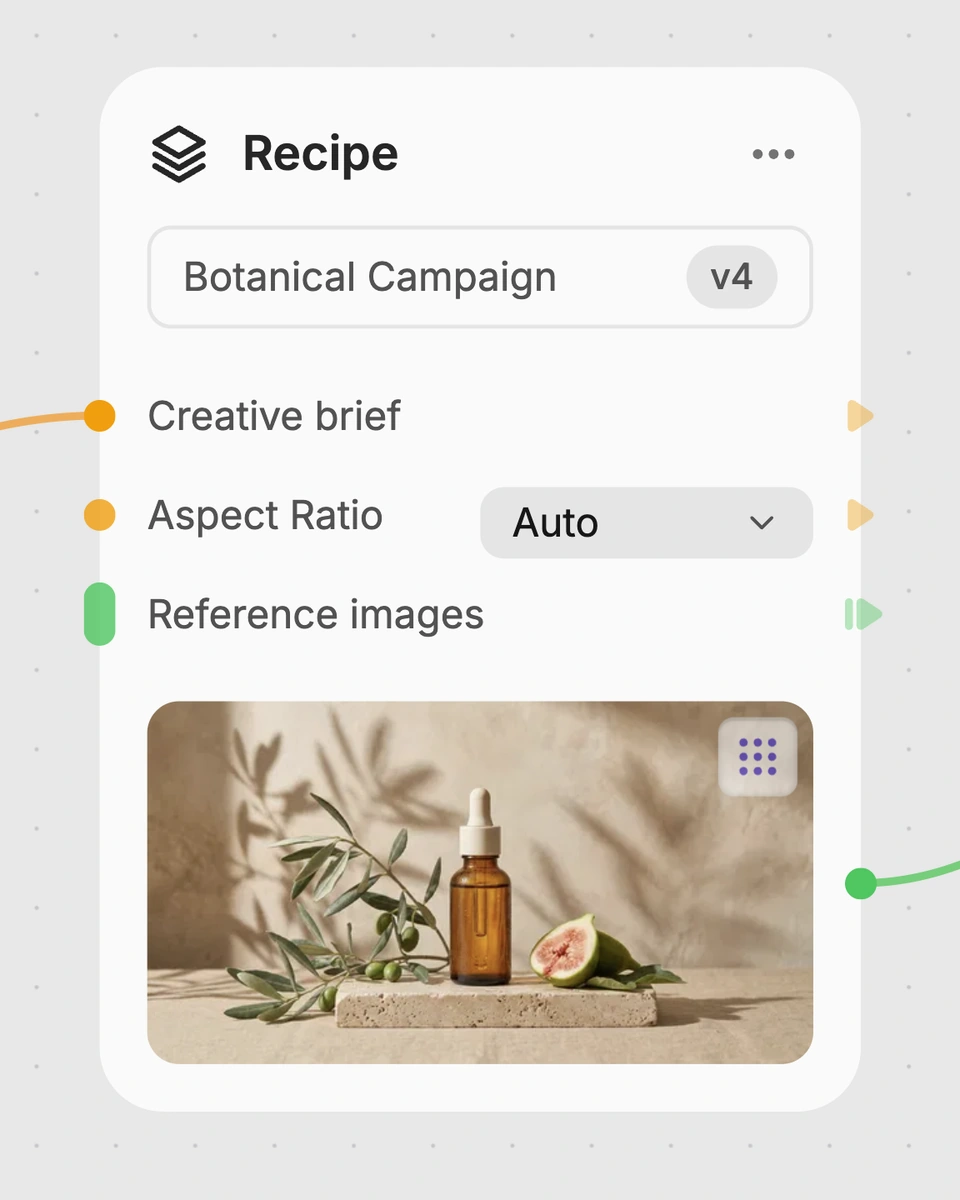
1. Choose a recipe
Find a workflow for the result you want. Review what it does and how to use it before opening it in Fuser.
2. Make it your own
Check the recipe’s available inputs. Add your own text or media where supported, or start with the saved defaults.
3. Run and refine
Run it in Fuser and review the result on your canvas. Tweak the inputs to try another direction.
Use the recipe to prepare clearer, larger versions of existing images for creative and photographic work.
It takes an original image and a scale factor, then creates an upscaled image with enhanced resolution and clarity. The recipe is intended for photography and art or illustration workflows where the original details, textures, and composition should be preserved.
It can help photographers, illustrators, artists, and other creators working with existing image assets. It is useful when a larger or clearer version of an original image is needed for presentation or further creative work.
Provide the image you want to enlarge in the Original Image input. Then enter the desired enlargement value in Scale Factor; the saved example uses 4.
Yes. Scale Factor is an exposed editable input in Fuser, so you can replace the saved value of 4 with the value you want to use for a new run. The resulting output is an Upscaled Image.
The saved example shows an Original Image connected with a scale factor of 4 and an Upscaled Image as the output. It represents the recipe’s default example, not a new run using an image you provide.
The Upscaled Image can support larger presentations of photographs, illustrations, and other art assets. It may also help when reviewing image details at a larger size, while the recipe is designed to preserve the source composition and details.
The recipe works from the Original Image and selected Scale Factor, so the output is based on the source image you provide. Changing the scale factor changes the requested enlargement, but the recipe does not replace the original image with a different composition or subject.
Bring an original image and choose a scale factor to create an upscaled version with enhanced resolution and clarity.
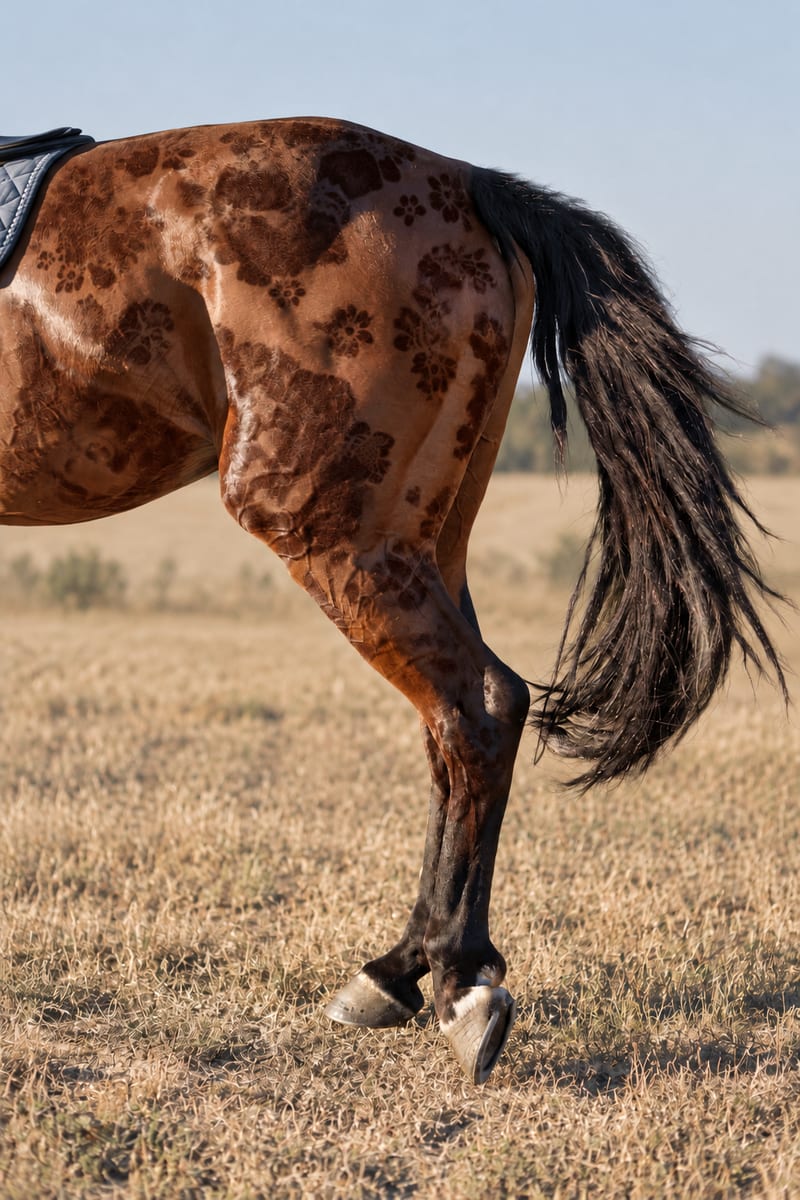
Combine an input pattern with an object image to create a realistic patterned image.
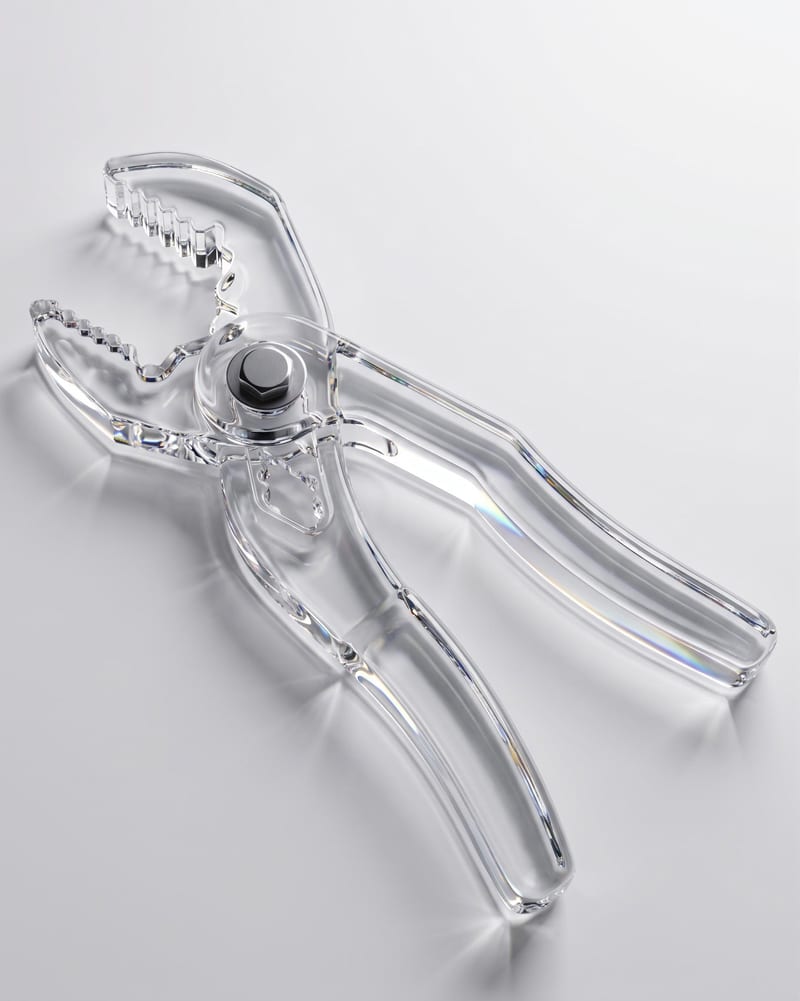
Upload an object image and enter a material such as glass to create an image of the object with that material.
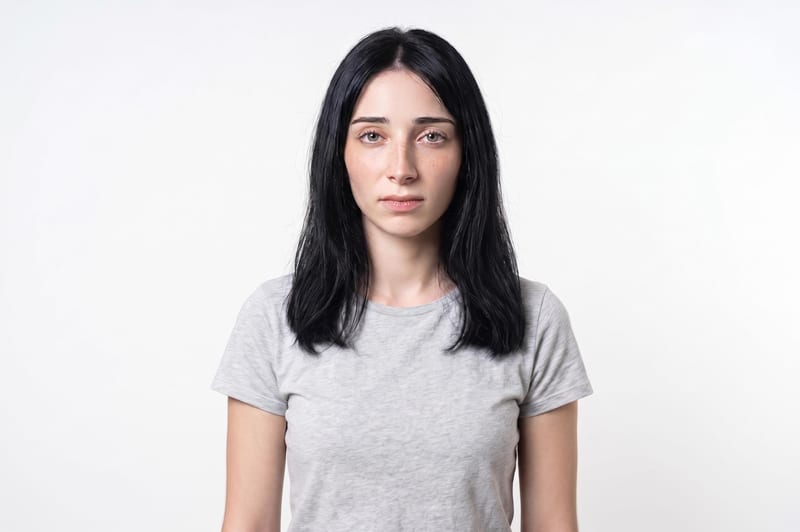
Upload one unretouched face photo to reduce blemishes, smooth uneven texture, and refine skin tone in two retouched outputs.