Recipev2
Apply a pattern to any object
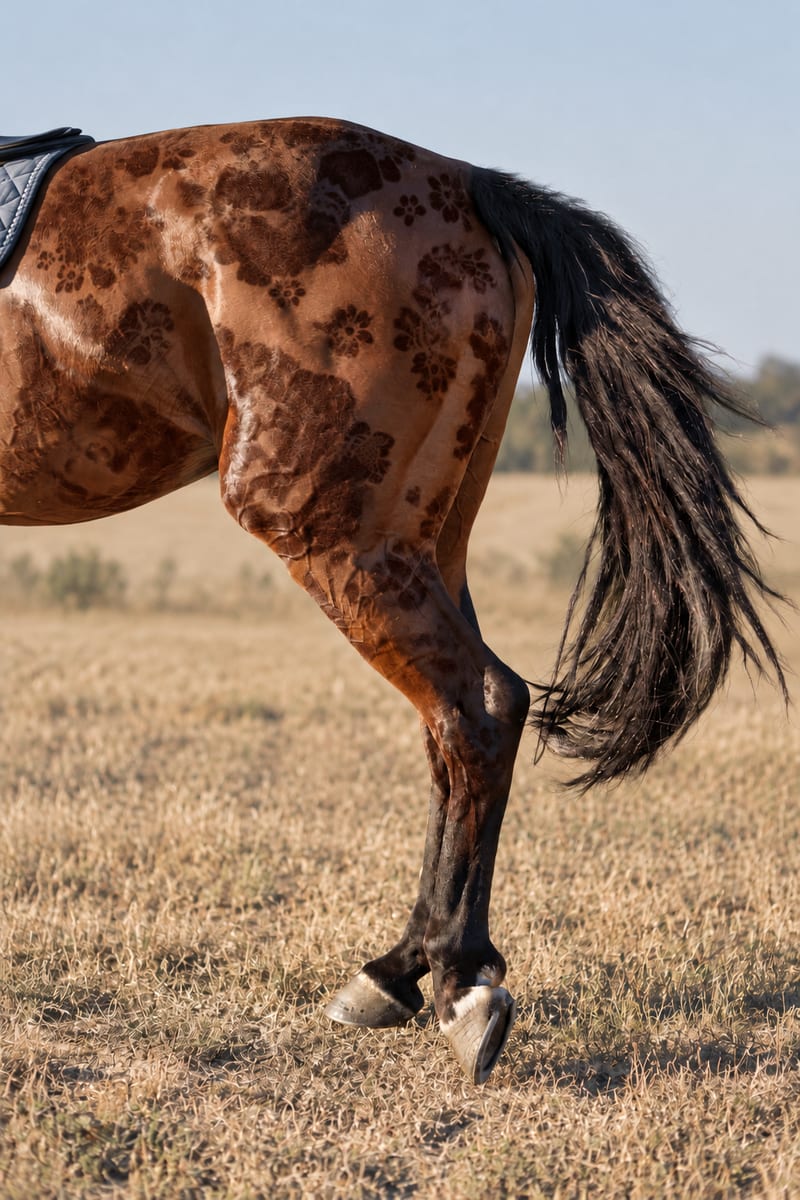
Patterned Image
One click, whole workflow
Recipes are here. Package a whole workflow and run it in one click
Explore recipesPatterned object imagery
Combine an input pattern with an object image to create a realistic patterned image.
Patterned Image
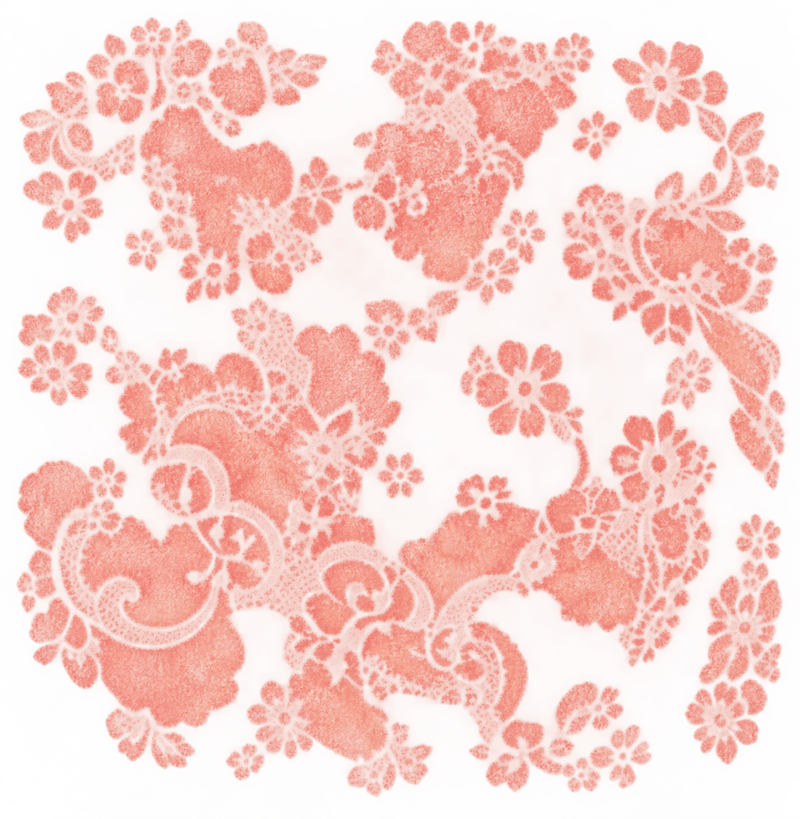
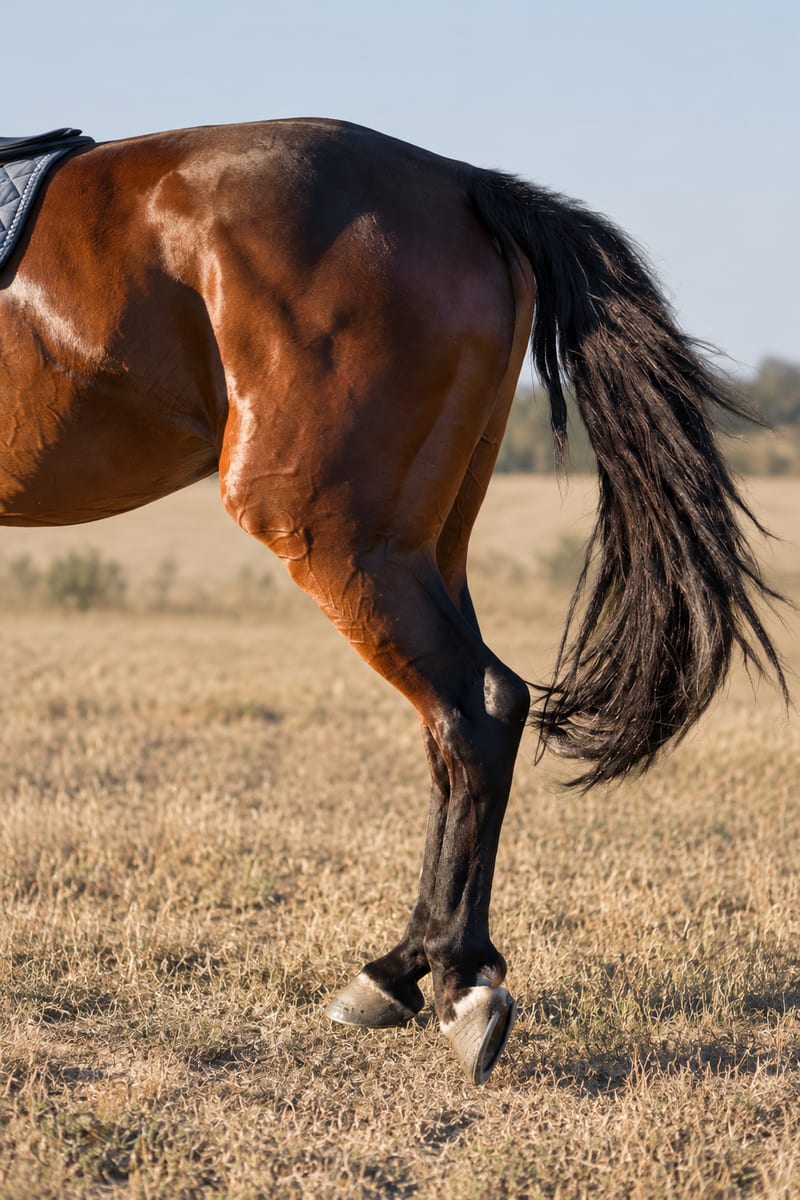
A recipe turns a reusable workflow into a simple set of inputs and outputs. Start with a community recipe and make it your own in Fuser.
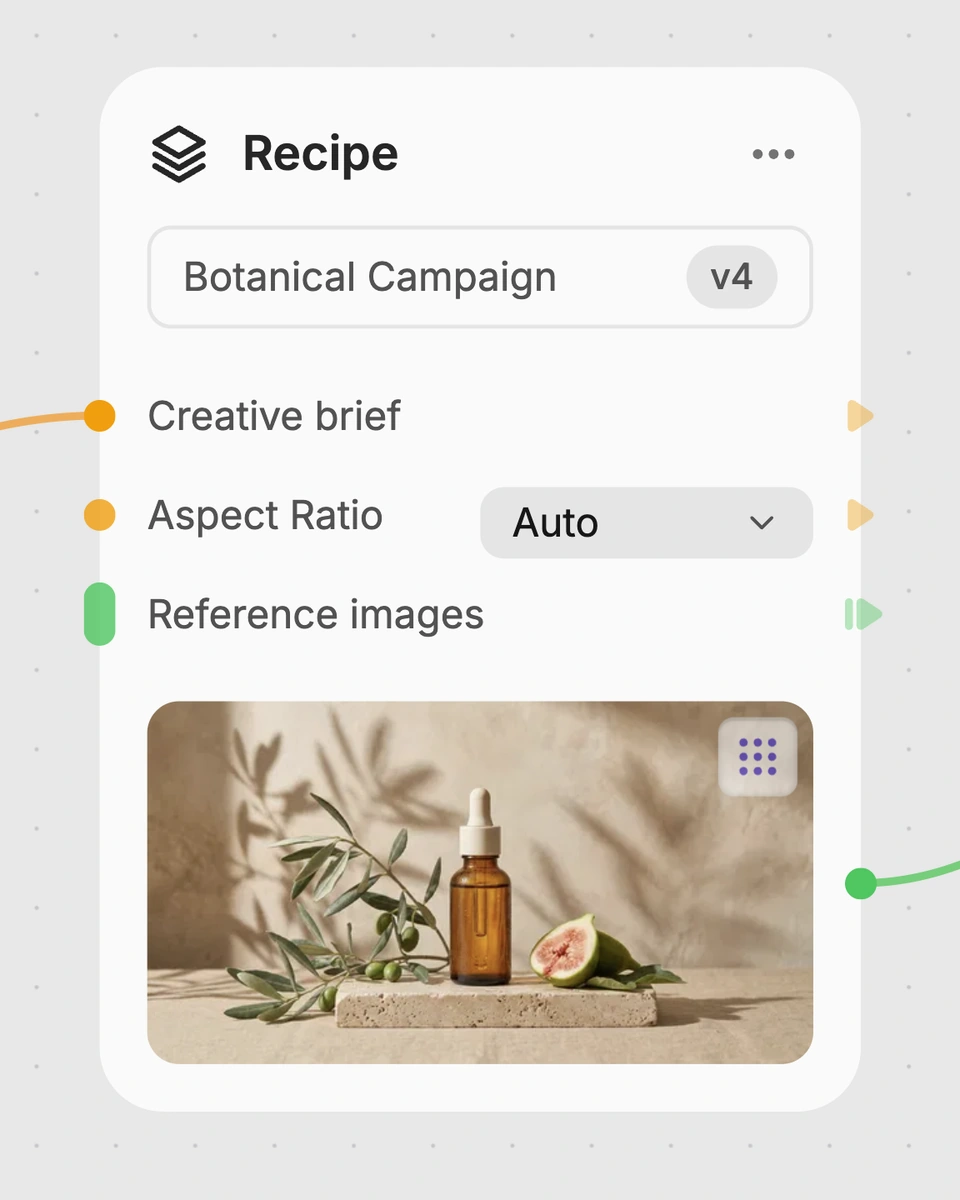
1. Choose a recipe
Find a workflow for the result you want. Review what it does and how to use it before opening it in Fuser.
2. Make it your own
Check the recipe’s available inputs. Add your own text or media where supported, or start with the saved defaults.
3. Run and refine
Run it in Fuser and review the result on your canvas. Tweak the inputs to try another direction.
Use the recipe to explore pattern placement across visual concepts, object imagery, and presentation materials.
It combines an Input Pattern image with an Image to apply pattern to, then produces a Patterned Image. The goal is to show the pattern applied to the object or image in a realistic manner.
It is useful for artists, illustrators, photographers, and anyone exploring how a pattern could appear on an object image. It can support early visual studies as well as presentation-ready concept work.
Prepare two image inputs: the pattern you want to use and the object or image where you want it applied. Choosing clear, relevant images will make the intended pattern and subject easier to communicate.
Yes. Input Pattern and Image to apply pattern to are exposed inputs, so you can replace either image in Fuser before using the recipe. The output is generated as a new Patterned Image from those selected inputs.
The saved example shows the recipe’s default pattern input connected to its default object or image input, with a Patterned Image as the output. It is a saved example of the workflow rather than a live run.
The result can help with art and illustration studies, photography variations, surface design exploration, product concept work, and visual presentations. These applications focus on applying a supplied pattern to a supplied object image.
The recipe is centered on the two exposed image inputs and one patterned image output. It does not provide separate controls for editing the pattern or object within the recipe, so those source images should be prepared before use.
Bring a pattern and an object image together to explore a new visual treatment in Fuser.

Turn a source image and chosen video duration into six scene images and a commercial montage video.
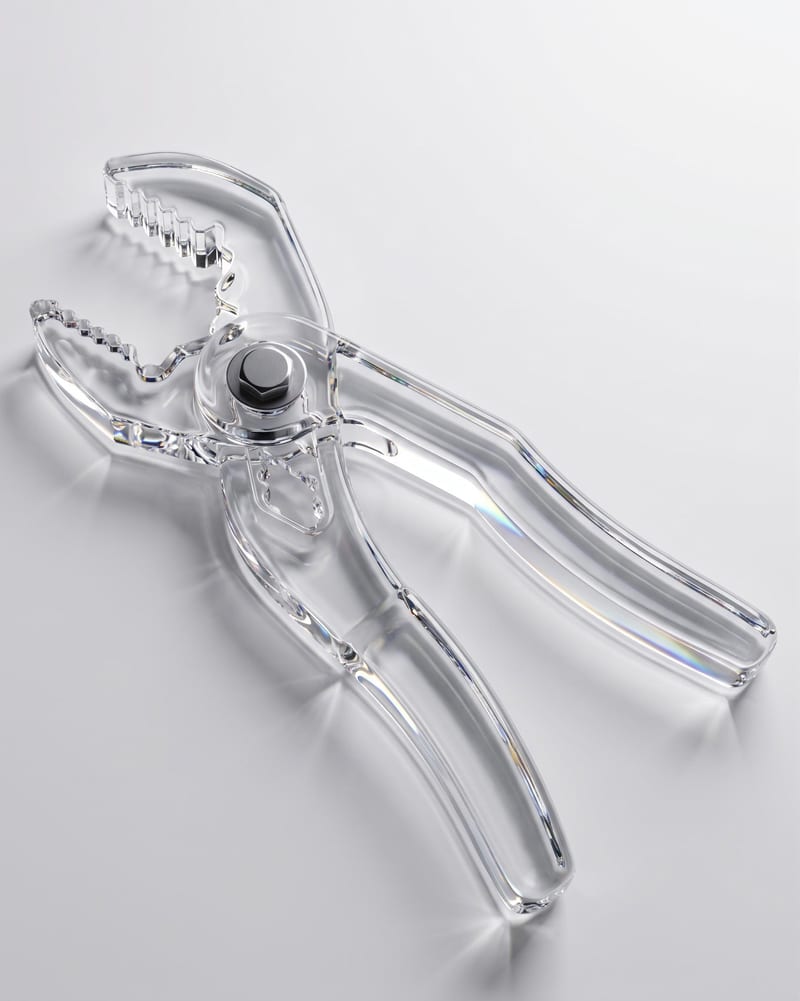
Upload an object image and enter a material such as glass to create an image of the object with that material.
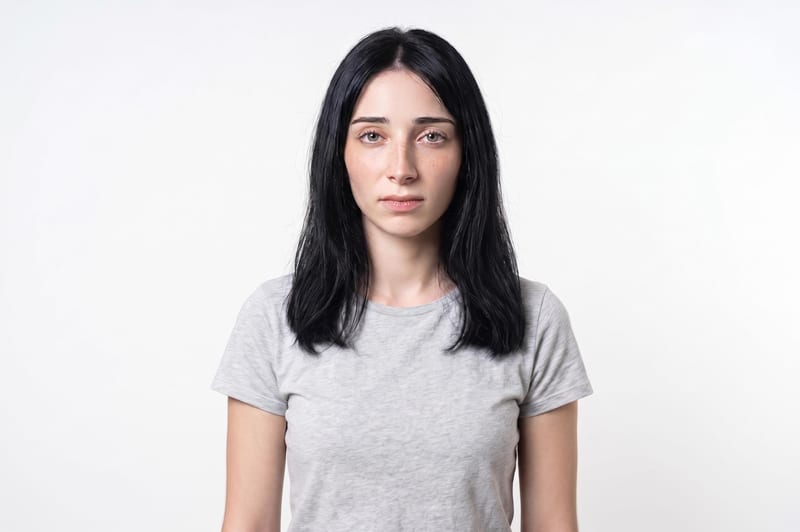
Upload one unretouched face photo to reduce blemishes, smooth uneven texture, and refine skin tone in two retouched outputs.