Recipev2
Garment Recolor
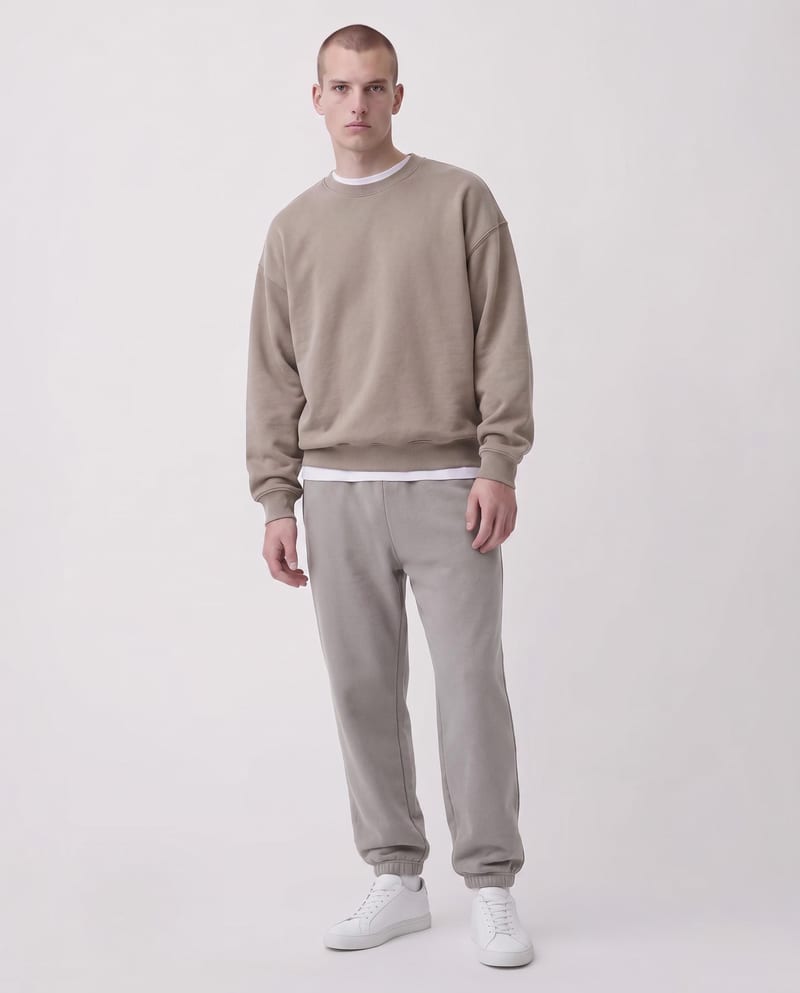
Recolored Garment
One click, whole workflow
Recipes are here. Package a whole workflow and run it in one click
Explore recipesFashion apparel
Upload a garment image and specify sections with color codes to create a recolored garment image.
Recolored Garment
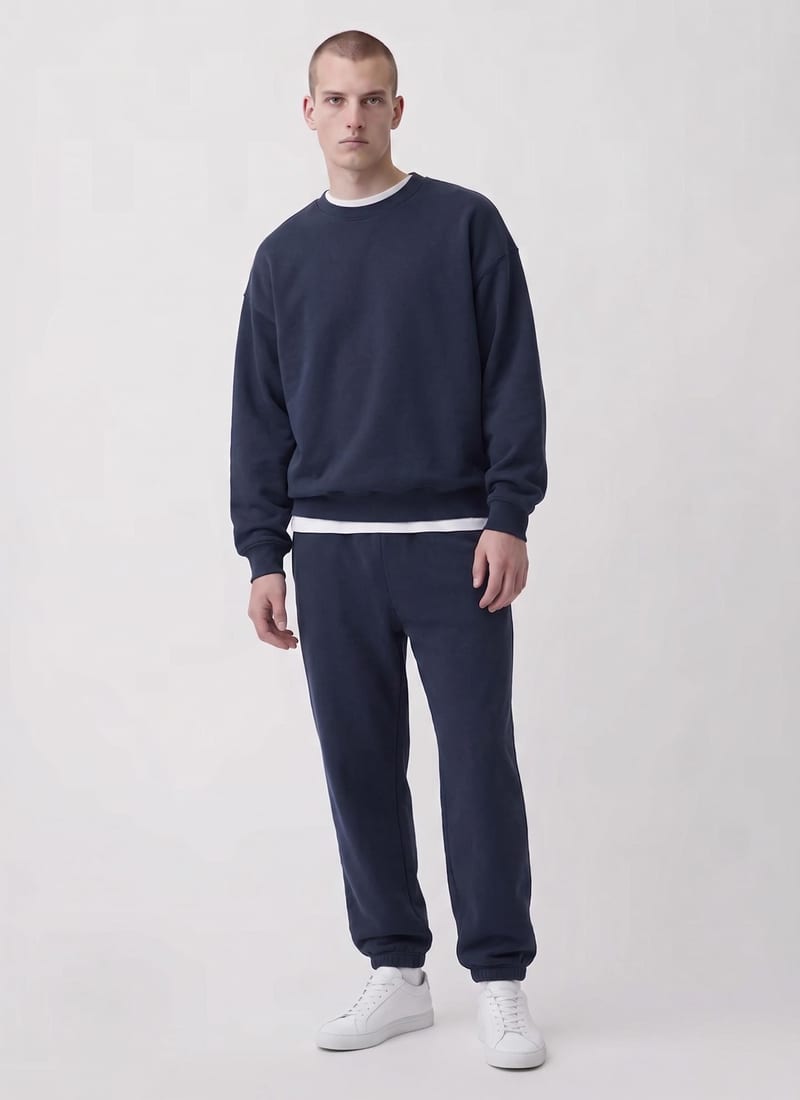
A recipe turns a reusable workflow into a simple set of inputs and outputs. Start with a community recipe and make it your own in Fuser.
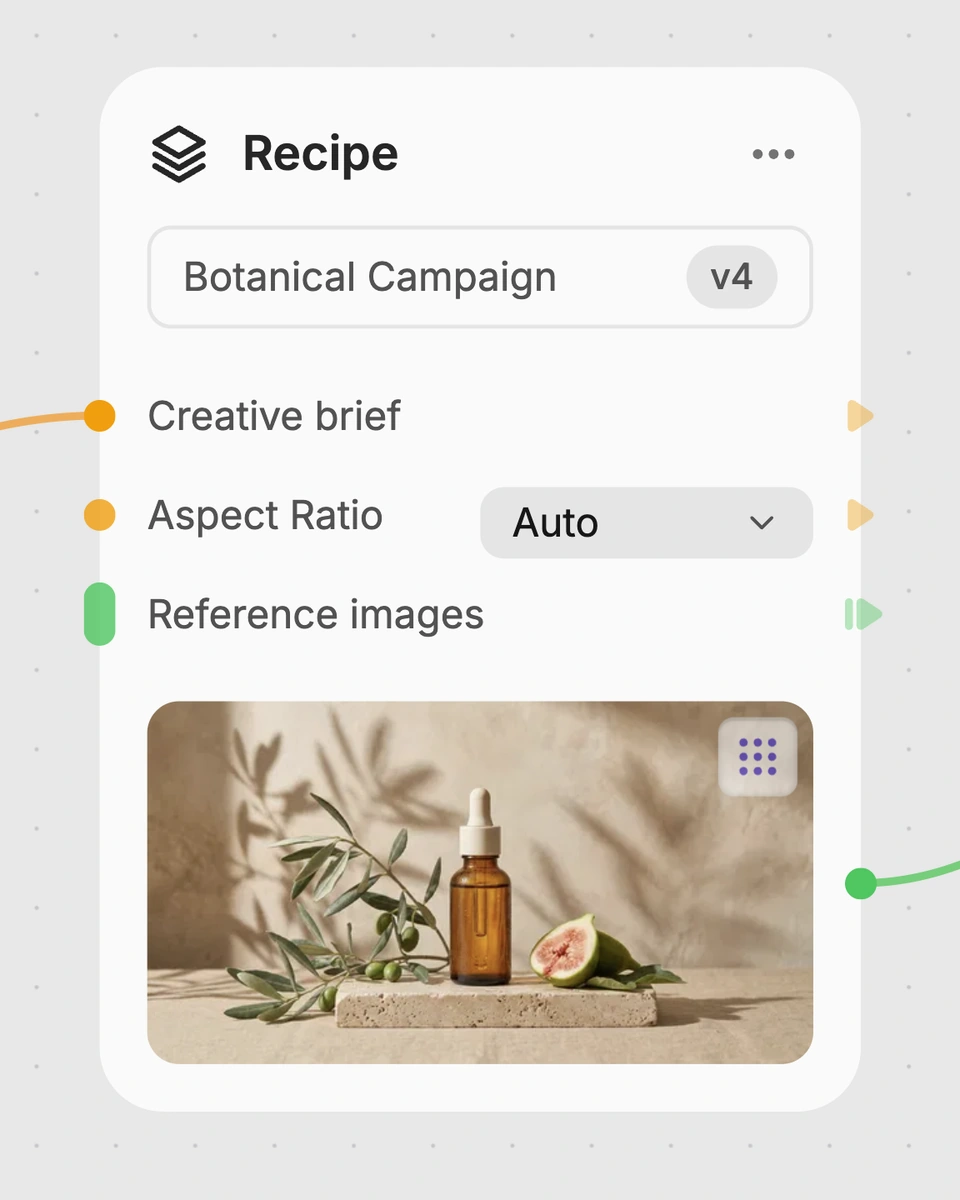
1. Choose a recipe
Find a workflow for the result you want. Review what it does and how to use it before opening it in Fuser.
2. Make it your own
Check the recipe’s available inputs. Add your own text or media where supported, or start with the saved defaults.
3. Run and refine
Run it in Fuser and review the result on your canvas. Tweak the inputs to try another direction.
Use section-specific color instructions to explore apparel variations, merchandising concepts, and product presentation options.
It changes the color of a garment completely or partially based on the sections and color codes you provide. The result is a recolored garment image.
It is suited to apparel designers, merch teams, and others exploring fashion and streetwear or garment color variations. It can also support product and industrial apparel discussions where section-specific color changes need to be reviewed.
You need a garment image and a text instruction naming the garment section or sections and the color code to use. The saved example uses “top 00FFBC” and “bottom FFD000” as its color instructions.
Yes. The recipe supports complete or partial garment recoloring, with the relevant section identified in the Color input. For example, you can provide separate instructions for a top and bottom section.
In Fuser, change the exposed Color input and enter the garment section followed by the color code you want to apply. You can also replace the exposed Garment Image input with another garment image before using the recipe.
The saved example shows a garment image connected to section-based color instructions for the top and bottom. Its output is the corresponding saved recolored garment image; a new run uses the inputs you choose.
This recipe is useful for exploring apparel colorways, reviewing split-color designs, preparing merchandise concepts, and comparing palette options. It is best understood as a garment recoloring workflow rather than a tool for changing unrelated image elements.
Log in to Fuser to replace the garment image or edit the section and color-code instructions for your apparel concept.
Develop on-person garment imagery, editorial concepts and lookbook layouts. Bring collection references, virtual try-on and editable design together in Fuser.
Develop pitches, campaign assets and interactive client work in Fuser. Combine AI generation, editable design and reusable processes across your agency.
Create product images, lifestyle scenes and campaign assets for your next ecommerce launch. Keep branding editable and reuse creative setups in Fuser.
Create studio-style product images, lifestyle scenes and motion studies. Combine reference-led generation with precise, editable composition in Fuser.
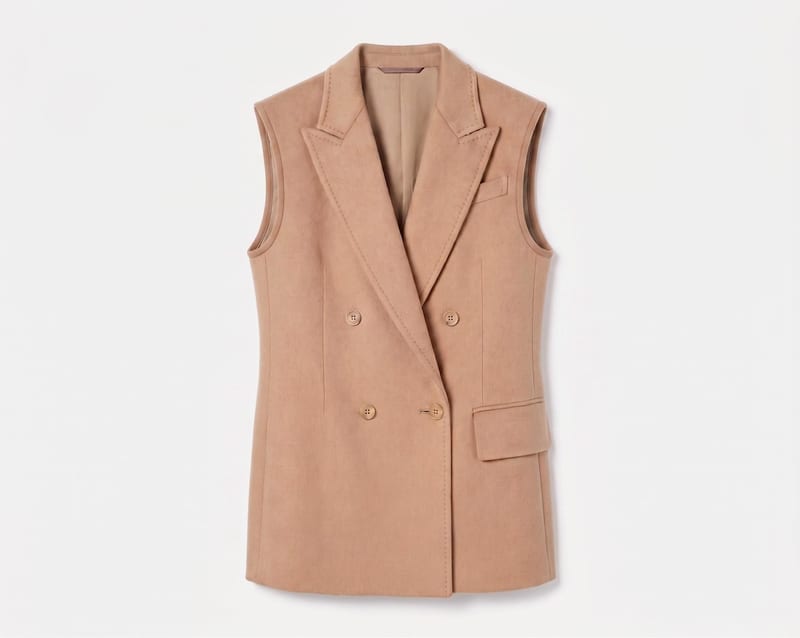
Upload a garment image and describe a change, such as removing sleeves, to create an adjusted garment image.
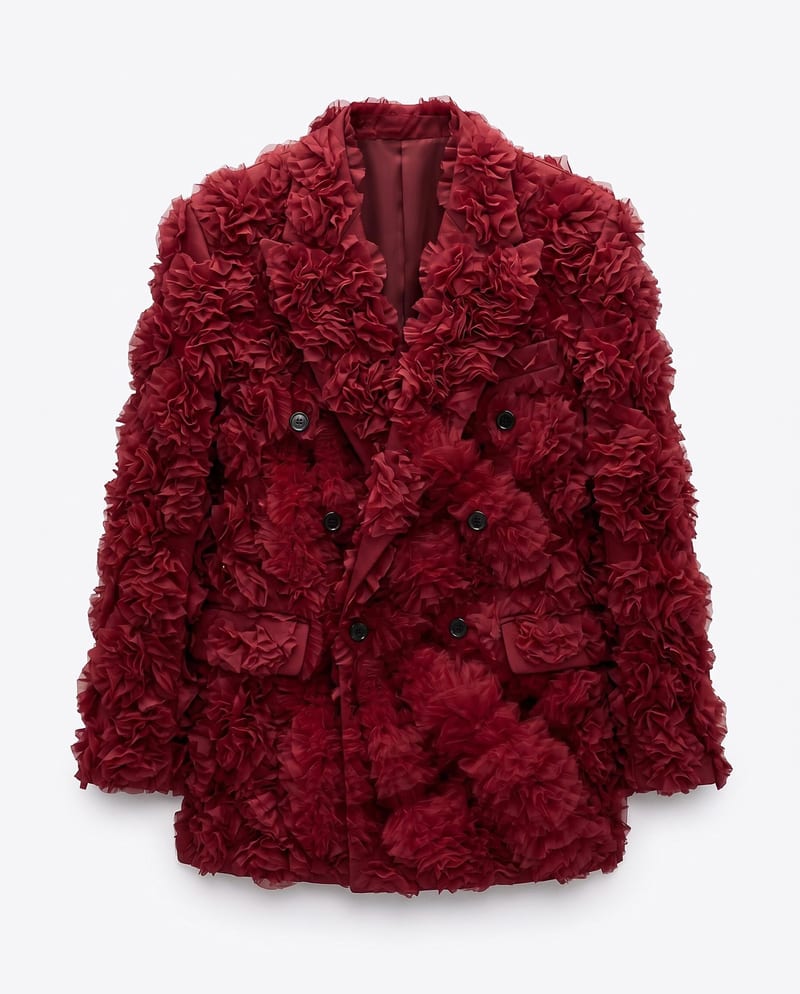
Upload a garment image, a material image, and an application area to create a garment image with the selected material applied.
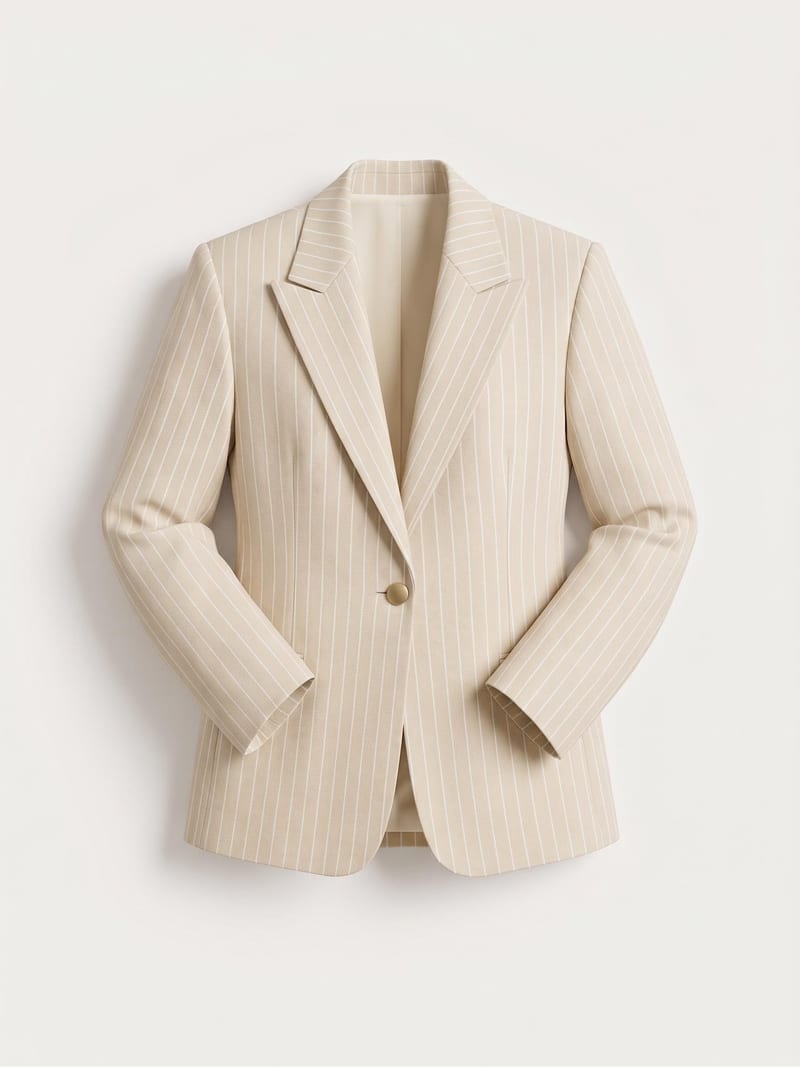
Turn a garment sketch, chosen color, and material description into a realistic garment render while preserving the design’s silhouette and details.