Recipev2
High Contrast Black and White
Image
One click, whole workflow
Recipes are here. Package a whole workflow and run it in one click
Explore recipesBlack-and-White Photography
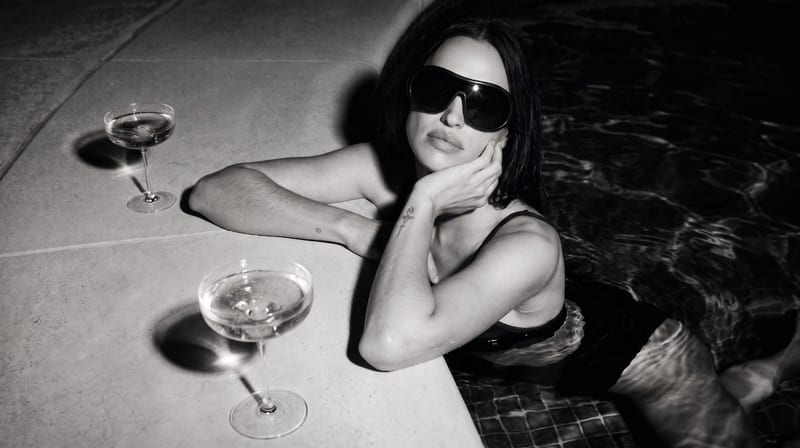
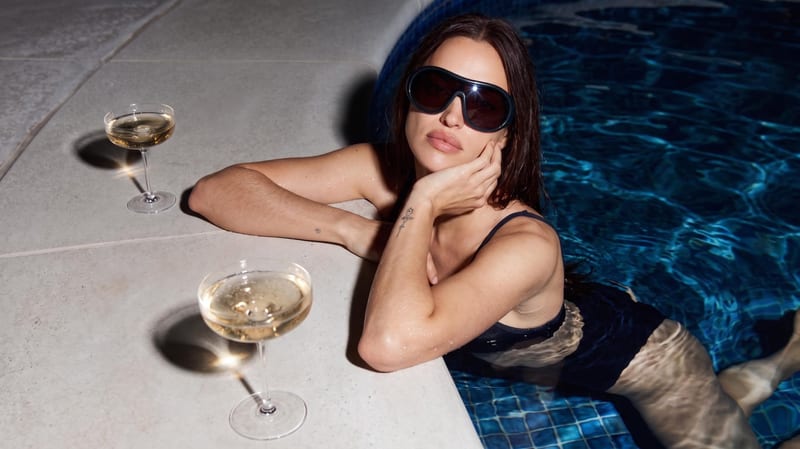
Convert a color image into a high-contrast black-and-white image for photography and editorial publishing.
Image
A recipe turns a reusable workflow into a simple set of inputs and outputs. Start with a community recipe and make it your own in Fuser.
1. Choose a recipe
Find a workflow for the result you want. Review what it does and how to use it before opening it in Fuser.
2. Make it your own
Check the recipe’s available inputs. Add your own text or media where supported, or start with the saved defaults.
3. Run and refine
Run it in Fuser and review the result on your canvas. Tweak the inputs to try another direction.
Use the recipe to explore monochrome treatments across photography and editorial publishing workflows.
It takes a color Image and produces a high-contrast black-and-white Image. The recipe is suited to photographers, editors, and publishers exploring monochrome image treatments.
Prepare one color image for the Image input. The recipe exposes a single editable input, so you can replace the saved example image with another image in Fuser.
The saved output is an Image representing the recipe’s high-contrast black-and-white treatment. It shows the result connected to the saved input; it is not a live generation on this page.
Yes. You can change the exposed Image input in Fuser by selecting a different color image. No separate adjustment inputs are listed for controlling the treatment.
It can help photographers, editorial teams, and publishers explore how an existing color image works as a high-contrast black-and-white image. It is useful when developing photo treatments, portfolio studies, and publication concepts.
The output is an Image that can be considered during editorial layout development or presentation planning. The recipe itself does not produce layout files, text, or additional publishing elements.
The recipe lists one Image input and one Image output. To process another image, replace the current input in Fuser and run the recipe again.
Bring a color image into Fuser and explore its high-contrast black-and-white version for photography or editorial work.
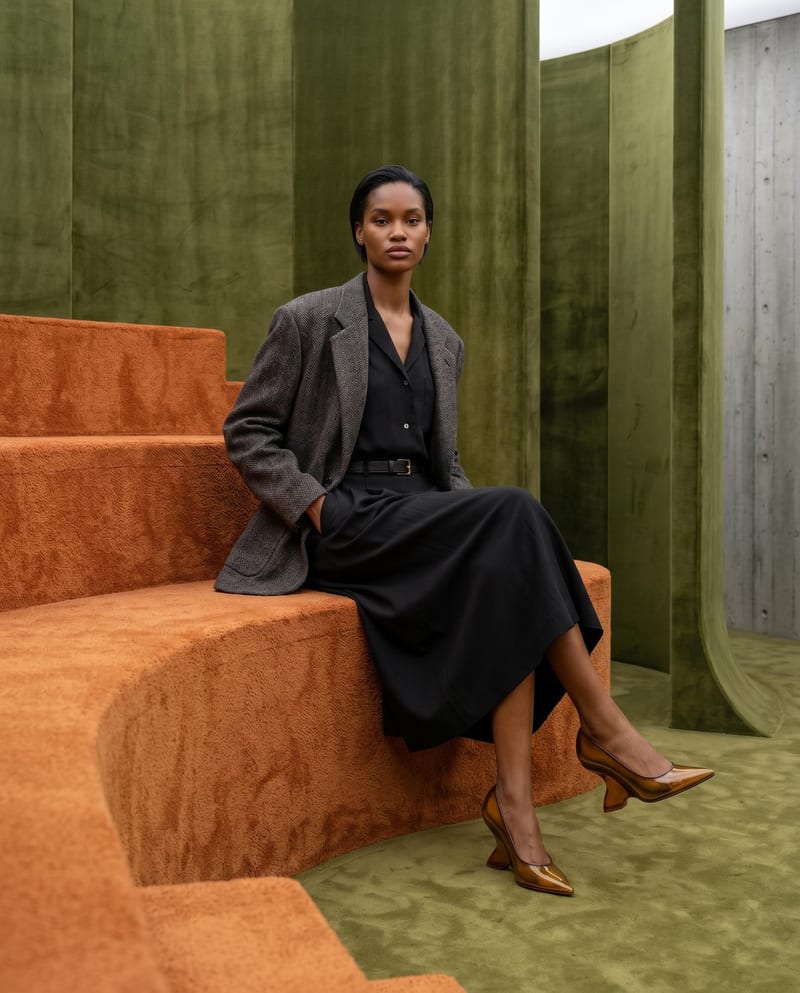
Combine model, accessory, location, and pose inputs into a fashion photography composition.
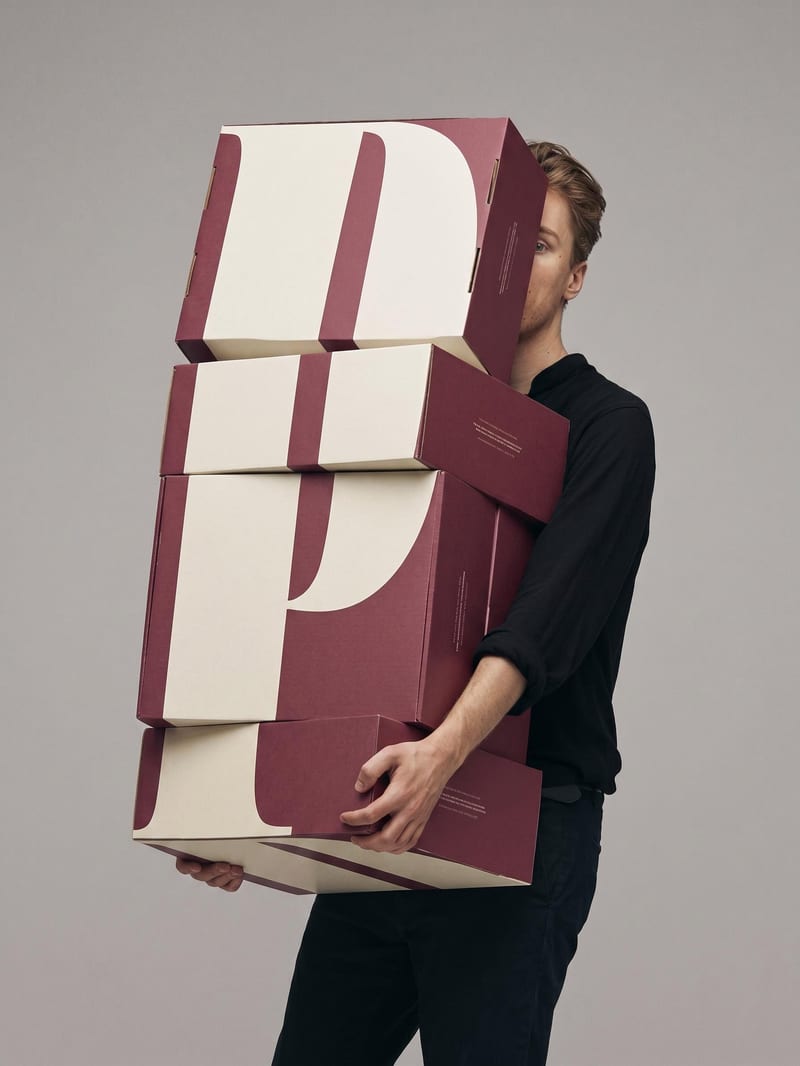
Upload a book or magazine page picture or scan to extract a clean, full-bleed version of its image.
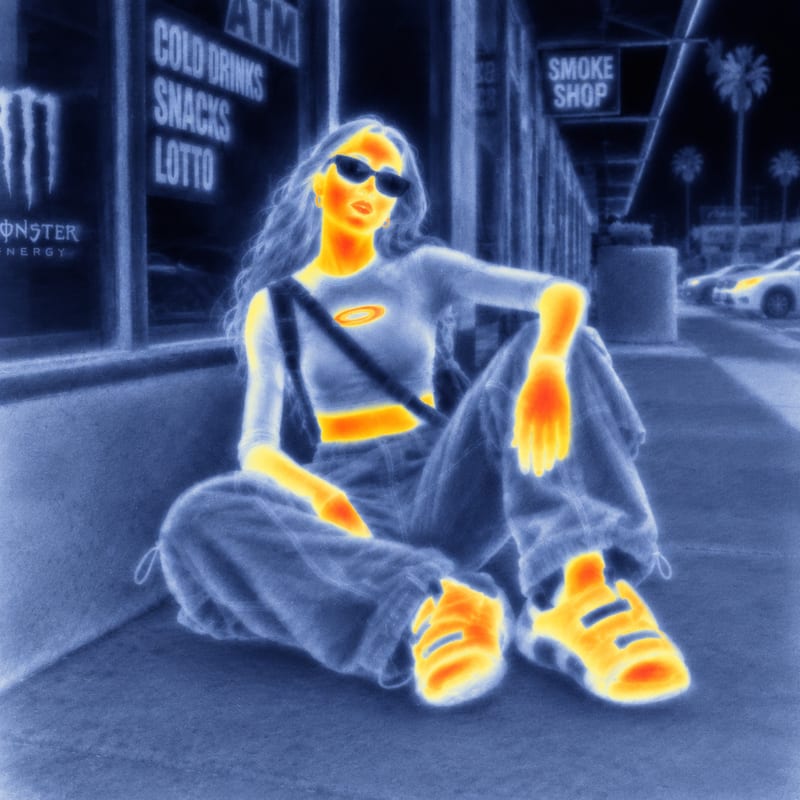
Use an input image and a style reference image to create an image with the reference’s visual style.