Recipev2
Storyboard Maker
Storyboard
One click, whole workflow
Recipes are here. Package a whole workflow and run it in one click
Explore recipesStoryboards & Comics
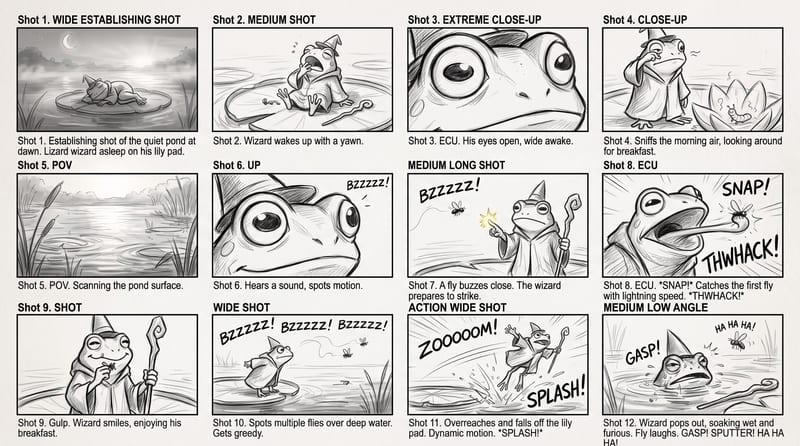
Use a rough story brief and visual reference to create a storyboard image showing the story’s sequence of actions.
Storyboard
A recipe turns a reusable workflow into a simple set of inputs and outputs. Start with a community recipe and make it your own in Fuser.
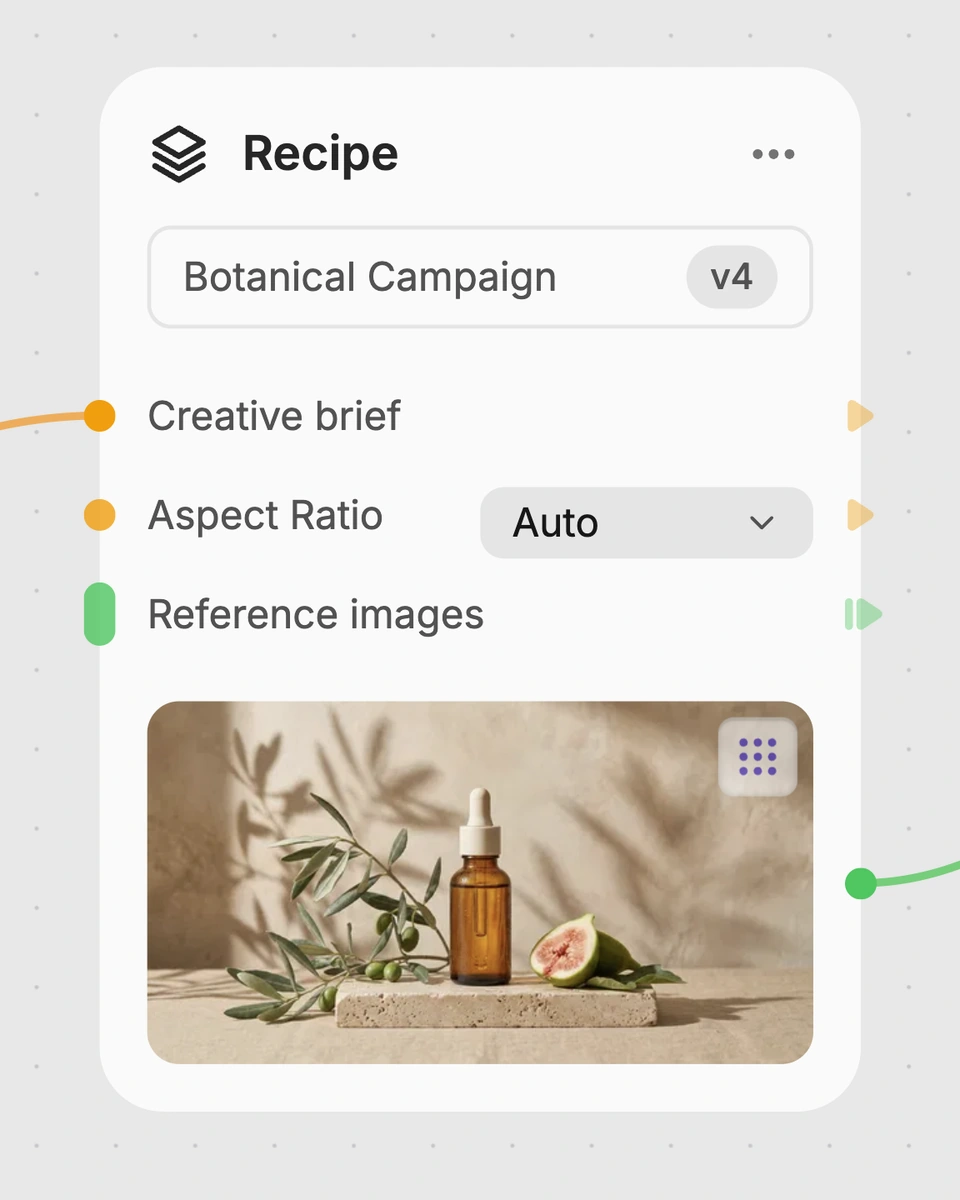
1. Choose a recipe
Find a workflow for the result you want. Review what it does and how to use it before opening it in Fuser.
2. Make it your own
Check the recipe’s available inputs. Add your own text or media where supported, or start with the saved defaults.
3. Run and refine
Run it in Fuser and review the result on your canvas. Tweak the inputs to try another direction.
Use a visual version of a story brief to plan, explain, and review short sequences before developing them further.
It turns a rough story brief into a storyboard image. The saved example depicts a frog wizard waking on a lily pad, catching a fly, falling into the water while trying to catch another, and emerging wet and annoyed as the fly laughs.
It is suited to filmmakers, animators, comic creators, illustrators, and anyone planning a short visual sequence. It is most useful when the story can be described as a series of actions or scene beats.
Describe the main character or subject, the important actions, and how the sequence ends. The saved brief uses a simple action-driven scenario with a frog wizard, a lily pad, flies, a fall, and a final reaction.
Yes. Story Brief is the exposed text input, so you can replace the saved frog-wizard scenario with your own sequence in Fuser. The resulting storyboard will be based on the new brief rather than the saved example.
The recipe description calls for a rough story outline and visual reference. The saved example shown here includes a Story Brief input and a storyboard image output; use the input options available in Fuser when preparing a new version.
It demonstrates a storyboard image based on a compact narrative with several connected actions and a clear ending reaction. It is an example of the saved default setup, not a live generation or a guarantee that every new brief will be represented identically.
Short, concrete sequences with identifiable actions are a practical fit, such as a character attempting a task, encountering a mishap, and responding to it. More abstract or highly detailed production requirements may need additional planning beyond this storyboard image.
Bring a short visual sequence to Fuser and shape it into a storyboard image for planning or discussion.
Develop film treatments, character and environment concepts, storyboards and motion studies. Connect image, video and 3D exploration in Fuser.
Develop storyboard frames, shot variations and video studies from your references. Compose clear boards and explore movement in one Fuser project.
Develop pitches, campaign assets and interactive client work in Fuser. Combine AI generation, editable design and reusable processes across your agency.
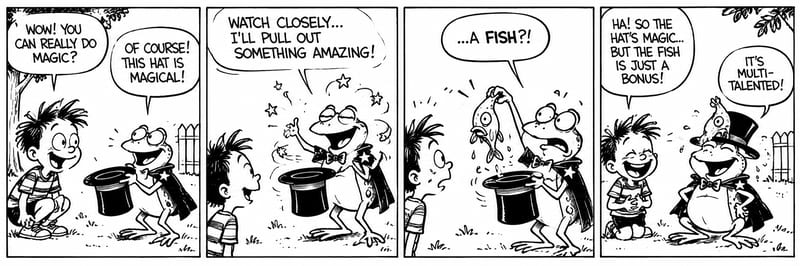
Turn story text into a black-and-white, four-panel comic storyboard with expressive characters and a humorous or emotional payoff.
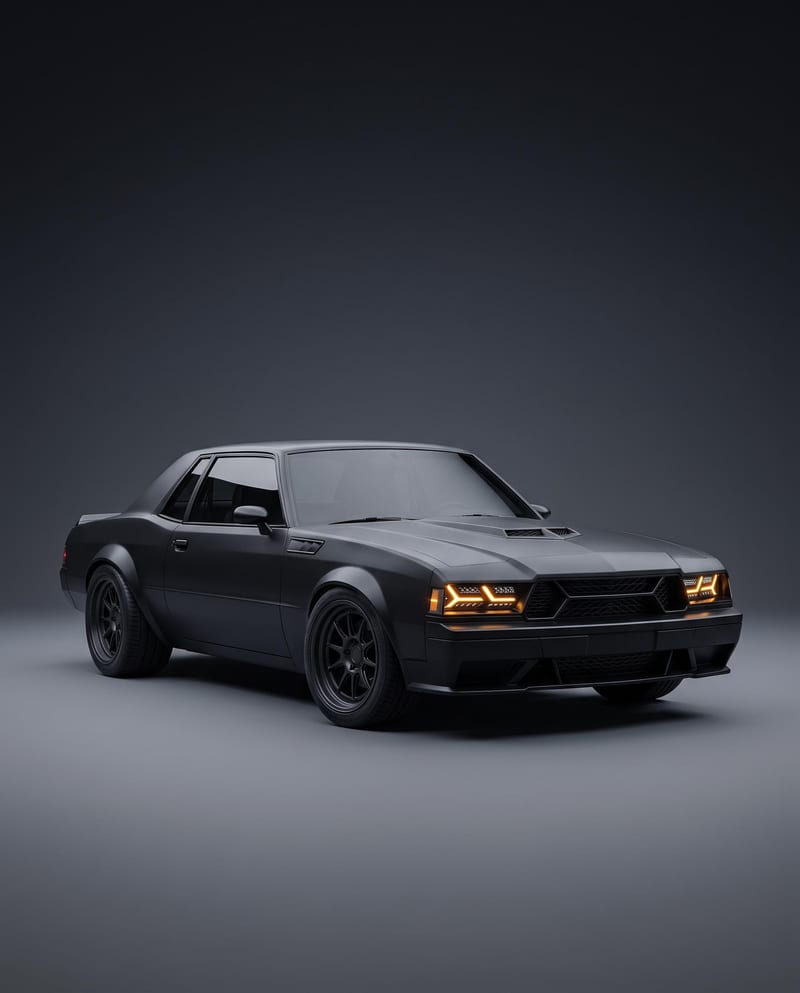
Turn a car reference image into a cinematic car render image and showcase video with full-body views, angles, and close-ups.
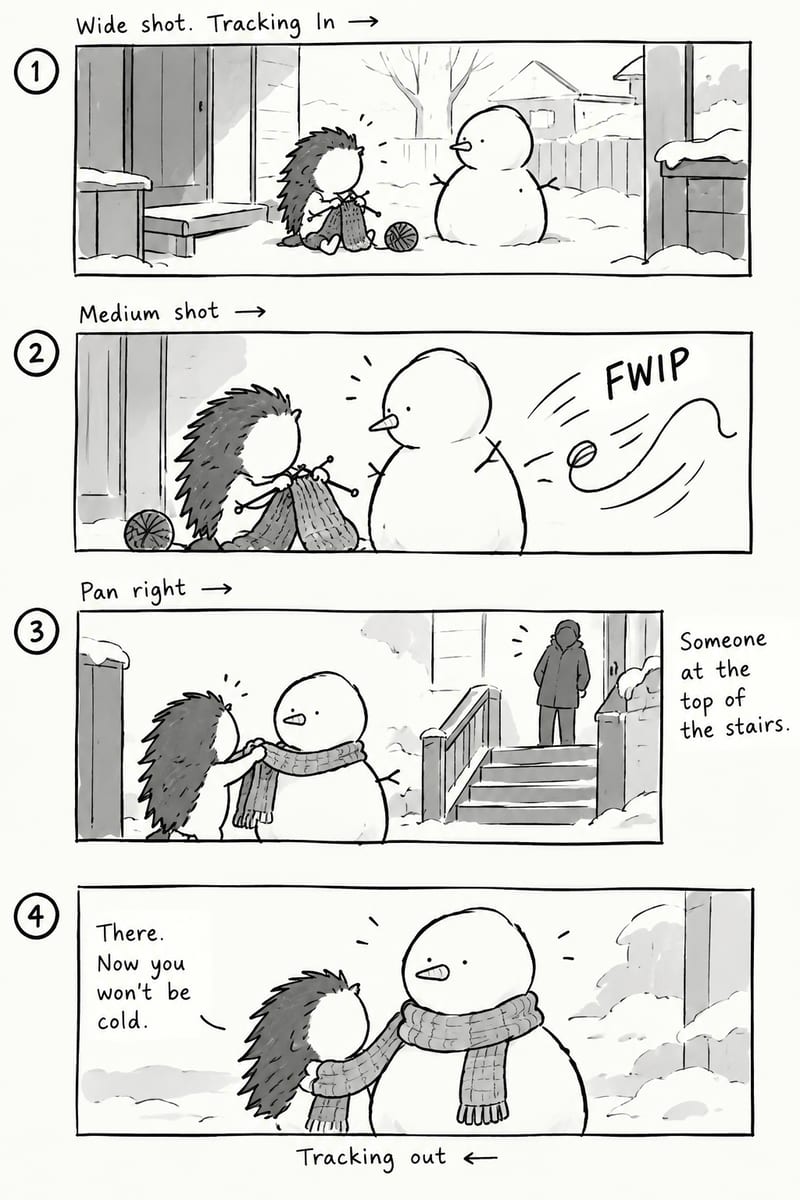
Write a story and receive a loose black-and-white four-panel storyboard with cinematic framing, expressive characters, and dynamic blocking.