Add border or frame
LiveImage
Border color
Matte color
Line color
Style
Border thickness
Matte
Matte thickness
Corner radius
Inner line
One click, whole workflow
Recipes are here. Package a whole workflow and run it in one click
Explore recipesImage framing
Upload an image and customize its border, matte, corners, and inner line to produce a framed image.
Runs in your browser. Your files are never uploaded.
A tool is a small app you describe in plain words. Try this one here, then keep it on your Fuser canvas and connect it to the rest of your work.
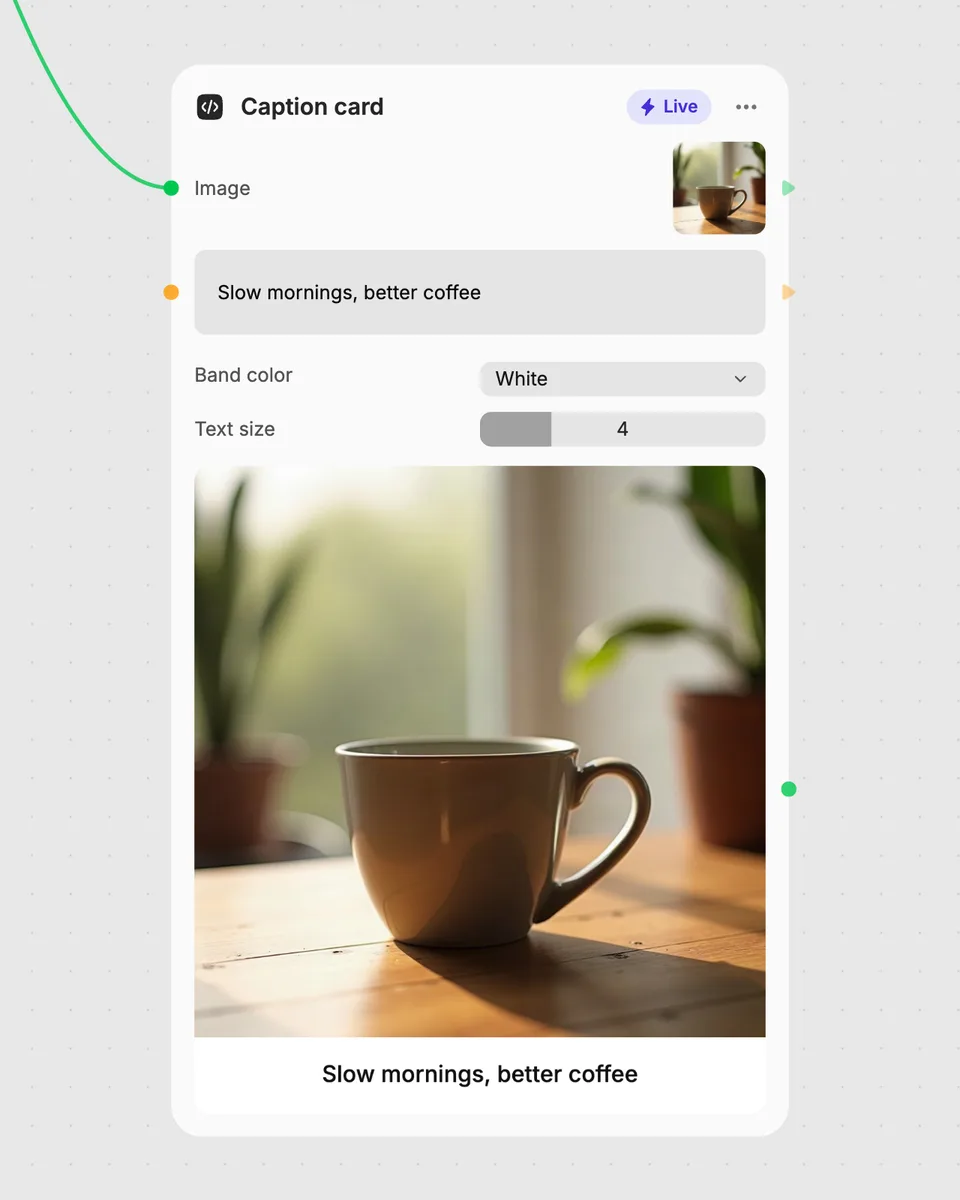
1. Try it here
Add your own file or text and adjust the controls. Live tools run in your browser, so nothing is uploaded.
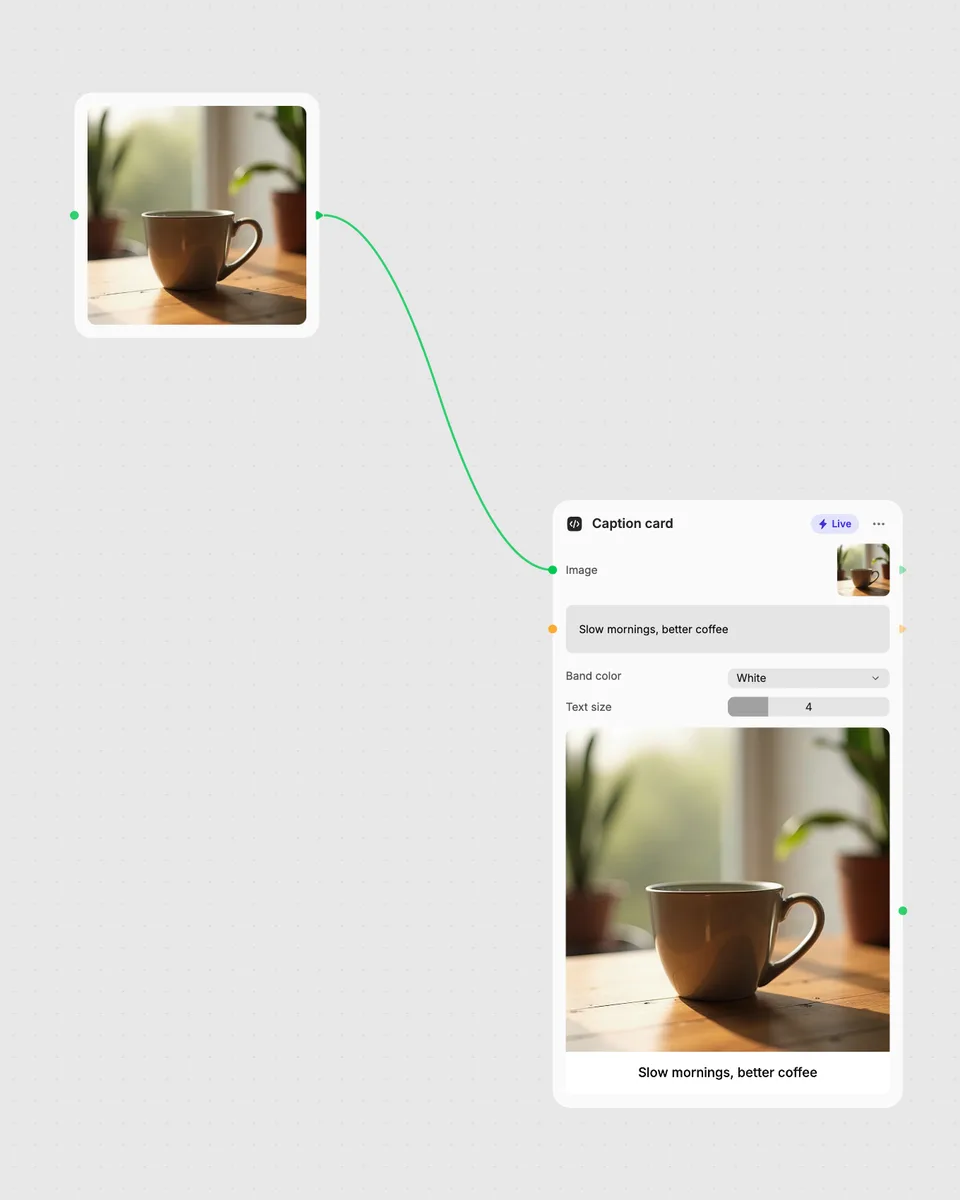
2. Open it in Fuser
Sign up free and the tool opens on your canvas with this example wired in, ready to connect to images, video or text from other nodes.
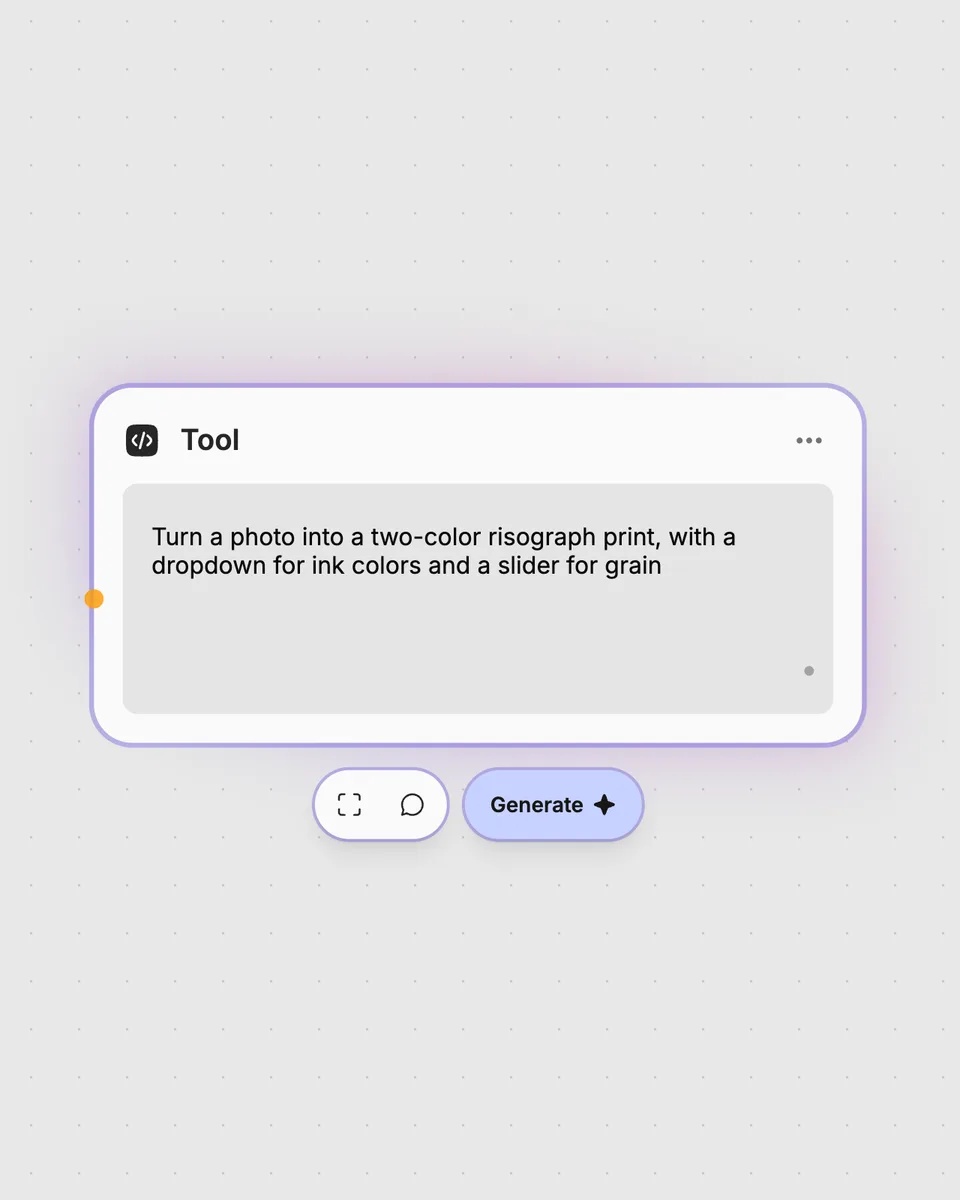
3. Describe your own
Need something different? Describe the tool you want and Fuser builds it, with the controls you asked for.
Create different framed treatments for images by combining styles, colors, thicknesses, and corner settings.
It takes one image and returns one framed image. You can choose a solid, double, polaroid, or rounded style, then adjust its border and other options.
Provide the image you want to frame as the required image input. Border color, matte color, and line color are optional text inputs, so you can leave them empty when they are not needed.
Style selects solid, double, polaroid, or rounded; Border thickness and Matte thickness adjust those elements. Matte enables the matte, Corner radius rounds the corners, and Inner line adds an inner line.
Yes, this Live tool runs in your browser, updates as you move the controls, and is free to try on this page without an account. Downloading more than once or opening it in Fuser asks you to sign up.
Yes, open the tool in Fuser and connect an image from an earlier node to its image input. Its framed image result can then be combined with other nodes in your workflow.
Open the tool in Fuser, connect it to an image workflow, and combine its framed result with other nodes.
Upload one image to detect and count separate objects, preview them, and receive metadata plus extracted object images.
Upload multiple images to create an animated GIF, then adjust frame duration and output size for the result.
Place a chosen shape over an optional image, then adjust its position, size, colors, opacity, rotation, and outline.