Change Image Aspect Ratio
LiveImage
Aspect Ratio
Fit
Background Mode
One click, whole workflow
Recipes are here. Package a whole workflow and run it in one click
Explore recipesImage utility
Upload one image and choose an aspect ratio, fit, and background to produce an adjusted image.
Runs in your browser. Your files are never uploaded.
A tool is a small app you describe in plain words. Try this one here, then keep it on your Fuser canvas and connect it to the rest of your work.
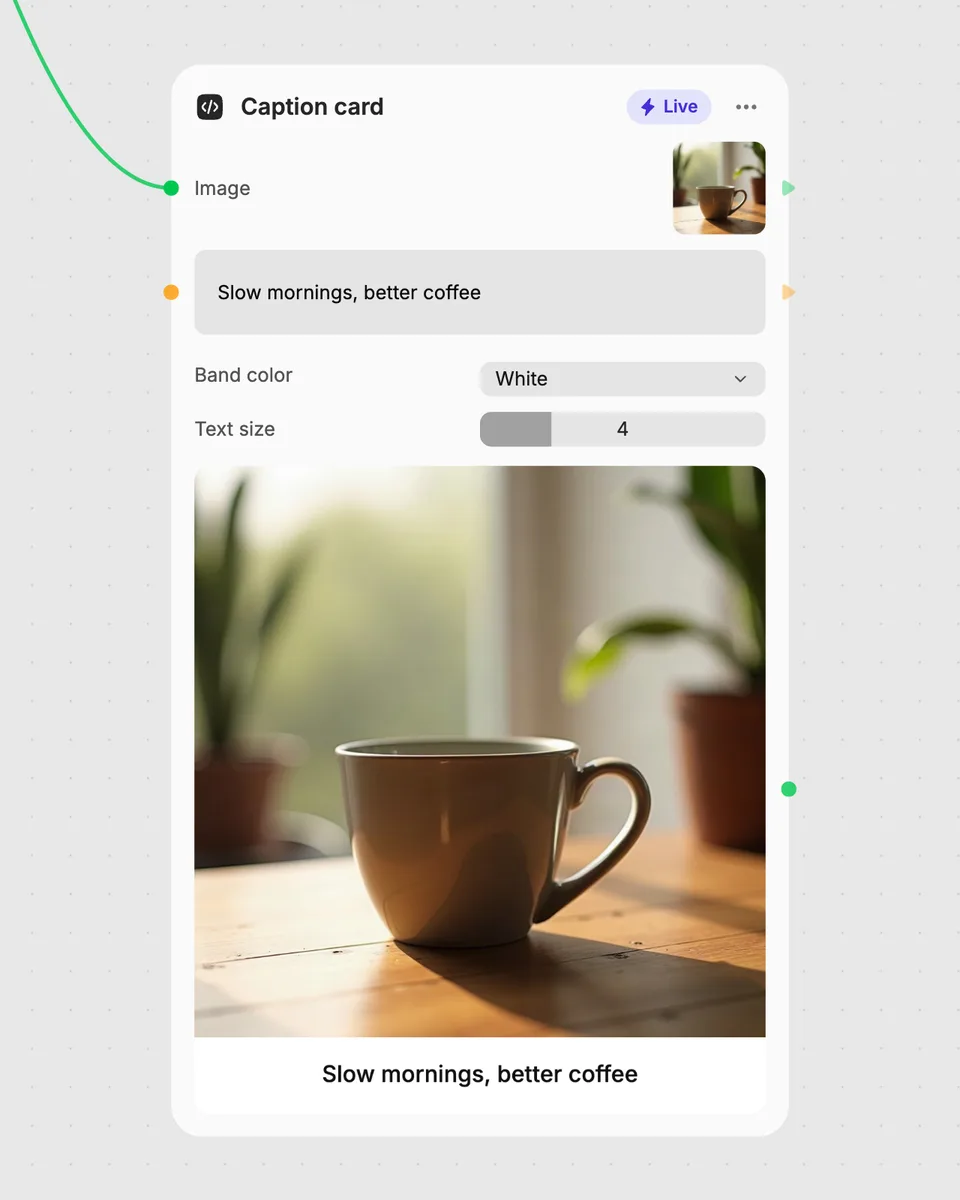
1. Try it here
Add your own file or text and adjust the controls. Live tools run in your browser, so nothing is uploaded.
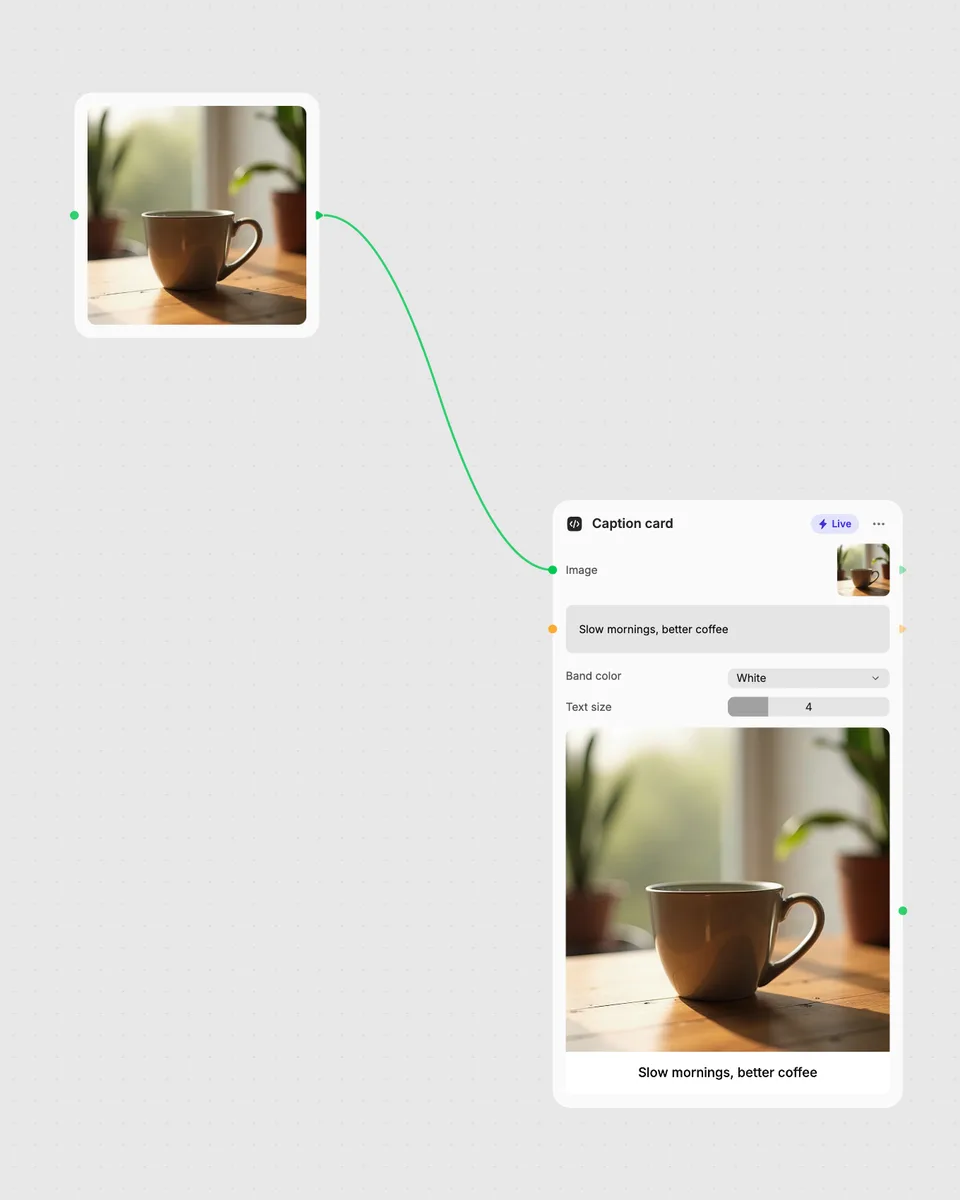
2. Open it in Fuser
Sign up free and the tool opens on your canvas with this example wired in, ready to connect to images, video or text from other nodes.
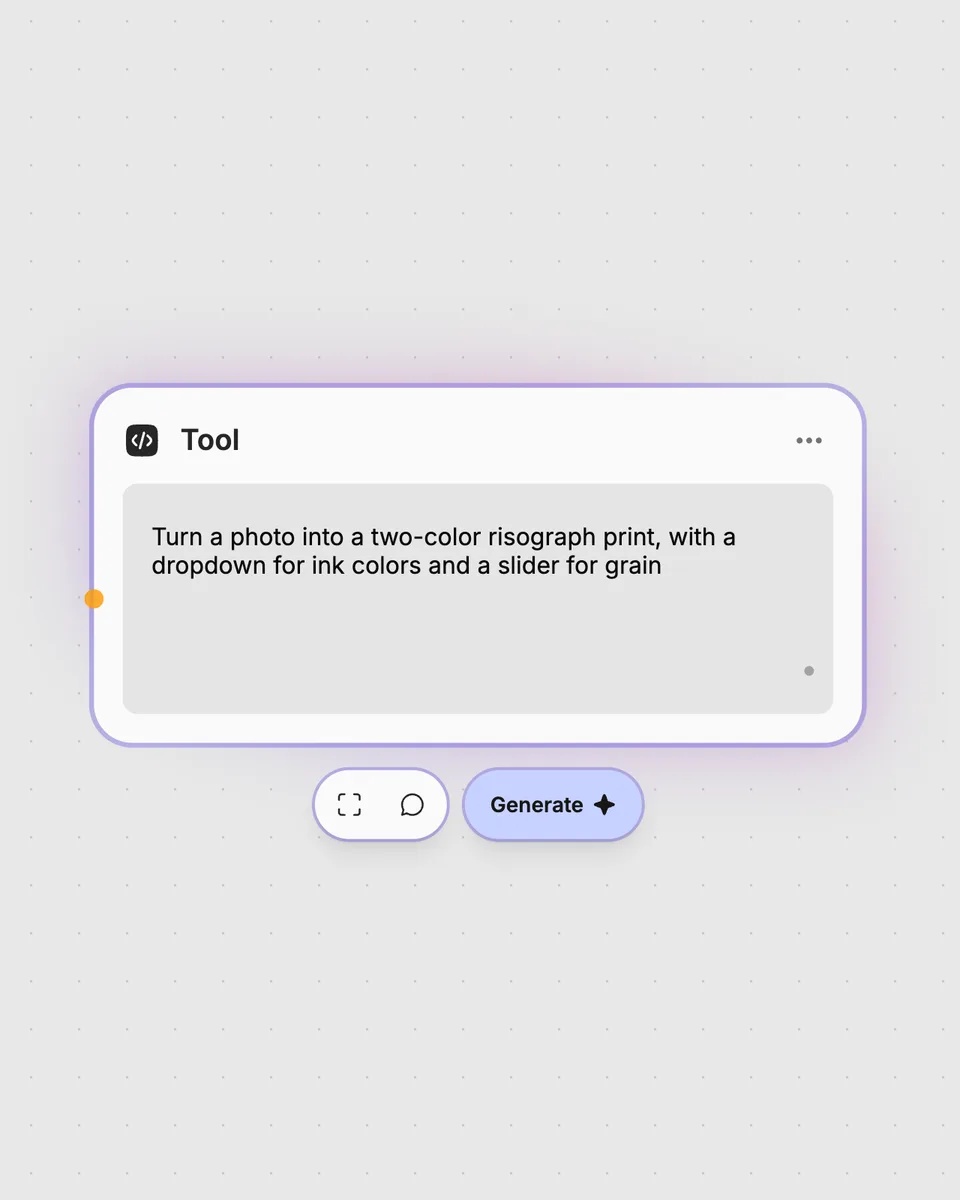
3. Describe your own
Need something different? Describe the tool you want and Fuser builds it, with the controls you asked for.
Choose a target ratio and fitting method for common image layouts and compositions.
It takes one image and produces an adjusted image in one of nine available aspect ratios. You can choose whether the image is cropped or padded, along with a transparent, black, or white background mode.
Provide one image as the required input. The tool then creates the adjusted image using the ratio, fit, and background choices you select.
Aspect Ratio selects the output proportion, from 1:1 through 16:9. Fit chooses crop or pad, while Background Mode selects transparent, black, or white for the output background.
No account is needed to try the live tool on this page. Opening it in Fuser or downloading more than once asks you to sign up.
Use the adjusted image as the result for another step in a Fuser workflow, or connect an earlier image-producing node to this tool's image input. This lets you change the ratio before combining the result with other nodes.
Try the live image ratio tool in your browser, then combine its adjusted image with other nodes in a larger workflow.
Upload an image and adjust distortion, zoom, color fringe, and effect position to create a transformed image.
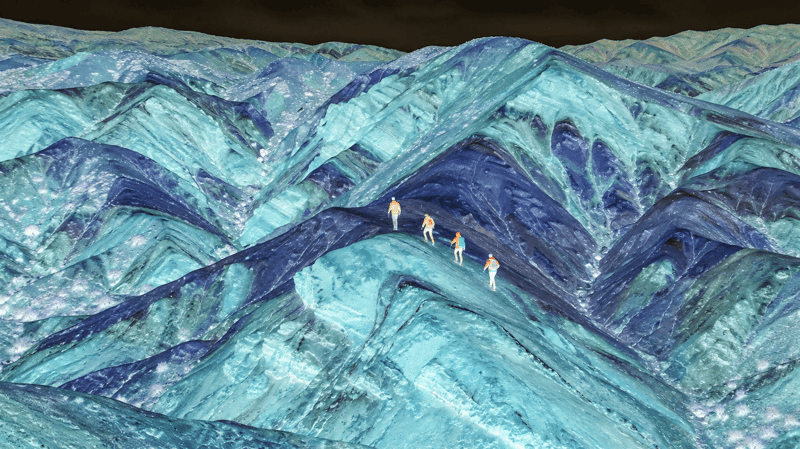
Upload an image and adjust the inversion amount to create a new image with partially or fully inverted colors.
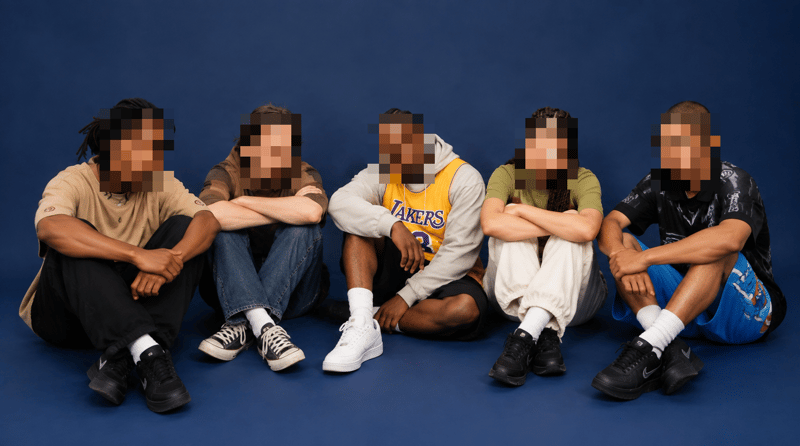
Upload an image containing faces and receive a pixelated image with adjustable block size and face padding.