Line hatch
LiveImage
Spacing
Angle
Thickness
Line wobble
Keep color
Paper
One click, whole workflow
Recipes are here. Package a whole workflow and run it in one click
Explore recipesImage effect
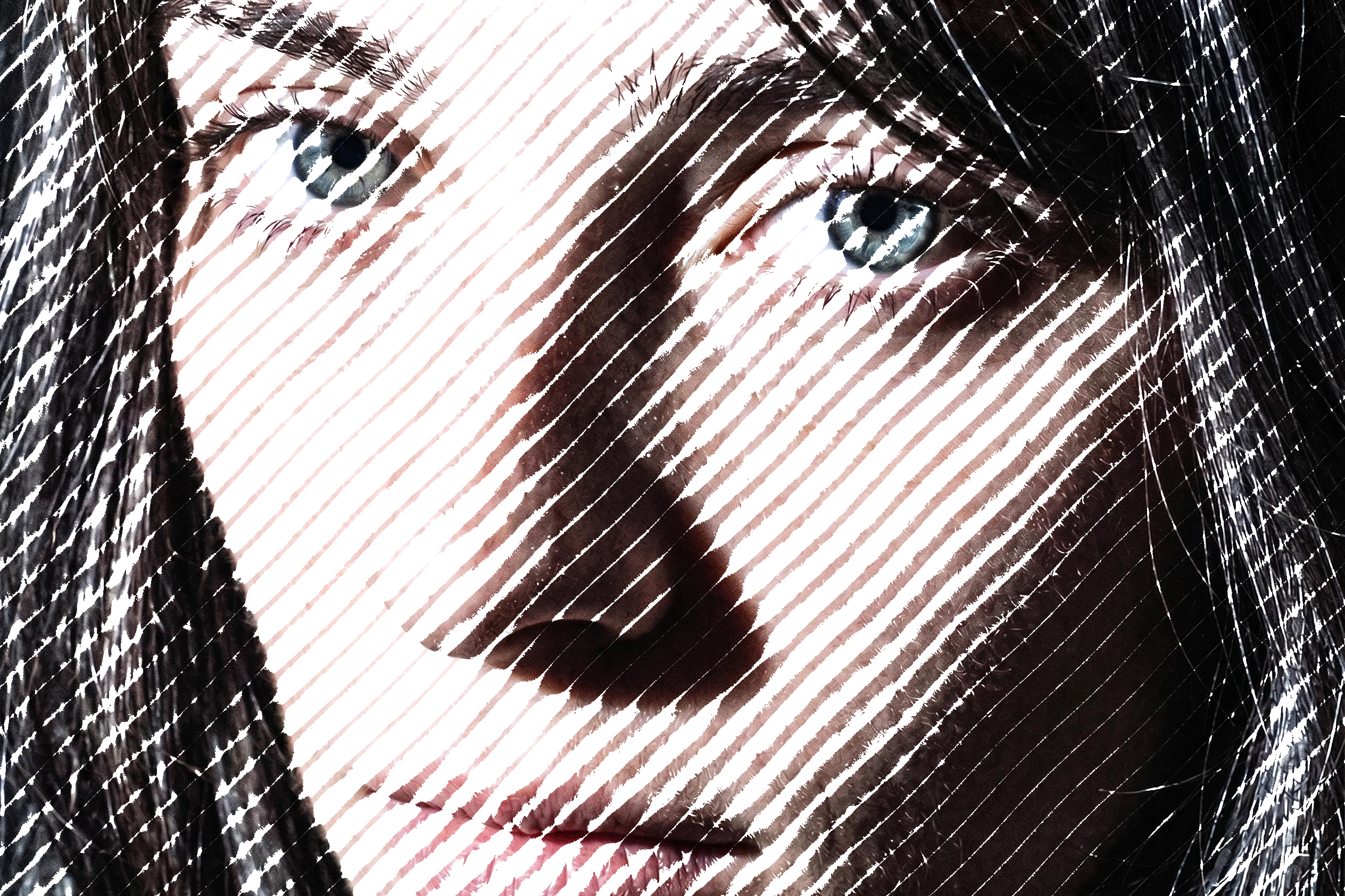
Upload an image and adjust line spacing, angle, thickness, wobble, color, and paper to create a live hatched image.
Runs in your browser. Your files are never uploaded.
A tool is a small app you describe in plain words. Try this one here, then keep it on your Fuser canvas and connect it to the rest of your work.
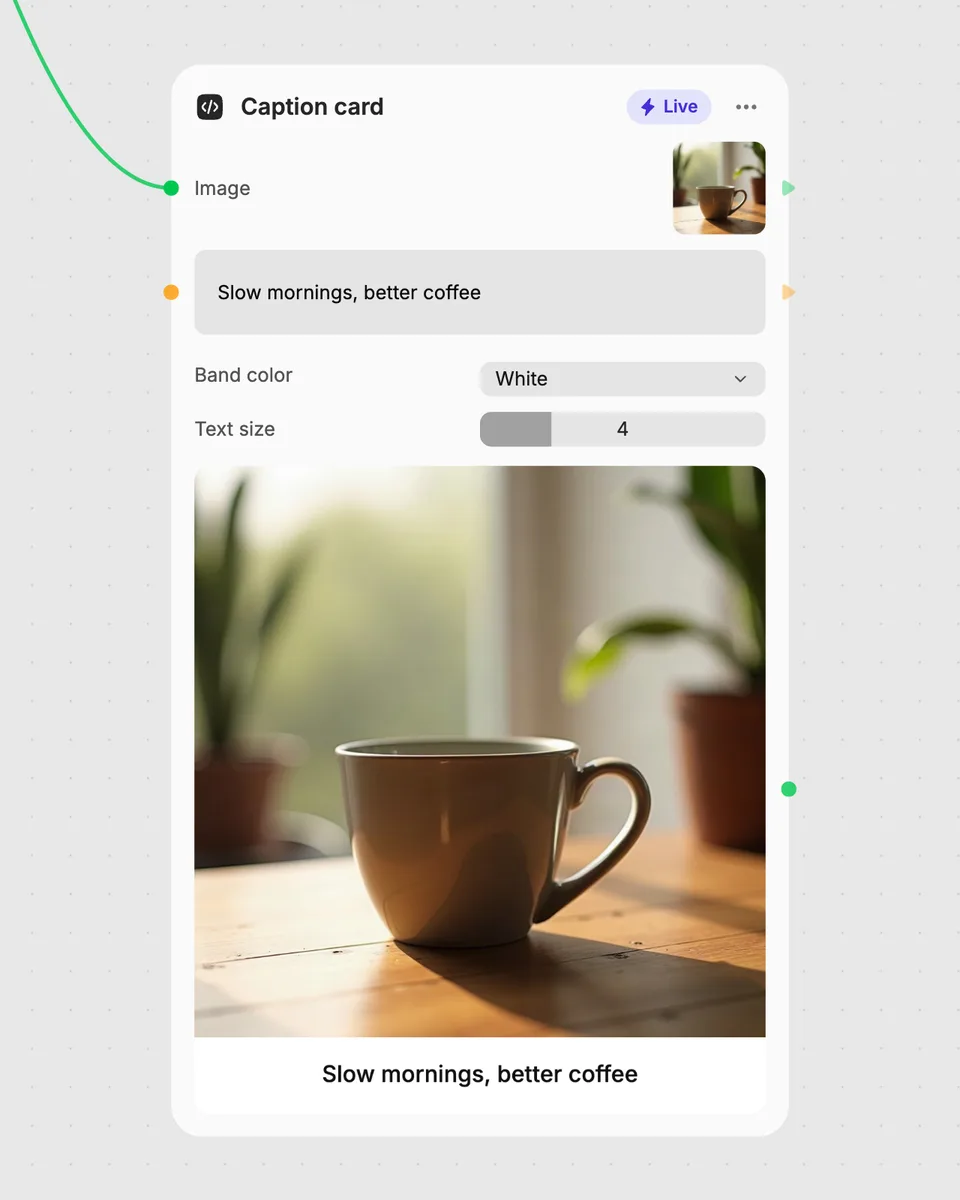
1. Try it here
Add your own file or text and adjust the controls. Live tools run in your browser, so nothing is uploaded.
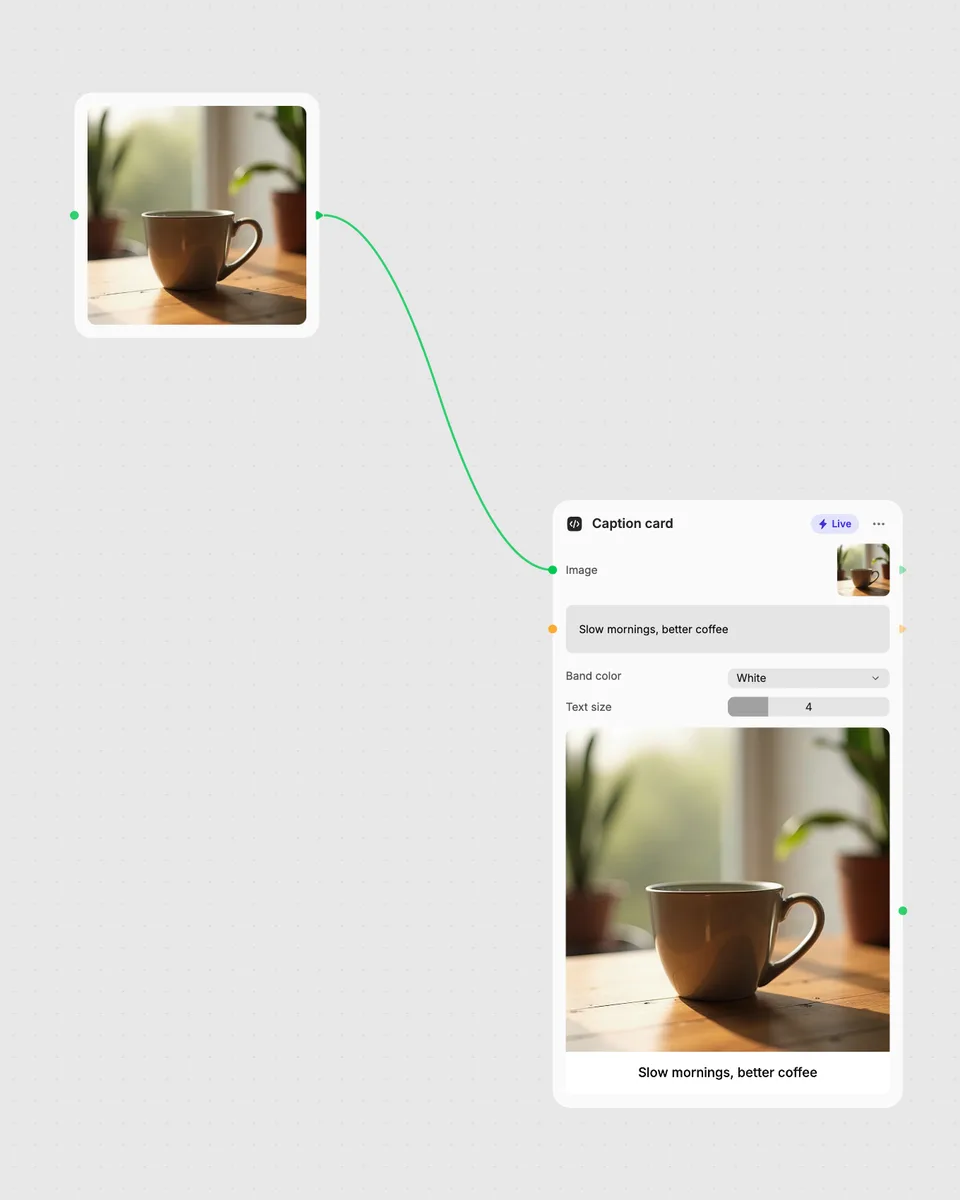
2. Open it in Fuser
Sign up free and the tool opens on your canvas with this example wired in, ready to connect to images, video or text from other nodes.
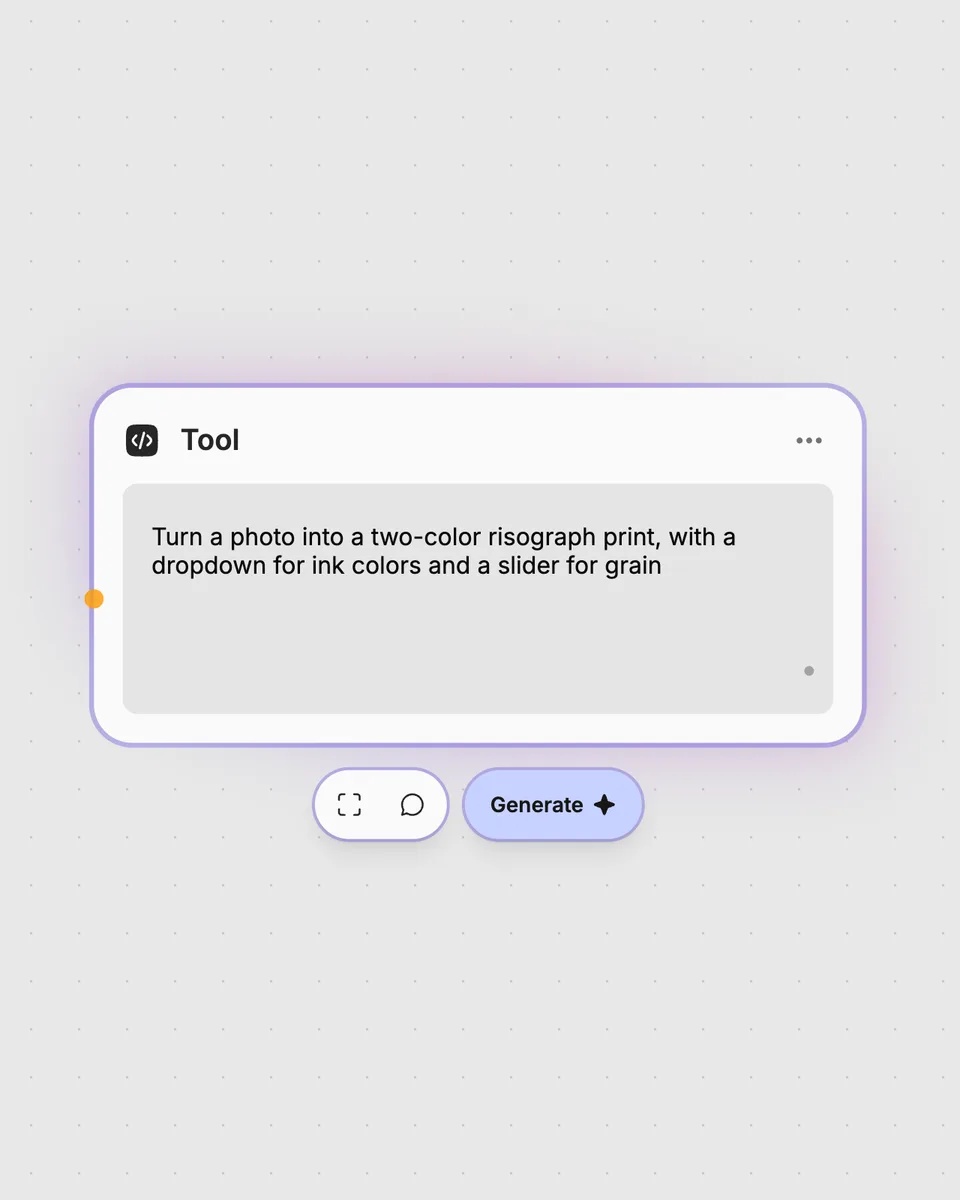
3. Describe your own
Need something different? Describe the tool you want and Fuser builds it, with the controls you asked for.
Tune the hatch controls to create different line-based treatments from a single image.
It takes one image input and returns one image with a line hatch effect. You can adjust spacing, angle, thickness, line wobble, color handling, and paper.
Upload one image to the required image input. The tool’s available input is a single image; no additional inputs are needed.
Spacing changes the distance between lines, Angle changes their direction, and Thickness changes the line setting. Line wobble varies the lines, Keep color controls color retention, and Paper selects white, black, or transparent.
Yes, it runs in your browser, updates as you move the controls, and is free to try on this page. You do not need an account to try it; downloading more than once or opening it in Fuser asks you to sign up.
Yes. Use an image output from another node as this tool’s image input, then pass the resulting hatched image to another node. This lets you place line hatching between other image steps.
Try the live image effect, then combine its result with other nodes in a larger Fuser workflow.
Upload multiple images to create an animated GIF, then adjust frame duration and output size for the result.
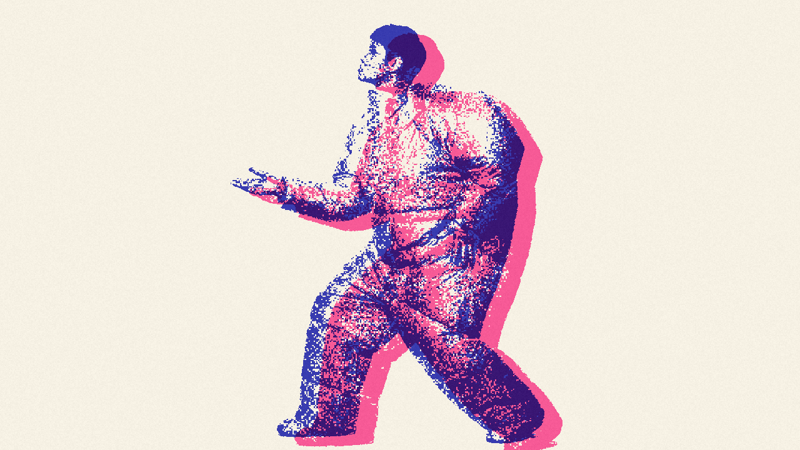
Turn one image into a two-color risograph result with selectable inks, adjustable thresholds, grain, and horizontal or vertical misregistration.
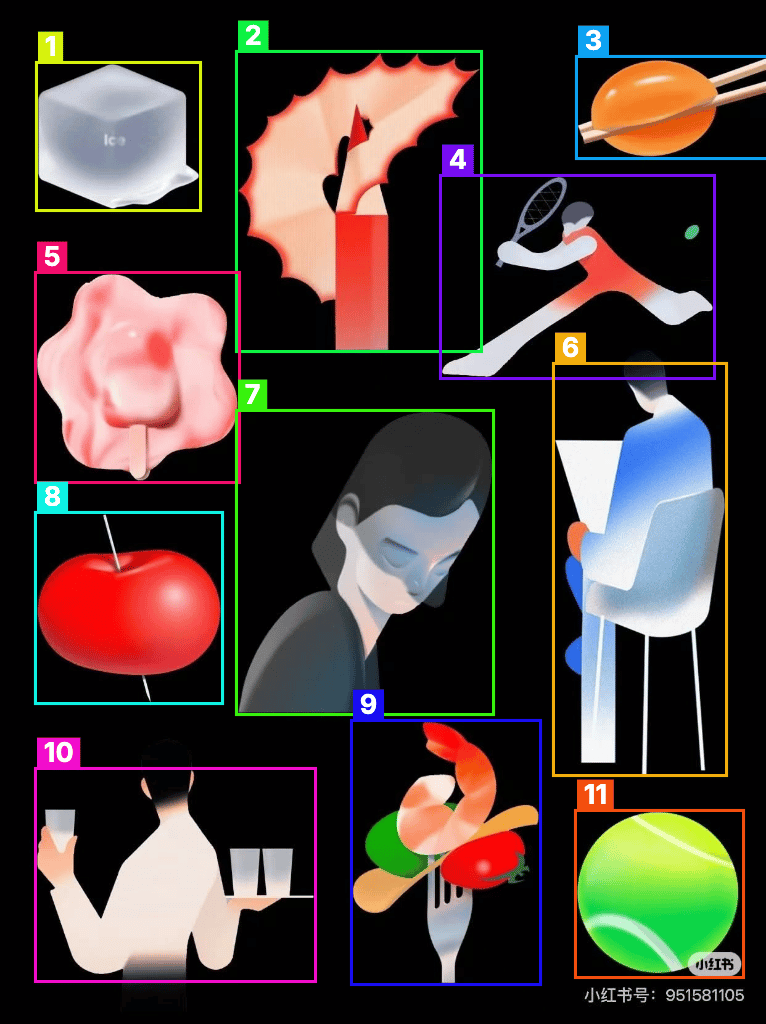
Upload one image to detect and count separate objects, preview them, and receive metadata plus extracted object images.