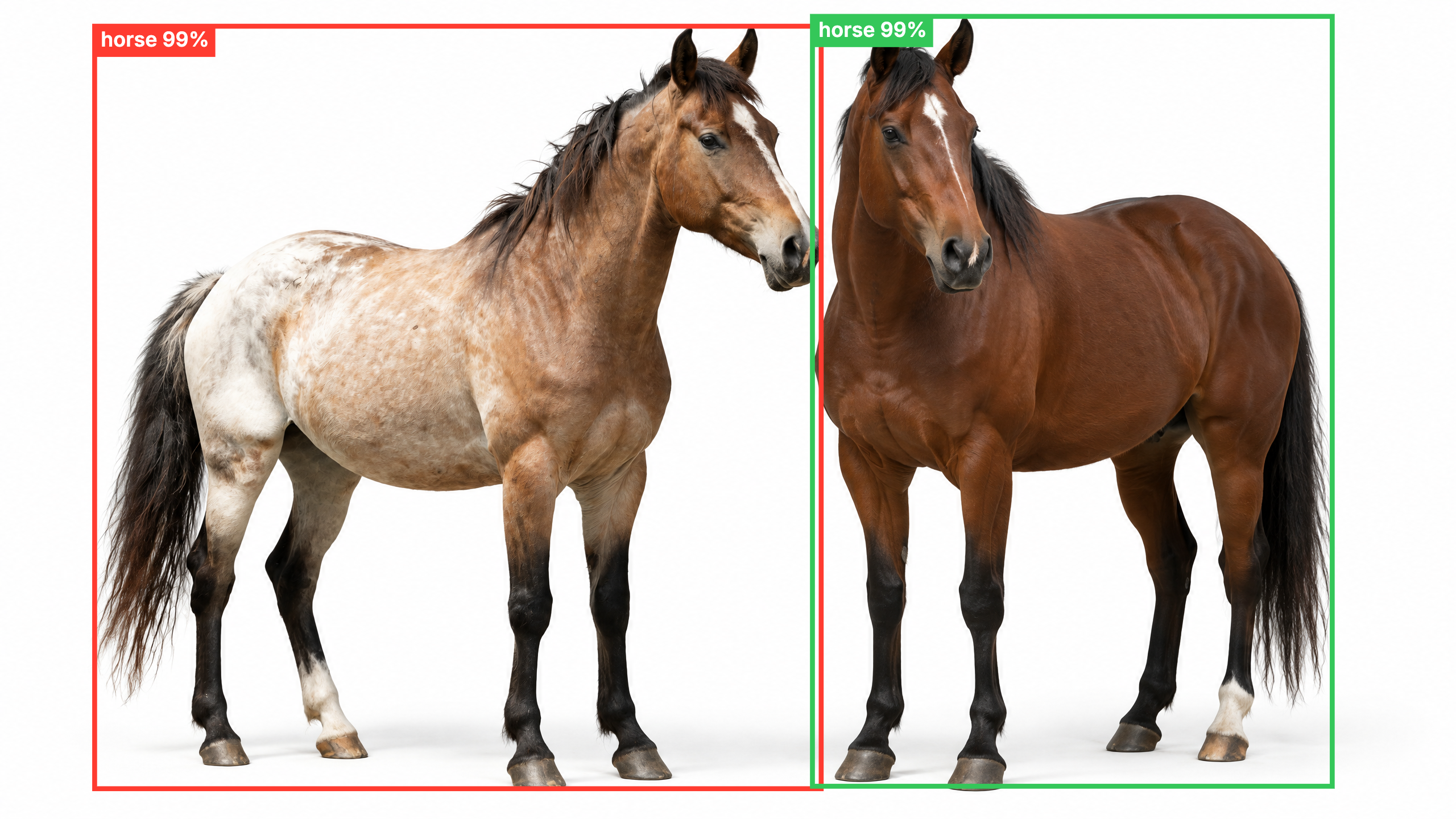
Object detection boxes with probability
CloudImage
Min confidence
Line width
Show labels
One click, whole workflow
Recipes are here. Package a whole workflow and run it in one click
Explore recipesImage detection
Upload an image to detect objects, draw probability boxes, and return an annotated image with optional labels.
Uses AI on Fuser’s servers. This is a saved example.
A tool is a small app you describe in plain words. Try this one here, then keep it on your Fuser canvas and connect it to the rest of your work.
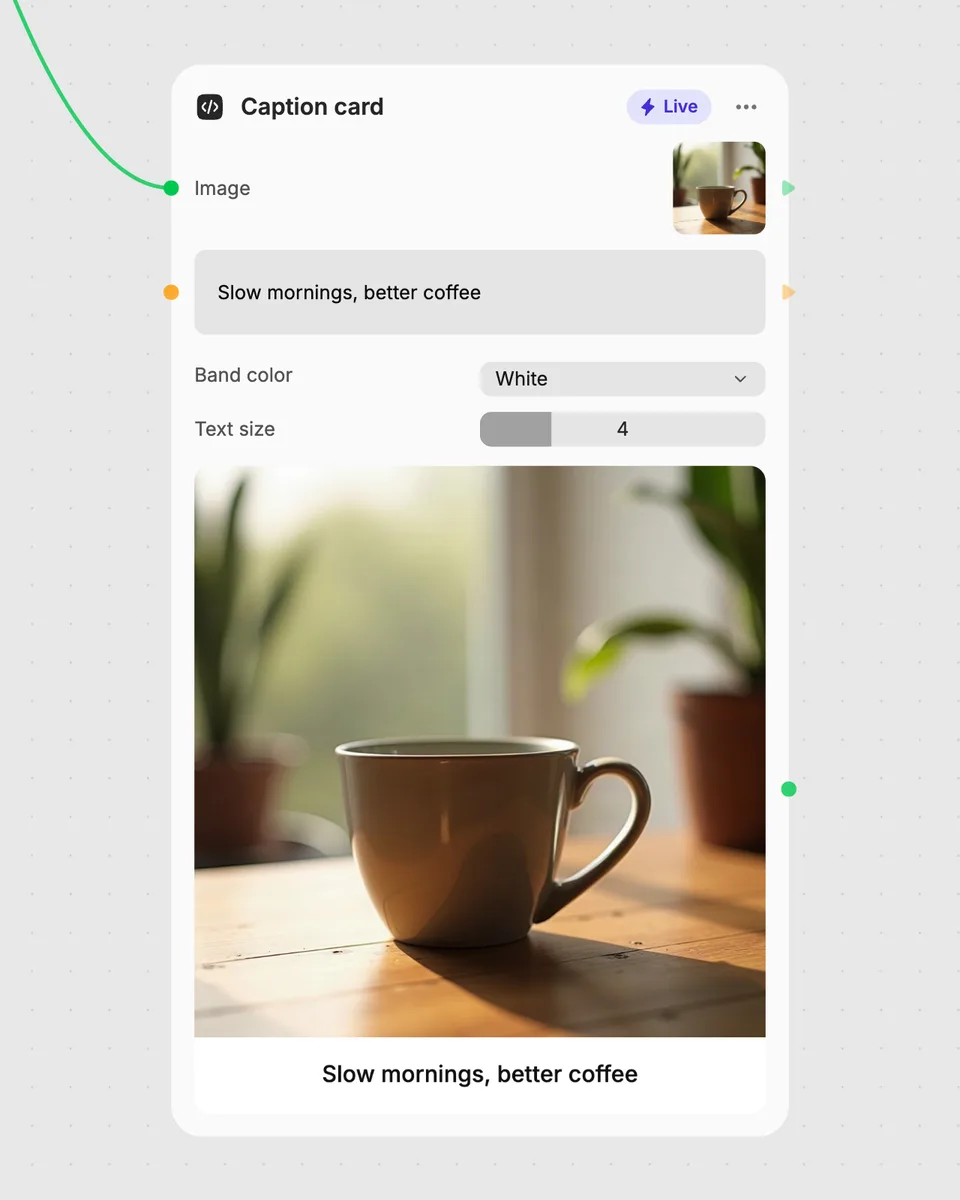
1. Try it here
Add your own file or text and adjust the controls. Live tools run in your browser, so nothing is uploaded.
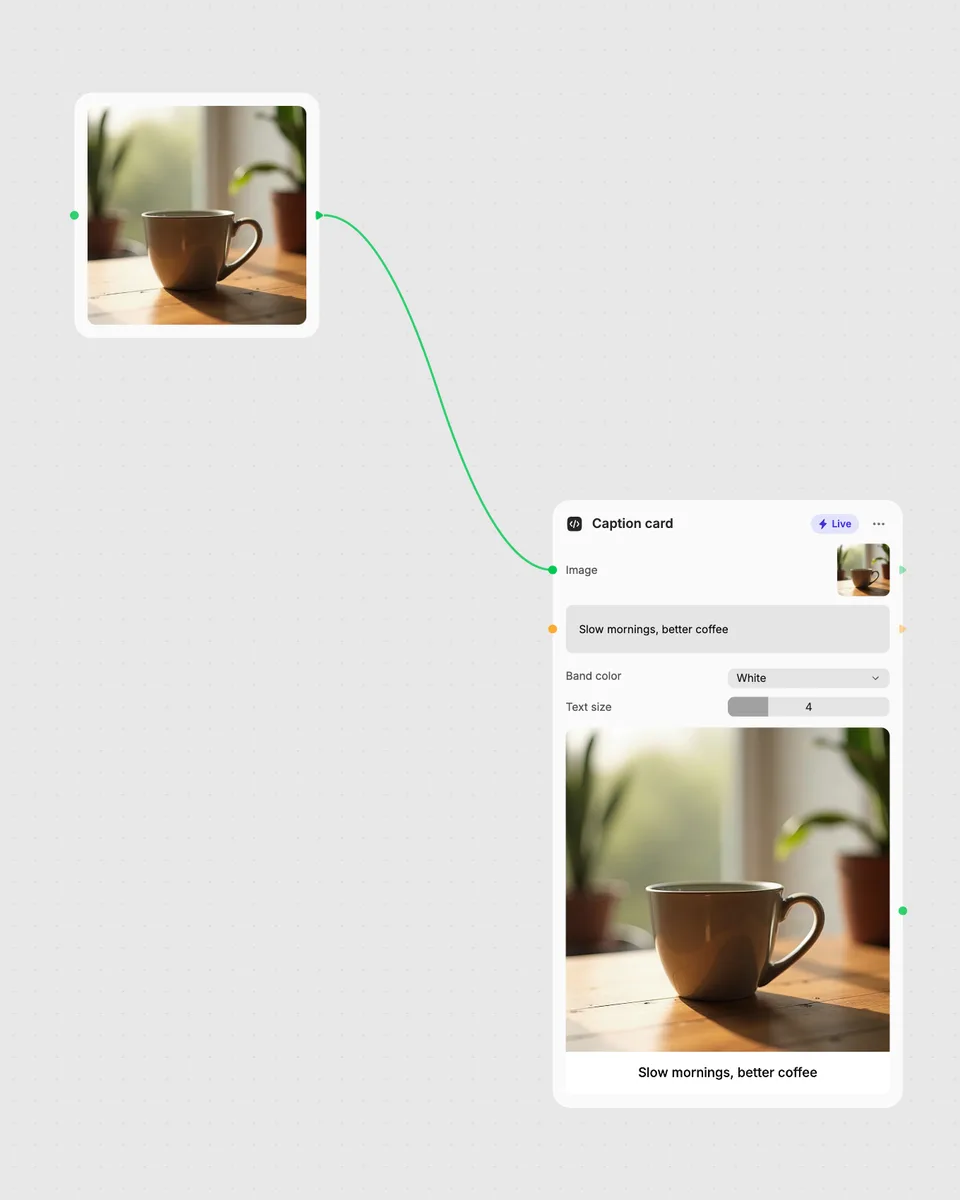
2. Open it in Fuser
Sign up free and the tool opens on your canvas with this example wired in, ready to connect to images, video or text from other nodes.
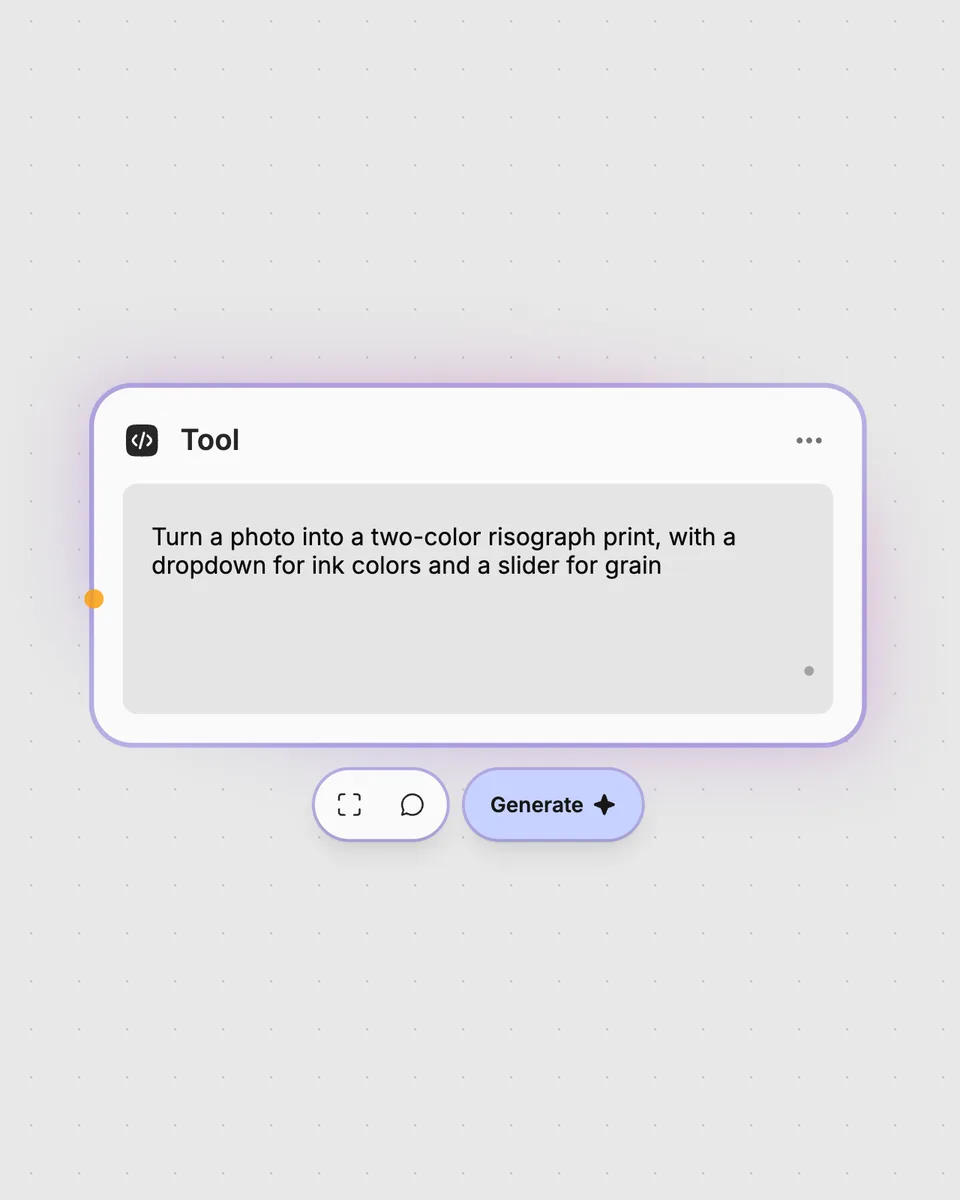
3. Describe your own
Need something different? Describe the tool you want and Fuser builds it, with the controls you asked for.
Turn an input image into a boxed, optionally labeled result for visual review and follow-on image workflows.
It takes one image and returns an image with boxes around detected objects. The tool is built to include probability information, and labels can be shown or hidden.
Provide one image in the required image input. The image is the source for the object detections and the returned annotated result.
Min confidence sets the threshold for which detections are included in the result. Increase it to filter out detections below your chosen level, or lower it to allow more detections through.
Line width changes how thick the detection boxes appear in the returned image. It can be adjusted from 1 to 10.
Yes. Use the Show labels switch to include or hide labels on the detection boxes. It is enabled by default.
Sign in to Fuser, provide your own image, adjust the controls, and run the tool. This is a Cloud tool, so each run uses credits on Fuser’s servers.
Yes. Use the returned image as an input for another compatible node, or connect this detector after an image-producing node. This lets the boxed result become part of a larger workflow.
Sign in to run it on your own image, adjust the confidence and annotation controls, and combine the result with other nodes.
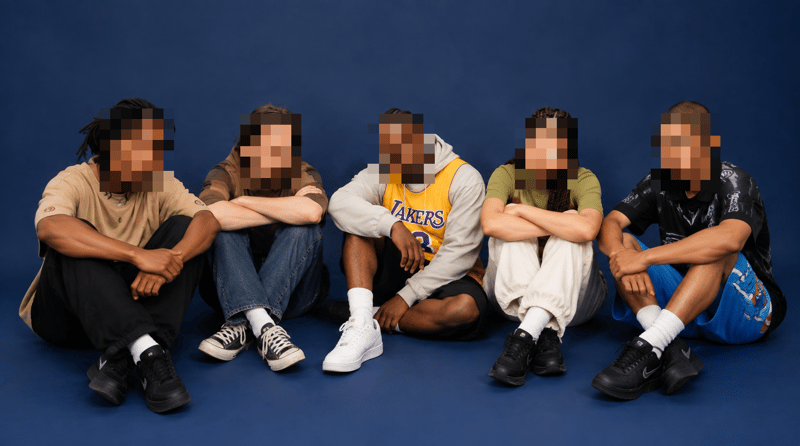
Upload an image containing faces and receive a pixelated image with adjustable block size and face padding.
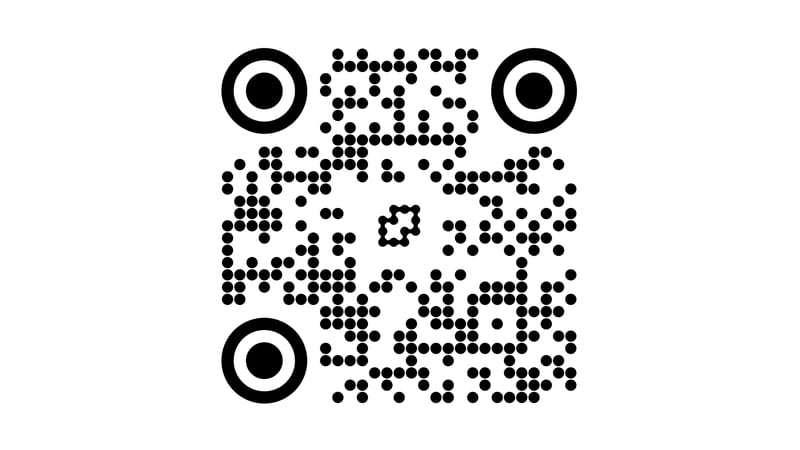
Enter a URL and optionally add a logo to generate a QR code with adjustable dots, colors, margins, and background.
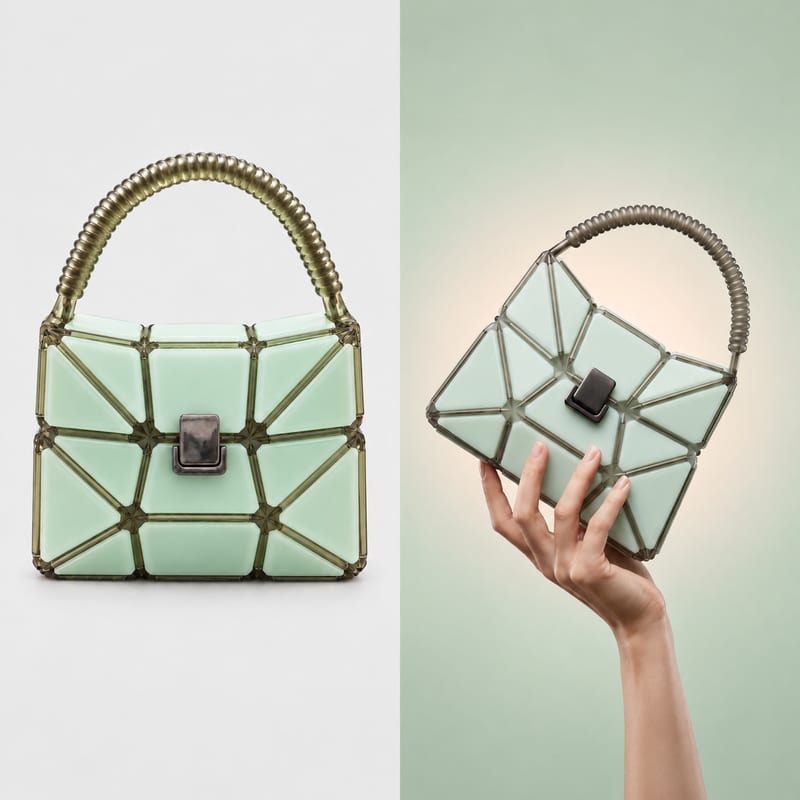
Combine two images into one result, placing them horizontally or vertically with adjustable spacing, fit behavior, and background choice.