Side by side image compositor
LiveLeft
Right
Layout
Fit
Gap
Background
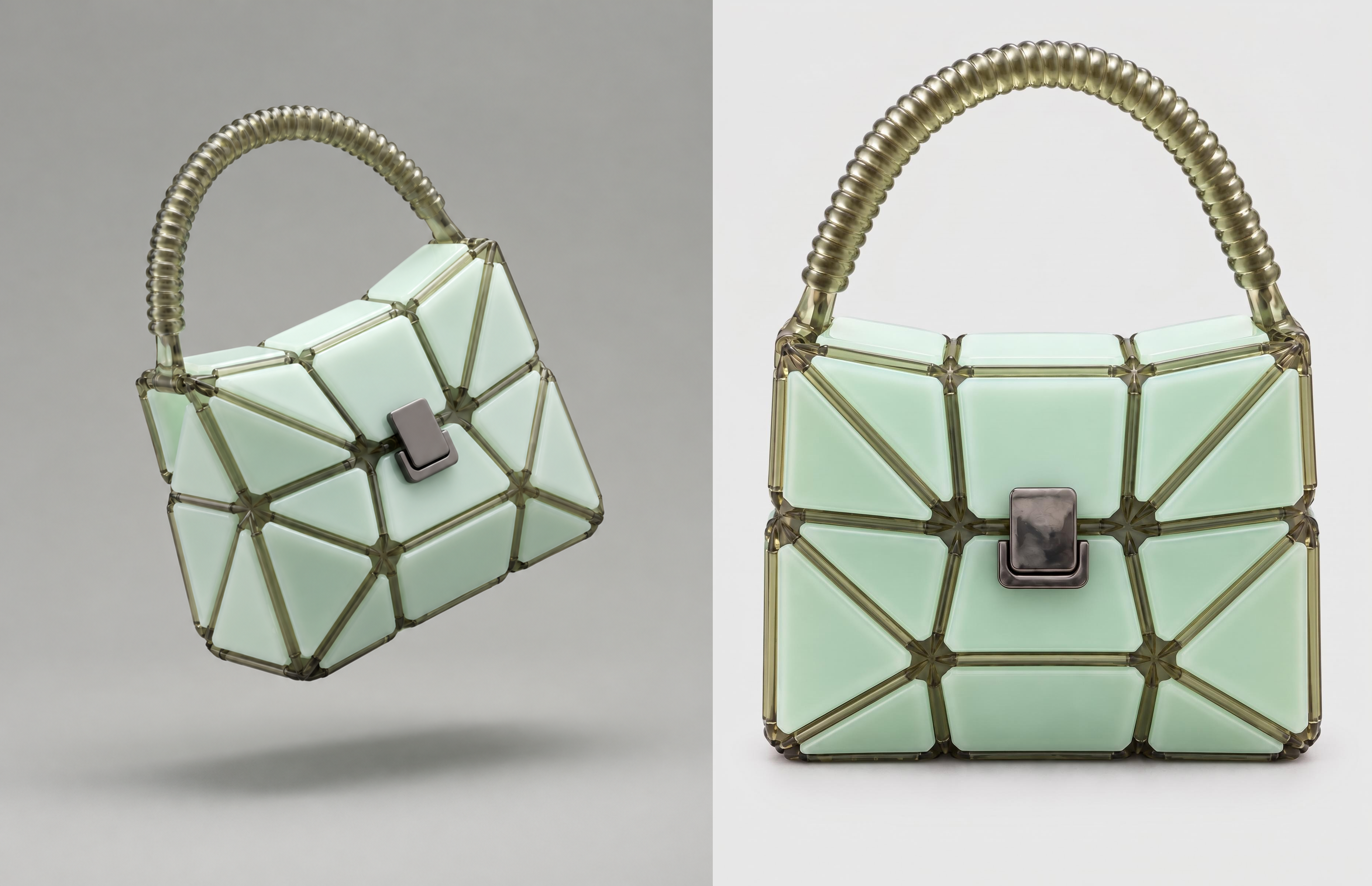
One click, whole workflow
Recipes are here. Package a whole workflow and run it in one click
Explore recipesImage composition
Combine two images into one result, placing them horizontally or vertically with adjustable spacing, fit behavior, and background choice.
Runs in your browser. Your files are never uploaded.
A tool is a small app you describe in plain words. Try this one here, then keep it on your Fuser canvas and connect it to the rest of your work.
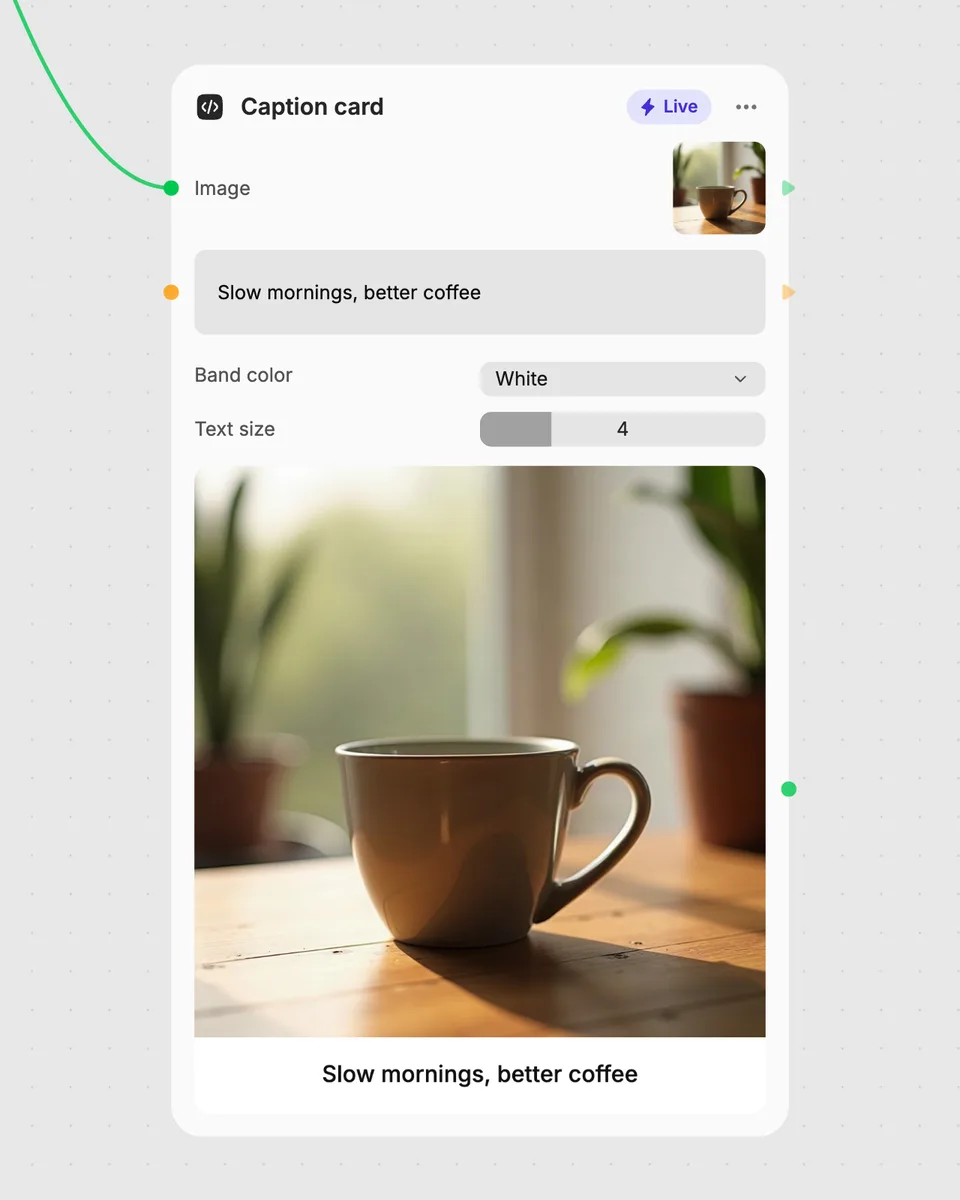
1. Try it here
Add your own file or text and adjust the controls. Live tools run in your browser, so nothing is uploaded.
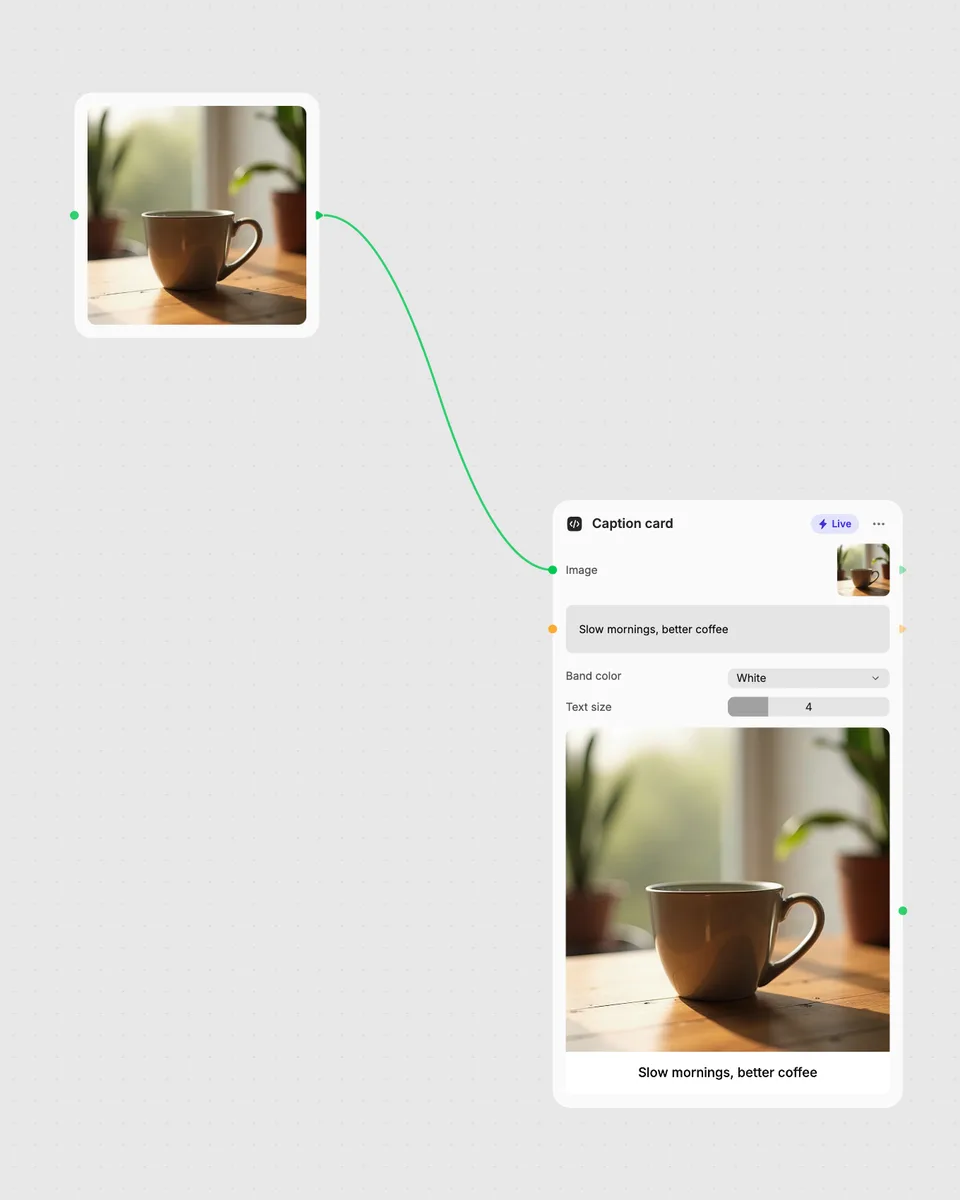
2. Open it in Fuser
Sign up free and the tool opens on your canvas with this example wired in, ready to connect to images, video or text from other nodes.
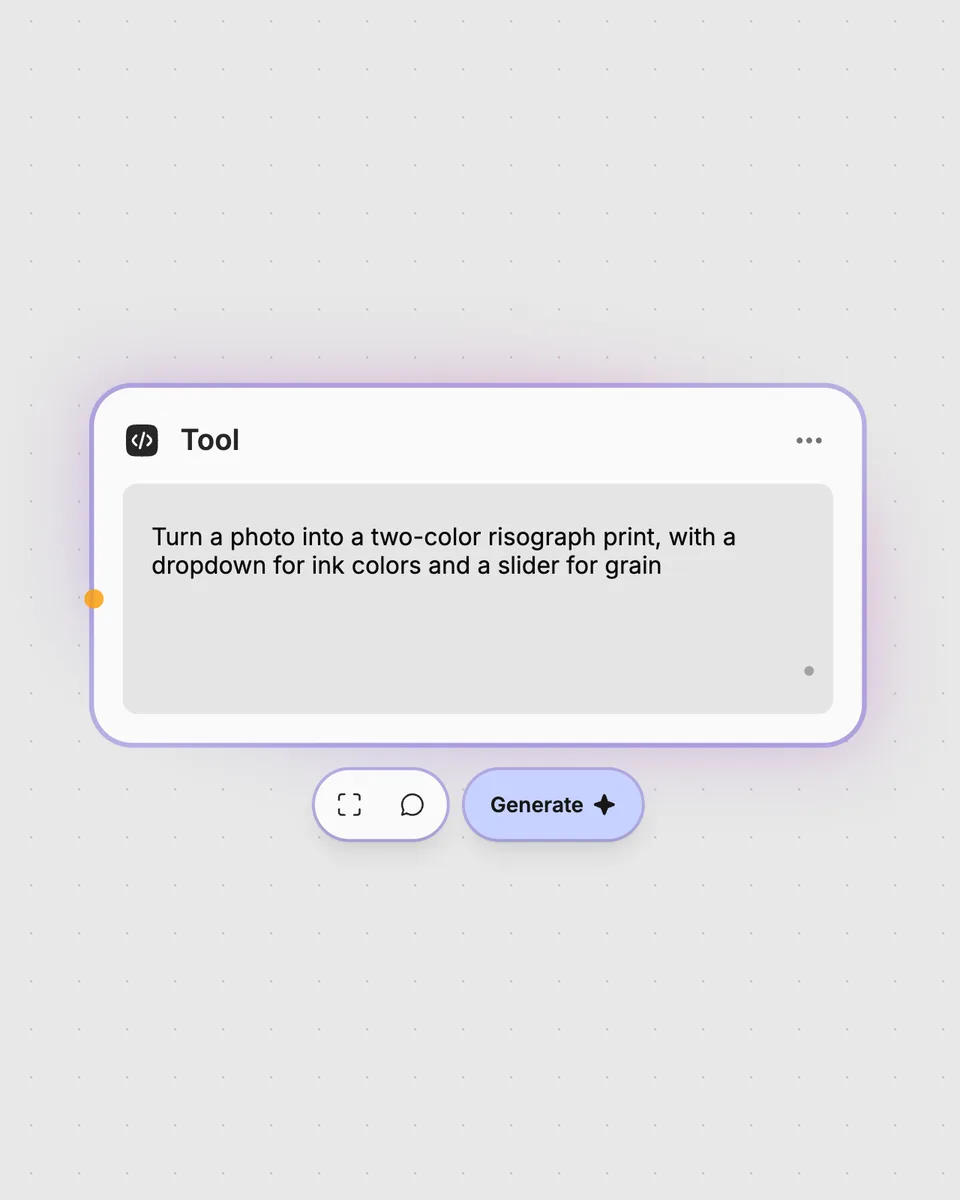
3. Describe your own
Need something different? Describe the tool you want and Fuser builds it, with the controls you asked for.
Create simple combined visuals from any two image inputs, then adjust their arrangement and appearance with the available controls.
It takes two required image inputs and combines them into one image result. You can place the images horizontally or vertically.
Add one image to the Left input and one image to the Right input. Both inputs are required before the composition can be created.
Layout switches between horizontal and vertical placement. Fit offers match or contain, Gap adjusts spacing from 0 to 20, and Background selects transparent, black, or white.
Yes. The tool runs in your browser, updates as you move the controls, and is free to try on this page without an account. Downloading more than once or opening it in Fuser asks you to sign up.
Yes. Use image-producing nodes to create the two inputs, then pass this result to another image node or continue building around it in Fuser.
Open this live tool in Fuser to connect image nodes, adjust the composition, and use the result as part of a larger workflow.
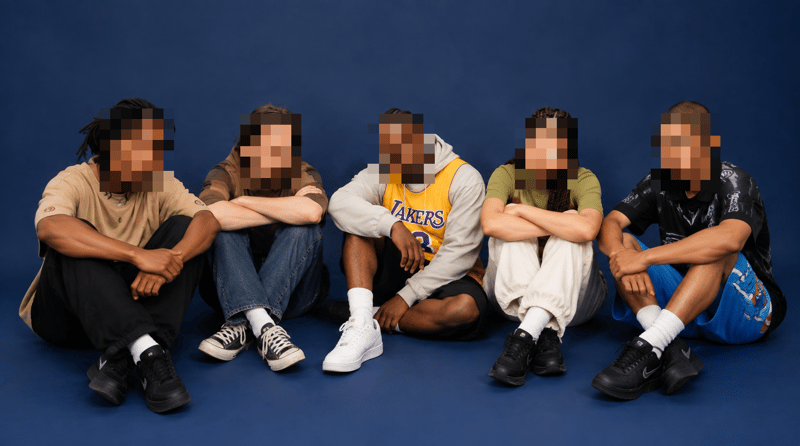
Upload an image containing faces and receive a pixelated image with adjustable block size and face padding.
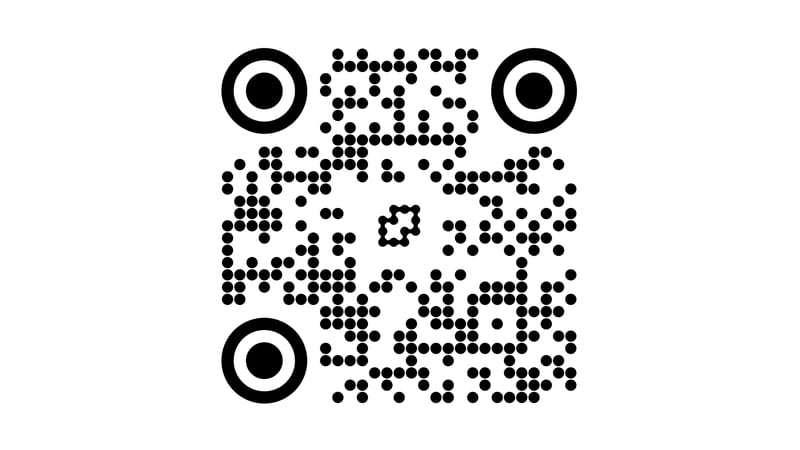
Enter a URL and optionally add a logo to generate a QR code with adjustable dots, colors, margins, and background.
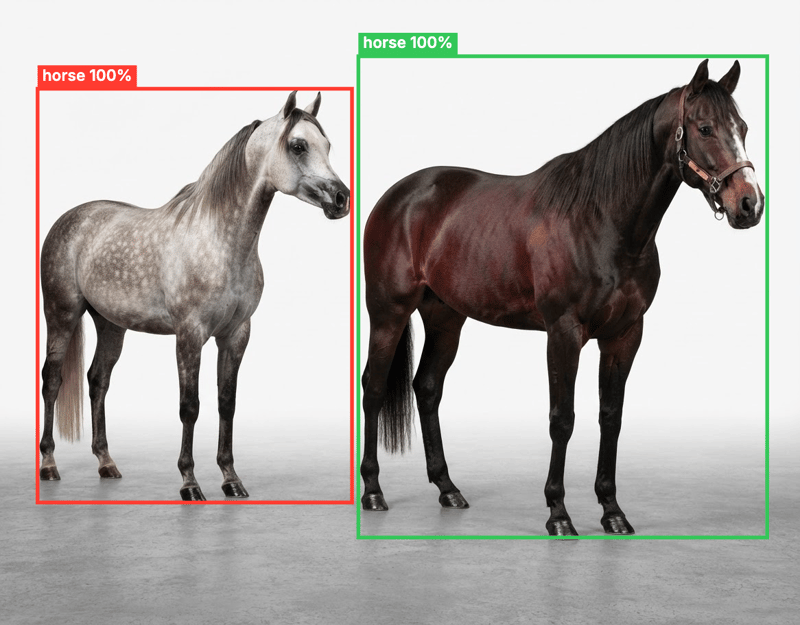
Upload an image to detect objects, draw probability boxes, and return an annotated image with optional labels.