Recipev3
Translate to Voice Video (Male)
0:00 / 0:00
Talking Character Video
One click, whole workflow
Recipes are here. Package a whole workflow and run it in one click
Explore recipesTalking character videos
Provide a scenario image, script, voice, and language to create a talking character video with translated speech.
Talking Character Video
A recipe turns a reusable workflow into a simple set of inputs and outputs. Start with a community recipe and make it your own in Fuser.
1. Choose a recipe
Find a workflow for the result you want. Review what it does and how to use it before opening it in Fuser.
2. Make it your own
Check the recipe’s available inputs. Add your own text or media where supported, or start with the saved defaults.
3. Run and refine
Run it in Fuser and review the result on your canvas. Tweak the inputs to try another direction.
Adapt scripts into talking character videos for multilingual content and entertainment workflows.
It translates a script, generates the voiceover, and turns the result into a Talking Character Video. The recipe is suited to short-form social, entertainment, and other content workflows that use a scenario image and spoken script.
Provide a Scenario Image, Script, Voice, and Language. The saved example uses the script “The coffee tastes really good!”, the voice “Roger,” and “Italian” as the language.
Yes. Scenario Image, Script, Voice, and Language are exposed inputs that you can change in Fuser before using the recipe. The saved values are only the defaults shown in this example.
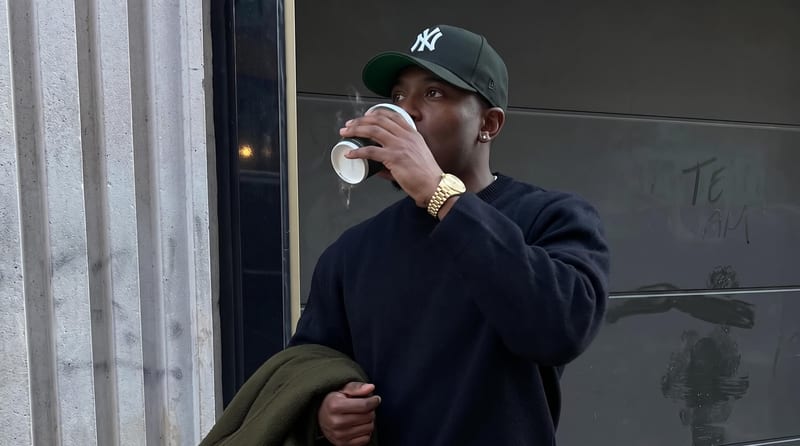
It shows the saved inputs connected to a Talking Character Video output: a scenario image, a short coffee-related script, the voice “Roger,” and Italian as the language. It is a saved example rather than a live run on this page.
Use it for translated social content, character-led explainers, short entertainment dialogue, localized video drafts, and voice-and-language explorations. These applications work from the recipe’s available image, text, language, and video inputs.
The recipe exposes Language and Voice as text inputs, so you can change those values in Fuser. The available languages and voices supported by a particular run are not specified here.
The recipe accepts one Scenario Image, but no specific subject, format, or composition requirements are provided. Choose an image appropriate to the character video you want to develop.
Bring a scenario image, script, voice, and language together in one recipe for translated video content.
Develop pitches, campaign assets and interactive client work in Fuser. Combine AI generation, editable design and reusable processes across your agency.
Develop film treatments, character and environment concepts, storyboards and motion studies. Connect image, video and 3D exploration in Fuser.
Explore a brand’s visual identity, refine typography and build real applications. Combine AI imagery with editable design and reusable workflows in Fuser.
Create social graphics, carousel artwork and short videos with a recognizable brand style. Keep copy editable and recurring content easier to produce in Fuser.
Develop storyboard frames, shot variations and video studies from your references. Compose clear boards and explore movement in one Fuser project.
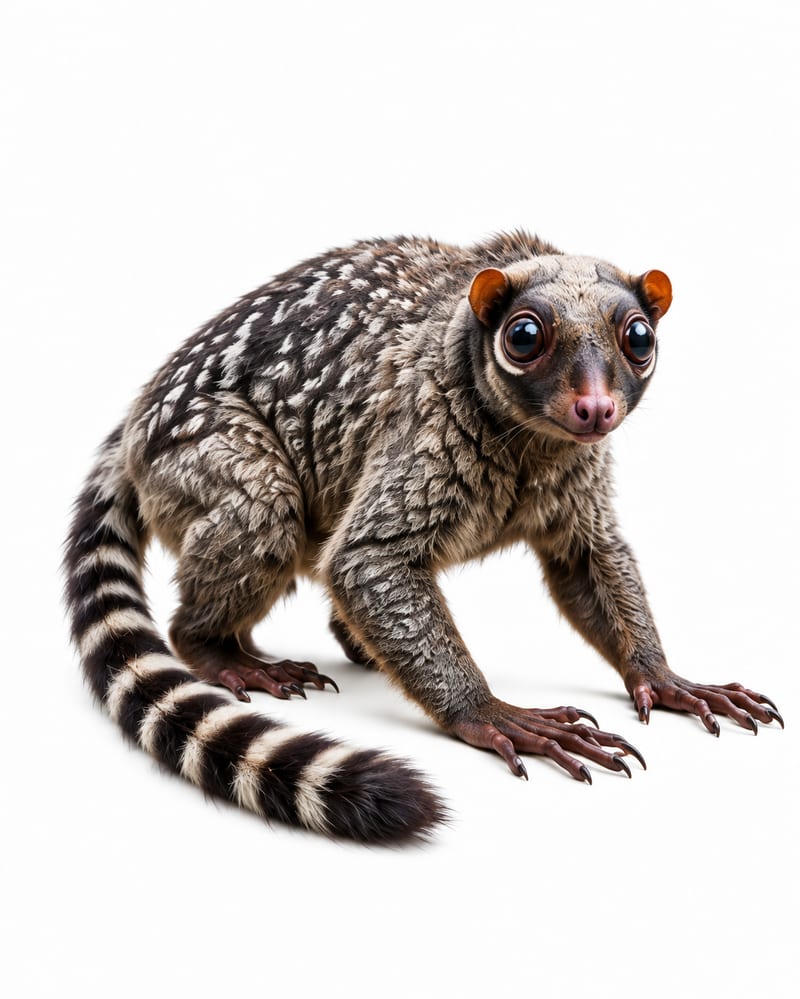
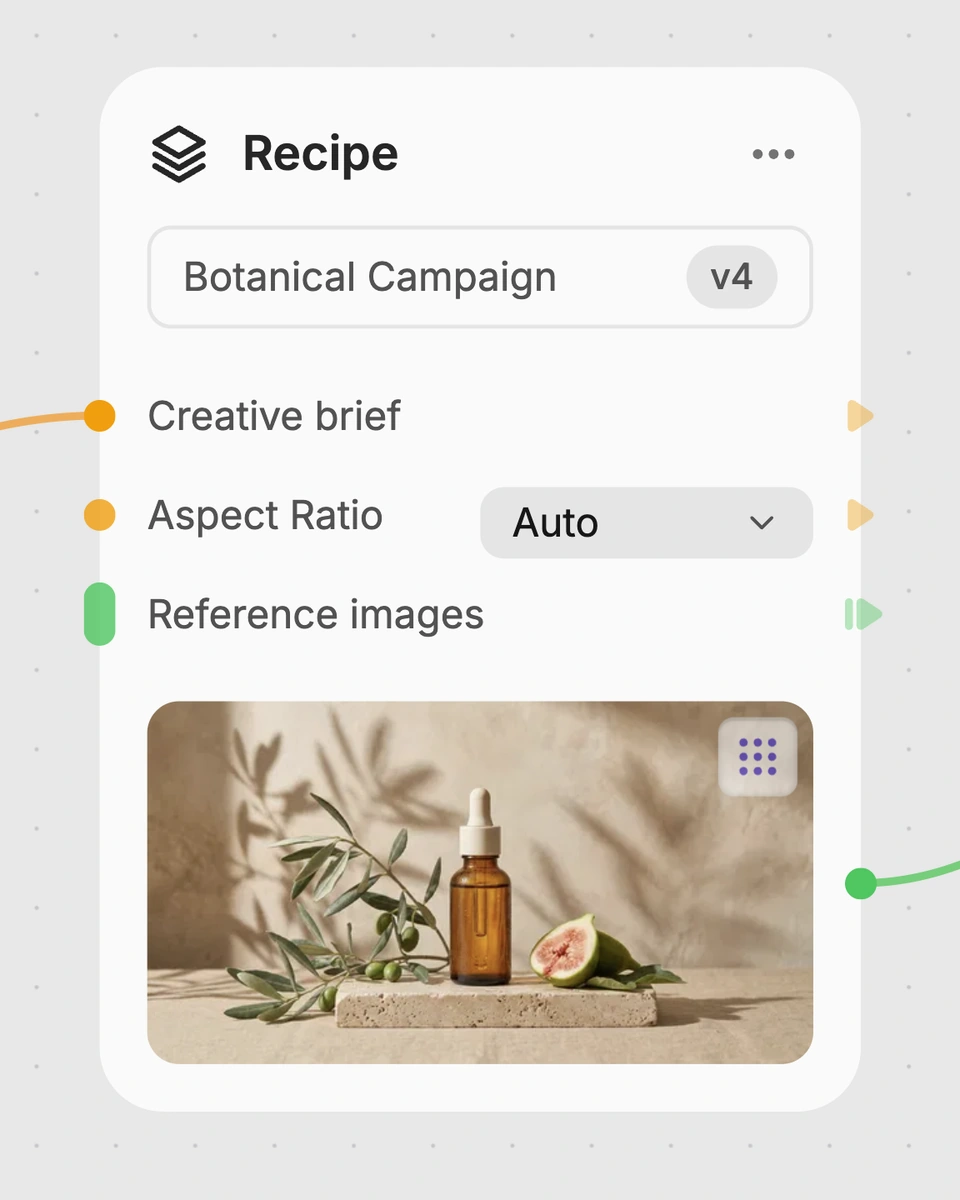
Use four animal reference images and one landscape image to create original fauna plus an animal-populated landscape.
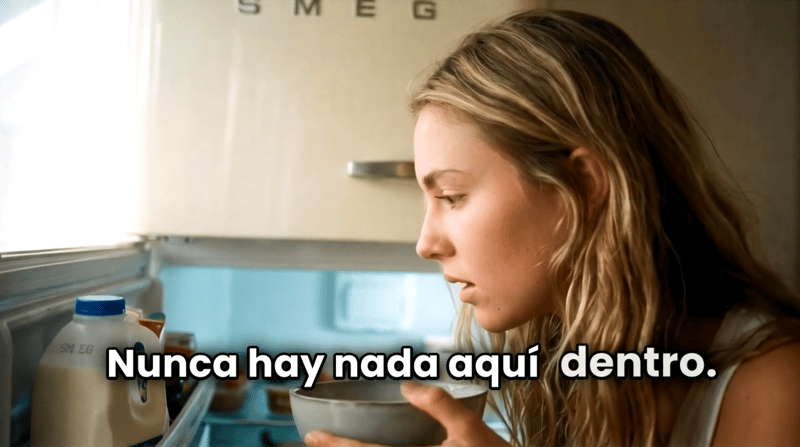
Turn a script, scenario image, voice selection, and target language into a talking character video.

Upload one source image to create five image versions for social media, web layouts, and entertainment content in different aspect ratios.