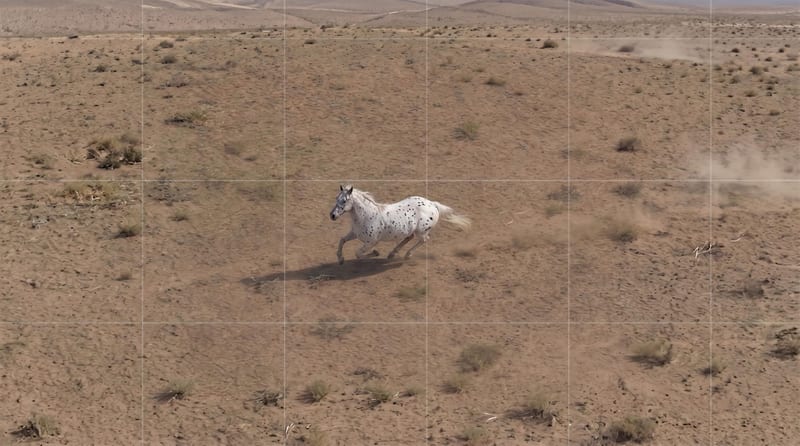
Recipev3
Translate to Voice Video (Female)
0:00 / 0:00
Talking Character Video
One click, whole workflow
Recipes are here. Package a whole workflow and run it in one click
Explore recipesScript-to-Video Translation
Turn a script, scenario image, voice selection, and target language into a talking character video.
Talking Character Video
A recipe turns a reusable workflow into a simple set of inputs and outputs. Start with a community recipe and make it your own in Fuser.
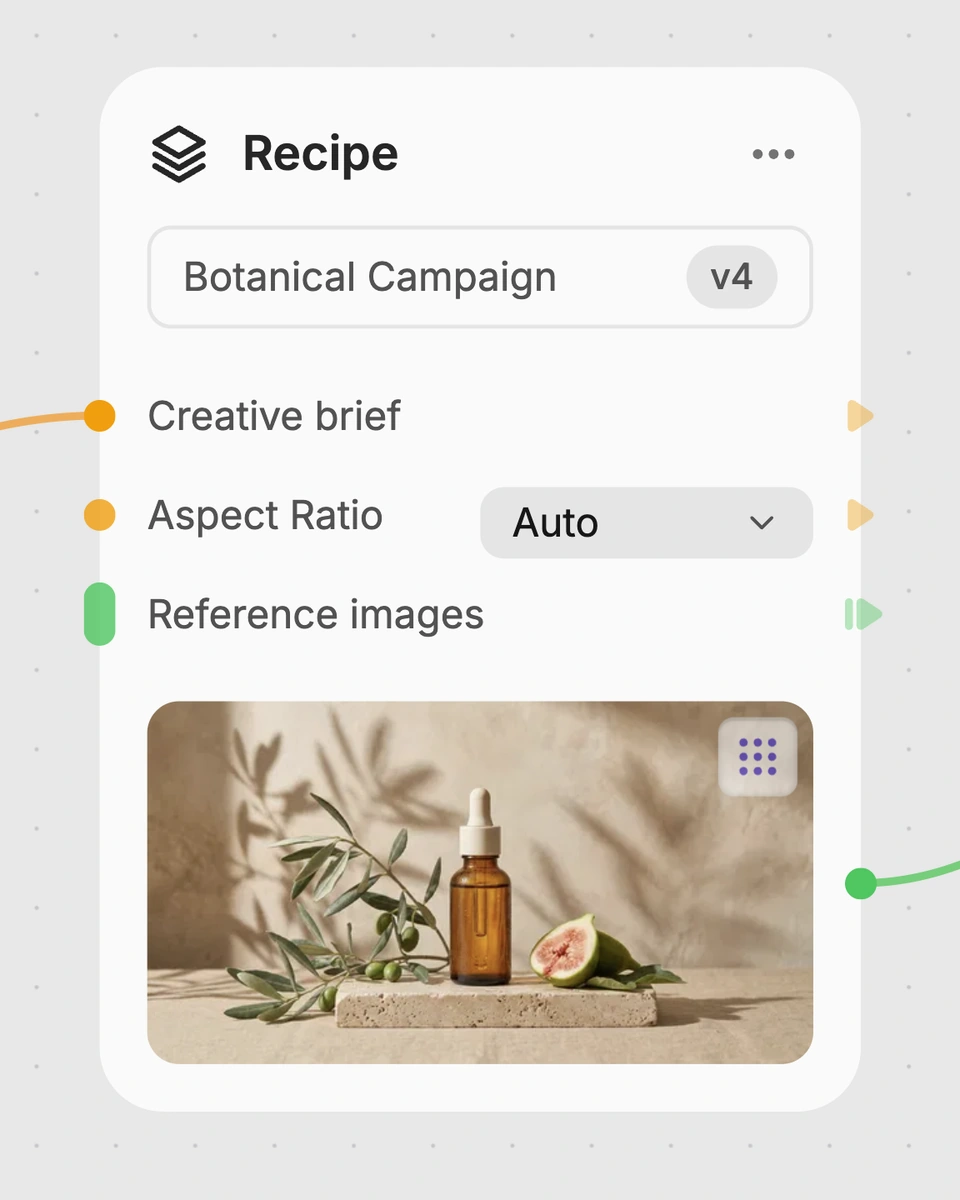
1. Choose a recipe
Find a workflow for the result you want. Review what it does and how to use it before opening it in Fuser.
2. Make it your own
Check the recipe’s available inputs. Add your own text or media where supported, or start with the saved defaults.
3. Run and refine
Run it in Fuser and review the result on your canvas. Tweak the inputs to try another direction.
Use the recipe to develop spoken, character-led video concepts from scripts and visual scenarios.
It translates a script, generates a voiceover, and turns the result into a talking character video. The output is labeled “Talking Character Video,” rather than a separate translated text document.
It is useful for people developing social and content pieces, entertainment dialogue, or other short character-led videos. The workflow is centered on combining a written script with a scenario image, selected voice, and language.
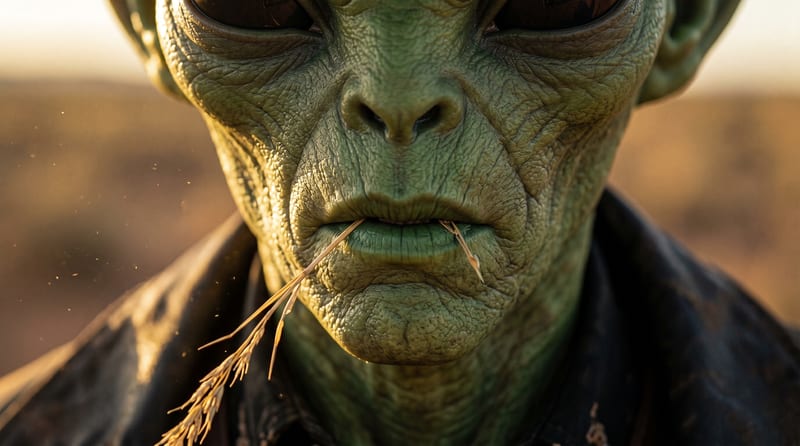
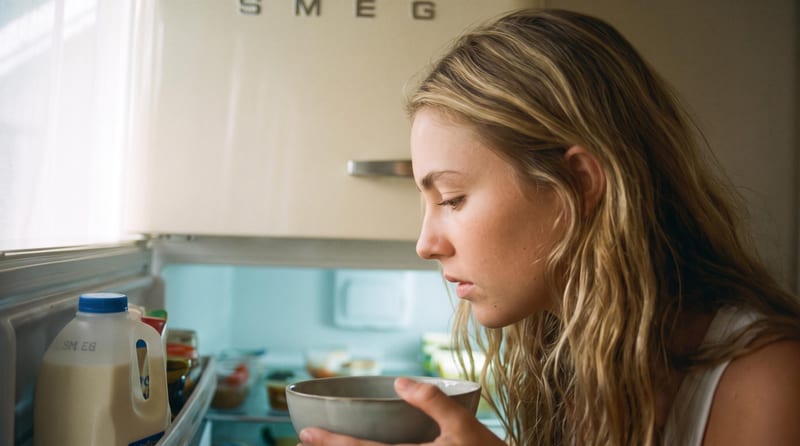
Prepare a scenario image, the script you want presented, a voice value, and a target language. The saved example uses the line “There has to be something in here... there's never anything in here.”, the voice “Jessica,” and Spanish.
Yes. Scenario Image, Script, Voice, and Language are exposed inputs, so visitors can change them in Fuser before using the recipe. The saved example is only the default configuration shown for this recipe.
It shows a short English script configured with the voice “Jessica” and Spanish as the language, together with a scenario image. Its saved output is a talking character video, illustrating how those inputs connect to the recipe.
The language and voice are editable text inputs in Fuser, so they can be changed for a new run. The saved example specifically uses Spanish and “Jessica”; it does not establish which other language or voice values are available.
The recipe produces a talking character video from the provided inputs, so the result depends on the script, scenario image, voice value, and language you enter. It does not list separate outputs for translated text, audio-only voiceover, or alternate video formats.
Bring a scenario image, script, voice, and language together in Fuser to create a talking character video.
Develop pitches, campaign assets and interactive client work in Fuser. Combine AI generation, editable design and reusable processes across your agency.
Develop film treatments, character and environment concepts, storyboards and motion studies. Connect image, video and 3D exploration in Fuser.
Explore a brand’s visual identity, refine typography and build real applications. Combine AI imagery with editable design and reusable workflows in Fuser.
Create social graphics, carousel artwork and short videos with a recognizable brand style. Keep copy editable and recurring content easier to produce in Fuser.
Develop storyboard frames, shot variations and video studies from your references. Compose clear boards and explore movement in one Fuser project.
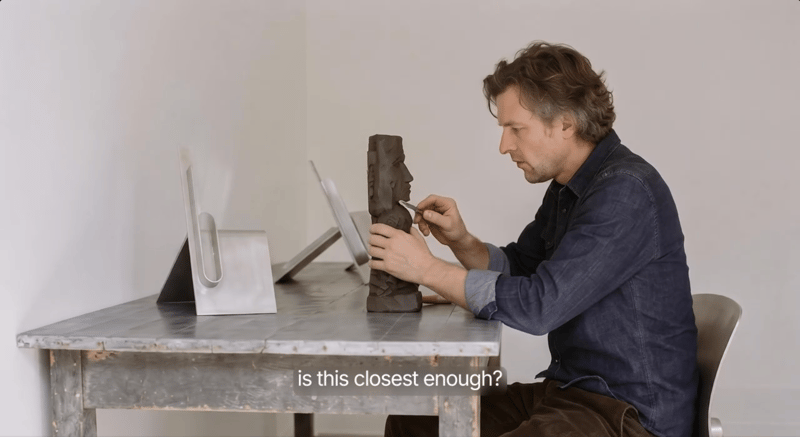
Provide a scenario image, script, and voice to create a talking character video with voiceover.
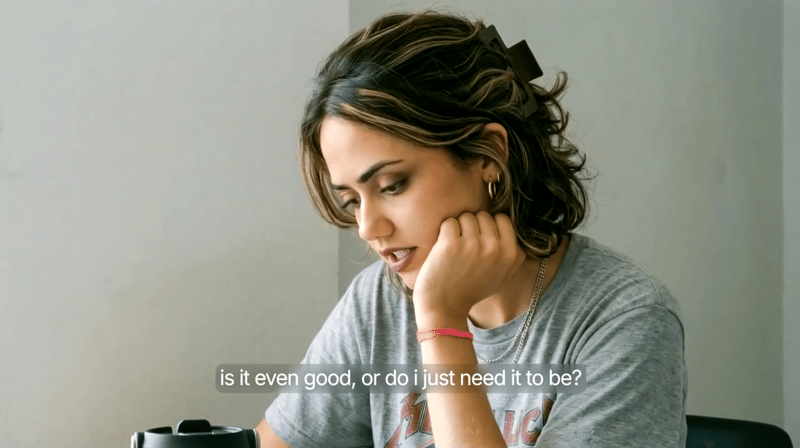
Provide a scenario image, script, and voice selection to create a talking character video with spoken delivery.
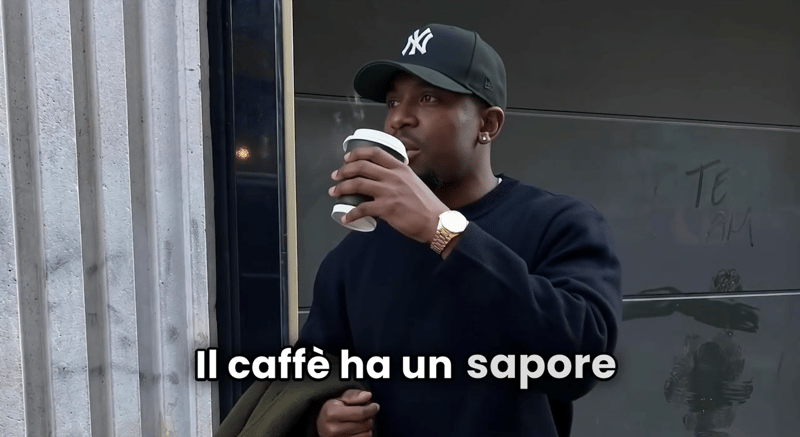
Provide a scenario image, script, voice, and language to create a talking character video with translated speech.