Recipev2
Product Ingredient Photo
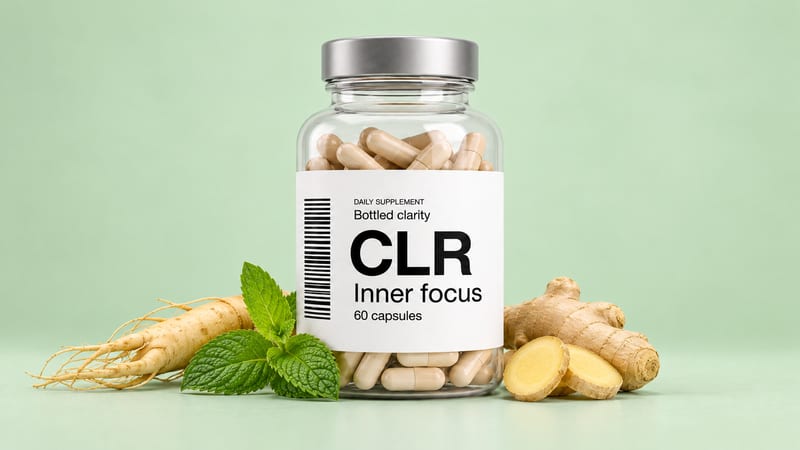
16:9 Image
Make the tool you're missing
Tools are here. Describe the one you're missing and use it live
Explore toolsProduct photography
Add a product image, ingredient list, and background color to create product photography in three social-ready aspect ratios.
16:9 Image
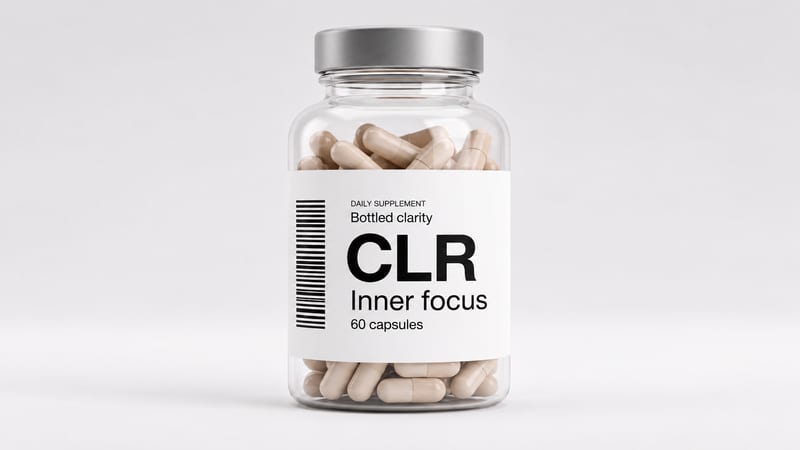
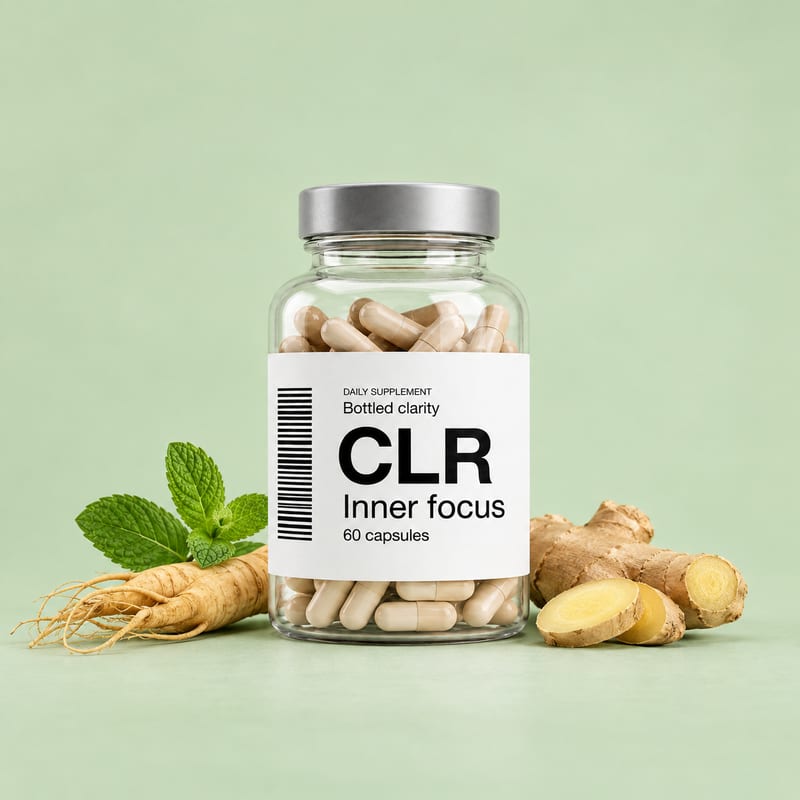
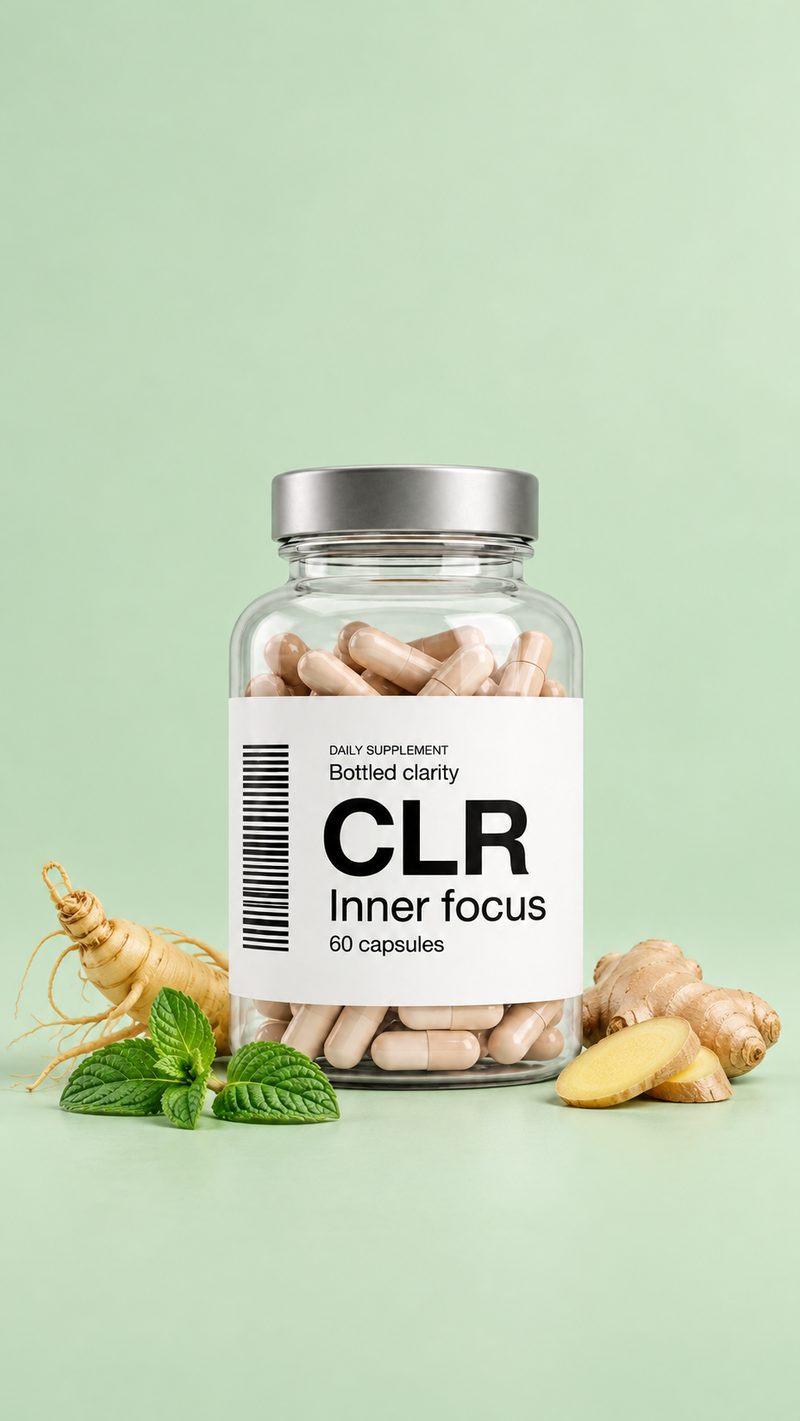
A recipe turns a reusable workflow into a simple set of inputs and outputs. Start with a community recipe and make it your own in Fuser.
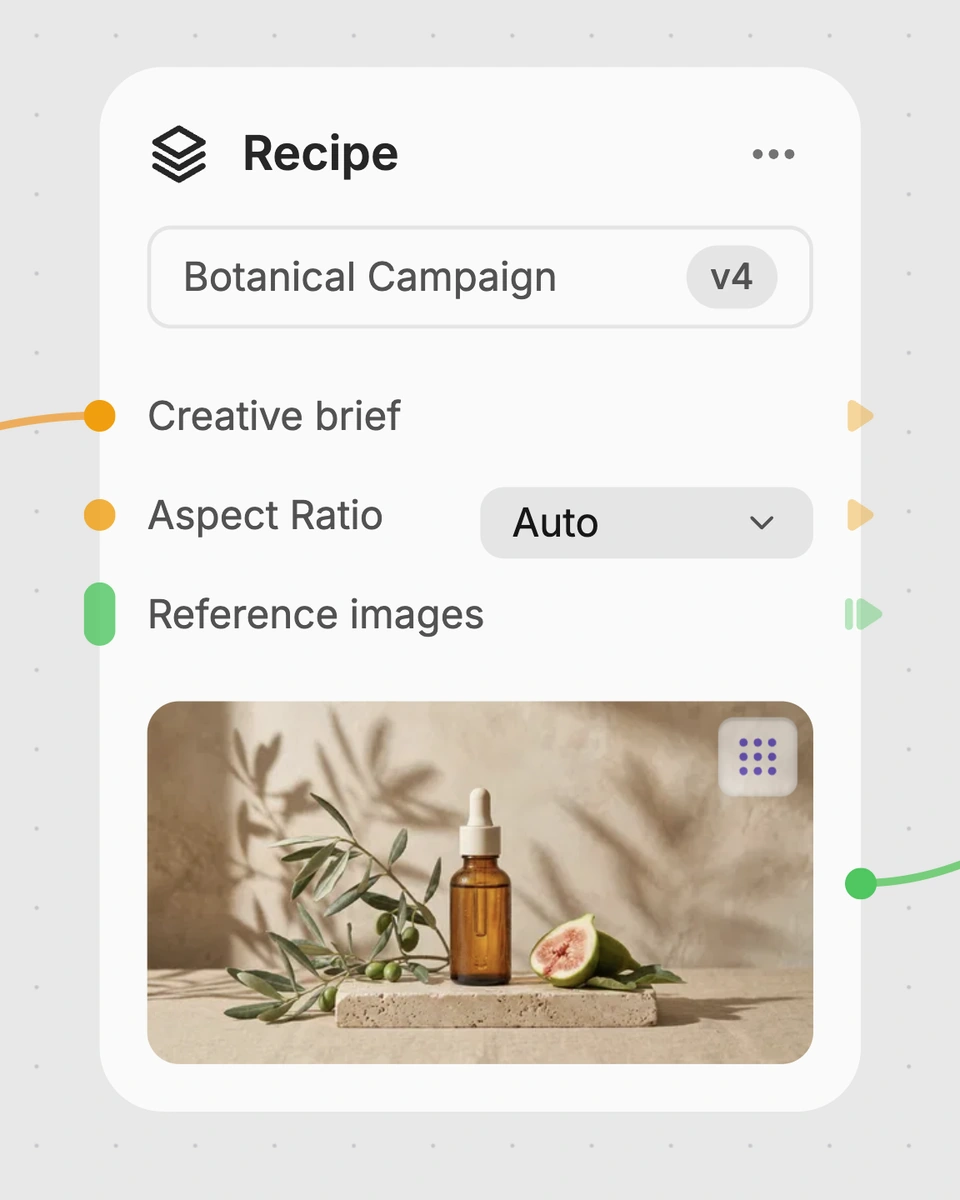
1. Choose a recipe
Find a workflow for the result you want. Review what it does and how to use it before opening it in Fuser.
2. Make it your own
Check the recipe’s available inputs. Add your own text or media where supported, or start with the saved defaults.
3. Run and refine
Run it in Fuser and review the result on your canvas. Tweak the inputs to try another direction.
Create ingredient-led product visuals for social content, product presentation, and campaign planning.
It is designed for teams creating product photography for social content, ingredient education, and product presentation. It can be useful when one product needs landscape, square, and vertical image formats.
Provide a product image, enter the ingredients as text, and specify a background color. The saved example uses the text “ginsing, mint, ginger” and the background color “mint green.”
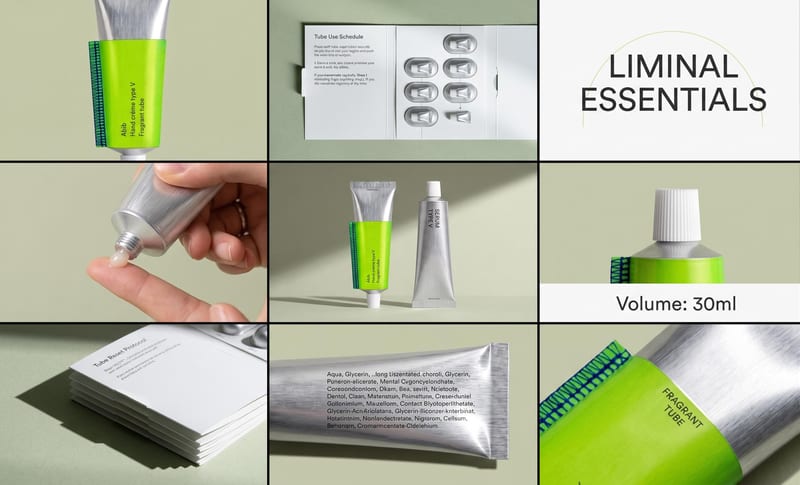
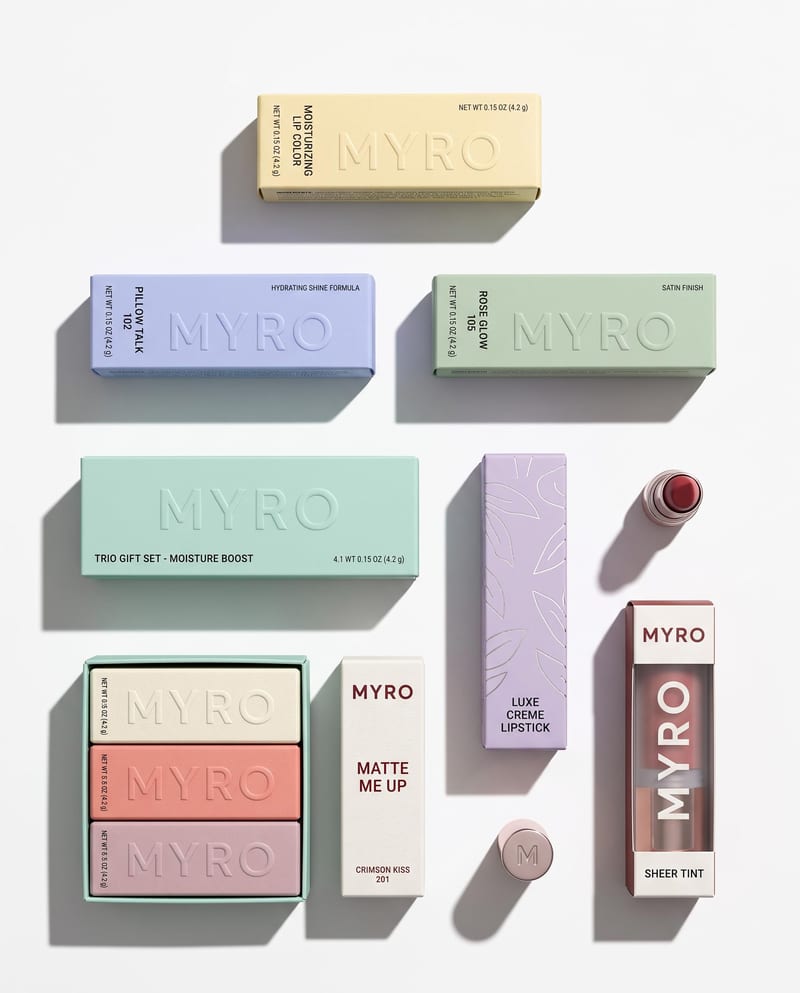
The recipe creates product photography showing the product next to the listed ingredients against a muted soft background. Its saved outputs are labeled 16:9 Image, 1:1 Image, and 9:16 Image.
Yes. Product Image, Ingredients, and Background Color are exposed inputs that you can change in Fuser before using the recipe. A new run will use the values you enter rather than the saved example values.
Yes. Background Color is an editable text input in Fuser, so you can replace the saved “mint green” value with another color direction. The recipe’s purpose remains a product image paired with its ingredients.
The 1:1 output is suited to square social layouts, while the 9:16 output supports vertical placements and the 16:9 output supports wider compositions. The best choice depends on the placement where you plan to use the image.
No. The page shows a saved example with its connected inputs and outputs: a product image, “ginsing, mint, ginger,” a mint green background, and three image aspect ratios. To create a new version, change the exposed inputs in Fuser and run the recipe.
Bring a product image, ingredient list, and background color together in three useful image formats.
Develop pitches, campaign assets and interactive client work in Fuser. Combine AI generation, editable design and reusable processes across your agency.
Create product images, lifestyle scenes and campaign assets for your next ecommerce launch. Keep branding editable and reuse creative setups in Fuser.
Create studio-style product images, lifestyle scenes and motion studies. Combine reference-led generation with precise, editable composition in Fuser.
Create social graphics, carousel artwork and short videos with a recognizable brand style. Keep copy editable and recurring content easier to produce in Fuser.
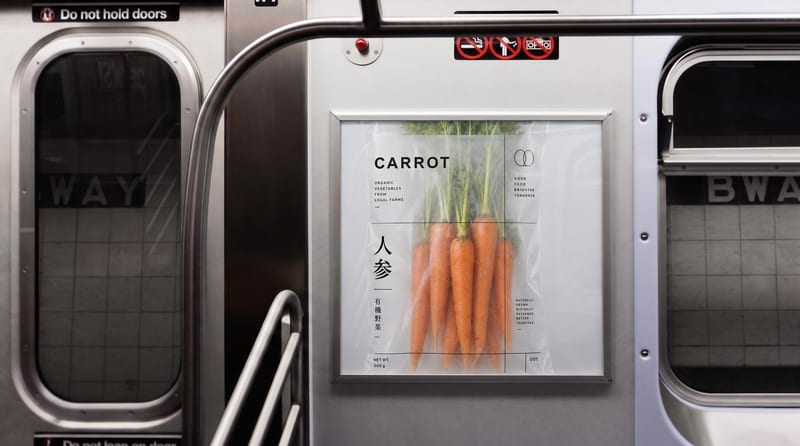
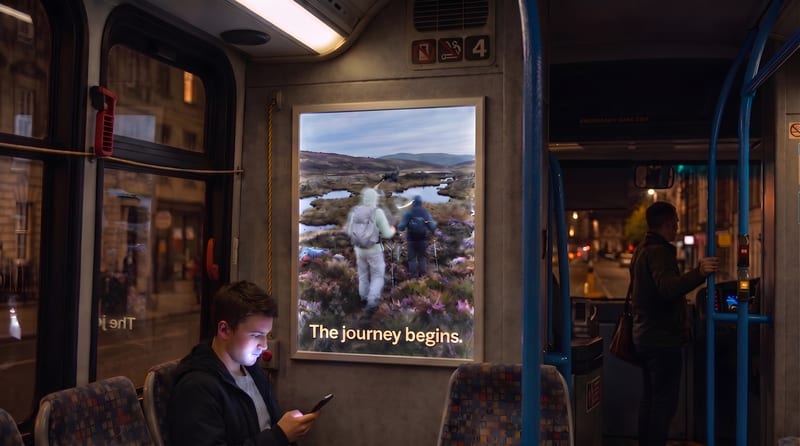
Place one image on subway, wall, platform, and billboard signage mockups.
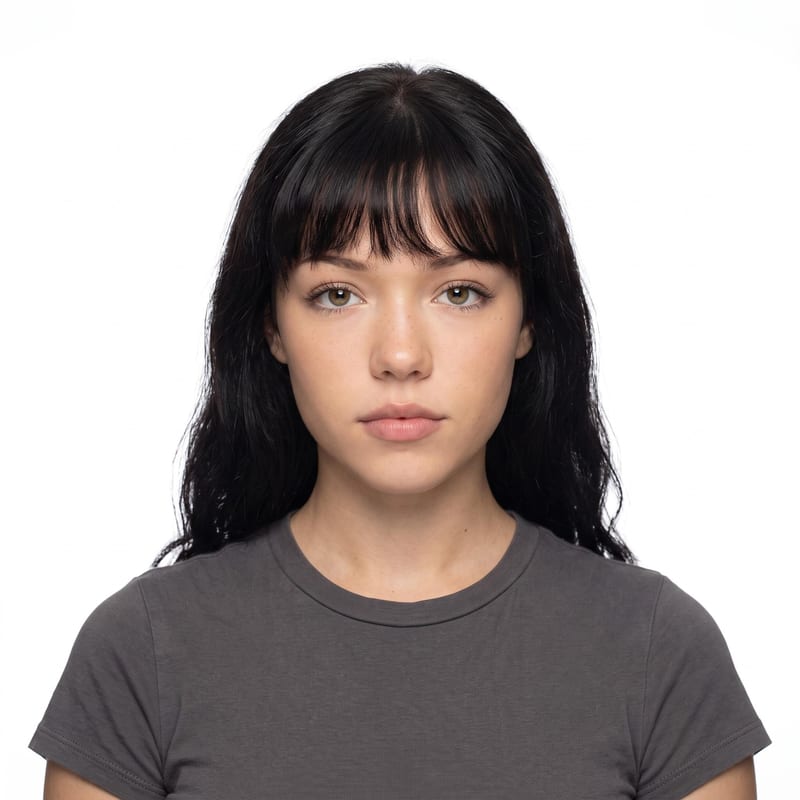
Upload one portrait to create a centered US passport-style photo with a white background and passport-ready proportions.
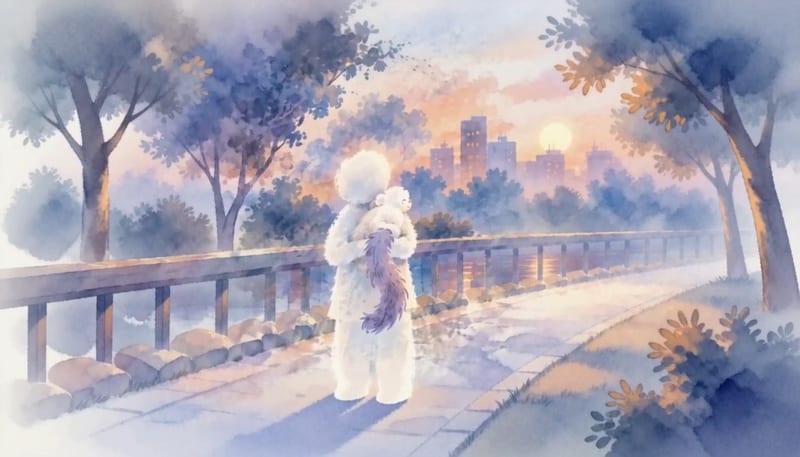
Enter a dream story to receive a Jungian analysis and a short animation based on its described imagery.