One click, whole workflow
Recipes are here. Package a whole workflow and run it in one click
Explore recipesOne click, whole workflow
Recipes are here. Package a whole workflow and run it in one click
Explore recipesHow to use MiniMax H3 Reframe: source prep, the seven target ratios, prompting what gets invented at the edges, the 480p-to-final workflow and where it fails, with four real before-and-after runs.
All guides · MiniMax H3 Reframe in Fuser
Quick answer: the best way to reframe a finished video to 9:16, square or ultrawide without cropping is MiniMax H3 Reframe in Fuser: it fits your whole shot inside the new frame, paints the missing edges to match the light, grain and camera move, and gives back a clip with the source's length and sound. Prompt the edges with materials, light and the few objects you want, draft cheaply to choose the ratio and the direction, and judge the final take on its own, because every run invents its edges anew.
This guide covers the model itself: what to feed it, which ratio jumps work, how to direct what gets invented and where it breaks. Every example below is a real run, with the source on the left and the reframe on the right. For crop vs blurred fill vs outpainting, and a per-platform walkthrough, see how to change video aspect ratio with AI.
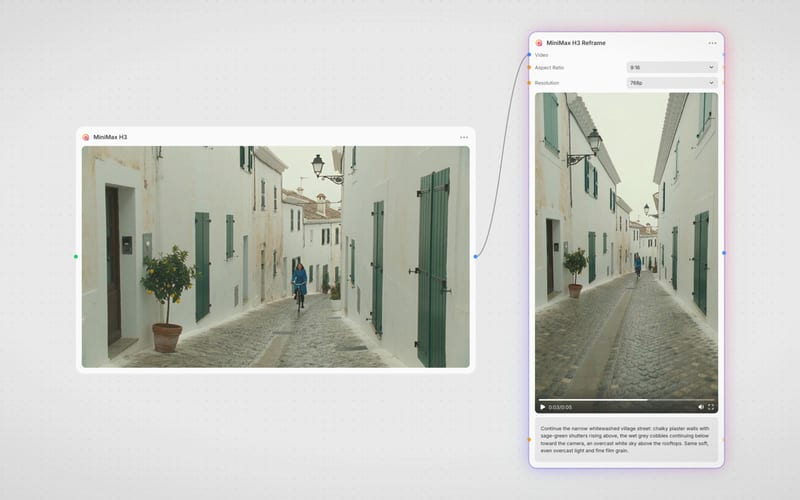
Reframe is a video-to-video model on H3 Max, a post-trained variant of MiniMax H3. It never crops: the source is fitted inside the new canvas at full width or full height, and everything around it is generated. Timing and sound carry through, so the output lines up with your edit. MiniMax's own H3 announcement does not cover Reframe, so the limits below come from the model's input schema, Fuser's node and our runs.
The node has four inputs:
Video (required): 0.25 seconds to 5 minutes. Its timing and sound are kept.
Prompt (optional): what the new surroundings should show. Leave it empty and the model describes the source itself and continues from that.
Aspect Ratio: 16:9 (the default), 9:16, 1:1, 4:3, 3:4, 21:9 or 9:21.
Resolution: 480p, 768p (the default) or 1080p. 1080p is an upscale of a native 768p reframe.
The model behind the node accepts a seed, but the node doesn't expose one, so each run paints new edges, even with the same inputs.
Any shape works as input. Our sources were 16:9, 1:1, 3:4 and 9:16, and each came back aligned with its original inside the new frame.
Trim first. Reframe is charged per second of source, and the output always matches the source length. Fuser's estimate rounds up to whole seconds, so a 6.6-second clip counts as 7.
Remove what shouldn't stay in the middle. The whole source frame is kept, so letterbox bars, burned-in captions and corner logos end up mid-frame in the new shape. Reframe the clean clip and add titles afterwards.
Leave room in the composition. The subject keeps its size. A wide shot pushed to 9:16 leaves a small figure in a band a third of the frame tall; a medium shot holds up better.
Make the source look the way you want the edges to look. The fill copies the grade, grain and light. Our sources were all generated with MiniMax H3, and a film-grain, single-light-source look carried straight into the new edges.
This is the job most people bring to Reframe, and the biggest jump. In our 1080p run on a promenade skate clip, the source kept the full width in a band 625 pixels tall out of 1,920, so about two-thirds of the vertical frame is new: overcast sky above, wet paving below.
The prompt only named what continues: "Continue the overcast pale grey sky above and the wet grey paving stones of the seaside promenade below, with the same mint-green railings." The ollie lands on the same frame as in the source, and the railings, lamp posts and reflections run straight through the band edges. Plain sky and ground are the easiest edges to fill, which is why a horizon shot survives 9:16 so well.
A square crop of a 16:9 shot keeps 56% of the picture; a square reframe keeps all of it, in a band 57% of the frame tall, and adds the rest above and below.
We asked for "old building facades with snow on the roofs and the tram's overhead wires against the dusk sky above, and snow-dusted wet cobbles below." The model ran the facades up to snowy rooflines with chimneys and an aerial, carried the overhead wires into the dusk sky and laid more wet cobbles below. It also finished the passer-by with the umbrella, who is cut off by the bottom of the source frame, with a body in the new strip. That is typical: anything crossing the source edge gets completed, whether you asked or not.
The same node works in reverse, for phone footage that has to sit in a widescreen cut. Here a vertical lido shot keeps the full height, in the middle 43% of the 16:9 frame.
The prompt listed the furniture of the place: "more white concrete diving platforms with steel railings, the long pale aqua pool and its tiled edge, starting blocks, low trees and an overcast sky." The model added a lower springboard on the left, the pool's corner, a steel ladder and the far tree line on the right, and kept the starting blocks in rhythm across the band edge. Because only the sides are new, vertical to wide is often an easier jump than wide to vertical.
With an empty prompt, the model writes its own description of the source and continues it. The API returns that description, and it reads like a shot list: the setting, what lies to each side, the camera move and even a soundscape line, though the audio is the source's either way. What you write is folded into that description, so the useful prompt is about the empty space, not the subject.
We ran a square letterpress clip, shot on a slow dolly, to 16:9 twice at 1080p on 23 October 2026. Once with no prompt, and once with this:
"Continue the print shop to both sides. On the left, a tall night window of small square panes, deep blue outside, with a canvas apron hanging on a hook beside it. On the right, a long wooden drying rack hung with sheets of cream paper, each printed with a single bold red circle. Same warm tungsten light, deep shadow, heavy 16mm grain and faded colour."
No prompt (top) gave the quiet answer: more type-case shelving to the left, a bench of type trays and bare white wall to the right. The prompt (bottom) got everything it named. The night window opens on the left with the apron on its hook beside it, and the red-circle prints fill the right-hand wall. Two things weren't as written: the prints are pinned flat to the wall rather than hung on a rack, and a radiator we never mentioned appeared under the window. In both runs the printer's hands stay in shot after they leave the square source, because the model finishes anything that crosses the edge.
What worked across our runs:
Name the place, then what continues on each side. "Above" and "below" for a vertical target, "left" and "right" for a wider one.
Describe materials and light, not a new subject. Sky, paving, plaster, shelving and foliage extend cleanly; a named object lands somewhere plausible, not always exactly where you put it.
Repeat the look. Ending with the grain, grade and light keeps the fill from looking cleaner than the footage.
Say what must not appear. On a street clip in our aspect-ratio test, adding "No new people, no signs, no text" gave the plainest edges.
Luma's reframe mode follows the same logic; the Luma Ray 3.2 guide covers it.
How much is invented depends only on the two shapes. From a 16:9 source:
21:9: only thin side strips are new. The safest jump and the hardest to spot.
4:3: a quarter of the frame is new, top and bottom.
1:1: a little over 40% new.
3:4: a little under 60% new; the nearest option to a 4:5 feed post.
9:16: about two-thirds new.
9:21: about three-quarters new.
Going the other way, a 9:16 or 3:4 clip reframed to 16:9 generates both sides. 4:5 isn't an option on the node: reframe to 3:4 and trim the top and bottom. Instagram post sizes has the feed specs. The larger the share that's new, the more the prompt decides the result.
Resolution changes the cost and the sharpness, and it changes the edges too. On the model page's walled-garden clip we ran the same source, prompt and seed at 480p and at 1080p: the 480p draft turned the brick wall a corner, while the 1080p final continued it with another espaliered pear tree. 480p is its own generation, not a preview of the 1080p pixels, and in Fuser there's no seed to hold anything constant between runs.
So use the draft to make decisions, not to approve details:
Draft at 480p to choose the ratio and check that the prompt sends the fill in the right direction. In Fuser's credit estimate it costs about five-eighths of a 768p run.
Render the final at 768p, the model's native resolution. Run two or three takes if the edges matter; each one invents something different.
Use 1080p when you need the pixels. It upscales a native 768p reframe and, in Fuser's estimate, costs twice as much per second as 768p. A 1080p run is a new take, so if you already love a 768p take, upscale that file instead; see the best AI upscalers.
Scrub the band edges and the centre frame by frame before you publish.
All of these came from the runs behind this guide and the model page:
Invented lettering. A vertical market-hall clip reframed to 16:9 grew stall signs with half-formed words across the new edges. Add "no signs, no text" when the setting has shopfronts.
Light sources get exaggerated. A narrow strip of ceiling light in a warehouse runway shot became a large white skylight wedge when we reframed it to 3:4.
Edge artefacts get continued. A car's shadow cut off at the bottom of a road shot carried into the new asphalt as a black wedge. Trim the opening of a clip if something is half in frame.
Dark edges stay dark. A soprano lit by one spotlight on a dark stage, widened to 21:9, gained near-black wings: correct, but it adds nothing you can see.
The centre is re-rendered. The original area comes back slightly softer, with fine detail redrawn, while structure and timing hold. Check faces, product labels and logos before you ship.
Bodies and props get completed. People cut by the source frame come back whole, with clothes and limbs the model chose. Check them if the person or costume is real.
Two more from our aspect-ratio test: burned-in subtitles end up floating mid-frame, and a close-up pushed to 9:16 invents everything below the collar. If the edges must be real, as in news or documentary footage, crop instead.
Add your clip with a Video node, or generate one with MiniMax H3 on the same canvas; the MiniMax H3 prompt guide covers prompting the shot itself.
Connect it to a MiniMax H3 Reframe node, pick Aspect Ratio and set Resolution to 480p for the first pass.
Write a Prompt for the new edges, or leave it empty for a plain continuation.
Fan out: connect the same clip to one Reframe node per ratio to get 9:16, 1:1 and 21:9 versions in one run.
When the direction is right, rerun at 768p or 1080p and keep the best take.
Reframe also chains with the other H3 tools: swap the cast with MiniMax H3 Recast, then reframe the result for each platform. For text-driven edits before reframing, see the best AI video editing models.
Options on the Fuser node, with what we saw in our runs.
| Setting | Options | Notes |
|---|---|---|
| Inputs | ||
| Video | 0.25 s to 5 min, any shape | Required. Length and sound are kept |
| Prompt | Optional | Empty: the model describes the source and continues it |
| Controls | ||
| Aspect ratio | 16:9, 9:16, 1:1, 4:3, 3:4, 21:9, 9:21 | The source is fitted, never cropped |
| Resolution | 480p, 768p (default), 1080p | 1080p upscales a native 768p reframe |
| Seed | Not exposed in Fuser | Every run paints new edges |
| In our runs | ||
| Alignment | Held | Source and reframe stay frame-for-frame in sync |
| Prompted objects | All appeared | Placement was looser than written |
| 480p draft | Different edges | Use it for direction, not details |
| Weak spots | Text, light sources, edge artefacts | Scrub the band edges before you publish |
A video-to-video model on MiniMax H3 Max that changes a clip's aspect ratio without cropping. It fits the whole source inside the new frame, generates the missing edges and keeps the source's length and sound. In Fuser it is the MiniMax H3 Reframe node.
16:9, 9:16, 1:1, 4:3, 3:4, 21:9 and 9:21. 16:9 to 21:9 adds only thin side strips; 16:9 to 9:16 or 9:21 invents most of the frame.
No. With an empty prompt the model describes the source and continues it, which gives plausible, plain edges. Write a prompt when you want specific surroundings: name what continues on each side and the materials and light, and say what must not appear.
Not in detail. In our test the same source, prompt and seed gave different surroundings at 480p and 1080p, and Fuser's node has no seed control. Use 480p to choose the ratio and the prompt direction, then judge the final take on its own.
From 0.25 seconds to 5 minutes. It is charged per second of source and the output keeps the source length, so trim to the part you will use first.
The source stays in the middle of the frame with its timing and sound, but the model re-renders it, so it can come back slightly softer with fine detail redrawn. Check faces, labels and logos before you publish.
Connect a clip to MiniMax H3 Reframe, pick 9:16, 1:1 or 21:9, and direct the new edges with a prompt.