One click, whole workflow
Recipes are here. Package a whole workflow and run it in one click
Explore recipesOne click, whole workflow
Recipes are here. Package a whole workflow and run it in one click
Explore recipesHow to write prompts for MiniMax H3 and H3 Max: describe motion as physical events, give the camera one job per shot, direct the sound, and know what prompt expansion adds. Built on MiniMax's docs and five real runs.
All guides · MiniMax H3 in Fuser
Quick answer: prompt MiniMax H3 like a shot description for a crew: who is in frame and what must not change, the action as a physical event, one camera move with its speed, the light, then the sound. Keep one move per shot unless you want cuts, because H3 plans multi-shot sequences natively (MiniMax) and its prompt expander can split chained moves into separate shots, as it did in our test. For image-to-video, let the start frame carry the look and spend the prompt on motion. MiniMax's own tip for camera control is to put short instructions such as [pan], [zoom] or [static] right after the description they apply to (MiniMax API docs).
MiniMax H3 is MiniMax's video flagship, released on 31 July 2026. It generates up to 15 seconds at 2K with native stereo sound, reads text, images, video and audio together, and plans multi-shot sequences on its own (MiniMax). MiniMax presents it as the generation after its Hailuo models and serves it in its Hailuo AI app (MiniMax), which is why it is often called Hailuo 3. Fuser also offers the earlier Hailuo 2.3.
Fuser's MiniMax H3 node has two models:
H3: text-to-video, image-to-video with an optional end frame, and reference mode. 768p, 2K or 4K; 2K is the default.
H3 Max: a post-trained version of H3 that MiniMax describes as optimized for faster generation (MiniMax). Text-to-video and image-to-video only, at 480p or 768p.
Both run 5 to 15 seconds.
Subject and what must stay fixed. Name the defining details, and list them again if identity matters. MiniMax's prompt guide asks for character identity, clothing, colors and key objects to stay consistent, so spell out every feature to preserve, down to hair, clothing and accessories (MiniMax H3 prompt guide).
Action as a physical event. "Her hands, glistening, press into the spinning clay" gives the model forces and materials to simulate. MiniMax's prompt guide treats transitions the same way: write a plain "the camera cuts to…" and save dissolves, fades and wipes for when you actually want them.
Camera. Shot size, one move, and how big and how fast. MiniMax's prompt guide describes a camera move in three parts: motion type, amplitude and speed (MiniMax H3 prompt guide).
Light and texture. Source, direction, time of day, film character: "fine grain, soft highlight halation".
Sound. H3 generates voice, effects and music jointly (MiniMax), so write the soundscape as you would the picture. For music, describe instruments and where the beat lands.
What you don't want. The Fuser node has no negative prompt field, so write constraints in plain sentences: "No cuts. No on-screen text."
Prompts can run to 7,000 characters (MiniMax API docs). Use the room for detail on one shot, or for a timed shot list, not both.
Prompt expansion is on by default in Fuser. The H3 API returns the rewritten prompt with the result (MiniMax), so we could see exactly what the model received.
For our potter prompt, the expander added a shot label ([Shot 1]), a subject tag (S1), an amplitude and speed for the handheld move, a timecode for the spoken line (00:03.500), a dialogue tag with the language (<d>[English] Almost there.</d>), and separate fields for the soundscape and for music. For the vase prompt it turned "slow dolly-in" into "a slow dolly-in with small amplitude at slow speed".
Three things follow from that:
Write amplitude and speed yourself. The expander adds them anyway; stating them keeps the decision yours. "Push in slowly, small amplitude" is H3's own phrasing, and our 2K rerun below shows it keeps "medium amplitude" when you write it.
Timecodes are a plan, not a guarantee. The expander scheduled the line at 3.5 seconds. In the clip, a transcript puts "Almost there" at 5.8 to 6.4 seconds, right at the end. If a line has to land early, give it an early timecode and keep the actions before it short.
Say what should not become a shot. Anything the expander reads as a sequence can come back as separate [Shot] blocks, which is exactly what happened in our image-to-video test below.
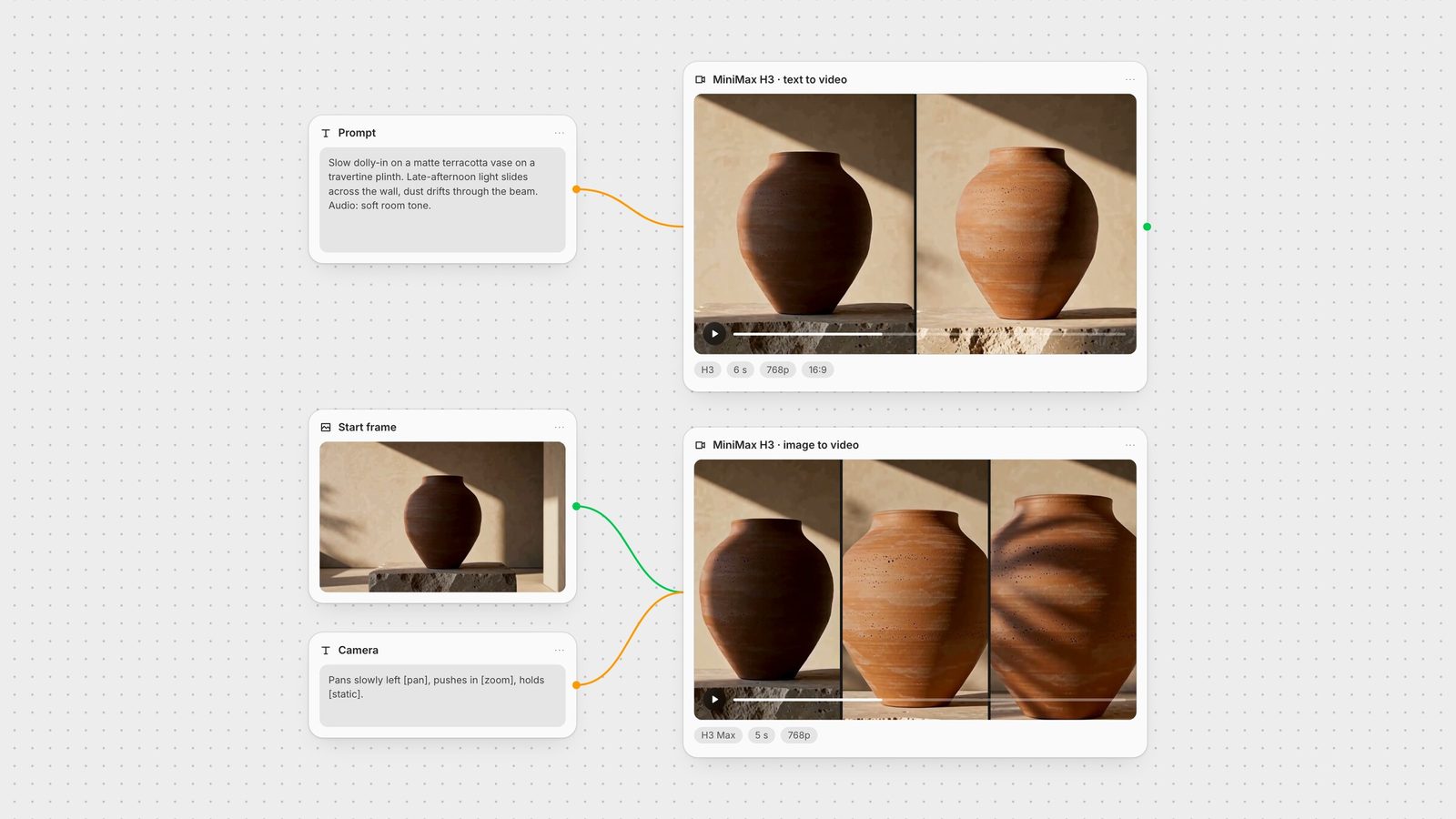
We tested the first point on the vase. The original "slow dolly-in" prompt came back as a small push: the vase grows only slightly over six seconds. We reran it at 2K, Fuser's default resolution, with the start and end framing and the size of the move written in: "Push in from a wide shot to a close-up of a matte terracotta vase… medium amplitude, steady speed. One continuous shot, no cuts." The expander kept our wording ("pushes in with medium amplitude at steady speed… from the wide composition to a tight close-up"), and the clip travels from a wide shot to a close-up in one take. It overshoots a little: by the last second the frame is so tight it crops the side of the vase, so ask for "a medium close-up" if the whole product must stay in frame. The two runs also differ in resolution (768p and 2K), which we would expect to change sharpness rather than how far the camera travels.
MiniMax documents bracketed camera instructions placed "directly after key descriptions", with [pan], [zoom] and [static] as examples (MiniMax API docs). They work alongside plain camera language, not instead of it.
We tested three chained moves in one five-second H3 Max clip, using the first frame of our H3 vase clip as the start image: "The camera pans slowly left across the plaster wall [pan], then pushes in toward the terracotta vase [zoom], then holds still [static]."
H3 Max followed the order, but the expander wrote it as [Shot 1], [Shot 2] at 1.5 seconds and [Shot 3] at 3.5 seconds, and the clip has hard cuts at 1.58 and 3.67 seconds. The stone plinth from the start frame became a smooth slab after the first cut. The two text-to-video runs, each with one camera instruction, stayed single takes.
For one take: one move per clip, and say "one continuous shot, no cuts".
For a sequence: write the shot list yourself with cut times, the format MiniMax's prompt guide uses for multi-shot clips: "[Shot 2] At 00:03.500, the camera cuts to…" (MiniMax H3 prompt guide). Give each shot enough seconds; five seconds split three ways leaves under two per shot.
Keep the set fixed across cuts: restate the props that must survive ("the same rough travertine plinth").
To check the first fix, we reran H3 Max from the same start frame with one move and an explicit no-cuts line: "The camera pushes in slowly toward the terracotta vase, small amplitude, slow speed. One continuous shot, no cuts. The rough stone plinth and the plaster wall stay the same." (The leaf-shadow line stayed, and we added a room-tone audio line.) This time the expander wrote a single [Shot 1] and called it a "five-second continuous shot", and ffmpeg scene detection found no cuts. The push-in is gentle, as asked. Two things still drifted: the vase brightens from shadow to warm sunlight during the move, and the plinth's front edge smooths out slightly, so a constraint sentence narrows drift rather than removing it.
Connect an image to Start Image and H3 uses it as the first frame; the output takes the image's aspect ratio. Add an End Image to control where the shot finishes; Fuser requires a start image when you use one. MiniMax accepts frames from 256 to 5,760 pixels per side with aspect ratios between 2:5 and 5:2 (MiniMax API docs).
Don't redescribe the picture. The frame already fixes the subject, light and palette. Spend the prompt on what moves, how, and what the camera does.
Describe the change between frames when you use both: "the door swings open and the camera follows her inside". MiniMax's prompt guide frames a first-and-last-frame prompt the same way: describe the path between the two frames, how the subject moves and how the composition evolves (MiniMax H3 prompt guide).
Match the frame to the move. Leave room in the frame for where the camera is going.
More on pairing frames across models: first and last frame video guide.
With H3 (not H3 Max) you can attach reference images, videos and audio instead of a start frame: up to 9 images, 3 videos and 3 audio clips, 12 files in total, with video and audio clips of 2 to 15 seconds (MiniMax API docs). Fuser switches to reference mode as soon as a reference is connected, and audio cannot be the only reference.
Cite each file by its position and give it one job. MiniMax's own example: "Reference the Hitchcock camera movement from Video 1, have the character in Image 2 sing, with the vocals matching Audio 3" (MiniMax). A reference with no stated role is left for the model to interpret.
Product, single take (adapted from our 2K test): "Push in from a wide shot to a medium close-up of a matte terracotta vase on a rough travertine plinth, medium amplitude, steady speed. One continuous shot, no cuts. Late-afternoon light slides across the plaster wall; dust drifts through the beam. Audio: soft room tone, a faint breeze."
Hands and material: "Macro close-up of a baker folding sticky dough on a floured steel bench, the dough stretching and tearing slightly before it folds. Static camera [static]. Cool morning window light. Audio: soft slaps of dough, a quiet kitchen."
Liquid: "Close-up of cold brew poured over clear ice in a glass tumbler; the ice cracks and shifts as the coffee swirls into the milk. Slow push-in [zoom]. Backlit, condensation on the glass. Audio: ice cracking, a gentle pour."
Dialogue: "Medium close-up of a street-food cook in a white apron behind a steaming wok, flames licking the pan. At 1.5 seconds he looks up and says, in English, warmly: 'Two minutes.' Handheld, small amplitude. Audio: sizzling wok, a busy night market."
Two-shot sequence: "[0 to 3 seconds] Wide shot: a cyclist in a yellow rain jacket crosses a wet cobbled square at dusk, tyres throwing spray. [3 to 6 seconds] Close-up of the same cyclist's face under the hood as she brakes and looks left. Same yellow jacket in both shots. Audio: rain, tyres on wet stone, a distant tram bell."
Stylised: "Hand-drawn ink animation of a crane taking off from a misty lake, brush strokes forming the wings as they beat. Camera tilts up to follow it [pan]. Off-white paper texture, black ink with one red accent. No text. Audio: wingbeats, a single low flute note."
Image-to-video (start frame attached): "The camera pushes in slowly toward the product, small amplitude, one continuous shot. The label stays sharp and unchanged. Soft reflections slide across the glass. Audio: a quiet room tone."
Reference mode: "Use Image 1 for the character's face, hair and clothing, and Image 2 for the kitchen set. Match the camera move in Video 1. She tastes the sauce from a wooden spoon and nods. Keep her navy apron and silver hoop earrings unchanged. Audio: simmering pot, soft radio in the background."
Unwanted cuts: one move per clip, "one continuous shot, no cuts", and no chain of actions joined with "then".
Set pieces change between shots: restate what must stay the same, in the same words, in every shot.
Line lands late or gets clipped: give it an early timecode, keep the actions before it short, or add a second or two of duration.
Motion too timid: name the start and end framing and the amplitude ("from a wide shot to a close-up, medium amplitude"), as in our 2K rerun, and describe the force behind the action.
Audio too quiet or busy: list three or four sounds in order of importance. Our potter clip's mix measured a mean of -41 dB, so plan to level it in your edit.
Details drift in reference mode: give each reference exactly one job and list the features to keep.
The MiniMax H3 node exposes Model (H3 or H3 Max), Duration (5 to 15 seconds), Resolution (768p, 2K, 4K on H3; 480p, 768p on H3 Max), Aspect Ratio (Auto, 21:9, 16:9, 4:3, 1:1, 3:4, 9:16; image-to-video follows the start frame), Start Image, End Image, Reference Images, Videos and Audio, and Prompt Expansion. Our 768p runs came back at 1344 × 768 and our 2K run at 2544 × 1456, all at 24 fps, a fraction longer than requested: 6.58 to 6.59 seconds for 6 and 5.18 seconds for 5.
Draft prompts at 768p or on H3 Max, where a second costs less (MiniMax), then render the final at 2K or 4K. Expect a new take rather than a sharper copy, because the node has no seed control. You can also keep the 768p clip and finish it with a video upscaler such as SeedVR in the same graph.
In Fuser the prompt, start frame and H3 node sit on one canvas, so you can run the same prompt text into H3 and H3 Max, or into Kling 3.0 and Veo, and compare. See how H3 stacks up in MiniMax H3 vs Kling 3.0, and our Kling 3.0 and Veo 3.1 prompt guides for the same vase and potter tests. For native sound across models, see the best AI video generators with audio.
What to write for each part of the prompt.
| Part | Write | Example |
|---|---|---|
| The formula | ||
| Subject | Who or what, plus every detail that must not change. | A potter in a clay-streaked apron, hair tied back |
| Action | A physical event with materials and forces. | Wet clay rises between her glistening hands |
| Camera | Shot size, one move, amplitude and speed. | Medium shot, push in slowly, small amplitude [zoom] |
| Light | Source, direction and texture. | Warm window light from the left, fine grain |
| Sound | Voice, effects and music, in order of importance. | Says: 'Almost there.' Wheel hum, wet clay |
| Limits | What must not happen. | One continuous shot, no cuts, no text |
MiniMax calls it MiniMax H3. It was released on 31 July 2026 as the generation after MiniMax's Hailuo models and runs in MiniMax's Hailuo AI app, so many people call it Hailuo 3. In Fuser it is the MiniMax H3 node, with H3 and H3 Max models.
H3 renders at 768p, 2K or 4K and supports text-to-video, image-to-video and reference mode. H3 Max is a post-trained version of H3 optimized for faster generation; in Fuser it runs text-to-video and image-to-video at 480p or 768p.
Describe the move in plain film language and, if you like, add a short bracketed instruction such as [pan], [zoom] or [static] right after the description it applies to, as MiniMax's API docs suggest. Use one move per shot if you want a single take.
H3 models multi-shot sequences natively, and its prompt expander can split chained actions or camera moves into separate shots. In our test, three moves joined with 'then' produced three shots. Ask for one continuous shot with one move, and avoid chaining moves with 'then'.
5 to 15 seconds per generation in Fuser, for both H3 and H3 Max.
Yes. H3 generates stereo audio with the video, including voice, effects and music. Describe the sounds you want in the prompt, and put spoken lines in quotes with who says them.
Write the prompt once, test on H3 Max, render the keeper at 2K.