One click, whole workflow
Recipes are here. Package a whole workflow and run it in one click
Explore recipesOne click, whole workflow
Recipes are here. Package a whole workflow and run it in one click
Explore recipesHow to use Kling O3 Edit: Edit vs Reference mode, the edit types Kling documents, prompt syntax with @Video1 and @Image1, input limits, Standard vs Pro, and four real before-and-after test runs.
All guides · Kling O3 Edit in Fuser
Quick answer: Kling O3 Edit takes a video you already have and a written instruction, and returns the same clip with that one change made. Cite the clip as @Video1 and any reference images as @Image1 to @Image4, name what should change, and list what must stay. Edit mode keeps the input's length; Reference mode instead generates a new 3 to 15 second shot, such as the next shot, guided by the clip. Fuser's node accepts clips of 3 to 15 seconds, at least 720 pixels on each side, 24 to 60 fps and up to 200 MB. In our three Edit-mode runs on one 5-second take, it recoloured a vase, swapped a shirt for one in a reference image and re-lit the scene as night, and each time kept the performer, her movements, the set and the spoken line.
Kling O3 Edit is the video-to-video side of Kling VIDEO 3.0 Omni, the model that Fuser's Kling O3 node uses to generate shots. Kling says the 3.0 Omni editing features "function the same as in O1", so its O1 guide covers the details (Kling VIDEO 3.0 Omni guide). That guide describes editing by plain instruction, with examples like "remove bystanders", "change daytime to dusk" and "replace the main character's outfit", from local replacement up to restyling a whole video (Kling VIDEO O1 guide).
In Fuser it is a separate node, Kling O3 Edit, added on 30 September 2026. It has two modes, two quality tiers and a Keep Audio switch, and its output can feed other nodes on the canvas, such as an upscaler.
Edit Video (the default) changes the clip you connect. The output follows the input's duration; you can't set a length.
Reference Video generates a new shot guided by the input video's motion and camera language. You set Duration (3 to 15 seconds) and Aspect Ratio (Auto, 16:9, 9:16 or 1:1); Auto follows the input.
Kling lists the Reference jobs as generating the next shot or the previous shot, following the camera movement of the clip, and animating a character from an image with the motion of the person in the clip (Kling VIDEO O1 guide). Use Edit when the shot is right and one thing in it is wrong. Use Reference when you need another shot that matches it.
Kling's guide gives a prompt template for each kind of edit. With Fuser's names for the inputs, they read:
Add: "Add [content] to @Video1", or add something shown in @Image1.
Remove: "Remove [content] from @Video1".
Replace a subject: "Change [subject] in @Video1 to [new subject]", optionally "from @Image1".
Background: "Change the background in @Video1 with [background]" or "with @Image1".
Recolour: "Change the [item] in @Video1 to [colour]".
Restyle: "Change @Video1 to [style] style" or "to the style of @Image1".
Weather and time of day: "Change @Video1 to a rainy day".
Green screen: "Change the background in @Video1 to a green screen, and keep [what to keep]".
Another angle: "Generate [a close-up, a wide shot] in @Video1".
All nine come from the Kling VIDEO O1 guide. Kling writes the video reference as [@Video]; Fuser's node and the API behind it use @Video1, and images @Image1, @Image2 and so on. We tested three of these edit types and one Reference job, below.
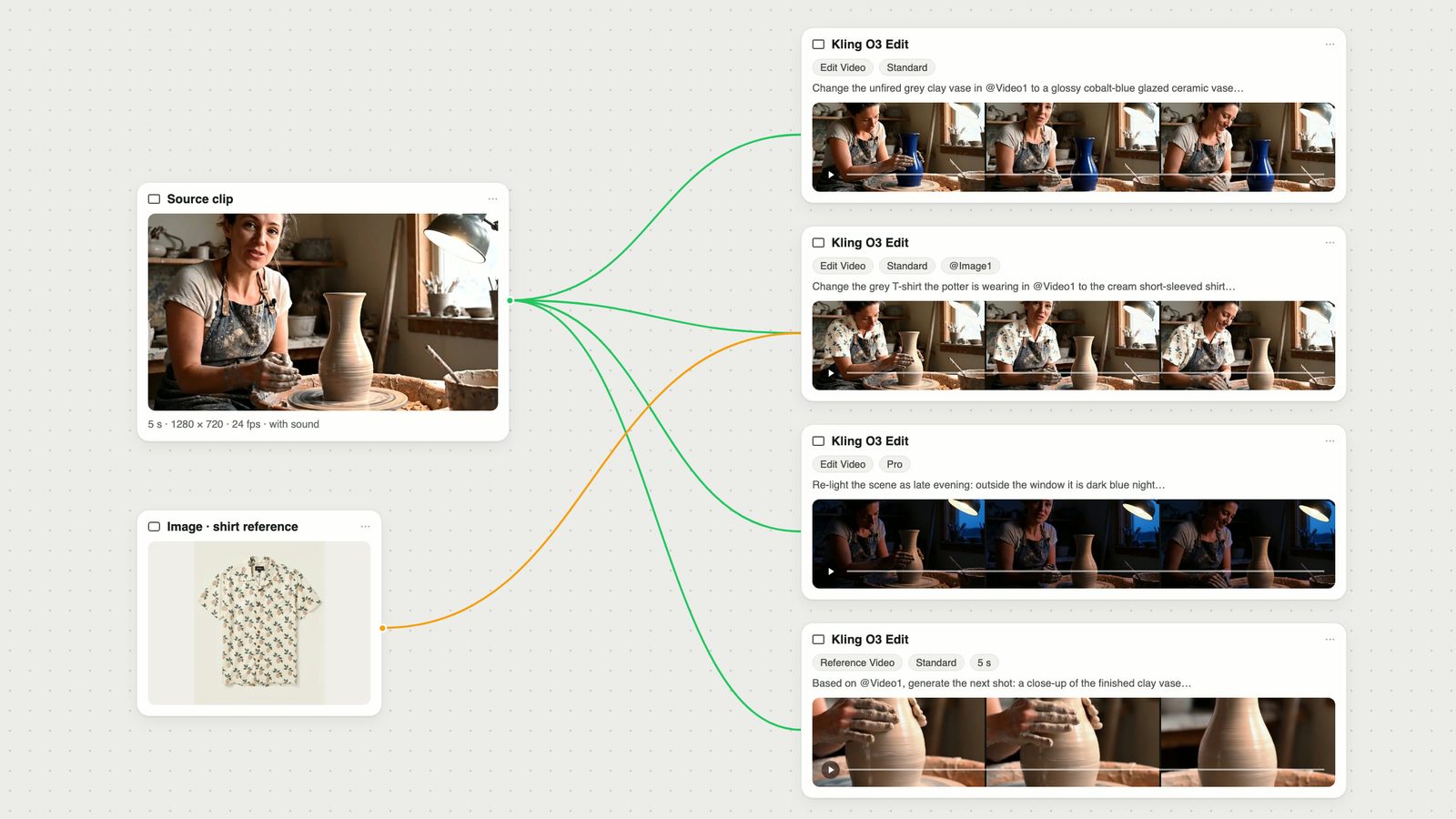
One source clip for every run: a 5-second, 1280 × 720, 24 fps take of a ceramicist at a pottery wheel who looks up and says "Almost there", with its original sound. It is the Veo 3.1 clip from our Seedance vs Kling vs Veo comparison, trimmed, and the same source we used in the best AI video editing models. Each edit was generated with the same model version as the Fuser node, once, on 2 October 2026. None needed a second run.
The prompt, on Standard: "Change the unfired grey clay vase in @Video1 to a glossy cobalt-blue glazed ceramic vase. Keep the potter, her hands, the wheel, the studio and the camera exactly the same."
The vase came back glossy cobalt blue with the same profile, and it stays blue for the whole clip while her hands move around it. Her face, apron, the lamp, the shelves, the window and the camera match the source throughout, and she looks up and says her line on the same beat.
The model did what was asked, not what makes physical sense. Her hands are still coated in grey slip while they shape a glazed, finished vase, and the wet slip that runs down the clay vase in the source is gone. If an edit changes the story of a shot, add the knock-on details to the prompt, here something like "her hands are clean".
The prompt, on Standard, with a product-style image of a cream camp-collar shirt with a fruit-and-leaf print (generated for our virtual try-on test) connected as @Image1: "Change the grey T-shirt the potter is wearing in @Video1 to the cream short-sleeved shirt with the lemon print from @Image1. Keep her apron, face, hands, the clay vase and the studio unchanged." (Bottom row of the clip above.)
She now wears the shirt from the image: cream fabric, the same fruit-and-leaf print and an open collar, with the sleeves following her arms as she works. The denim apron stays on top of it, still with the clip-on microphone on its strap, and the vase, the room and her line are unchanged. This is the job reference images are for: a print like that is hard to describe in words. Kling allows up to four images or elements in total when a video is provided (Kling VIDEO 3.0 Omni guide). Fuser's node does not expose elements, so all four slots take reference images.
For a like-for-like check against other editors, we gave Kling O3 Edit the exact re-light prompt and source from the best AI video editing models, this time on the Pro tier: "Re-light the scene as late evening: outside the window it is dark blue night, and the workshop is lit only by the warm desk lamp above the wheel. Keep the ceramicist, her movements, the wheel, the vase and the camera exactly as they are."
Kling O3 Edit made the most complete night of the three shown: a deep blue sky with a dark treeline in the window, the lamp switched on with a warm bulb, and the room dropped into darkness. The ceramicist, her apron, the shelves, the vase, the wheel and every movement and line stayed where they were. Where it fell short of the prompt is the light on the subject: the room takes a cool blue cast, and the lamp's warmth barely reaches her or the clay, so the scene reads as moonlit rather than "lit only by the warm desk lamp".
In the earlier test with the same source and prompt, Gemini Omni 1.1 Flash kept the scene just as faithfully but left the room brighter than night, and Grok Imagine Edit gave the warmest lamplight with a window closer to dusk. Kling's output is 1080p from the Pro tier, against 720p for the other two.
The prompt, on Standard, Duration 5 seconds, Aspect Ratio Auto, Keep Audio off: "Based on @Video1, generate the next shot: a close-up of the finished clay vase on the slowing wheel as the potter's hands lift away from it, same studio and warm window light." The opening follows Kling's template for this job (Kling VIDEO O1 guide).
The new shot is a close-up of the same vase: the same grey-buff clay, the same throwing lines and the same rounded body, in front of the same terracotta splash pan, in warm, soft side light. Her hands rest on the vase for about the first half, then lift out of frame, and the camera holds on the turning vase. Cut after the source clip, it reads as the next shot of the same scene. We turned Keep Audio off for this run because the new shot shouldn't carry the source's dialogue; the output came back with no sound track.
All three Edit outputs kept the source's 24 fps and ran 5.04 seconds against the 5.0-second source; the Standard ones also kept its 1280 × 720 size. With Keep Audio on, the soundtrack was the source's: re-encoded, but with the same peak and average loudness, and the line "Almost there" stays in sync with her mouth because the face and timing were not touched.
What to check before you use an edit:
Knock-on details. The model changes what you name, not what logically follows from it (the slip-covered hands in test 1).
Linked details. Small linked details, like the drips on the clay, can disappear.
Kling's templates are short and imperative: one verb (add, remove, change), the thing, and the target. Three habits held up in our runs:
Name the input. Every prompt cites @Video1, and @Image1 when a reference image is connected, so the model knows which input is which. The prompt can be up to 2,500 characters.
One change per run. Each of our edits asked for one change. For several, chain Kling O3 Edit nodes on the canvas so you can see which step went wrong.
List what must stay. All our edit prompts ended with a "keep ... the same" sentence, and none of the edits drifted. Name the things viewers will notice: the person, their hands, the main object, the camera.
For writing text-to-video and image-to-video prompts for the same model family, see the Kling O3 prompt guide.
Fuser's node accepts input clips of 3 to 15 seconds, MP4 or MOV, 720 to 3840 pixels per side, 24 to 60 fps and up to 200 MB. Both sides must be at least 720 pixels, so a 1280 × 720 clip or a vertical 720 × 1280 clip is within the limits, while an 854 × 480 clip is refused. Reference images must be at least 300 pixels on each side with an aspect ratio between 0.4 and 2.5.
Kling's own guides list tighter limits for the input video: 3 to 10 seconds, up to 2K and up to 200 MB (Kling VIDEO 3.0 Omni guide, Kling VIDEO O1 guide). We tested only a 5-second clip, so if a clip longer than 10 seconds or above 2K gives a poor result, trim or downscale it before you run.
Both tiers take the same inputs and settings, and Fuser defaults to Standard. In Fuser credits, Pro costs about a third more than Standard per second. Edit mode is charged per whole second of the input clip, so trimming the source to the shot you need is the simplest saving. Reference mode is charged by the Duration you set. From the same 1280 × 720 source, our Standard edits came back at 1280 × 720 and the Pro edit at 1920 × 1080. Get the instruction right on Standard, then rerun the keeper on Pro if it needs the extra quality.
The canvas at the top is this test: one source clip and one image feeding four Kling O3 Edit nodes, three in Edit mode and one in Reference mode.
Upload a clip, or generate one with Kling O3 or another video node, and connect it to the node's Video input.
Connect up to four images to Reference Images if the edit needs a look you can't describe.
Write the instruction in Prompt, citing @Video1 and @Image1.
Choose Mode and Model (Standard or Pro). In Reference mode set Duration and Aspect Ratio, and decide whether to keep the audio.
Duplicate the node to try another instruction on the same clip, then send the keeper on to an upscaler such as Topaz or SeedVR.
To compare Kling O3 Edit with the other editing models on the same clip, see how to edit a video with text prompts. When only a few seconds of a take are wrong, an LTX 2.5 retake changes that window and leaves the rest, as covered in the best AI video editing models.
Settings on the Fuser node, with limits from the node and Kling’s guides.
| Setting | Options | Use it when |
|---|---|---|
| Controls | ||
| Mode | Edit Video (default) or Reference Video | Edit to change this shot; Reference for a new shot that matches it |
| Model | Standard (default) or Pro | Standard to find the instruction; Pro for the final take |
| Keep Audio | On (default) or off | On for edits; off for a Reference shot that needs its own sound |
| Duration | 3 to 15 s, Reference mode only | Edit mode always follows the input length |
| Aspect Ratio | Auto, 16:9, 9:16 or 1:1, Reference mode only | Auto matches the input clip |
| Prompt | Up to 2,500 characters | Cite @Video1 and @Image1; one change, plus what to keep |
| Inputs | ||
| Video | 3 to 15 s, MP4 or MOV, 720 to 3840 px per side, 24 to 60 fps, up to 200 MB | Kling’s guides list 3 to 10 s and up to 2K |
| Reference Images | Up to 4, at least 300 px per side | A look, garment, product or style words can’t pin down |
The video-to-video mode of Kling VIDEO 3.0 Omni. It changes an existing clip from a text instruction, optionally guided by up to four reference images, or generates a new shot guided by the clip in Reference mode.
Write @Video1 for the connected clip and @Image1, @Image2 and so on for reference images, in order. For example: "Change the grey T-shirt in @Video1 to the shirt from @Image1."
Yes, if Keep Audio is on, which is the default. In our three edits the output carried the source soundtrack at the same loudness, and the dialogue stayed in sync because the face and timing were not changed.
Fuser’s node accepts 3 to 15 seconds. Kling’s own guides list 3 to 10 seconds, so trim longer clips if results suffer. In Edit mode the output matches the input length.
Both sides of the input must be at least 720 pixels. Upscale the clip first, or export it at 720p or higher.
Edit changes the clip you connect and keeps its length. Reference makes a new shot, such as the next or previous shot, guided by the clip’s motion and camera, with a duration of 3 to 15 seconds you choose.
Pro costs about a third more than Standard per second in Fuser credits. Work out the instruction on Standard, then rerun the edit you keep on Pro.
Connect a clip and a reference image to Kling O3 Edit and try several instructions side by side on one canvas.