Recipev5
Grocery Shelfscapes
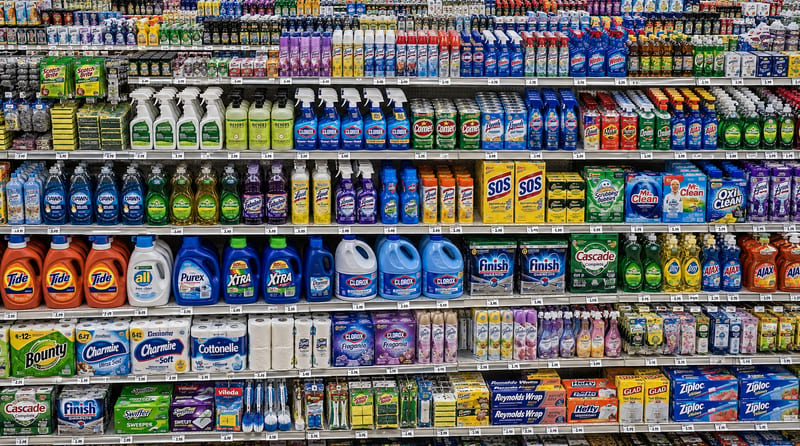
Shelfscape
Make the tool you're missing
Tools are here. Describe the one you're missing and use it live
Explore toolsGrocery retail photography
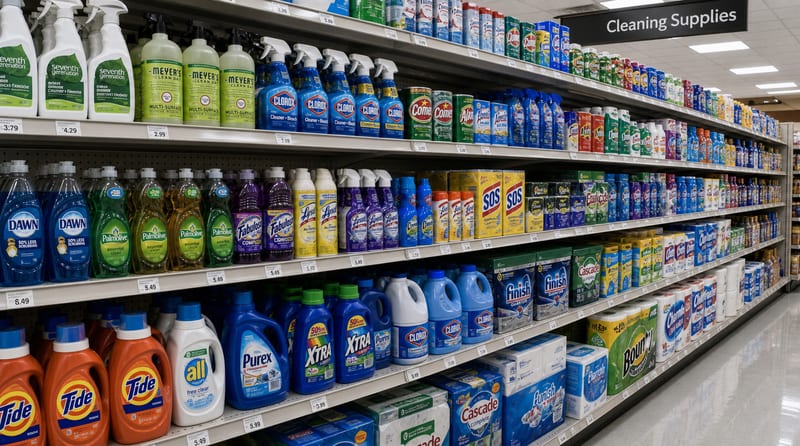
Transform a store photo into a dense, high-angle grocery shelfscape filled with colorful merchandise, layered shelving, and crisp photographic detail.
Shelfscape
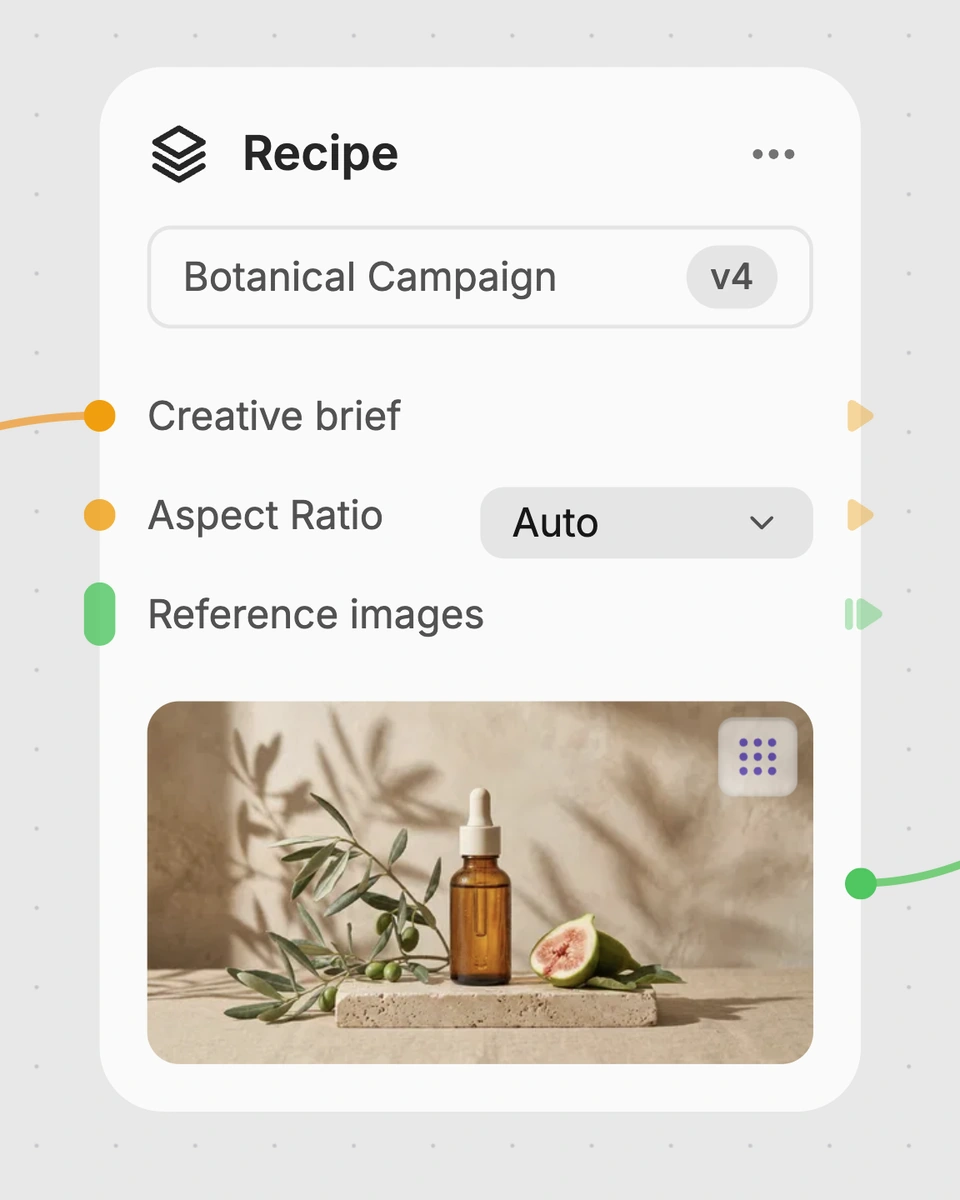
A recipe turns a reusable workflow into a simple set of inputs and outputs. Start with a community recipe and make it your own in Fuser.
1. Choose a recipe
Find a workflow for the result you want. Review what it does and how to use it before opening it in Fuser.
2. Make it your own
Check the recipe’s available inputs. Add your own text or media where supported, or start with the saved defaults.
3. Run and refine
Run it in Fuser and review the result on your canvas. Tweak the inputs to try another direction.
Use the shelfscape output to develop and present grocery-focused visual concepts across retail photography and merchandising work.
It transforms an Image of Store into a Shelfscape image. The described treatment creates a high-angle, photorealistic grocery scene with edge-to-edge colorful merchandise, neatly layered shelving, and crisp detail.
It is suited to people developing grocery retail photography, merchandising presentations, store concepts, or advertising direction. The output provides a visual shelfscape that can help communicate how a store environment should look in a presentation or concept.
Prepare an image of a store for the Image of Store input. The recipe has one exposed image input, so the store photo is the source visitors change when creating a new version in Fuser.
The saved example shows the recipe’s default Image of Store connected to its Shelfscape output. It demonstrates the intended transformation from a store photo to a dense grocery shelfscape; a new run uses the store image you provide.
Yes. Image of Store is the exposed editable input, so visitors can replace it with another store photo in Fuser. The recipe does not list separate exposed inputs for merchandise, shelf arrangement, camera angle, or other scene settings.
The Shelfscape image can support grocery advertising concepts, merchandising presentations, store refresh proposals, category storytelling, photography direction, and retail portfolio examples. These uses treat the output as a visual concept or reference rather than a documented store plan.
The recipe accepts a store image and returns a Shelfscape image, with no additional input types listed. Because the recipe description does not specify controls for individual products, shelf dimensions, or exact merchandising changes, those details should not be assumed to be directly configurable.
Bring a store photo to Fuser and turn it into a dense, high-angle shelfscape for your next grocery retail concept.
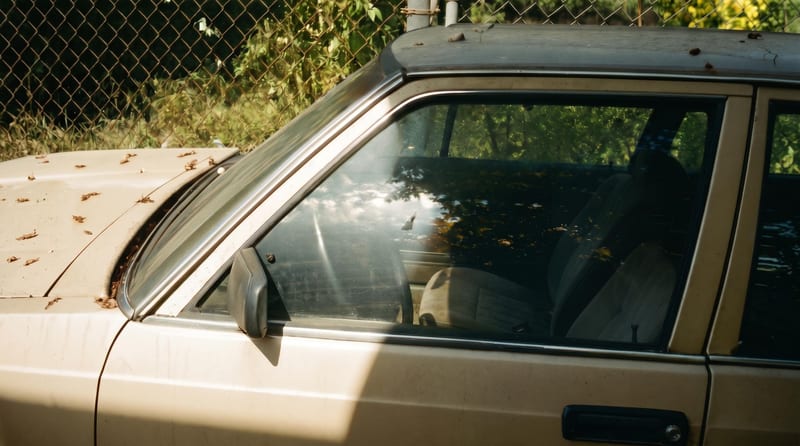
Upload one reference image to create six film-inspired photographic variations.
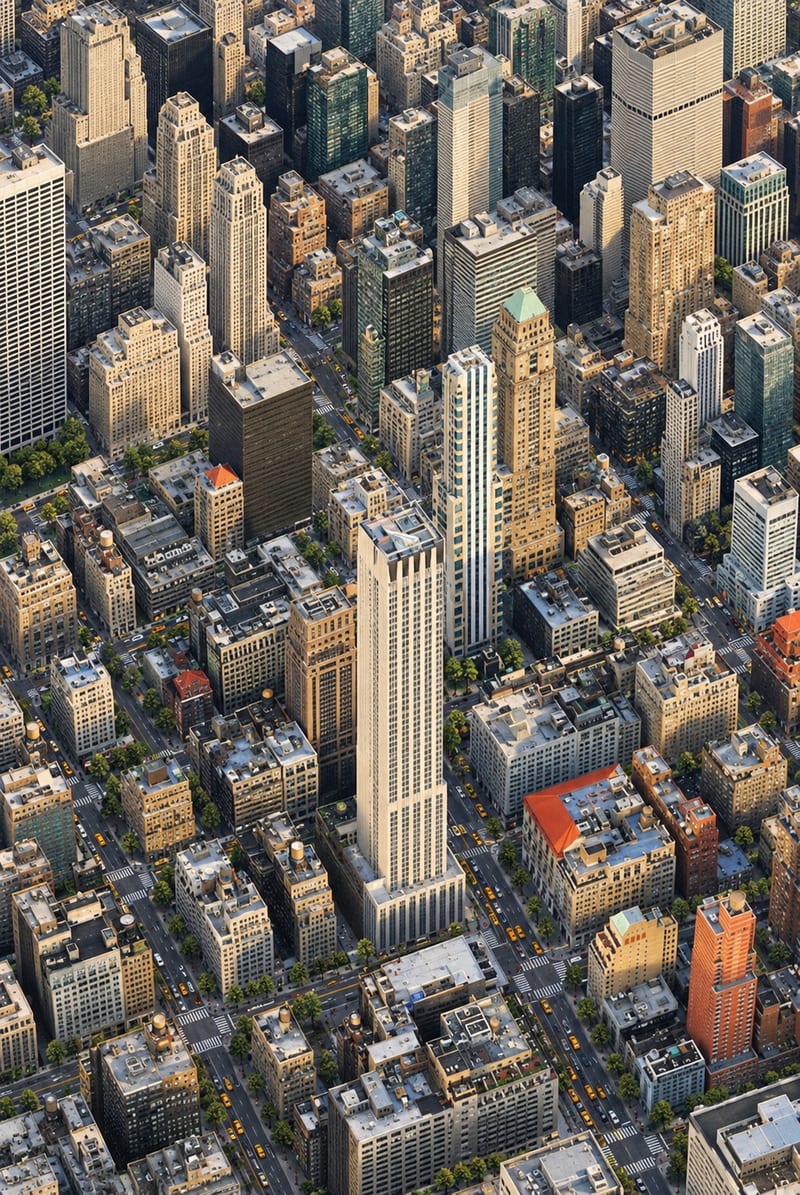
Transform one city photo into an isometric miniature-world image that retains the source’s mood, textures, and realism.
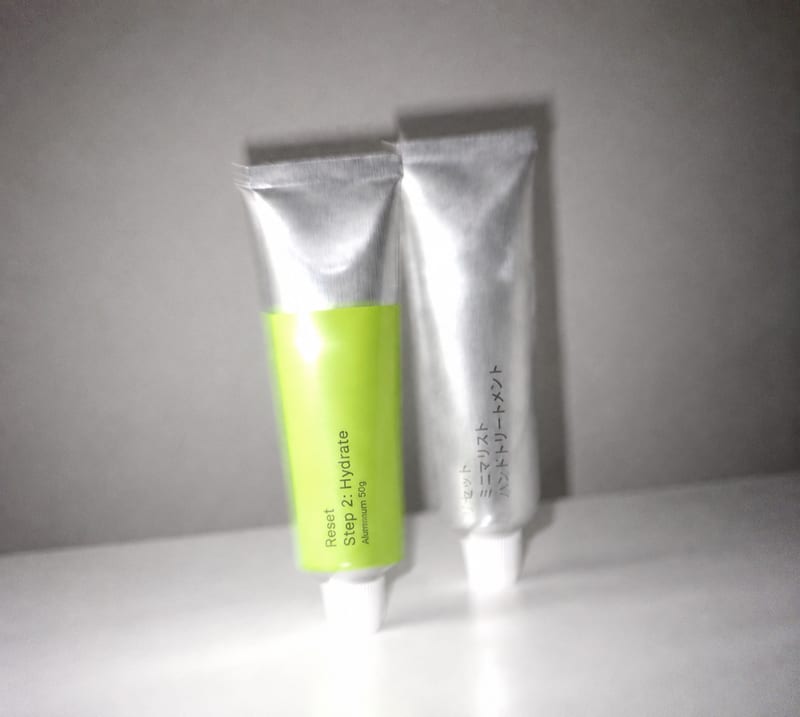
Transform an overly polished image into a blur-and-grain photograph inspired by an older iPhone or low-shutter film camera.