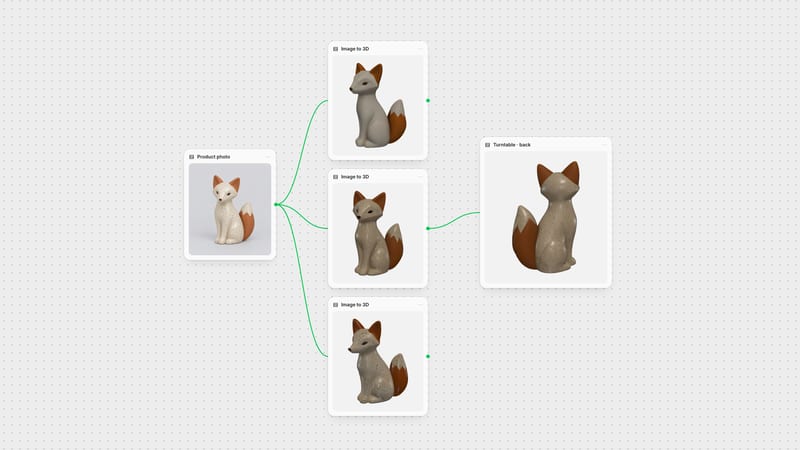
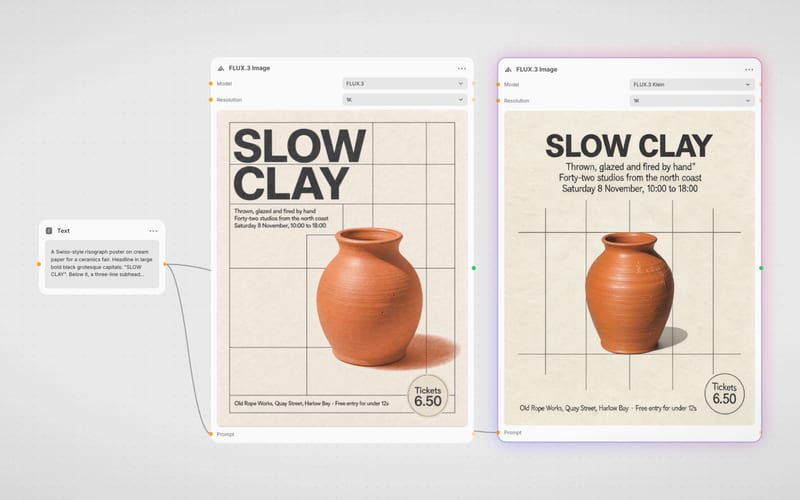
One click, whole workflow
Recipes are here. Package a whole workflow and run it in one click
Explore recipesOne click, whole workflow
Recipes are here. Package a whole workflow and run it in one click
Explore recipesHow to turn an image into an STL with AI: run the photo through Hunyuan3D V3 in Fuser, download the mesh as STL and check scale, orientation and holes in your slicer. Tested on two photos against Meshy 7 and Trellis 2.
All guides · Best AI 3D model generators
Quick answer: To turn an image into an STL, run the photo through Hunyuan3D V3 in Fuser, then download the mesh as STL from the viewer and open it in your slicer. In our test it was the only generator of three whose meshes came back watertight from both photos. Know the limits first: it works on one object per photo, thin parts, small text and glass come out wrong, and the STL carries no colour, no units and a Y-up axis, so check orientation, scale and wall thickness before you print.
This guide is about AI reconstruction: a photographed object becomes a full 3D model with a back and sides. If you want a flat logo extruded or a lithophane from a PNG or JPG, that is a heightmap job, and a converter that maps brightness to height does it better.
We made two studio photos with FLUX.3 Image: a carved limewood chess knight and a small plaster bust of a fictional sea captain. Each photo went into Hunyuan3D V3, Meshy 7 and Trellis 2 at their Fuser defaults, one run each. We rendered every mesh without its texture, because that is what an STL keeps, then exported each one the way Fuser's STL download does and checked whether it was closed.
On the knight, all three reconstructed the turned base, the grooved mane and the back of the head that the photo never showed. At this distance the three are hard to tell apart; Meshy's base is slightly lumpier.
The close-up is where printing detail lives. Hunyuan3D V3 kept the forehead lines, the knit ribs of the cap and separate beard curls. Trellis 2 kept nearly as much, with a little surface noise. Meshy 7 came back faceted, because the node remeshes to 30,000 triangles by default. At a 60 mm print height, those flat facets show on the face.
Then the part that decides whether a slicer complains. We joined each mesh at shared vertices and counted edges that are not shared by exactly two triangles:
Hunyuan3D V3: 0 open edges and 0 non-manifold edges on both the knight (500,000 triangles) and the bust (498,780). Closed, single-surface meshes that a slicer reads as solid.
Meshy 7: 131 open and 62 non-manifold edges on the knight (29,763 triangles), 56 and 26 on the bust. Small holes that a slicer's repair step usually closes.
Trellis 2: 30 open and 667 non-manifold edges on the knight (476,758 triangles), 15 and 2,091 on the bust. Trellis 2 is built to handle open surfaces and non-manifold geometry, which suits game assets more than printing. Run a repair before slicing.
Speed, informally, through one provider on one day: Trellis 2 returned in 40 to 50 seconds, Hunyuan3D V3 in about 2 minutes and Meshy 7 in about 3 to 4 minutes.
Image-to-3D models infer the unseen sides from one view, so the photo does most of the work. Any JPG or PNG works as input. What matters is what is in it:
One object, whole and centred. Leave a margin around it. Image-to-3D models expect a single, isolated subject, so a group shot or a cluttered shelf produces a merged lump.
A plain background. If yours is busy, put a Background Remover node (Bria RMBG 2.0) before the 3D node to cut the object out as a transparent PNG.
A three-quarter view in soft, even light. It shows two sides at once. Hard shadows read as shape.
Chunky forms over fine ones. Wire, thin stems, legible text and glass or chrome come out wrong or blurred. They also tend to be what breaks on the print bed.
No photo yet? Generate a clean studio shot of the object with an image model first, as we did here, then wire it straight into the 3D node.
Connect the photo to the Image input of the Hunyuan3D V3 node and run it. Two settings matter for printing:
Face Count (40,000 to 1,500,000, default 500,000). The default held the beard and cap detail in our test. Go lower for simple shapes and smaller files.
Generation Type. Normal returns a textured mesh. Geometry returns the shape without a texture and costs less, which suits printing since the STL drops colour anyway. Low Poly is for real-time assets, not prints.
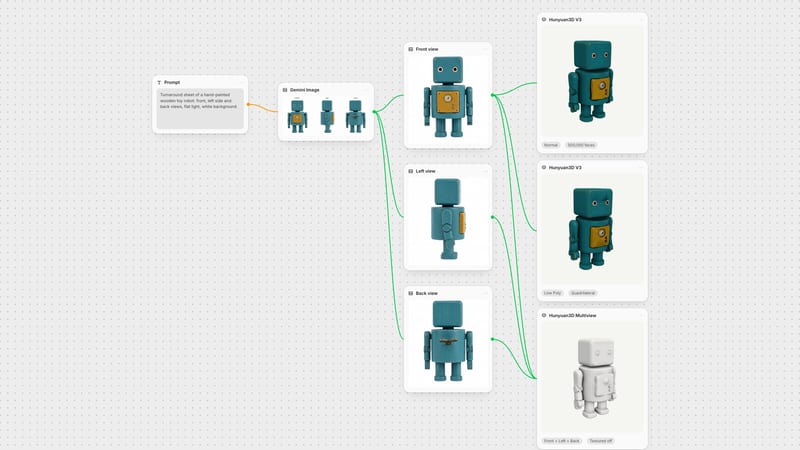
If you have front, side and back photos of the same object, use Hunyuan3D Multiview instead so the back is built from a real view, not invented. The Hunyuan3D guide covers every setting.
Meshy 7 is the alternative when you also want PBR textures from the same run. For printing, turn the node's Remesh off or raise its polycount above the 30,000 default; Meshy's own documentation recommends remesh off for the highest-quality model. Tripo 3D and Rodin also run on the same photo; see Meshy vs Rodin vs Tripo for how they compare.
A binary STL takes 50 bytes per triangle, so the 500,000-triangle knight comes out at about 25 MB. Most slicers open that without trouble. If yours struggles, or you want a smaller file to share, send the mesh to Meshy 5 Remesh. It rebuilds the topology at a target polycount between 100 and 300,000 and can move the origin to the bottom of the model. Check the remeshed result for holes again before you print it.
Right-click the 3D preview in the node and choose Download as → STL. Fuser writes a binary STL of the loaded model in your browser. Know what that file holds:
Geometry only. STL stores triangles and nothing else, so the texture, colours and materials are dropped. Keep the GLB (Download original) if you also want the coloured model.
No units. STL has no unit field. The file keeps the model's own coordinates, and our Hunyuan3D V3 meshes were about 1 unit tall. A slicer that reads millimetres shows them roughly 1 mm high.
Y-up. The mesh keeps glTF's +Y-up axis. Most slicers treat Z as up, so the model can arrive lying on its side.
Orientation. Rotate the model 90° or use your slicer's lay-on-face tool so the flat base sits on the plate.
Scale. Set the height you want, for example 60 mm, with uniform scaling on.
Manifold errors. If the slicer reports open or non-manifold edges, run its repair. In our test only the Hunyuan3D V3 meshes needed none.
Thin parts and wall thickness. At small sizes, ears, curls and ridges can end up thinner than your nozzle can print and vanish. Scale up, or print on a resin printer for fine detail.
Supports. Muzzles, beards and chins overhang. Add supports, or tilt the model so less of it hangs in the air.
Fuser shows each node's cost before you run it. Relative to Hunyuan3D V3 at the settings we used, Trellis 2 and Tripo 2.5 cost a little over half as much per generation and Meshy 7 about one and a half times as much.
Last verified 23 October 2026.
All of these run on the same photo in Fuser, and any of their meshes downloads as STL from the viewer.
| Generator | Best for printing when | Catch |
|---|---|---|
| Generate | ||
| Hunyuan3D V3 | You want a closed, detailed mesh from one photo. Watertight on both of our test objects. Hunyuan3D V3 | Single objects only; thin parts, text and glass fail. |
| Hunyuan3D Multiview | You have front, side and back photos of the object. Hunyuan3D Multiview | Needs matching views at the same scale. |
| Meshy 7 | You also want PBR textures from the same run. Meshy | Default remesh to 30,000 triangles faceted our bust; a few open edges. |
| Trellis 2 | You want the fastest draft that stays close to the photo. Trellis 2 | Hundreds to thousands of non-manifold edges in our test; repair before slicing. |
| Tripo 3D | Props and stylised figures from one image or a multi-view sheet. Tripo 3D | Photoreal faces, glass and multi-object scenes. |
| Rodin | Hard-surface parts with clean, quad-based topology. Rodin | Complex scenes and photoreal heads. |
| Prepare and finish | ||
| Background Remover | The object sits on a busy background. Background Remover | Cuts out the subject only; it can't add a missing side. |
| Meshy 5 Remesh | The STL is too heavy to share or slice comfortably. Meshy 5 Remesh | Re-check for holes after remeshing. |
Yes. An image-to-3D model reconstructs the object in the photo, including the sides it can't see, and you export the mesh as STL. In Fuser, connect the photo to Hunyuan3D V3, run it, then right-click the 3D preview and choose Download as → STL.
From Hunyuan3D V3 in Fuser, it was in our test: both meshes had zero open and zero non-manifold edges. Meshy 7 and Trellis 2 meshes had holes or non-manifold edges that a slicer's repair step has to fix. Whatever the generator, set the scale, orientation and supports in your slicer before printing.
One object, whole in the frame, on a plain background, in a three-quarter view with soft light. JPG and PNG both work. Use the Background Remover node first if the background is busy, then send the cutout to Hunyuan3D V3 in Fuser. Avoid glass, thin wire and small text.
Yes. Hunyuan3D V3 in Fuser also runs text-to-3D: leave the Image input empty and describe the object in the prompt. Download the result as STL from the viewer the same way. Meshy 7.1 has a text mode too.
That is a heightmap job, where brightness becomes height, and a dedicated converter does it better. Use Hunyuan3D V3 in Fuser when the photo shows a real object you want as a full 3D model.
STL has no units and Fuser exports the model's own coordinates, which for our Hunyuan3D V3 meshes were about 1 unit tall, so a slicer reading millimetres shows about 1 mm. The file is also Y-up. Scale it to your target height and rotate it so the base sits on the plate.
Run Hunyuan3D V3 on your image, check the mesh on the canvas and download it as STL.