One click, whole workflow
Recipes are here. Package a whole workflow and run it in one click
Explore recipesOne click, whole workflow
Recipes are here. Package a whole workflow and run it in one click
Explore recipesHow to get a usable mesh out of Hunyuan3D V3 and Hunyuan3D 2 Multiview: prepare the image, pick the generation type and face budget, know what quad topology survives in a GLB, and when extra views are worth it.
All guides · Hunyuan3D V3 in Fuser · Hunyuan3D Multiview in Fuser
Quick answer: use Hunyuan3D V3 for almost everything. Give it one clean image of a single object on a plain background and it runs image-to-3D; add a prompt as well and it runs sketch-to-3D; give it only a prompt and it runs text-to-3D. Leave Generation Type on Normal for a textured mesh, switch to Low Poly when you need a light asset to edit, or pick Geometry for an untextured shape. Use Hunyuan3D Multiview, which is the older Hunyuan3D 2 model, only when you have matching front, left and back images and the back of the object matters. Both nodes return a GLB.
Fuser ships two Hunyuan3D nodes.
Hunyuan3D V3 runs Tencent's current generation through three fal endpoints. The node chooses one from what you connect: an image alone goes to image-to-3D, an image plus a prompt goes to sketch-to-3D, and a prompt alone goes to text-to-3D. You don't pick the mode from a menu, so if you leave a prompt connected by accident, your photo is treated as a sketch.
Hunyuan3D Multiview runs Hunyuan3D 2 multi-view, a version of Hunyuan3D 2 that Tencent fine-tuned for multiview-controlled shape generation (Hunyuan3D-2mv model card) and released in March 2025 (Hunyuan3D 2 repository). It needs three images, front, left and back, and all three are required. Its Turbo switch runs the step-distilled Turbo variant Tencent published a day later (same repository).
Tencent's API reference lists the conditions for an image-to-3D input: a simple, solid-colour background, a single object, no text or blended colours, and an object that fills more than half of the frame. Each side should be 128 to 5,000 pixels, and the file no larger than 8 MB (Tencent Hunyuan 3D API).
In practice:
One object per image. Crop to the subject first, so it fills more than half the frame.
Plain background. If your product photo has a busy scene behind it, run it through Background Remover before the 3D node. Our background remover comparison covers which one to use.
No text. Tencent's guidelines exclude text, so plan to add logos and labels afterwards.
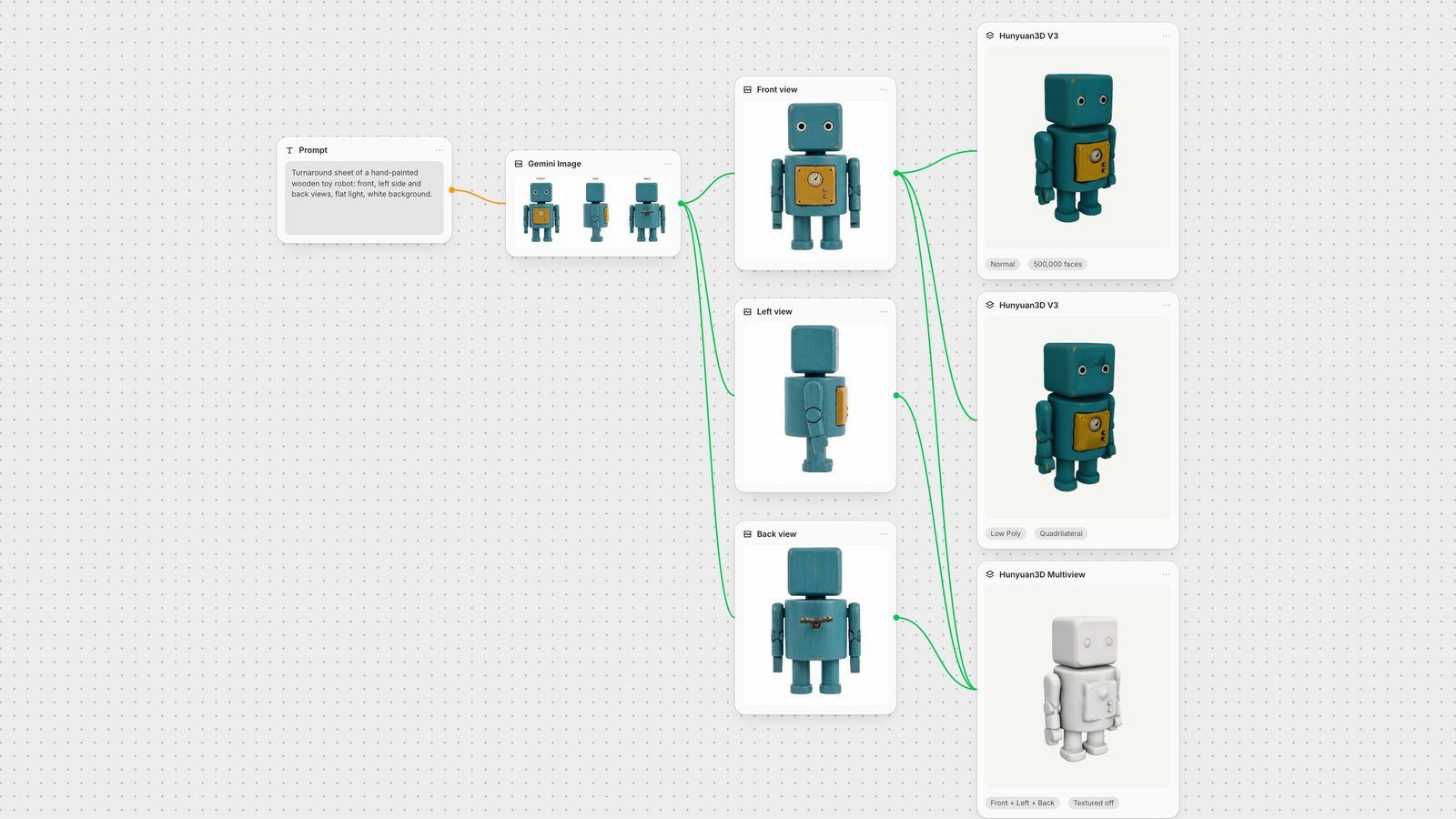
If you don't have a photo, generate one. For this guide we asked Nano Banana 2 for a turnaround sheet of a wooden toy robot (front, left side and back on white) and cropped the three views. See the Nano Banana prompt guide for how to write that kind of prompt.
We sent the front view alone to V3 image-to-3D, and the same front view with the left and back views to Multiview.
V3 produced a complete, closed model with a convincing body, arms and legs. The back, which it never saw, came out plain: the brass wind-up key from the back view is missing, because nothing in the front photo suggests it. Multiview, given the back view, built the key and put it in the right place. Its geometry is softer (the chest dial became a bump), and we left Textured off, so it came back as an untextured mesh.
The practical rule: if the unseen side has features that matter, such as a logo, a handle or a zip, give the model that side. Otherwise V3 from one image is the faster route. Tencent says its Hunyuan 3D engine accepts up to four multiview images (Tencent), and fal's V3 endpoint has optional back, left and right image inputs, but Fuser's V3 node takes one image. For extra views in Fuser, use the Multiview node.
Generation Type is the setting that most changes what you get.
Normal returns a textured mesh. Our run at the default face count came back with exactly 500,000 triangles and a 4096 × 4096 colour texture.
Low Poly runs what Tencent calls "intelligent polygon reduction" (Tencent Hunyuan 3D API). With Polygon Type set to quadrilateral, fal also returned an OBJ file containing 3,764 faces: 2,344 quads and 1,420 triangles. The silhouette held, and the detail on the chest panel moved into the texture.
Geometry returns a white model without texture. Fal's schema notes that PBR has no effect in this mode (fal).
Three details from the specs and our runs that are easy to miss:
Polygon Type only applies to Low Poly. In Normal mode, the triangle or quadrilateral setting is ignored.
Low Poly didn't aim for the face count. We set 40,000 faces and got 3,764. Treat Face Count as the density control for Normal mode, from 40,000 up to 1.5 million in Fuser, and let Low Poly decide its own count.
The GLB is triangulated. glTF, the format behind GLB, has no quad primitive (glTF 2.0 specification), so the same Low Poly result arrives in the GLB as 6,108 triangles. The Fuser node outputs the GLB. If you want quads back for modelling, Blender's Triangles to Quads command can rejoin triangle pairs. Expect a clean layout rather than the exact OBJ.
Enable PBR asks Tencent to generate additional PBR material information alongside the base colour. It's off by default in Fuser. Turn it on when the model will be lit in a real-time engine or a renderer. For a preview or a turntable, the base colour is enough.
On fal's price list, Geometry is the cheapest type and Low Poly the most expensive, and PBR adds to the price (fal). In Fuser, the credits a run costs depend on the model and the settings you pick (Fuser billing).
With only a prompt, V3 generates the object from text. Prompts can be up to 1,024 characters (Tencent Hunyuan 3D API). Tencent doesn't publish further prompt rules for text-to-3D, and we didn't run it for this guide, so the one rule we'd pass on comes from its image guidance: ask for a single object, not a scene.
With an image and a prompt, V3 treats the image as a sketch: the drawing sets the shape and the prompt fills in what the lines can't. The input should be a sketch or line drawing (fal), and fal's schema describes the prompt as the object's "color, category, and material", so write it about those ("glossy red enamel body, brushed steel handle"). In sketch mode Fuser doesn't send Generation Type or Polygon Type, so those two menus have no effect; Face Count and Enable PBR still apply.
The Multiview node exposes the controls of the underlying fal endpoint:
Front, Back and Left Image. Keep the same scale, height and framing in all three. Images from a single turnaround sheet line up better than separate photos.
Steps (1 to 50, default 50) and Guidance Scale (0 to 20, default 7.5).
Octree Resolution (default 256). Higher values resolve finer geometry. The model card's own example uses 380 (Hunyuan3D-2mv).
Textured. Off by default. Fal charges three times the untextured price when it's on (fal). Leave it off if you'll texture the mesh yourself.
Turbo. The step-distilled variant, faster and cheaper.
Every Hunyuan3D node in Fuser outputs a GLB, the binary form of the glTF standard (glTF 2.0 specification), which Blender imports directly. Select the node and use Download media in its toolbar to save it (Fuser docs). Fal's V3 endpoint can also return an OBJ, but the Fuser node passes on the GLB.
Because the mesh stays on the canvas, you can keep working on it:
Send it to Meshy 5 Remesh to rebuild the topology at a target polycount, Meshy 5 Retexture for new materials, or Meshy Rigging for a humanoid skeleton. Compare the other generators in Meshy vs Rodin vs Tripo.
Drop it into the Compositor as a 3D mesh layer, rotate it, set its material and export a still or a video (Compositor layers).
Branch the same image into several 3D nodes and compare them side by side, as in best AI 3D model generators.
Save the chain as a Recipe and the next product goes from photo to GLB through the same steps. For a longer pipeline, see how to chain AI models.
Last verified September 28, 2026.
What to set for the job, and what each option actually does.
| Setting | Use it for | Watch out for |
|---|---|---|
| Hunyuan3D V3 | ||
| Image only | Image-to-3D from one clean photo or render. | The unseen back is invented. |
| Image + prompt | Sketch-to-3D: the drawing sets shape, the prompt sets materials. | A leftover prompt turns a photo into a sketch input. |
| Prompt only | Text-to-3D for a single object. | Ask for one object, not a scene. |
| Normal | Textured mesh at your face count. | 500,000 faces by default is heavy for real-time use. |
| Low Poly + quadrilateral | Light, editable assets. | Quads survive in OBJ; the GLB is triangulated. |
| Geometry | Untextured shape to texture yourself. | PBR has no effect. |
| Enable PBR | Materials for engines and renderers. | Costs more; unnecessary for previews. |
| Hunyuan3D Multiview (v2) | ||
| Front, left and back | Objects whose back or sides carry detail. | All three views are required and must line up. |
| Textured | A coloured mesh straight from the model. | Three times the untextured price. |
| Turbo | Faster, cheaper drafts. | Step-distilled; check fine detail. |
Fuser runs Hunyuan3D V3 for text-to-3D, image-to-3D and sketch-to-3D. The Hunyuan3D Multiview node uses the older Hunyuan3D 2 multi-view model, which takes front, left and back images.
Yes, in Low Poly mode with Polygon Type set to quadrilateral. In our run the OBJ held 2,344 quads and 1,420 triangles. GLB files only store triangles, so the GLB from the same run contained 6,108 triangles.
A single object on a plain, solid background, filling more than half the frame, with no text. Tencent's API accepts images from 128 to 5,000 pixels per side, up to 8 MB.
Start with V3 from one image. Use Multiview when you have matching front, left and back views and the back of the object has details a single image can't show, such as a handle or a key.
Both Hunyuan3D nodes in Fuser output a GLB, which you can download from the node toolbar or pass to Meshy remesh, retexture and rigging nodes or the Compositor.
Generate, compare and refine Hunyuan3D meshes on one canvas.