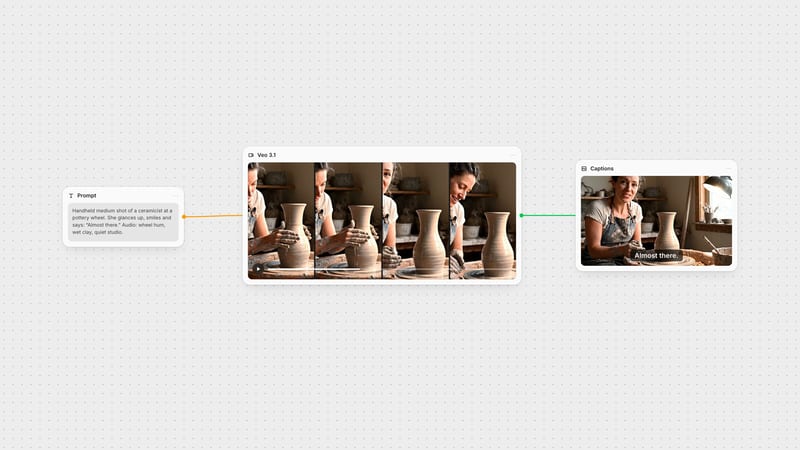
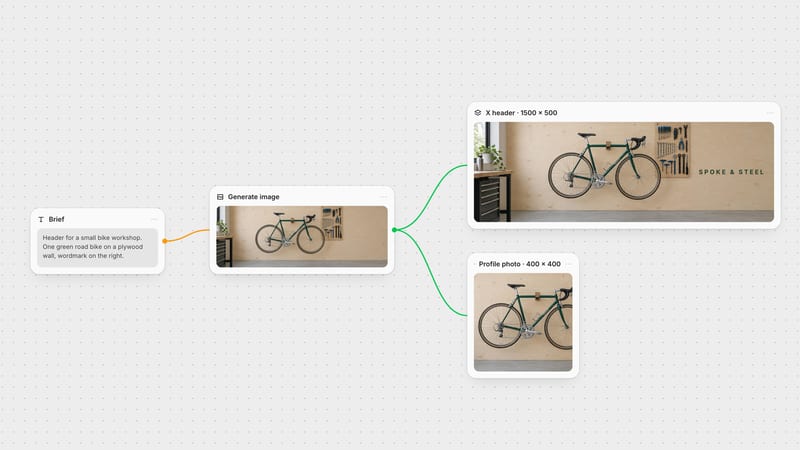
One click, whole workflow
Recipes are here. Package a whole workflow and run it in one click
Explore recipesOne click, whole workflow
Recipes are here. Package a whole workflow and run it in one click
Explore recipesA practical Kling 3.0 prompt guide: the six-part formula, camera vocabulary, how to write dialogue, ten copyable prompts and fixes for the failures you will actually hit.
All guides · Kling 3.0 Video in Fuser
Quick answer: write a Kling 3.0 prompt the way you would brief a camera crew: subject, action, setting, camera, light and mood, then audio. Name the camera move explicitly ("slow push-in", "tracking shot from the left"), tag each spoken line with who says it and how, and add a start frame when the look has to be exact. Kling's own guidance is to write "directions to a scene rather than a list of objects" (fal × Kling prompting guide).
Subject. Who or what, with the two or three details that must survive every frame: "a ceramicist in a clay-streaked apron".
Action. One clear verb chain in order: "shapes a tall vase, then looks up". Kling handles sequences well when you link them with plain time words: then, as, immediately.
Setting. Place and time of day: "a warm wooden workshop at dusk".
Camera. Shot size plus movement: "handheld medium shot, slow push-in to her face".
Light and mood. "Tungsten work lamp, soft shadows, calm."
Audio. Sound cues and dialogue, if you turn on audio.
Keep it to one shot per prompt unless you want cuts. Kling 3.0 plans shot changes on its own (Kling VIDEO 3.0 guide); in our six-second test below it added a cut we did not ask for. If you need a single take, say "one continuous shot".
Shot size: extreme close-up, close-up, medium shot, wide shot, macro close-up, profile shot.
Movement: push-in / dolly-in, pull-out, pan left or right, tilt up, orbit around the subject, tracking shot, crane up, handheld, static locked-off.
Point of view: POV, over-the-shoulder, shot-reverse-shot for conversations.
Timing: Kling's guide shows time markers such as "At the 4th second, the camera accelerates" for moves that change mid-shot.
Use one primary move per shot. "Slow push-in while orbiting left and tilting up" usually produces a vague drift.
Kling 3.0 can generate speech and sound with the picture. Tag each line with the speaker and delivery, the pattern Kling documents for multi-character scenes: Mom (softly, surprised): "You're home early." It supports English, Chinese, Japanese, Korean and Spanish, including accents you name in the tag (Kling VIDEO 3.0 guide).
Describe the soundscape after the dialogue: "wheel hum, rain on the window". In Fuser, audio is off by default on the Kling 3.0 node; switch Generate Audio on when you want it.
Product hero: "Slow push-in on a matte black wireless speaker on a wet slate surface at night. Neon reflections ripple across the stone. Close-up, shallow depth of field. Audio: low synth pulse, light rain."
Fashion walk: "A model in an oversized camel coat walks toward camera down an empty concrete corridor. Tracking shot moving backward at walking pace. Hard overhead light, cool grey palette."
Food: "Macro close-up of honey pouring over a stack of pancakes, the stream folding as it lands. Static camera. Warm morning window light. Audio: soft drip, kitchen ambience."
Architecture: "Wide shot of a white concrete villa on a cliff at golden hour. Drone orbit around the building, slowly rising. Long shadows, calm sea below."
Dialogue scene: "Two friends sit on a park bench in autumn. Wide two-shot, then shot-reverse-shot. Maya (teasing): "You're late again." Leo (laughing): "I brought coffee." Audio: leaves rustling, distant traffic."
Action: "A mountain biker drops off a rocky ledge onto a dusty trail. Tracking shot from the side at speed, slight handheld shake. Midday sun, dust cloud trailing."
Character close-up: "Close-up of an elderly fisherman mending a net on a boat deck, weathered hands working the knots, then he glances out to sea. Static camera. Overcast light. Audio: gulls, water lapping."
Stylised: "A paper-cut fox runs through a layered paper forest, layers sliding past at different speeds. Side-scrolling tracking shot. Soft backlight through the paper, warm tones."
UGC-style ad: "Handheld selfie-style medium shot of a woman in her bathroom holding a serum bottle up to camera. She says (friendly, casual): "Three weeks in, and look at this." Natural daylight from a small window."
Transition from a start frame: add your key visual as the start image, then: "The camera slowly pulls out to reveal the full room as the morning light brightens. Keep the product and its label unchanged."
Unwanted cuts: add "one continuous shot, no cuts" and shorten the action list.
Subject drifts or changes: move the identifying details to the start of the prompt and keep the wording identical across generations; or supply a start frame.
Motion too subtle: name the speed and direction ("fast push-in", "orbit 90 degrees to the left").
Wrong speaker: give each character a unique label and attach every line to it.
Too literal or too loose: in Fuser, the CFG Scale control (0 to 1, default 0.5) sets how closely Kling follows the prompt. Raise it when details are ignored; lower it when motion looks stiff.
Things you don't want: put them in the Negative Prompt field ("text, watermark, extra fingers") rather than writing "no text" in the main prompt.
The Kling 3.0 Video node exposes:
Model: Standard or Pro.
Duration: 3 to 15 seconds.
Aspect ratio: 16:9, 9:16 or 1:1.
Start and end images: add a start frame for image-to-video; an end frame requires a start frame.
Negative prompt, CFG scale and Generate Audio.
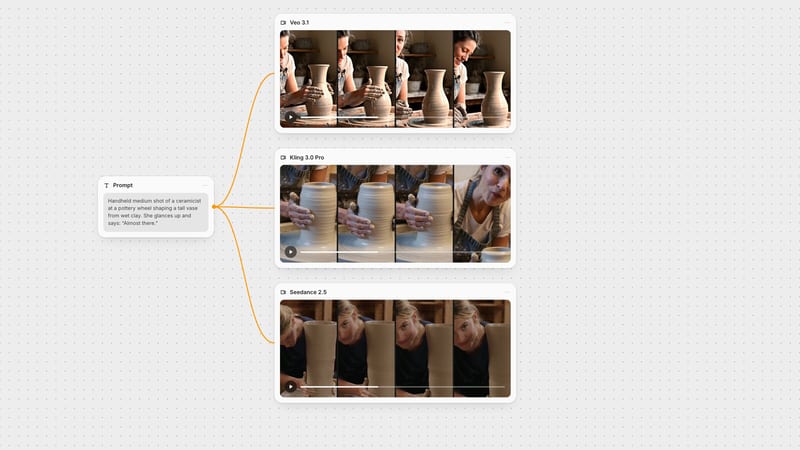
In our small test, the same product prompt run through Veo 3.1, Kling 3.0 Pro and Seedance 2.5 showed Kling following the push-in and the travertine plinth closely. See the full comparison.
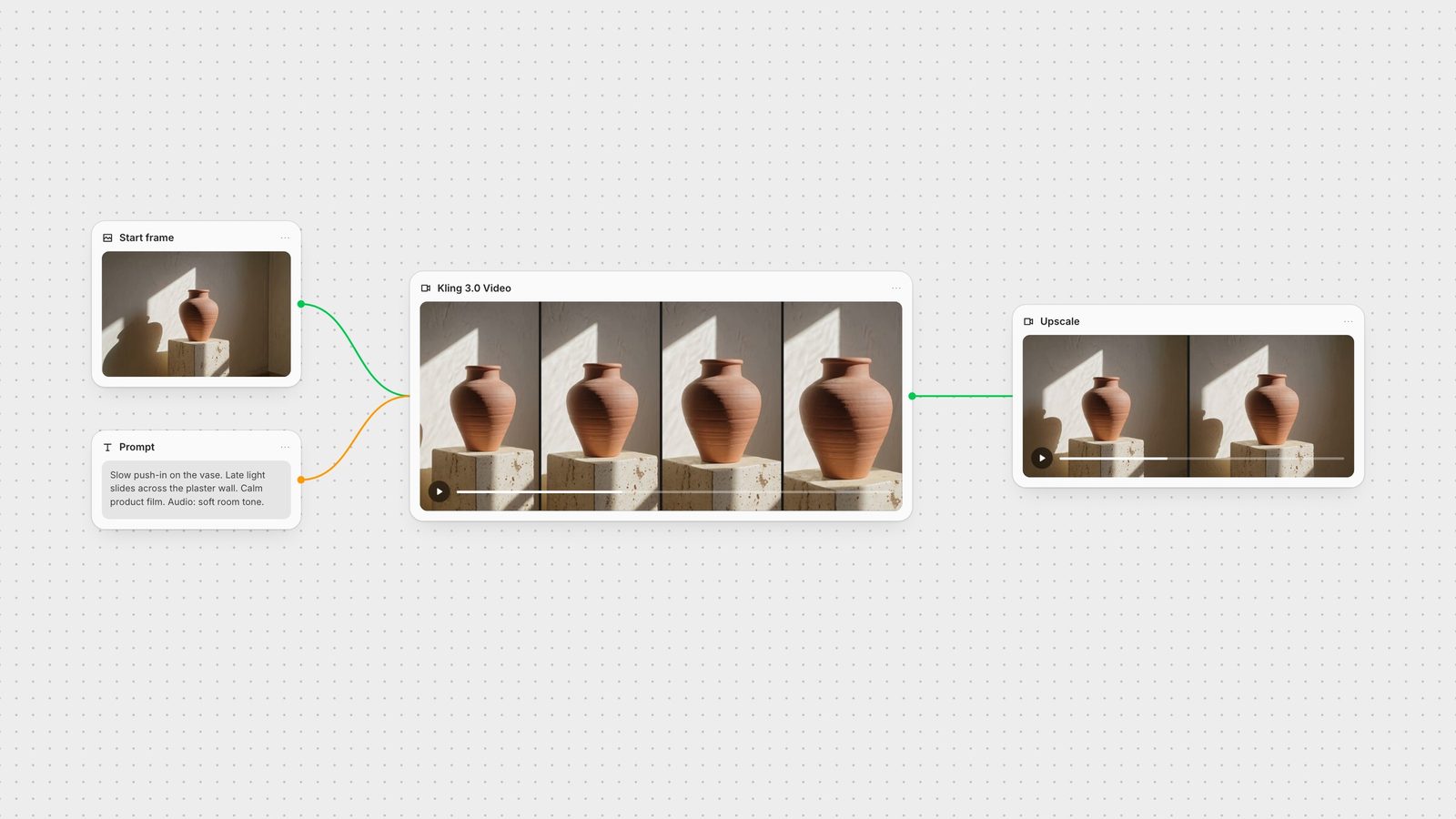
Kling does its best work from a good first frame. In Fuser, generate the keyframe with an image model such as GPT Image, connect it to the Kling 3.0 Video node as the start image, and send the clip on to an upscaler or a captions step without leaving the canvas. Keep the prompt in its own text node so you can reuse it across image-to-video models and compare.
What to write for each part of the prompt.
| Part | Write | Example |
|---|---|---|
| The formula | ||
| Subject | Who or what, with defining details first. | A ceramicist in a clay-streaked apron |
| Action | One verb chain, linked with then / as. | shapes a vase, then looks up |
| Setting | Place and time of day. | a wooden workshop at dusk |
| Camera | Shot size plus one movement. | handheld medium shot, slow push-in |
| Light and mood | Light source and feeling. | tungsten lamp, soft shadows, calm |
| Audio | Tagged dialogue, then sounds. | Potter (quiet): "Almost there." Wheel hum. |
Subject, action, setting, camera, light and mood, then audio. Write it as a direction to a scene, name one camera movement, and put the details that must stay consistent at the start.
Turn on audio and tag each line with the speaker and delivery, for example: Mom (softly, surprised): "You're home early." Kling supports English, Chinese, Japanese, Korean and Spanish.
Kling 3.0 generates 3 to 15 seconds per clip. In Fuser you set the duration with a slider on the Kling 3.0 Video node.
Kling 3.0 can plan shot changes on its own. If you need a single take, write "one continuous shot" and keep the action to one clear sequence.
Yes. In Fuser the Kling 3.0 Video node has a separate Negative Prompt field for things to avoid, such as text, watermarks or extra fingers.
Generate the frame, animate it and finish the clip on one canvas.