One click, whole workflow
Recipes are here. Package a whole workflow and run it in one click
Explore recipesOne click, whole workflow
Recipes are here. Package a whole workflow and run it in one click
Explore recipesChoose MiniMax H3, H3 Max, Kling 3.0 or Seedance 2.5 for your next moving shot. Connect references, motion direction and editable finishing in Fuser.
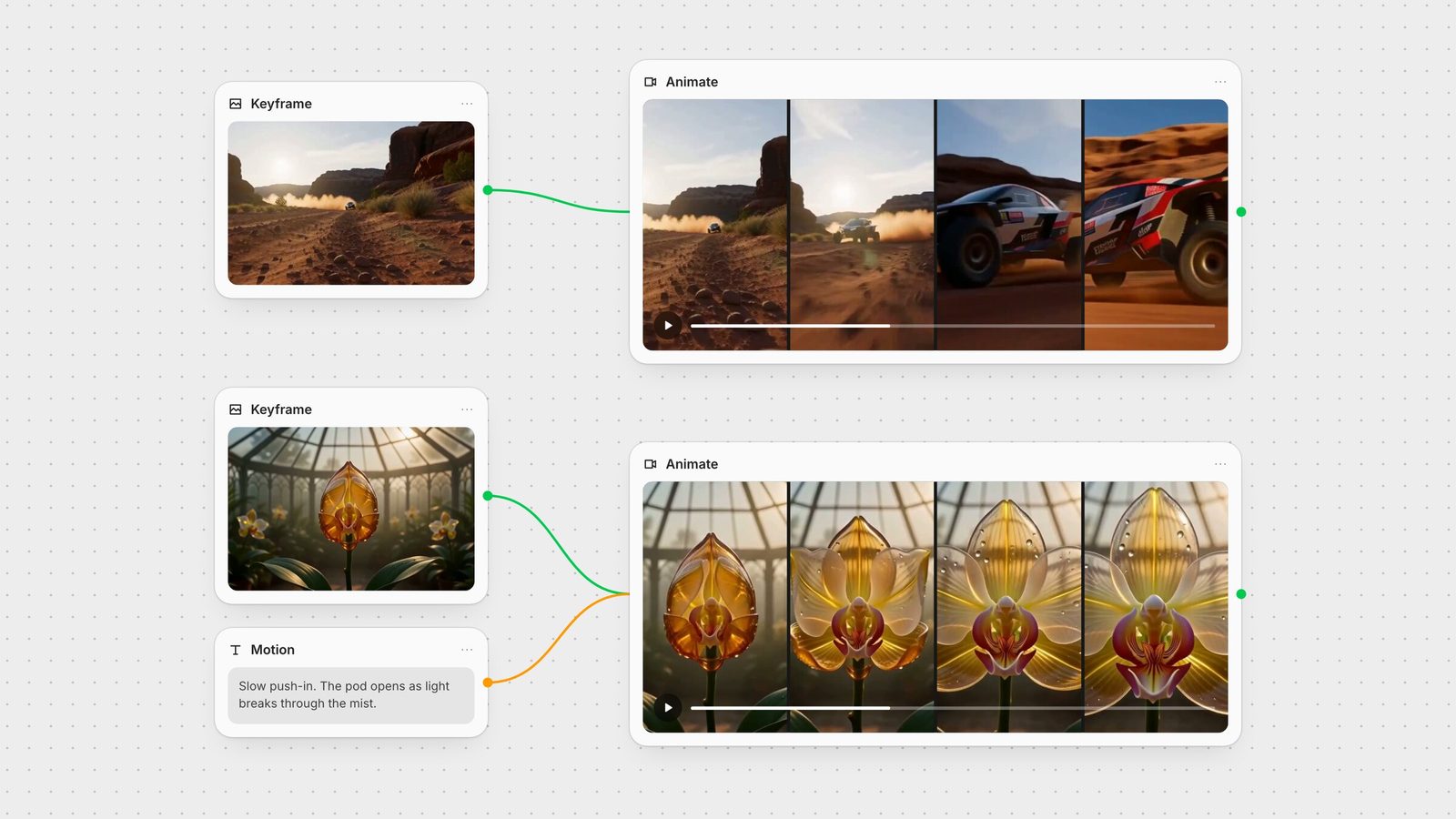
An approved still already contains important decisions: the subject, composition, wardrobe and lighting. Image-to-video carries those decisions into a moving shot. In Fuser, keep the source image, motion prompt and output together so the next revision starts from the same creative direction.
Our shortlist is MiniMax H3 Max for a straightforward motion draft, H3 for keyframes and multimodal references, Kling 3.0 for an image-led scene with native audio, and Seedance 2.5 for a longer continuous take. Choose the controls that match the shot, then build the finish around it.
H3 Max is fal’s post-trained H3 variant. In the current Fuser node, Max offers text- and image-led generation at 480p or 768p. Use it to work out a subject action and camera move before extending the production workflow.
Give the shot one clear intention: a slow camera move toward a product, a character turning toward the lens, or a curtain moving through the light. Describe the motion and ending rather than spending the whole prompt repeating what the still already shows. Keep the original frame beside the result when choosing the next direction.
H3 image-to-video accepts a start image and an optional end image. The input sets the aspect ratio. Choose this mode when both the opening composition and the destination frame matter.
For a brief assembled from several assets, H3 reference-to-video accepts image, video and audio references. Give each a job: subject identity, motion or sound. Fuser’s MiniMax H3 node exposes H3 and H3 Max in the model selector, with reference mode on H3.
Kling 3.0 Pro image-to-video combines a start frame, an optional end frame and native audio generation. Fuser’s Kling 3.0 Video node lets you select Standard or Pro, choose duration and enable audio.
Use the start frame to establish the scene, then describe what changes through the shot. A product reveal might combine a gradual camera arc, moving reflections and a restrained mechanical sound. Place brand copy over the result in Compositor so the typography stays independent of the generated motion.
Seedance 2.5 image-to-video supports continuous generations up to 30 seconds. In Fuser’s Seedance node, select version 2.5 for that longer duration; the node also carries 2.0 variants.
Choose it when a short reveal cannot hold the full action: entering a space, approaching the subject and arriving at a final composition. Write the beats in order and make the ending explicit. Start with a short motion pass to settle the direction, then extend the duration once the scene is working.
Prepare the first frame with the image-model guide. Connect it to the video node, add a motion prompt and select the model, duration and audio settings. Keep each approved input with the result so another designer can pick up the workflow.
Use Compositor for title cards, logos and other editable graphic layers. Build a recurring graphic treatment in Creative Code, then connect that tool to the same canvas. Recipes keep the repeated steps ready for the next brief.
Before delivery, watch the complete shot at its intended size. Check the opening composition, subject identity, product geometry and the final frame. If sound is enabled, listen for timing and intelligibility. These are the details that determine whether the clip fits the edit.
Explore creative workflows for connecting prompts, generation and reusable tools, or compare workspaces for the wider production process.
Last verified September 26, 2026.
Match the creative task to the inputs, controls and output you need.
| Option | Reach for it when | Plan the workflow |
|---|---|---|
| Your shortlist | ||
| MiniMax H3 Max | A focused image-led motion draft. | Fuser currently exposes 480p/768p; choose H3 for multimodal references. |
| MiniMax H3 | A start/end-frame transition or reference-directed shot. | Assign references clear roles and keep the intended ending explicit. |
| Kling 3.0 | A scene built from a start frame with native audio. | Choose Standard or Pro, duration and the audio setting in the node. |
| Seedance 2.5 | A longer continuous action, up to 30 seconds. | Select version 2.5; settle the motion before extending duration. |
For a simple motion draft, start with H3 Max. Choose H3 for keyframes and multimodal references, Kling 3.0 for an image-led scene with native audio, or Seedance 2.5 for a longer continuous take.
Use image-to-video mode and supply the approved still as the start frame. Describe the movement that should follow it and inspect the first frames of the result.
The H3 and Kling 3.0 nodes expose start and end images. Supply both when you want to guide a transition between two approved compositions.
No. Fuser’s H3 Max selection provides text- and image-led generation. Select H3 for image, video and audio reference arrays.
Seedance 2.5 supports up to 30 seconds. Select 2.5 in the Seedance node and set the duration for the action you need.
Place them on separate Compositor layers over the selected footage. This keeps the graphic design editable without regenerating the underlying shot.
Bring your brief, connect the steps and keep the process for the next project.