One click, whole workflow
Recipes are here. Package a whole workflow and run it in one click
Explore recipesOne click, whole workflow
Recipes are here. Package a whole workflow and run it in one click
Explore recipesWe ran one logo brief through five generators. Only Recraft V4.1 returns a real SVG; the rest return pixels. Here is what each one is good for, what went wrong, and how to get exact brand colours.
All guides · Recraft V4 in Fuser
Quick answer: if you need a logo you can scale, edit and hand to a printer, use Recraft V4.1 with the output set to Vector. It returns a real SVG file; none of the other models in this test can. GPT Image 2.5 is the best raster option for marks that need a transparent background, and it drew the most detailed symbol in our test. Nano Banana 2 spelled the wordmark correctly but ignored the font brief, and Qwen Image 2 is the cheapest way to explore ideas but damaged a letter. Treat every output as a strong first draft: set the final wordmark in a licensed typeface before the logo goes anywhere.
A vector file (SVG, AI, EPS, PDF) stores shapes as points and curves. It stays sharp at any size, from a favicon to a van wrap, and a designer can change a colour or move a letter without redrawing anything. A raster file (PNG, JPEG, WebP) is a fixed grid of pixels. It looks fine on a website header and falls apart when you blow it up for signage.
Most image models only produce raster output. Of the five endpoints we tested, one produced a vector:
Recraft V4.1 text-to-vector returns an SVG file (fal: Recraft V4.1 Pro text-to-vector).
Recraft V4.1 text-to-image, GPT Image 2.5, Nano Banana 2 and Qwen Image 2 return pixels. A PNG with a transparent background is still a raster file.
Fuser does not convert raster images to SVG. If you like a raster logo from GPT Image or Nano Banana, you will need to trace it in a vector editor, or describe it again as a Recraft vector prompt.
We wrote one logo brief and sent it unchanged to each model, square format, one run each:
"Logo for a neighbourhood bicycle repair shop called "SPOKE & SONS". Symbol: a simple bicycle wheel whose hub and two spokes form a wrench shape, perfectly symmetrical, bold clear silhouette. Wordmark "SPOKE & SONS" set below the symbol in a heavy geometric sans-serif. Two flat colours only: deep teal (#0F4C5C) and mustard yellow (#E9B44C), on a plain background. Consistent stroke weight, centered, generous margins. No gradients, no shadows, no texture, no mockup."
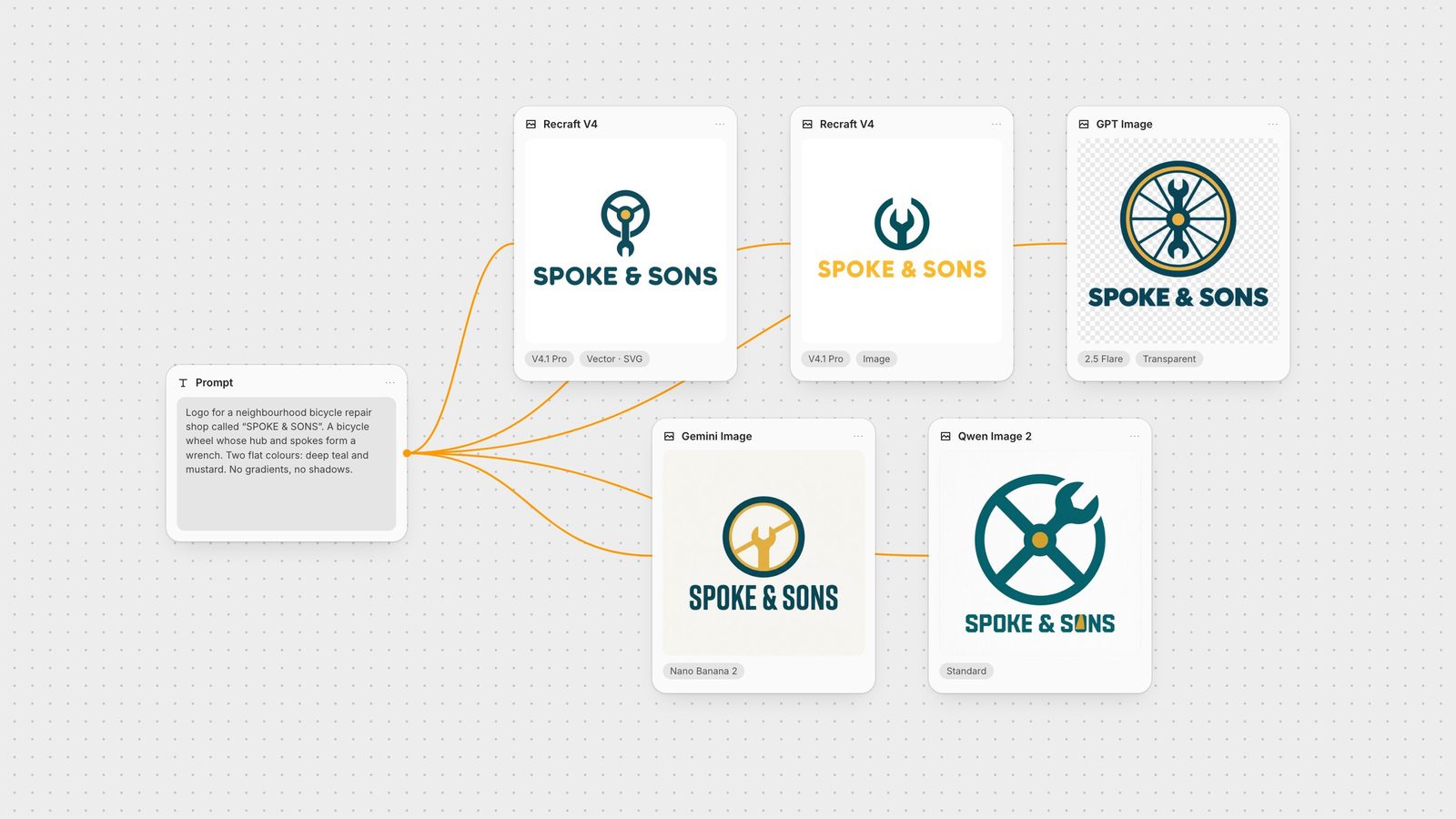
Four of the five spelled "SPOKE & SONS" correctly. None of them drew exactly what we described: no model combined a wheel and a wrench into one symmetrical symbol. Each found its own shortcut, which is normal for a first round of logo exploration. What differs is the file you get and how much cleanup it needs.
We opened the SVG in a text editor to see what Recraft actually delivers. The first file had 17 paths and three fill colours, with no gradients, no embedded bitmaps and no live text. The wordmark is drawn as outlined shapes, so you can recolour or reshape it but not retype it. The first path is a rectangle covering the whole canvas, which is the background colour. Delete it in your vector editor if you want the logo on a transparent ground. The file also carries a C2PA content-credentials manifest in its metadata.
The composition was the most conservative of the five: a small mark with a lot of empty space around it. That is easy to fix in a vector file, since you can scale the artboard without losing quality.
Recraft's own prompting guide says vector prompts work best when they define graphic type, shape logic, colour system, line discipline, layout and constraints, and it recommends against texture or material words (Recraft prompting guide). The V4.1 vector endpoint has no style parameter at all: its only creative inputs are the prompt, image size, preferred colours and background colour, so style has to come from the prompt (fal: Recraft V4.1 Pro text-to-vector). The older Recraft V3 node still offers preset vector illustration styles if you want them. For the full set of settings, see our Recraft V4.1 guide.
The raster version of the same Recraft model came back at 2048 × 2048 with correct lettering, but it set the wordmark in mustard rather than teal. It is useful for a quick mockup at a high pixel count, not as a replacement for the vector.
Our first vector run had the hex codes only in the prompt text. The SVG came back in #024050 and #FAAA34: close to the brief, but not our teal and mustard. We ran the same prompt again with the two colours also entered in Preferred Colors and white in Background Color.
The second file used exactly #0F4C5C, #E9B44C and #FFFFFF, and nothing else. The composition changed too, because it was a new generation. The lesson: hex codes written in a prompt are a suggestion. If the logo has to match an existing brand, put the values in the colour fields and describe in the prompt which element gets which colour.
GPT Image 2.5 Flare drew the most complete idea: a full spoked wheel with a teal rim, a mustard inner ring and a double-ended wrench through the hub. The wordmark was correct and in the right colour. It is also the only model here that can return a transparent background directly. OpenAI's docs say to set the background to transparent and use PNG or WebP output (OpenAI image generation guide). In Fuser, turn on the Transparent toggle on the GPT Image node. It only applies when you generate from text, not when you edit an input image. Our file was 1024 × 1024 with about 78% of the pixels fully transparent, ready to drop onto a photo or a coloured slide.
The fine spokes are its weakness as a logo. They look good at 1024 pixels and will close up at favicon size. Ask for fewer, thicker spokes if the mark has to work small.
Nano Banana 2 (Google's Gemini 3.1 Flash Image) spelled the name correctly and used both colours. It set the wordmark in a condensed typeface rather than the geometric sans we asked for, put the mark on an off-white ground instead of a plain one, and drew a single diagonal spoke with a wrench. Google describes the model's text rendering as capable of "legible, stylized text for infographics, menus, diagrams, and marketing assets", and every image it makes carries a SynthID watermark (Gemini image generation docs). Its strength is editing: you can send it a finished logo and ask for a version on a shopfront or a T-shirt. See the best AI image editing models.
Qwen Image 2 produced the boldest symbol: a thick wheel with a wrench breaking out of the rim. It also broke the wordmark. The second O in "SONS" became a mustard wedge. fal lists the standard endpoint at $0.035 per image and positions it for "rapid prototyping, prompt exploration, and iterative workflows" (fal: Qwen Image 2). That is the right way to use it for logos: generate many rough directions, pick the strongest idea, then rebuild it in Recraft vector.
Set the final wordmark yourself. All five models draw letters as shapes. Replace them with a real, licensed typeface so the name is consistent everywhere.
Check it small. Scale the mark down to 32 pixels. Thin lines and small gaps disappear first.
Check ownership. In the US, the Copyright Office concluded in January 2025 that, with current technology, prompts alone do not provide enough human control to make you the author of an AI output; your own modifications, and the selection and arrangement of material, can be protected (US Copyright Office, Part 2 report). Trademark clearance is a separate step. Search your market before you print.
In Fuser you can wire one prompt into several of these models at once and compare the results side by side, as in the canvas at the top of this page. Keep the brief in a text node, run Qwen Image 2 for cheap exploration, take the winning idea into a Recraft V4.1 vector node with your colours set, and use GPT Image with a transparent background for the raster version. Use Download media on the Recraft node to save the SVG. If you already have a raster logo, a background remover gives you a clean cutout, but it will still be pixels. For lettering beyond logos, see the best AI models for text in images.
Last verified September 28, 2026.
Results from one logo brief, one run per model, 28 September 2026.
| Model | Output and best use | What went wrong in our test |
|---|---|---|
| Vector | ||
| Recraft V4.1 (Vector) | SVG. Final logos, icons, anything that needs to scale or be edited. Exact hex colours via Preferred Colors. | Small mark with lots of empty space; full-canvas background rectangle to delete; hex codes in the prompt alone were not matched. |
| Raster | ||
| Recraft V4.1 (Image) | 2048 px raster from the same model. Quick high-resolution mockups. | Wordmark came out mustard, not teal. |
| GPT Image 2.5 Flare | PNG with a true transparent background. Detailed marks for web and slides. | Fine spokes will not survive favicon size. |
| Nano Banana 2 | Raster. Correct lettering; strongest at editing a logo into a scene. | Ignored the font brief; off-white background. |
| Qwen Image 2 | Raster, lowest cost. Rapid exploration of symbol ideas. | Replaced one letter with a shape. |
In Fuser, Recraft V4.1 (and V4) with the output type set to Vector returns a real SVG file. GPT Image 2.5, Nano Banana 2 and Qwen Image 2 return raster images only.
No. A transparent PNG has no background, but it is still made of pixels and blurs when enlarged. A vector file such as SVG stores shapes and stays sharp at any size.
No. Fuser has no raster-to-vector tracing. Trace the image in a vector editor, or describe the design again as a Recraft V4.1 vector prompt.
Enter the hex values in Recraft's Preferred Colors and Background Color fields. In our test, hex codes written only in the prompt came back as close but different colours; with the fields set, the SVG fills matched exactly.
In our one-run test, Recraft V4.1, GPT Image 2.5 and Nano Banana 2 all spelled SPOKE & SONS correctly. Qwen Image 2 replaced one letter with a shape. Always proofread, and set the final wordmark in a real typeface.
In the US, the Copyright Office has said prompts alone do not make you the author of an AI output, while your own modifications and arrangement can be protected. Trademark registration is a separate process. Get legal advice for anything you plan to register.
Run one brief through several models on one canvas, then take the winner into Recraft V4.1 vector with your exact colours.