One click, whole workflow
Recipes are here. Package a whole workflow and run it in one click
Explore recipesOne click, whole workflow
Recipes are here. Package a whole workflow and run it in one click
Explore recipesA tested guide to xAI's Grok Imagine Image 2.0: how to write prompts that render exact text, how editing and multi-image references work, and what the quality, resolution and aspect-ratio settings actually change.
All guides · Grok Imagine Image in Fuser
Quick answer: Grok Imagine Image 2.0 is xAI's image model for both generation and editing. Describe the scene in plain sentences, put any words you want rendered in quotation marks and say where they go, and pick quality: medium for final images. To edit, connect one or more images: the same prompt field becomes an instruction, and with several inputs you can name each one as <IMAGE_0>, <IMAGE_1> and so on, the convention in xAI's API reference. In Fuser this is a single node, Grok Imagine Image, which switches from text-to-image to edit as soon as an image is connected.
xAI's current image model is grok-imagine-image-2.0, which it documents for generation and for editing with up to five source images (xAI Imagine overview). Fuser runs it through fal on two endpoints: xai/grok-imagine-image/v2.0/text-to-image and xai/grok-imagine-image/v2.0/edit (fal model page). You never choose between them. With the Images input empty the node generates from text; with one or more images connected it calls the edit endpoint (Fuser docs).
The name is shared with xAI's video models, so check which node you are on. This guide covers stills only. The video nodes have their own pages: Grok Imagine video and Grok Imagine video edit.
A prompt can run to 8,000 characters (fal schema), so there is no need to compress it into a list of tags. What worked in our runs was a short brief in this order:
Subject and medium. "Studio product photo of a matte sage-green ceramic coffee mug", or "Minimal gig poster for a jazz night".
Setting and props. "On a pale oak table, a single sprig of rosemary beside it."
Light and lens. "Soft window light from the left, shallow depth of field."
Exact text, in quotes, with a position. "The mug has the word "SLOW" printed in small black serif capitals."
Style or layout. "Swiss poster layout, subtle paper grain."
xAI lists the styles the model covers as "ultra-realistic photography to anime, oil paintings, and pencil sketches" (xAI image editing docs), so name the medium in the first few words rather than leaving it to chance.
Text is where this model earns a place in a workflow. Our poster prompt split the layout into regions: "Top third: the headline "LATE NIGHT BLUE" in tall condensed white sans-serif letters... Bottom: "FRI 14 NOV · 9PM · THE CELLAR" in small white caps." Both the 1k and 2k runs rendered every word and the middots correctly and kept the three-band layout.
Two habits made the difference. Quote the exact string, and describe the type (condensed sans, small serif caps) as well as where it sits. Our tests used one headline and one info line per image; we did not test paragraphs of copy. For body copy or anything with many lines, generate the image with space for it and set the type afterwards in Fuser's Compositor.
The Fuser node exposes four controls besides the prompt and images.
Aspect ratio. 13 fixed ratios from 2:1 to 1:2, including 20:9, 19.5:9, 9:19.5 and 9:20 for phone screens, plus Auto. In text-to-image, Auto gives 1:1; in edit mode it keeps the ratio of the first input image (fal edit schema).
Resolution. 1K (default) or 2K. In our runs a 16:9 image at 1k came back at 1280 × 720, a 2:3 image at 1k at 832 × 1248, and the same 2:3 prompt at 2k at 1664 × 2496.
Quality. Low or medium, default medium in Fuser. Note that xAI's own API defaults to "auto", which it says currently means low for generation and medium for editing (xAI image generation docs), so results from other tools that call the API directly may have been made at low.
Images. Optional inputs that switch the node into edit mode.
In our side-by-side the gap was small: both settings kept the composition idea and rendered SLOW cleanly, and medium gave slightly smoother surface detail. fal lists 1k at $0.04 per image on low and $0.06 on medium, and 2k at $0.06 and $0.08; edits add $0.01 per input image (fal edit pricing). Use low for exploring layouts and medium for anything you keep.
Connect an image and write the change as an instruction. Say what should change and, just as clearly, what must stay: "Move the mug outdoors onto a mossy granite rock beside a misty mountain lake at sunrise. Keep the mug's shape, sage-green colour and the word "SLOW" exactly as they are. Replace the rosemary with a small pine cone." The result kept the mug, its colour and the printed word, and swapped the prop as asked.
Style changes work the same way. "Redraw this image as a loose graphite pencil sketch on off-white paper, visible hatching, no colour except a light sage wash on the mug" kept the composition and the lettering while changing the medium entirely.
For a sequence of changes, xAI recommends chaining: use each output as the input for the next edit (xAI image editing docs). On a Fuser canvas that is a row of Grok Imagine Image nodes, each wired to the one before, so you can go back and change step two without redoing step one.
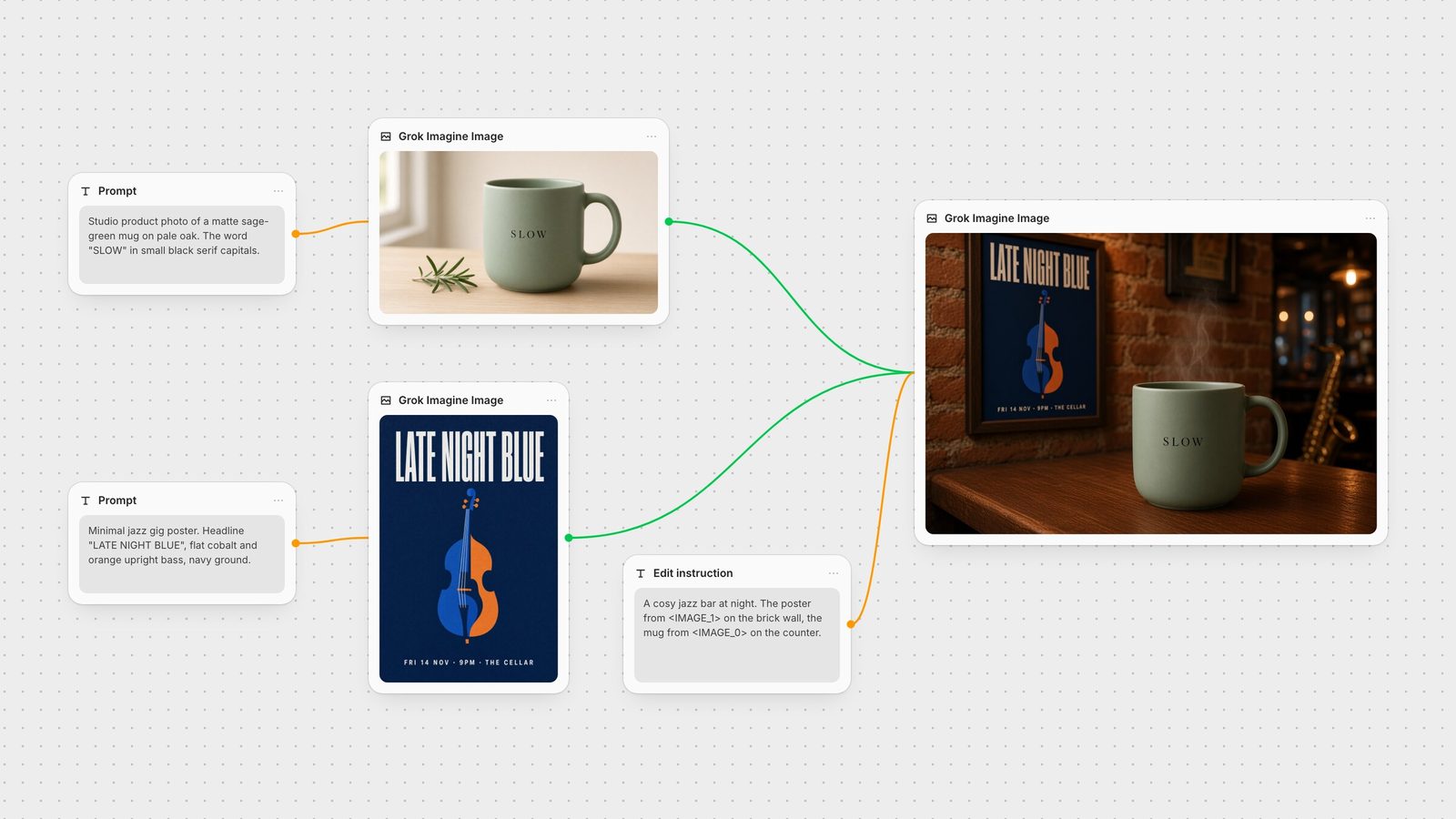
The edit endpoint accepts up to five images (fal edit schema). xAI's API reference says that when several images are provided you refer to them as <IMAGE_0>, <IMAGE_1> and so on in the prompt. We tested that convention through fal with the mug as the first image and the poster as the second: "A cosy jazz bar at night. The poster from <IMAGE_1> hangs framed on the brick wall. In the foreground on a dark wooden bar counter sits the mug from <IMAGE_0>, unchanged, with steam rising."
Both references landed where the prompt put them, and the poster's text stayed readable in the new scene. Because we set the aspect ratio to 3:2, the output came back at 1248 × 832 rather than matching the first input. In Fuser, the node sends the images on its Images input to the model as one ordered list. If a result swaps two references, swap the tags in the prompt or reconnect the images.
Misspelled text: quote the exact string, shorten it, and say where it goes and what type it uses.
The edit changed things you wanted kept: list them explicitly with "keep ... exactly as they are", as in the mug edit above.
Wrong image used in a multi-image edit: use the <IMAGE_n> tags rather than "the first photo", and check the input order.
Edit output has the wrong shape: Auto follows the first input image. Pick a fixed aspect ratio if you need a different frame.
Drafts look rougher than expected: check the quality setting. xAI's API defaults generation to low; the Fuser node defaults to medium.
The hero image above is the whole pattern on one canvas: two text-to-image nodes make the product and the poster, and a third node combines them. From there the still can go to an upscaler such as Topaz, into the Compositor for final type, or into an image-to-video model like Kling 3.0. To see how Grok Imagine Image compares with other editors, read the best AI image editing models and the best AI models for text in images.
What each setting does on the Fuser node, from the fal schema and our runs.
| Setting | Options | What to know |
|---|---|---|
| Node settings | ||
| Mode | Text-to-image or edit | Chosen automatically: edit as soon as an image is connected. |
| Images | 0 to 5 inputs | Refer to several inputs as <IMAGE_0>, <IMAGE_1>; the first is <IMAGE_0>. |
| Aspect ratio | Auto plus 13 ratios, 2:1 to 1:2 | Auto is 1:1 for text-to-image and follows the first input when editing. |
| Resolution | 1K (default) or 2K | 2:3 measured 832 × 1248 at 1k and 1664 × 2496 at 2k. |
| Quality | Low or Medium (default) | Low is cheaper for drafts; medium for finals. |
| Prompt | Up to 8,000 characters | Full sentences; quote any text you want rendered. |
It is xAI's current image model, grok-imagine-image-2.0, for text-to-image generation and image editing with up to five source images. In Fuser it runs as the Grok Imagine Image node.
Yes. Connect one or more images to the node and write the change as an instruction. The node switches to xAI's edit endpoint automatically, and Auto aspect ratio keeps the shape of the first input.
Name them <IMAGE_0>, <IMAGE_1> and so on, as xAI's API reference describes; the first image is <IMAGE_0>. In our test, a mug as <IMAGE_0> and a poster as <IMAGE_1> were placed exactly as the prompt described.
In our runs it rendered a headline, a date line with middots and a word printed on a product without errors, at both 1k and 2k. Quote the exact text and say where it should sit.
1K or 2K. In our tests 16:9 at 1k was 1280 × 720, and 2:3 was 832 × 1248 at 1k and 1664 × 2496 at 2k.
Use low to explore layouts cheaply and medium for images you keep. Fuser defaults to medium; xAI's own API defaults to low for generation.
Wire Grok Imagine Image into upscalers, video models and the Compositor.