One click, whole workflow
Recipes are here. Package a whole workflow and run it in one click
Explore recipesOne click, whole workflow
Recipes are here. Package a whole workflow and run it in one click
Explore recipesA tested guide to xAI's Grok Imagine Video 1.5: what each mode does, how to prompt for picture and sound, what edit and extend change, and the settings and limits that matter, with the clips from our own runs.
All guides · Grok Imagine in Fuser
Quick answer: Grok Imagine Video 1.5 is xAI's video model with sound. Give it only a prompt for text-to-video, one image to animate that image as the first frame, or two to seven images as references. Every clip comes back with audio, so write the sound into the prompt: quote any line of dialogue and add a short "Audio:" line. It runs 1 to 15 seconds at 480p, 720p or 1080p. To change a clip you already have, use xAI's separate edit and extend endpoints, which Fuser runs as a second node, Grok Imagine Edit.
xAI made grok-imagine-video-1.5 generally available on its API on 16 June 2026, describing better motion, physics and audio, with "sound effects, ambience, and dialogue ... generated in the same pass" (xAI announcement). xAI's docs list text-to-video, image-to-video and reference-to-video among its video modes (xAI video generation docs).
In Fuser all three sit behind one node, Grok Imagine, with version 1.5 as the default and 1.0 still selectable. You don't pick a mode. The node counts the images connected to its Images input: none sends the job to text-to-video, one to image-to-video, two to seven to reference-to-video (Fuser docs). Editing and extending existing footage is a second node, Grok Imagine Edit, covered below.
This guide covers video. For stills, see the Grok Imagine Image guide.
We reused the dialogue prompt from our Seedance, Kling and Veo comparison so the result lines up with those models:
"Handheld medium shot of a ceramicist at a pottery wheel shaping a tall vase from wet clay, her hands glistening as the clay spins. She glances up at the camera, smiles and says: 'Almost there.' Warm workshop light. Audio: steady wheel hum, wet clay sounds, quiet studio ambience."
At the node's default settings, 6 seconds and 720p, Grok kept one continuous shot, had her look up and smile, and spoke the line. A Whisper transcription of the clip returned only "Almost there." between 2.46 and 3.44 seconds, so no extra words crept in. The file came back at 1280 × 720, 24 fps, with the wheel and room sound under the voice (about −22 dB mean loudness). An earlier 4-second, 480p draft of the same prompt also delivered the line, at 1.65 seconds; we used that draft as the source for the edit and extend tests below.
The prompt order that worked: shot and framing, subject and action, the spoken line in quotes, light, then a separate "Audio:" line for everything that isn't speech. The node's prompt field takes up to 4,096 characters, so there's room to be specific. Keep the action to what fits the duration you set. Both four and six seconds held one glance and one short line; the longer clip simply spent more time on the hands before she looks up.
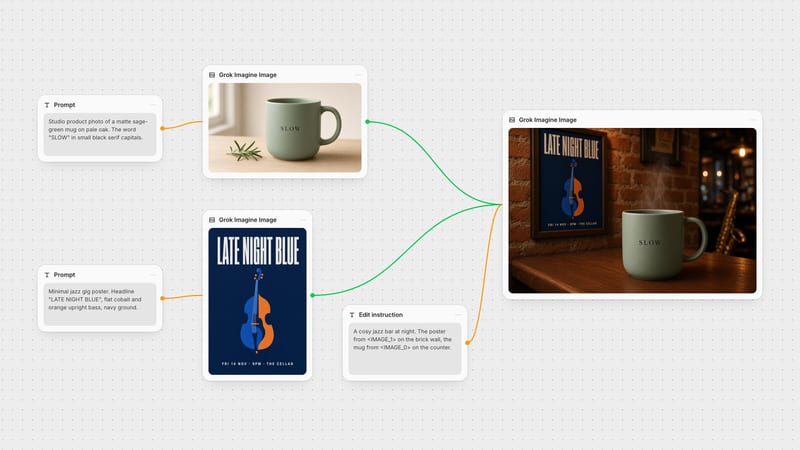
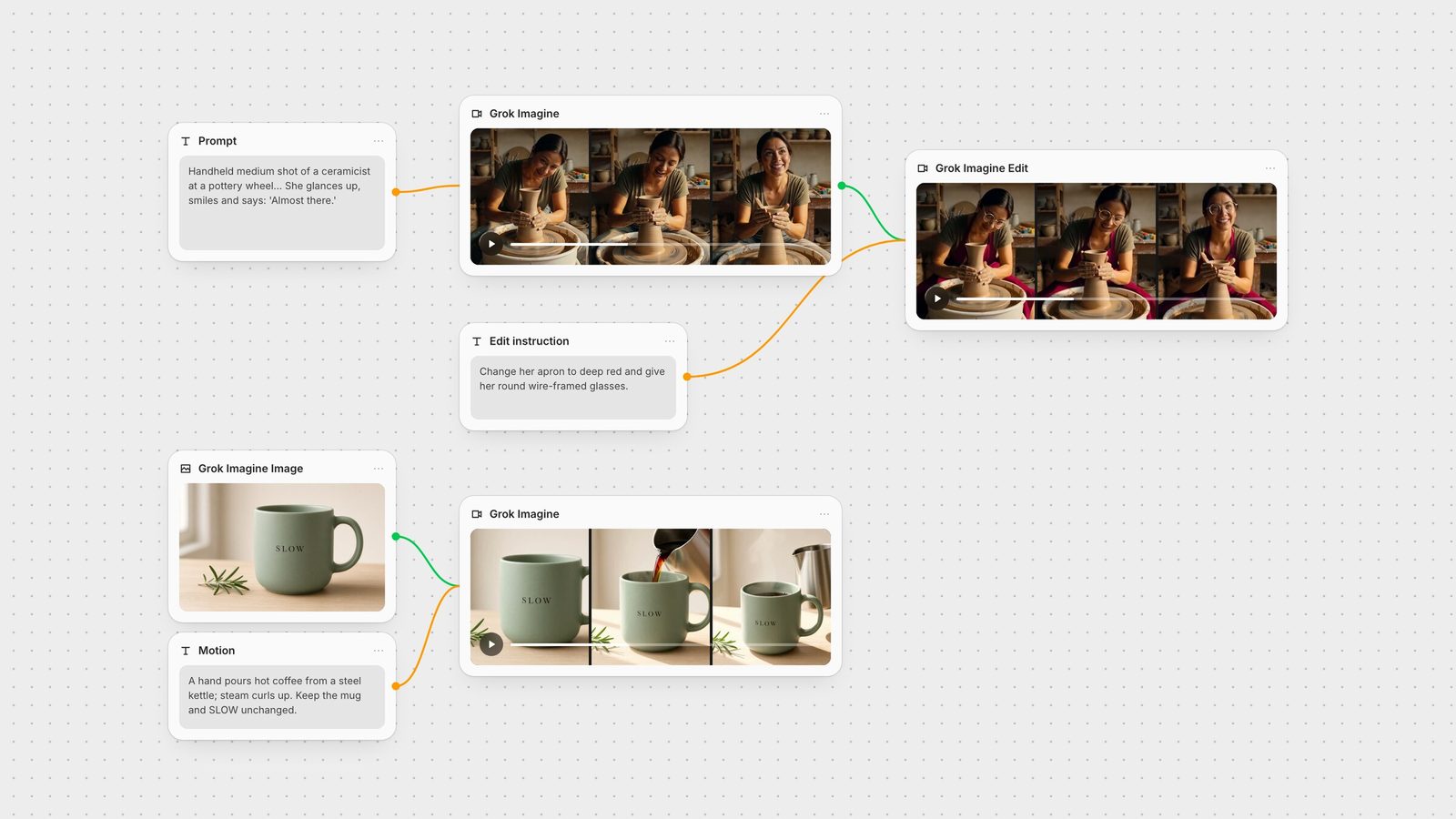
Connect one image and it becomes the opening frame; the prompt describes what moves. We used the sage-green mug from the image guide, made with Grok Imagine Image. This test took two runs. The first, 3 seconds at 480p, asked only for steam, drifting window light and a slow push-in; it kept the mug intact but came back almost silent (about −63 dB mean), because nothing in the scene made a sound. For the second run we gave it an action that makes noise and named the sounds:
"Slow push-in on the mug. A hand enters from the right and pours hot coffee into it from a steel kettle; steam curls up as morning window light drifts across the table. Keep the mug, its colour and the printed word "SLOW" unchanged. Audio: coffee pouring into the mug, the kettle set down on wood, birdsong through the window."
The first frame matched our still. The hand, the pour and the steam all arrived, and SLOW stayed correctly spelled on the mug throughout. Two things didn't follow the prompt: the steel pitcher (not quite a kettle) came in from the top right already in frame, and instead of pushing in, the camera drifted back and sideways to make room for it. The soundtrack was audible this time but still quiet (about −48 dB mean, peaks near −24 dB), well below the dialogue clip.
Two things to know about shape and sound:
Aspect ratio follows the image. xAI says image-to-video defaults to the input image's aspect ratio and that setting one explicitly "will override this and stretch the image" (xAI video docs). On version 1.5 the Fuser node doesn't send an aspect ratio for single-image jobs, so the output follows your image. Our 1280 × 720 still came back at 1280 × 720 at 720p, and at 736 × 400 in the 480p run. Crop the image to the frame you want before you animate it.
Give the scene something to hear. An "Audio:" line on a still scene wasn't enough in our first run. An on-screen action that makes noise helped, but image-to-video audio still came out quieter than text-to-video. If you need a fuller mix, add sound afterwards with a video-to-audio model such as MMAudio.
With two or more images connected, the node calls reference-to-video, which uses the images as visual references instead of a first frame. The node accepts up to seven, and xAI asks you to tag them in the prompt as <IMAGE_0>, <IMAGE_1> and so on, in input order, for example "the model from <IMAGE_0> walks in from the back of the shot … they wear the shirt from <IMAGE_1> and black flared jeans" (xAI reference-to-video docs). The Fuser node's help text suggests names like @Image1, but it passes your prompt through unchanged, so we tested the <IMAGE_n> form xAI documents. We connected the mug still and the Late Night Blue poster from the image guide and wrote:
"A dim jazz bar at night. The sage-green mug from <IMAGE_0> sits on a small wooden table in the foreground with steam rising from it. On the brick wall behind it hangs the poster from <IMAGE_1>. The camera slowly dollies left past the mug toward the poster while a double bass player performs out of focus. Audio: a walking upright bass line, soft crowd murmur, glasses clinking."
Both references landed where the prompt put them. The poster's title, bass illustration and small date line "FRI 14 NOV · 9PM · THE CELLAR" were legible once the camera reached it, and the mug kept its shape and the word SLOW, though the bar lighting turned its green toward olive. The camera moved past the mug and the focus shifted to the poster, as asked. The bass line and room sound came through at a normal level (about −22 dB mean). Unlike image-to-video, neither image is used as a frame: the model builds a new shot around them.
Reference mode tops out at 720p; the node stops a 1080p request with more than one image and asks you to pick 480p or 720p. xAI gives 1.5 a range of 1 to 15 seconds (xAI video generation docs); the node's help text still says 10, a limit it only enforces on version 1.0. Each reference image adds a small charge on top of the per-second price.
The Grok Imagine Edit node's Edit mode takes a video and an instruction. The node resizes the source to a maximum area of 854 × 480 and cuts it to 8 seconds. It offers 480p or 720p output (Fuser docs). xAI says the output takes its duration and aspect ratio from the input and is capped at 720p. Its examples are short, direct changes: "Add sunglasses", "Change the color of the woman's outfit to red" (xAI video editing docs).
We gave the 4-second, 480p draft of our text-to-video prompt one instruction in that style (Edit shrinks input to 854 × 480 anyway, so a 480p source loses nothing): "Change the ceramicist's apron to deep red and give her a pair of round wire-framed glasses. Keep everything else the same."
Both changes appeared and held for the whole clip, including when she lifts her head. The shelves, wheel, vase and her movements matched the source. The edited file ran 4.04 seconds like the original, and Whisper found the same "Almost there." at the same timestamps, so the soundtrack survived the edit.
Extend mode appends new footage. The input must be an MP4 of 2 to 15 seconds, and you choose 2 to 10 seconds of extension (default 6) (Fuser docs). The duration you set is only the new part: xAI's example is a 10-second input with 5 seconds added returning 15 seconds (xAI video extension docs). Describe what happens next, not the whole scene again.
We extended the same 4-second draft by 2 seconds with "She stops the wheel, lifts her clay-covered hands away from the finished vase and wipes them on her apron. The camera stays handheld at the same framing."
The result was 6.04 seconds, and the first 4 seconds were the original clip (a structural-similarity check against the source scored 0.99). We saw no jump at the join, and the framing stayed put. She lifted her hands away and rubbed them together rather than wiping them on the apron, the vase came out slightly taller in the new footage, and the two added seconds were almost silent. Check the continuation against the original before you build on it. For other ways to make clips longer, see how to extend AI video length.
Grok Imagine node:
Version: 1.5 (default) or 1.0. 1080p is only available on 1.5.
Duration: 1 to 15 seconds, default 6.
Aspect ratio: 16:9 (default), 4:3, 3:2, 1:1, 2:3, 3:4, 9:16, or Auto. On 1.5 image-to-video the node ignores this setting and the output follows the image; elsewhere Auto falls back to 16:9, except on 1.0 image-to-video.
Resolution: 480p, 720p (default) or 1080p. Reference mode is limited to 720p.
Images: 0 to 7, which picks the mode.
There is no audio switch: the node doesn't expose one, so every clip has a soundtrack.
Grok Imagine Edit node: Mode (Edit or Extend), Resolution (480p or 720p, Edit only) and Extension Duration (2 to 10 seconds, Extend only).
Cost scales with resolution: a second at 720p costs a little under twice as much as at 480p, and 1080p about three times as much. Edit and extend cost less per output second than generating at the same resolution (about half at 720p), plus a smaller charge for each second of input video. Draft at 480p and render finals at 720p or 1080p.
The line isn't spoken or is garbled: put the exact words in quotes after "says", keep them short, and give the clip enough seconds to deliver them.
Silent or near-silent audio: name concrete sounds in an "Audio:" line. If it still comes back quiet, add sound with MMAudio or ElevenLabs sound effects downstream.
Image-to-video comes out the wrong shape: on 1.5 the output always follows the input image, so crop the still to the frame you want first. On 1.0 a fixed aspect ratio stretches the image; use Auto.
1080p option errors: you have two or more images connected; reference mode stops at 720p.
An edit changed more than you asked: name one or two concrete changes and add "keep everything else the same".
Edit output is shorter than your source: Edit mode only uses the first 8 seconds. Trim the clip or edit it in sections.
An extension drifts: extend in shorter steps and describe only the next action.
The hero image shows the pattern: a prompt node into Grok Imagine for the shot, its output wired into Grok Imagine Edit for the change, and a Grok Imagine Image still animated by a second video node. From there, a 480p draft can go to a video upscaler such as SeedVR, and Whisper can check the dialogue or produce captions. To see how Grok compares with other models, read the best AI video generators with audio and the best AI video editing models.
What each mode takes and returns, from xAI's docs, Fuser's nodes and our runs.
| Mode | Input and limits | In our test |
|---|---|---|
| Grok Imagine node (1.5) | ||
| Text-to-video | Prompt only. 1–15 s, 480p/720p/1080p, 7 aspect ratios. | 6 s, 720p: one continuous shot, only the quoted line spoken, at 2.5 s. |
| Image-to-video | One image as the first frame. Output follows the image's shape. | Second run: pour and steam arrived, SLOW intact; camera pulled back, audio quiet. |
| Reference-to-video | 2–7 images tagged <IMAGE_0>, <IMAGE_1>… Up to 720p. | Mug and poster placed as prompted; poster text legible; audio at normal level. |
| Grok Imagine Edit node | ||
| Edit | Video + instruction. Input cut to 8 s, max 854 × 480; output 480p/720p. | Apron and glasses changed; take, timing and dialogue kept. |
| Extend | MP4 of 2–15 s; adds 2–10 s. Returns original plus extension. | 4 s → 6 s, clean join; action partly followed. |
It is xAI's video model, grok-imagine-video-1.5, which generates video with synchronized audio from a text prompt, a single start image or several reference images. In Fuser it runs as the Grok Imagine node, where 1.5 is the default version.
Yes. Every clip includes an audio track generated in the same pass, and the Fuser node has no option to turn it off. In our tests the text-to-video and reference clips had clear sound, including the quoted line of dialogue. Image-to-video was quieter: a still scene came back almost silent, and a pouring action gave an audible but low track.
Text-to-video and image-to-video run 1 to 15 seconds (default 6). Extend mode can then add 2 to 10 seconds to an MP4 of up to 15 seconds.
480p, 720p and 1080p for text-to-video and image-to-video. Reference-to-video and editing are limited to 720p. Our 720p text-to-video clip was 1280 × 720 at 24 fps; at 480p a 16:9 clip is 848 × 480.
Connect two to seven images to the node's Images input and tag them in the prompt in input order. xAI documents the tags as <IMAGE_0>, <IMAGE_1> and so on, and the Fuser node passes the prompt through unchanged; that form worked in our two-image test.
Yes, with the Grok Imagine Edit node. Edit mode applies an instruction to up to 8 seconds of footage at up to 720p, and Extend mode appends new seconds. In our test an outfit change kept the rest of the take and the dialogue unchanged.
Wire Grok Imagine into image models, upscalers and audio on one canvas.