One click, whole workflow
Recipes are here. Package a whole workflow and run it in one click
Explore recipesOne click, whole workflow
Recipes are here. Package a whole workflow and run it in one click
Explore recipesHow to prompt Google's Nano Banana models (Gemini 3.1 Flash Image and Gemini 3 Pro Image): scene-style prompts, edits that change one thing, multi-image references and accurate text, tested on real generations.
All guides · Gemini Image in Fuser
Quick answer: prompt Nano Banana by describing the scene in full sentences, not by listing keywords. Name the subject, the setting, the light, the camera angle and what the image is for. To edit, pass the image back in and say what to change and what must stay the same. To combine images, refer to each one by its order ("the logo from the second image"). For text, put the exact words in quotation marks and describe the lettering. Google's own advice is to "describe a scene in rich detail. The more specific you are, the more control you have over the results" (Gemini API docs).
"Nano Banana" is Google's name for Gemini's native image generation, and it now covers four models (Gemini API docs). In Fuser they sit in one Gemini Image node, chosen from the Model dropdown:
Nano Banana 2 (Gemini 3.1 Flash Image) is the default. Google calls it the generalist workhorse, balancing speed with 4K output, world knowledge and reliable text rendering, and strong with multiple reference images (Gemini API docs).
Nano Banana Pro (Gemini 3 Pro Image) is Google's premium choice for the most complex work, with the most world knowledge, advanced localisation, accurate brand consistency and precise creative control (Gemini API docs).
Nano Banana 2 Lite (Gemini 3.1 Flash Lite Image) is the fastest and cheapest. It renders at 1K only, and Google notes it is not optimised for multiple reference images or chained edits.
Nano Banana (Gemini 2.5 Flash Image) is the legacy model. Google strongly recommends moving to Nano Banana 2 Lite.
Everything below was tested on Nano Banana 2 unless we say otherwise. Fuser calls Google's API directly for this node; our test images were generated with the same model versions (gemini-3.1-flash-image and gemini-3-pro-image) at 1K.
We ran one subject two ways. The scene prompt:
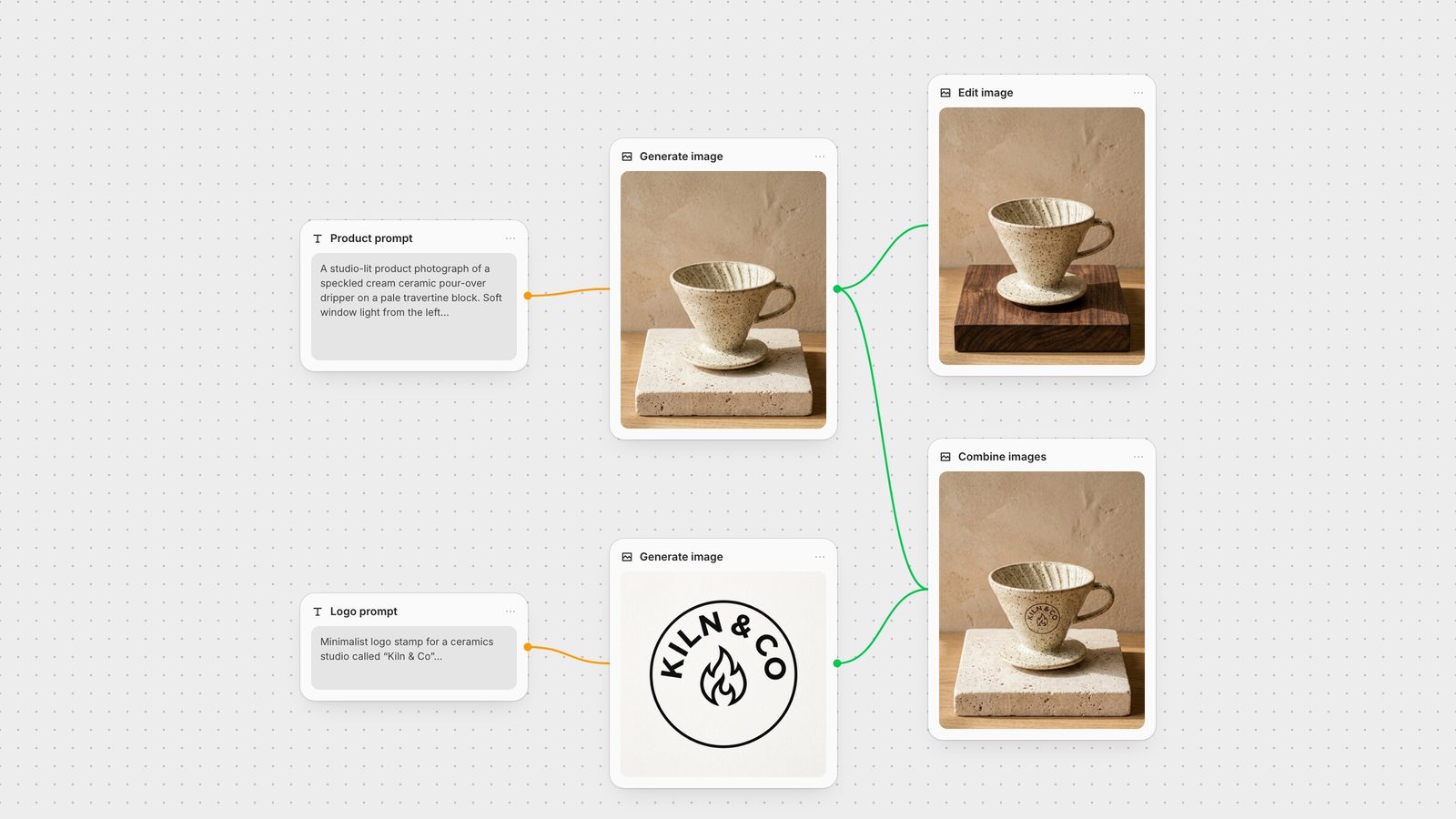
"A high-resolution, studio-lit product photograph of a speckled cream ceramic pour-over coffee dripper standing on a pale travertine block. Soft window light from the left casts a long, gentle shadow to the right; the background is a warm sand-coloured plaster wall. The camera angle is a slightly elevated 30-degree shot that shows the spiral ridges inside the cone. Ultra-realistic, with sharp focus on the glaze speckles."
Every detail came through: the speckles, the travertine, the plaster, the light direction and the ridges inside the cone. The keyword version still produced a clean photo, but the model filled the gaps with its own choices: a tall pedestal, a window, a mug under the dripper, a paper filter full of coffee and a much plainer glaze. Keywords don't fail; they just hand the art direction to the model.
That prompt follows Google's product-photography template almost word for word (Gemini API docs):
Shot type and subject. "A high-resolution, studio-lit product photograph of [product]".
Surface and setting. "on a [background surface/description]".
Light, with a purpose. "[lighting setup] to [what it should do]".
Camera. "a [angle] shot to showcase [feature]". Google suggests photographic terms such as wide-angle, macro and low-angle (Google Cloud best practices).
Focus. "sharp focus on [key detail]".
Three more rules from Google's best practices are worth keeping in your head (Google Cloud best practices):
Say what the image is for. "A logo for a high-end, minimalist skincare brand" beats "a logo".
Describe what you want, not what you don't. Instead of "no cars", write "an empty, deserted street with no signs of traffic". The Gemini Image node has no negative-prompt field, so this is how you exclude things.
Split crowded scenes into steps. "First, create a misty forest at dawn. Then, in the foreground, add a stone altar. Finally, place a glowing sword on the altar."
Google also advises phrasing the request as "create an image of" or "generate an image of" so the model doesn't answer in text (Google Cloud best practices). In Fuser you can skip that: the node always asks Gemini for an image.
Connect an image to the node's Image input and the prompt becomes an edit instruction. Google's pattern for a targeted edit is "change only the [element] to [new element]. Keep everything else in the image exactly the same" (Gemini API docs). Our edit:
"Using the provided image, change only the travertine block to a dark walnut wood block with visible grain. Keep the dripper, the window light, the shadow and the plaster wall exactly the same, preserving the original style, lighting and composition."
The dripper, the speckles, the wall texture and the shadow direction held; only the block changed. Two habits make this reliable:
Name what must stay. Listing the things to keep ("the dripper, the light, the shadow") does more than a general "keep everything else".
One change per pass. Google recommends iterating in small steps ("make the lighting warmer") rather than rewriting the whole prompt (Google Cloud best practices). In the Gemini API that is a multi-turn chat. In Fuser, you wire the output into another Gemini Image node, so every version stays on the canvas and you can branch from any of them.
The same Image input takes up to 10 images in Fuser. Refer to them by order, the way Google's examples do: "the dress from the first image", "the woman from the second image" (Gemini API docs). For the third panel above we passed the dripper as the first image and our generated logo as the second:
"Take the speckled ceramic coffee dripper from the first image. Add the circular KILN & CO logo from the second image to the front of the dripper as a small stamp pressed into the clay, in dark brown underglaze, following the curve of the cone. Ensure the dripper's shape, glaze speckles, the travertine block, the lighting and the background remain completely unchanged."
The logo landed on the curve with its lettering intact and the rest of the shot unchanged. This is Google's "high-fidelity detail preservation" pattern: describe the thing that must not change in detail and say so explicitly.
How many references each model handles well, per Google: Nano Banana 2 keeps the likeness of up to 4 characters and the fidelity of up to 10 objects; Nano Banana Pro handles 5 images with high fidelity; the legacy 2.5 model works best with up to 3 (Gemini API docs). For character work across many images, see consistent characters with AI.
Google's text template is: create a [image type] for [brand] with the text "[text]" in a [font style], with a [style] and a [colour scheme] (Gemini API docs). What mattered in our runs:
Quote every string exactly. Our logo prompt asked for "KILN & CO" and got it, ampersand included, on the first try.
Describe the lettering, not a font name. "Hand-lettered white chalk capitals", "clean, bold, geometric sans-serif".
Say where each piece of text goes. The menu prompt named a heading, four lines and prices aligned right, and both models followed that layout.
Watch the background. Nano Banana 2 added a "Single Origin" sign and a labelled coffee bag we never asked for. If stray text is a problem, describe a plain setting, such as "a plain white tiled wall with nothing else on it".
Google recommends Nano Banana Pro for professional text work. On this five-string menu both models spelled everything correctly, so try Nano Banana 2 first and switch when the layout gets dense. Google also notes the model does best when you settle the wording before asking for the image (Gemini API docs), so write your copy first and paste it in. Our best AI models for text in images compares other models on the same job.
The Gemini Image node exposes:
Model: Nano Banana 2 (default), Nano Banana 2 Lite, Nano Banana Pro, or the legacy Nano Banana.
Image: up to 10 reference images for edits and composites.
System Prompt: standing instructions for style or behaviour, kept separate from the per-image prompt.
Aspect ratio: Auto, 1:1, 4:3, 3:4, 3:2, 2:3, 5:4, 4:5, 16:9, 9:16 or 21:9. Google says the output follows the input image's size by default, or is square when there is no input (Gemini API docs), so set a ratio when you want a different shape.
Resolution: 1K, 2K (default) or 4K. Nano Banana 2 Lite always renders at 1K, and Fuser warns you if you pick more.
Search Grounding: lets Nano Banana 2 and Nano Banana Pro use Google Search for current information such as weather, scores or recent events. It is not available on Lite or the legacy model.
Output format: JPEG (default) or PNG.
Google adds a SynthID watermark to every generated image, and lists the languages that perform best, including English, Spanish, French, German, Japanese, Korean, Hindi, Portuguese and Chinese (Gemini API docs).
The hero image above is the workflow this guide used: one prompt node per idea, a Gemini Image node per step, and every edit wired from the output it builds on. From there you can send the finished product shot to a video model; product photo to video ad walks through that chain. To see how Nano Banana compares with other models on the same prompts, read Nano Banana vs GPT Image, Flux vs Nano Banana and Seedream vs Nano Banana, or the wider best AI image editing models.
Google's patterns, with the version we tested.
| Job | Template | Tested example |
|---|---|---|
| Generate | ||
| Product shot | A studio-lit product photograph of [product] on [surface]. [Light] to [purpose]. [Angle] to show [feature]. Sharp focus on [detail]. | Speckled dripper on travertine, window light from the left, 30-degree angle |
| Text and logos | Create a [type] for [brand] with the text "[text]" in a [lettering style]. [Style], [colours]. | Logo stamp with "KILN & CO" in a bold geometric sans-serif |
| Edit | ||
| Change one thing | Using the provided image, change only the [element] to [new element]. Keep [what must stay] exactly the same. | Travertine block to dark walnut; dripper, light and wall kept |
| Combine images | Take the [element] from the first image. Add the [element] from the second image to [where]. Ensure [details] remain unchanged. | Logo from image 2 stamped onto the dripper from image 1 |
Describe the scene in sentences: subject, setting, lighting, camera angle and the detail that matters most, plus what the image is for. Google's own advice is to describe the scene in rich detail; in our test, a keyword list left the composition to the model.
Yes. Nano Banana 2 is Gemini 3.1 Flash Image, Nano Banana Pro is Gemini 3 Pro Image and Nano Banana 2 Lite is Gemini 3.1 Flash Lite Image. The original Nano Banana is Gemini 2.5 Flash Image.
Pass the image in and write "change only the [element] to [new element]", then name what must stay the same, such as the subject, lighting and background. Make one change per edit.
Google says Nano Banana 2 keeps up to 4 characters and 10 objects consistent, and Nano Banana Pro handles 5 images with high fidelity. The Gemini Image node in Fuser accepts up to 10 reference images.
Google recommends Pro for professional text work. In our five-line menu test both spelled every word and price correctly, so start with Nano Banana 2 and move to Pro for dense layouts.
There is no separate negative prompt. Describe what you want instead, for example "an empty street with no traffic" rather than "no cars", as Google recommends.
Every Nano Banana model in one node, with each version kept on the canvas.