One click, whole workflow
Recipes are here. Package a whole workflow and run it in one click
Explore recipesOne click, whole workflow
Recipes are here. Package a whole workflow and run it in one click
Explore recipesChoose GPT Image, Gemini Image or Recraft for reference-led edits, campaign visuals and SVG assets. Build the complete creative workflow in Fuser.
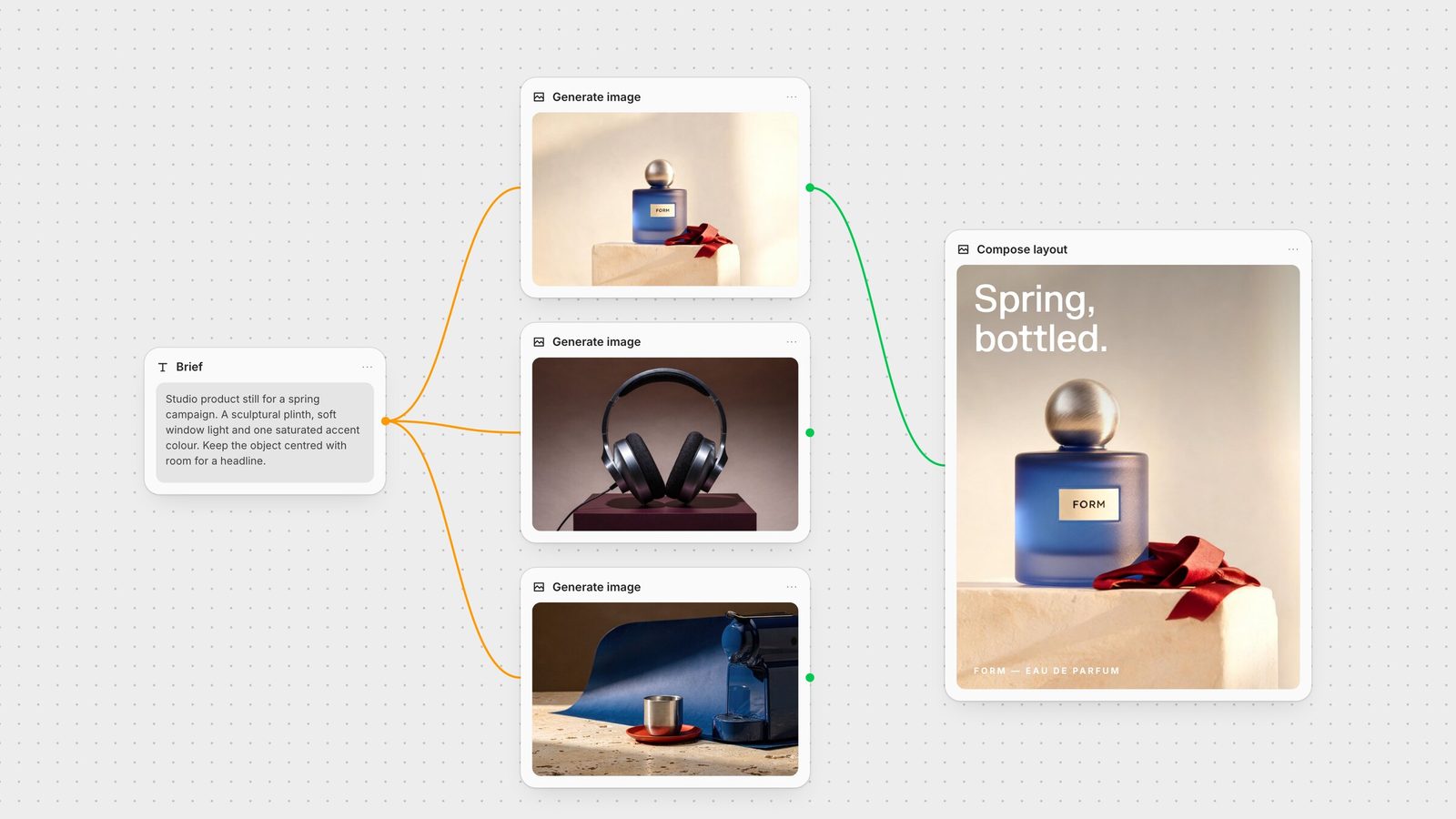
Start with GPT Image 2.5 Flare for everyday reference-led image work, Sunburst for detailed campaign edits, Gemini Image for combining visual references, and Recraft V4.1 Vector for editable SVG assets. Fuser puts those choices in the same workspace, so you can change the model without abandoning the creative process.
A product concept, a character turnaround and a scalable icon need different inputs and outputs. Choose around the deliverable, then keep the reference, prompt and final layout connected.
OpenAI’s GPT Image 2.5 pairs reference-led generation with focused editing. Flare is the everyday starting point; Sunburst is designed for detailed creative work where additional processing time is worthwhile. In Fuser’s GPT Image node, choose the version and quality tier for the step you are making.
For a campaign, use a reference image to establish the subject and art direction, then describe the change you want in the next pass. A useful edit prompt names the change and what should stay: move the bottle onto a stone plinth, keep the camera angle and preserve the existing lighting.
Use masks for localized changes. Keep final logos and required copy on editable layers when you need exact placement through multiple revisions. Fuser’s transparent-background control is available for text-only generation; use a separate cutout or background-removal step when working from an existing product photo.
Google’s image models support generation and editing from text and image references. Gemini 3.1 Flash Image is aimed at iterative, high-volume work; Gemini 3 Pro Image is aimed at professional asset production. Both sit within Fuser’s Gemini Image node.
Try Gemini when the brief combines a subject reference, a scene and a style direction. Give each image a clear role in the prompt. For a character sheet, describe the required views and background. For a product concept, identify which reference supplies the object and which supplies the setting. This makes the workflow easier to revise when the client changes one part of the brief.
Choose Recraft V4.1 text-to-vector for SVG icons, badges and spot illustrations. Native vector output gives you shapes to refine and scale. The Recraft node also offers raster generation, version selection and palette inputs, so the output format can follow the design task.
Start a vector prompt with the object, silhouette, line style and a small palette. A two-color icon and a richly textured product photograph belong in different branches of the workflow. Use raster for photographic surfaces; use vector when the deliverable needs editable geometry. Review small paths, gradients and lettering at the size the design will actually be used.
In Compositor, keep the generated scene, approved product, logo and headline on separate layers. Arrange the layout once, then revise type and placement as the brief develops.
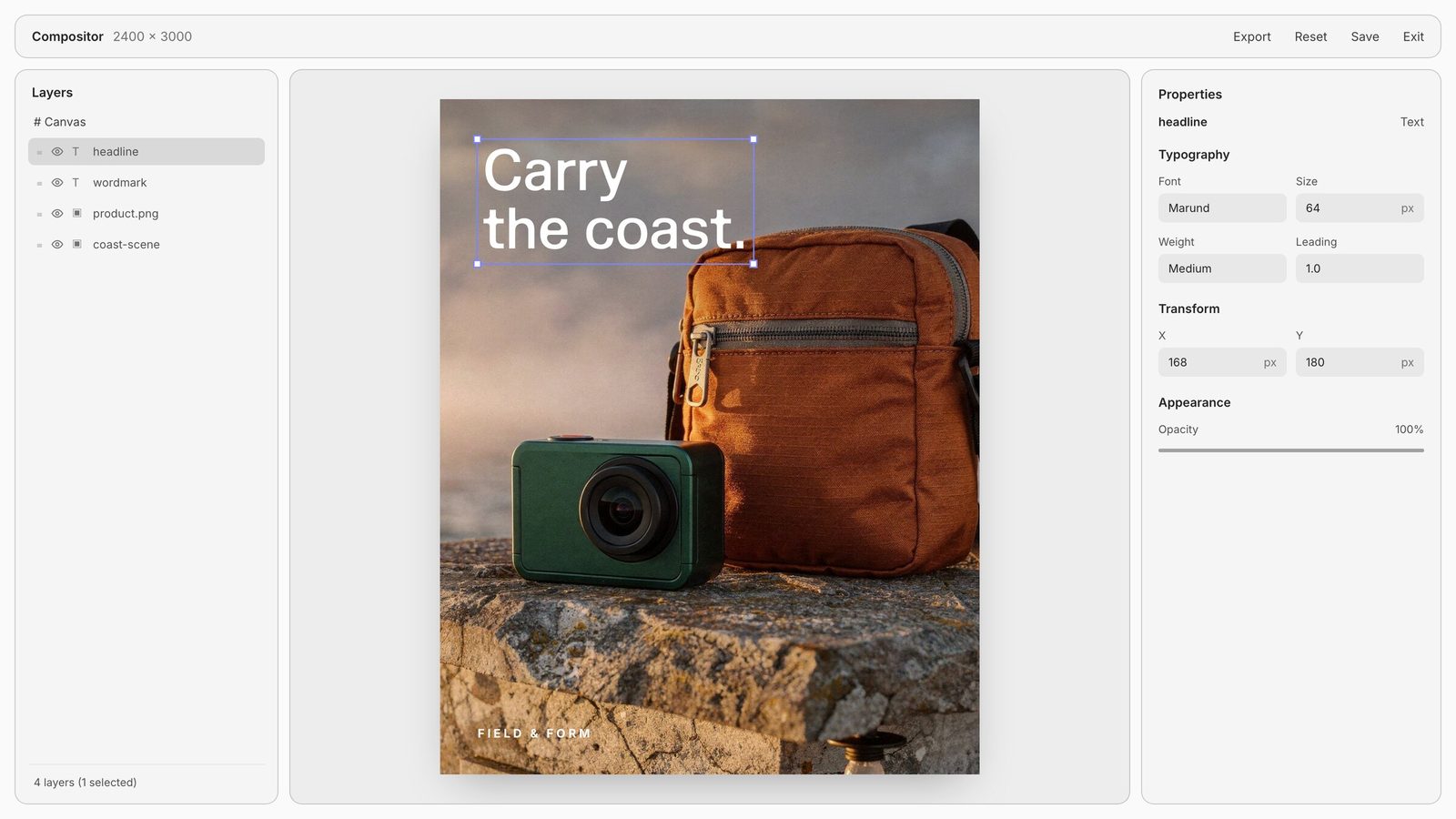
If your studio repeats a treatment, build it as an adjustable Creative Code tool. If it needs its own interface, build an App with canvas inputs and outputs. Save the connected process as a Recipe so the next designer starts with the decisions already in place.
Start with Professional Product Campaign for a product image, or use the product-photography guide to plan the full production workflow. When the still is approved, continue with the image-to-video guide.
Last verified September 26, 2026.
Match the creative task to the inputs, controls and output you need.
| Option | Reach for it when | Plan the workflow |
|---|---|---|
| Your shortlist | ||
| GPT Image 2.5 Flare | Reference-led concepts and focused edits. | Select the quality tier; keep references and edit instructions together. |
| GPT Image 2.5 Sunburst | Detailed campaign imagery and precise creative edits. | Allow additional generation time; finish exact copy and logos in Compositor. |
| Gemini 3.1 Flash / 3 Pro Image | Combining subject, scene and style references. | Assign each reference a role; select the model and resolution for the deliverable. |
| Recraft V4.1 Vector | Icons, badges and illustrations delivered as SVG. | Use vector for editable shapes and raster for photographic texture. |
Start with GPT Image 2.5 Flare for reference-led imagery and edits, Gemini Image for a brief assembled from several visual references, or Recraft V4.1 Vector when the deliverable is an SVG.
Yes. Connect separate model nodes to shared references and prompts, compare the directions and send your selected output into the next step.
Recraft V4.1 text-to-vector produces SVG. Select the vector output in the Recraft node when you need shapes that can be scaled and edited.
Use Compositor to place the headline and approved logo on separate layers. Keep those layers editable through layout and copy revisions.
The transparent-background option in Fuser’s GPT Image node applies to text-only generation. For an existing image, prepare a cutout or use a background-removal step before compositing.
Start from a Recipe, copy its canvas and adapt the models, inputs and controls. Package the repeatable process for the next project.
Bring your brief, connect the steps and keep the process for the next project.