One click, whole workflow
Recipes are here. Package a whole workflow and run it in one click
Explore recipesOne click, whole workflow
Recipes are here. Package a whole workflow and run it in one click
Explore recipesHow to write prompts for Kling O3: citing reference images, animating a start frame, writing timed shots in one prompt and adding dialogue, with four tested clips and the settings that matter in Fuser.
All guides · Kling O3 in Fuser
Quick answer: Kling O3 is the model Kling calls Kling VIDEO 3.0 Omni. Prompt it like a shot list: say what each reference image is ("the woman in @Image1", "the vase from @Image2"), then subject and action, setting, one camera move, light and sound. For cuts inside one clip, write labelled shots with durations, "Shot 1 (2s): wide shot…", the format Kling's own guide uses (Kling VIDEO 3.0 Omni guide). In our test a three-shot, six-second prompt cut at 1.96 and 4.0 seconds, almost exactly where we asked. For one continuous take, describe one shot. Turn on Generate Audio when someone speaks.
Kling's user guide for VIDEO 3.0 Omni is dated 6 February 2026 (Kling VIDEO 3.0 Omni guide). Fuser lists it as Kling O3 and added it on 30 September 2026. Against Kling's earlier Omni model, O1, it adds native audio and multi-shot generation and raises the maximum length from 10 to 15 seconds (Kling blog).
The idea behind it is in one line of Kling's guide: "the images, videos, elements, and text you upload are all treated as prompts" (Kling VIDEO 3.0 Omni guide). So the prompt does two jobs: it describes the shot, and it tells the model what each image is for. That is the main difference from Kling 3.0 Video, which takes a prompt with optional start and end frames; its prompting is covered in the Kling 3.0 prompt guide.
The Kling O3 node in Fuser picks the mode from what you connect:
Nothing but a prompt: text-to-video.
A start image: image-to-video, with an optional end image. An end image needs a start image.
One or more reference images: reference-to-video. You can add a start image as well.
The other settings are Model (Standard or Pro), Duration (3 to 15 seconds, default 5), Aspect Ratio (16:9, 9:16 or 1:1) and Generate Audio (off by default). The prompt takes up to 2,500 characters. In our runs Standard returned 720p video and Pro returned 1080p, matching the two quality modes in Kling's guide.
Write one direction to a crew, in this order:
References. What each image is and what to take from it: "the woman in @Image1", "the terracotta vase from @Image2".
Subject and action. One clear verb chain: "carries the vase across a courtyard and sets it down on a low wall".
Setting. Place and time of day: "a sunlit stone courtyard".
Camera. Shot size plus one movement: "medium tracking shot following her from the side".
Light. "Warm late-afternoon light."
Sound. If audio is on: the spoken line in quotes after "says:", then ambience.
For a multi-shot clip, repeat steps 2 to 5 inside each labelled shot. Kling's storyboard mode lets you set a duration, shot size, perspective, narrative content and camera movement for every shot (Kling blog), which is a good checklist for each label.
Attach reference images to the node and cite them in the prompt as @Image1, @Image2 and so on: the first reference image is @Image1. Kling's guide allows up to seven images or elements per generation when no video is attached, each at least 300 px wide and high, no larger than 10 MB, as JPG or PNG (Kling VIDEO 3.0 Omni guide).
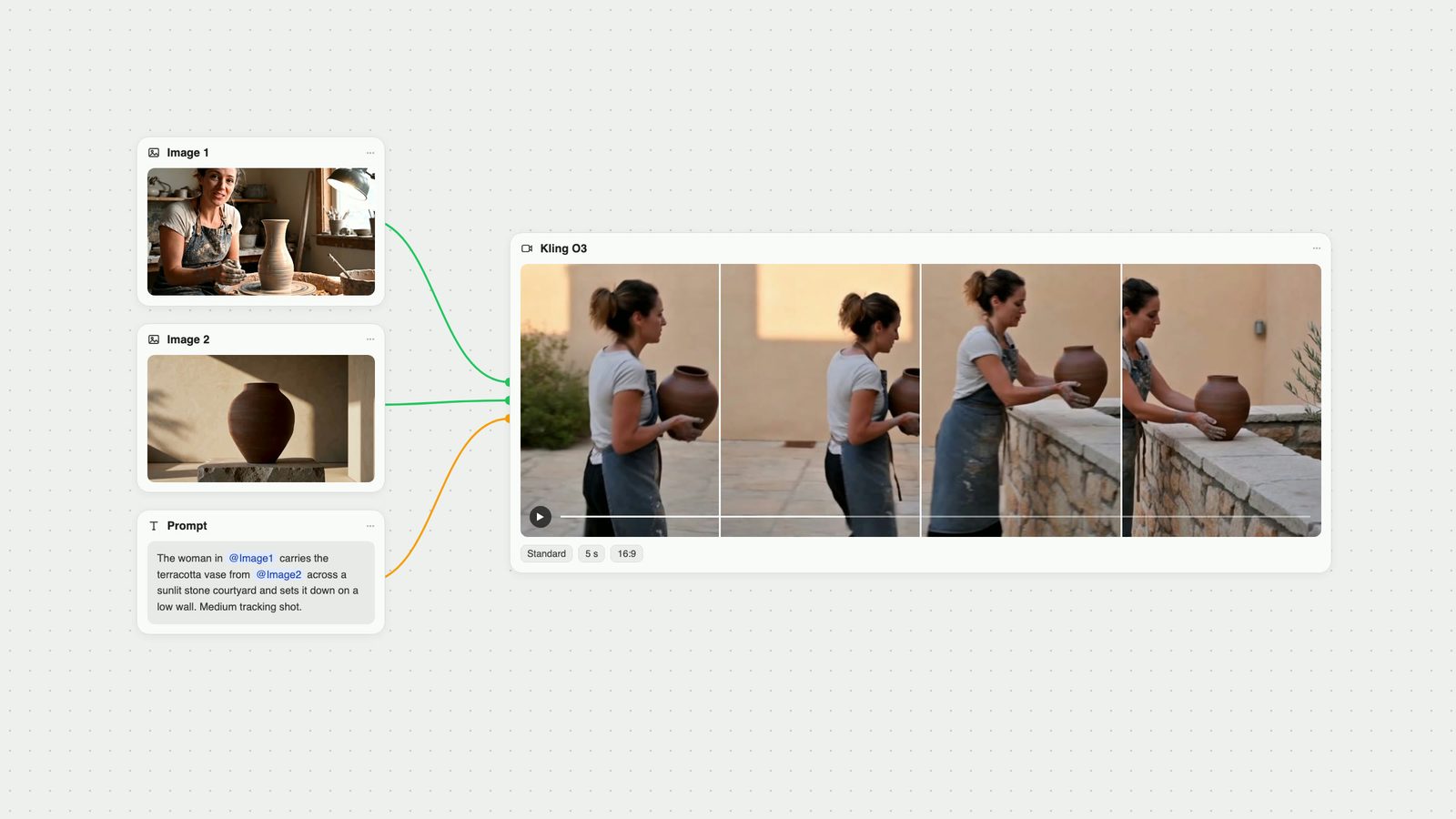
Our test used two references: a portrait of a potter in her studio as @Image1 and our usual terracotta vase still as @Image2. The prompt: "The woman in @Image1 carries the terracotta vase from @Image2 across a sunlit stone courtyard and sets it down on a low wall. Medium tracking shot following her from the side. Warm late-afternoon light."
In one Standard run, O3 kept her tied-back hair, light T-shirt and clay-spattered apron, kept the vase's shape and dark terracotta colour, and tracked her from the side as asked. The courtyard and the wall came from the text alone. The portrait also showed a studio, a lamp and a second, unfired vase; none of that leaked into the clip, because the prompt named only "the woman" from @Image1. Name the part of each image you want, not just the tag.
With a start image, the image is the first frame and the prompt only has to describe what changes. We gave O3 the same vase still: "Slow push-in toward the terracotta vase while the band of sunlight slides across the plaster wall behind it. One continuous shot. Keep the vase and the stone plinth unchanged."
The push-in came through clearly, in one take, and the vase and the rough stone plinth stayed as they were. The band of sunlight barely moved. In this run O3 followed the camera instruction more literally than the lighting change, so check secondary actions like that before you rely on them.
Add an end image when you need the clip to land on a specific frame; the first and last frame guide covers how to pair them.
Kling's storyboard feature generates up to six cuts in one clip (Kling blog), and its guide writes shots like this: "Shot 1 (2s): Wide shot, @Boxer A and @Boxer B face off in the center of the rooftop…" (Kling VIDEO 3.0 Omni guide). The Fuser node takes a single prompt, so we tested writing the labels inside it:
"Shot 1 (2s): Wide shot of a small pottery studio at dawn, a ceramicist opens the kiln door. Shot 2 (2s): Close-up of her hands lifting a glazed blue bowl out of the kiln. Shot 3 (2s): Medium shot, she turns to the camera and says: 'Perfect.' Audio: kiln hum, soft birdsong."
With duration set to 6 seconds, scene detection found cuts at 1.96 and 4.0 seconds, so each shot ran its two seconds. The blue bowl matched between the close-up and the medium shot, the knit sleeve in the close-up matched her sweater in shot three, and she said "Perfect." at about 5.2 seconds, inside shot three. Set the node's duration to the sum of your shot lengths. This was one Standard run, so treat the timing as what O3 did here, not a guarantee.
O3 generates speech and sound with the picture. Kling lists English, Chinese, Japanese, Korean and Spanish, with American, British and Indian English accents and Chinese dialects (Kling blog). In Fuser, audio is off by default; switch on Generate Audio before you run a dialogue prompt.
We reused the potter prompt from our Seedance, Kling and Veo test: "Handheld medium shot of a ceramicist at a pottery wheel shaping a tall vase from wet clay, her hands glistening as the clay spins. She glances up at the camera, smiles and says: 'Almost there.' Warm workshop light. Audio: steady wheel hum, wet clay sounds, quiet studio ambience."
O3 Pro, 6 seconds, held one continuous handheld shot. Her face started above the top of the frame and came into view as she leaned in and looked up; a transcript of the audio puts "Almost there" at 4.9 to 5.6 seconds. The ambience under it was quiet, far below the voice. On the same prompt on 28 September, Kling 3.0 Pro also stayed in one take: it framed her hands and the clay for most of the clip, then pulled back to her face for the line at about 5.3 seconds. That is one run per model; the Kling O3 vs Kling 3.0 comparison goes further.
Two habits from these runs: put the spoken line in quotes after "says:", and keep it short enough to fit the time left after the action. Kling's guide also describes binding a voice recording to a character element (Kling VIDEO 3.0 Omni guide); the Fuser node doesn't expose elements or voice binding, so the voice comes from the prompt.
Product from a reference: "The ceramic mug from @Image1 sits on a walnut desk beside a window at sunrise. Slow orbit to the left around the mug as steam rises. Close-up, shallow depth of field. Audio: quiet morning room tone."
Character in a new place: "The man in @Image1 walks through a night market in the rain, glancing at the food stalls. Tracking shot from behind, then he turns his head toward camera. Neon reflections on wet ground."
Character with a product: "The woman in @Image1 lifts the bottle from @Image2 off a bathroom shelf and turns it toward the camera. Medium close-up, static camera. Soft daylight from a small window."
Two-shot ad: "Shot 1 (3s): Wide shot of a cyclist in @Image1 riding along a coastal road at sunrise. Shot 2 (2s): Close-up of the helmet from @Image2 as he looks at the sea. Audio: wind, distant waves."
Start frame, camera only: add your key visual as the start image, then: "Slow push-in toward the product. One continuous shot. Keep the product and its label unchanged."
Dialogue: "Medium shot of a chef in a busy kitchen wiping her hands on a towel. She looks into the camera and says: 'Service starts in five.' Audio: pans sizzling, extractor hum."
Spanish line: "Close-up of an elderly man on a balcony at dusk. He smiles and says: 'Mañana será otro día.' Audio: swallows, distant traffic."
Vertical social clip: set Aspect Ratio to 9:16, then: "Handheld selfie-style shot of a florist in her shop holding a bouquet up to the camera. She says: 'These just came in.' Natural window light."
Use Standard (720p in our runs) to draft prompts and timings, and Pro (1080p) for the version you keep. Cost scales with seconds. Without audio, O3 Standard costs the same per second as Kling 3.0 Standard in Fuser; Pro costs about a third more than Standard; audio adds about a third on Standard and a quarter on Pro. With audio on, O3 costs less per second than Kling 3.0 at the same tier.
The wrong part of a reference shows up: name the role ("the woman in @Image1", "the label from @Image2") instead of citing the bare tag.
Unwanted cuts: describe one shot with one camera move and don't use shot labels. All three of our single-shot prompts came back as one take.
Cuts in the wrong place: give every shot a duration and make them add up to the node's Duration setting.
The speaker's face is out of frame at the start: that happened in our dialogue run. Ask for the framing you need in the camera line, or connect a start image with the face already in shot.
A secondary change doesn't happen: in our start-frame run the camera move landed but the moving light did not. Check those details and rerun or reword.
No negative prompt: unlike the Kling 3.0 node, the O3 node has no Negative Prompt field, so describe what you want to see rather than what to avoid.
O3 is only as consistent as its references. In Fuser, make the character or product image with an image model such as GPT Image, connect it to the Kling O3 node as a reference, and keep the prompt in its own Text node so you can rerun it at Standard and then Pro. Edit the result with text instructions in Kling O3 Edit (see the Kling O3 Edit guide), then send it to an upscaler such as Topaz or to Auto Caption on the same canvas. For a head-to-head with Google's model, see Kling O3 vs Veo 3.1, and for keeping characters stable across many clips, consistent characters with AI.
What to write for each part, with wording from our tests.
| Part | Write | Example |
|---|---|---|
| The formula | ||
| References | Each tag with the part you want from it. | The woman in @Image1, the vase from @Image2 |
| Subject and action | One verb chain. | carries the vase and sets it on a low wall |
| Setting | Place and time of day. | a sunlit stone courtyard |
| Camera | Shot size plus one movement. | medium tracking shot from the side |
| Shots | Label and time each shot; total equals Duration. | Shot 1 (2s): Wide shot… Shot 2 (2s): Close-up… |
| Sound | Line in quotes after "says:", then ambience. Audio on. | says: 'Perfect.' Audio: kiln hum |
Yes. Kling calls the model Kling VIDEO 3.0 Omni; its user guide is dated 6 February 2026. Fuser lists it as Kling O3.
Attach reference images to the node and cite them as @Image1, @Image2 and so on, naming what you want from each: "the woman in @Image1". Kling's guide allows up to seven images or elements per generation when no video is attached.
Yes. Kling says it can generate up to six cuts per clip. In our test, writing "Shot 1 (2s): … Shot 2 (2s): … Shot 3 (2s): …" in a single six-second prompt produced cuts at 1.96 and 4.0 seconds.
Yes, when audio is on. Kling lists English, Chinese, Japanese, Korean and Spanish. In Fuser, Generate Audio is off by default on the Kling O3 node.
From 3 to 15 seconds. In Fuser you set it with the Duration slider on the Kling O3 node; the default is 5 seconds.
In our runs Standard returned 720p and Pro returned 1080p. Pro costs about a third more per second than Standard in Fuser.
Make the character or product image, cite it in the prompt and finish the clip on one canvas.