One click, whole workflow
Recipes are here. Package a whole workflow and run it in one click
Explore recipesOne click, whole workflow
Recipes are here. Package a whole workflow and run it in one click
Explore recipesHow to use Kling 3.0 Motion Control: what the character image and driving video must look like, when to pick Video or Image orientation, what happens to the sound, and what four real runs on Standard and Pro showed about framing and props.
All guides · Kling 3.0 Motion in Fuser
Quick answer: Kling 3.0 Motion Control takes two inputs, a still image of your character and a video of someone performing the motion, and returns a clip of your character doing that motion in the image's setting. Use one person, whole body or upper body visible in both inputs, framed the same way, and a driving clip of 3 to 30 seconds with no cuts. Leave Character Orientation on Video for full-body or complex movement (driving clip up to 30 s); switch to Image when the character should keep the pose and facing of your still (driving clip up to 10 s) (Kling motion control guide, Kling motion control API reference). If the character has to touch a prop, put the prop where the performer's hands are. The prompt is optional. For writing text-to-video and image-to-video prompts, see the Kling 3.0 prompt guide; this page covers only motion transfer.
A normal image-to-video model invents motion from a prompt. Motion control copies it: body pose, gestures, head turns and expressions come from the driving video, while the face, clothes, background and light come from your image. That makes it the tool for a specific dance, a product demo gesture, or an actor's timing that you already have on video.
It copies motion literally. It does not work out what the motion was for. In our first test below, the driving clip is a potter shaping a vase on a wheel and the character image is a baker with a ball of dough. The baker's hands repeat the potter's shaping gestures in the air above the dough and never touch it, even though the prompt asked for kneading. A matching action is not enough on its own either: the objects have to sit where the performer's hands are (see the layout test below).
Character image. One clearly visible person with body proportions that read clearly and nothing covering them, filling more than 5% of the frame. The image also sets the background and props, so leave space around the character to move (Kling motion control guide). On the API, the image's aspect ratio must be between 0.4 and 2.5 (Kling motion control API reference).
Driving video. A realistic person with the whole body or upper body and head in view, 3 to 30 seconds, up to 100 MB (Kling motion control API reference). Kling's guidance for the clip:
One person. With two or more people, only the largest figure's motion is used.
One continuous shot. Avoid cuts and shot changes in the driving clip.
Moderate speed. Very fast motion gives poor results.
Matching framing. Full body with full body, half body with half body.
All four points are from the Kling motion control guide. The output length follows the driving clip, so trim it to the moment you want before you run.
Character Orientation is the one setting that changes the result most.
Video (the default): the character's facing, pose and expressions follow the driving clip. It is better for complex and full-body motion, and accepts driving clips up to 30 seconds.
Image: the character's movements still follow the driving clip, but the character keeps the facing of your still. Kling describes it as the mode that supports camera movement, and it caps the driving clip at 10 seconds.
Those descriptions are Kling's (Kling motion control guide, Kling motion control API reference). Here is what they looked like on the same inputs:
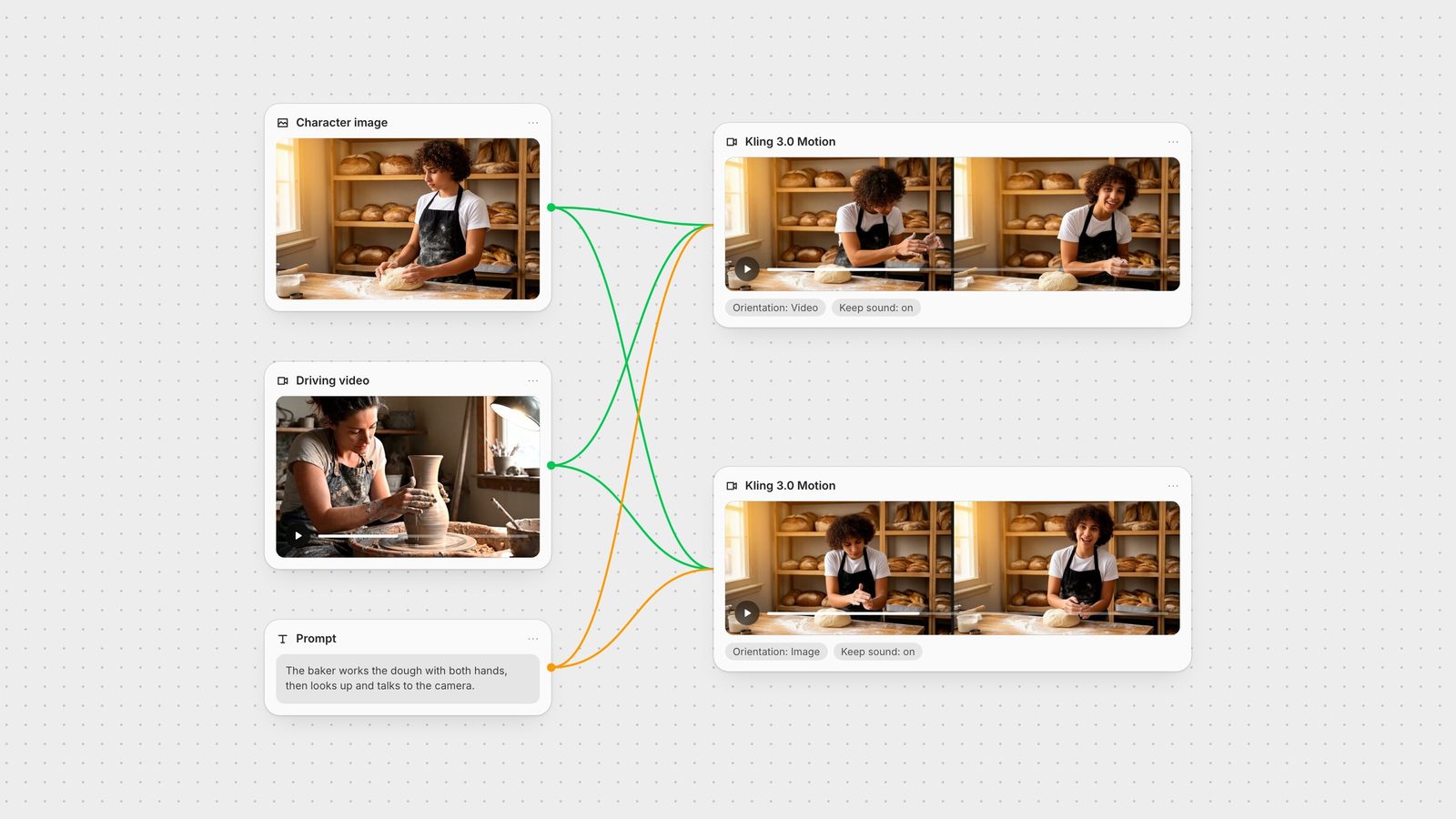
Video orientation turned the baker three-quarters to her right, the way the potter faces her wheel, and her hands worked the air to the right of the dough, roughly where the potter's vase stands. At the end the baker looks up and speaks to camera, as the potter does.
Image orientation kept the baker square to camera behind the dough, close to the facing of the still, and ran the same gestures from that facing, hands in front of her chest. It returned 3.7 seconds from a 4-second driving clip; Video returned the full 4.0.
If the still already shows the angle you want, try Image first. If the motion only makes sense from the performer's angle, as with a turn, a walk or a dance, use Video.
Because the first test mixed two actions, we ran a second one on the Pro tier with a matching action: the same potter clip, this time with an older potter at a wheel as the character. We ran it twice with two different character images and changed nothing else.
Image A is a fresh FLUX.2 render: a potter at a wheel in a different studio, sitting further left, with the vase further to the right than in the clip. In the output his hands make the shaping movements in the air to the left of the vase and never reach it, the same failure as the baker's.
Image B is the driving clip's first frame, edited with FLUX.2 to replace the woman with the same kind of older potter, so the wheel and vase sit where hers do. In the output his hands close around the vase and follow its shape, then he looks up and smiles to camera as she does.
The model places the hands where the performer's hands were in the frame. It does not move them to meet an object. When the character has to touch something, the easiest way to get it right is to build the character image from the driving clip's first frame, as we did for image B, or at least to compose it with the same camera angle and object positions. Neither Pro output needed a prompt.
Keep Original Sound carries the driving clip's audio onto the output. It is on by default. In our run both outputs kept the potter's workshop sound and her spoken line at the same level as the source clip, so the baker appears to say her words. Turn it off if you plan to add a voice or sound later, for example with a lip-sync model or a sound effects model.
Both tiers take the same inputs and settings. Fuser defaults to Standard. Pro costs a third more per second of output than Standard (Kling motion control guide). In our runs the Standard outputs came back at 1280 × 720 and the Pro outputs at 1920 × 1088, from 720p driving clips in both cases. Get the driving clip, the layout and the orientation right on Standard, then rerun the keeper on Pro.
The prompt is optional (up to 2,500 characters). It does not override the driving clip: in our run, "works the dough with both hands" did not change the transferred hand movement. Keep motion in the driving clip and use the prompt, if at all, for details the image and video don't already fix.
Kling's API also accepts a facial reference ("element") to hold identity in Video orientation only. The Kling 3.0 Motion node in Fuser does not expose it, so for identity, start from a strong, well-lit character image. See consistent characters across images and video for how to make one.
The canvas at the top is the first test. The character image is a FLUX.2 render; the driving clip is a Veo 3.1 clip from our Seedance vs Kling vs Veo test, trimmed to four seconds. Both connect to two Kling 3.0 Motion nodes set to different orientations, so the two results sit side by side.
Add or generate the character image and connect it to the node's Image input.
Upload a performance video, or generate one, and connect it to Reference Video.
Pick the orientation, leave the model on Standard and run.
Duplicate the node to try the other orientation on the same inputs.
Send the result on to an upscaler or a lip-sync step.
For performance transfer focused on faces and dialogue, compare Runway Act-Two. For talking-head presenters, see the best AI avatar video generators. When you only need a generated shot rather than a copied performance, Kling 3.0 Video is the right node.
Settings on the Fuser node and limits from Kling.
| Setting | Options | Use it when |
|---|---|---|
| Controls | ||
| Character Orientation | Video (default) or Image | Video for full-body or complex motion; Image to keep the still's facing |
| Model | Standard (default) or Pro | Standard to iterate; Pro for the final take (1080p in our runs) |
| Keep Original Sound | On (default) or off | Off when you will add voice or sound later |
| Prompt | Optional, up to 2,500 characters | Details only; it did not override motion in our test |
| Input limits | ||
| Driving video length | 3 to 30 s (Video), up to 10 s (Image) | Trim to the moment you need; output follows its length |
| Driving video | One person, no cuts, up to 100 MB | Body and head visible, moderate speed |
| Character image | Aspect ratio 0.4 to 2.5 | Character over 5% of frame, framed like the performer |
A Kling 3.0 mode that animates a character image using the movement from a reference video. Pose, gestures and expressions come from the video; appearance, background and lighting come from the image.
Video makes the character's facing and pose follow the driving clip and accepts clips up to 30 seconds. Image keeps the facing of your still while copying the movements, and accepts driving clips up to 10 seconds.
The output follows the driving video, which can be 3 to 30 seconds in Video orientation and up to 10 seconds in Image orientation.
It can. Keep Original Sound is on by default and carries the driving clip's audio onto the output. Turn it off if you will add sound separately.
No. The prompt is optional. Motion comes from the driving video, and in our test a prompt asking for different hand movement did not change it.
Motion control places the hands where the performer's hands were in the frame. If the props in your image are elsewhere, or the action differs, the hands move in the air. In our test, building the character image from the driving clip's first frame fixed it.
Pro costs about a third more per second than Standard. In our runs Pro returned 1920 x 1088 video and Standard 1280 x 720 from the same 720p driving clips. Iterate on Standard and rerun the final take on Pro.
Connect an image and a driving video to Kling 3.0 Motion and compare both orientations on one canvas.