One click, whole workflow
Recipes are here. Package a whole workflow and run it in one click
Explore recipesOne click, whole workflow
Recipes are here. Package a whole workflow and run it in one click
Explore recipesWhat Qwen Image 3 is, how its generate and edit modes work in Fuser, every node setting, and what 16 of our own runs showed about Latin and CJK text, Expand Prompt, resolution and edits.
All guides · Qwen Image 3 in Fuser · Qwen Image 2 in Fuser
Quick answer: Qwen Image 3 is Alibaba's third-generation Qwen-Image model, announced on 22 July 2026 and offered through Alibaba's API. In Fuser, one node does both jobs: with no image connected it generates from your prompt, and with one to three images connected it edits them. Alibaba's launch post leads with dense text and layouts, and that is what we tested. In our runs it spelled every requested character on an English poster, an English menu and a Chinese menu, and it changed one line on a product label without disturbing the rest. It was weaker on small mixed-script lines, where a Japanese and Korean footer came back with up to three wrong characters. Its Expand Prompt setting, on by default, added text we never asked for in five of our seven text-to-image runs with it on. When you have written every word yourself, quote each line, turn Expand Prompt off and use 2K for small print.
Alibaba launched Qwen-Image-3.0 on 22 July 2026 as the third-generation foundation model in the Qwen-Image series (Alibaba Cloud blog). The launch post makes four claims about text that matter for this guide:
Native rendering of 12 languages. The post does not list them, so we tested Latin script, Chinese, Japanese and Korean ourselves.
Precise rendering of text as small as 10 px.
Prompts of up to 4.5k tokens, aimed at dense layouts such as newspapers, storyboards and exam papers.
LaTeX elements such as superscripts, subscripts, fraction bars and multi-line alignment.
Alibaba's API offers two models, qwen-image-3.0 and qwen-image-3.0-pro. Both do text-to-image and image editing, and Alibaba describes the standard model as the one that balances quality and speed (Alibaba Cloud API reference). Fuser runs the standard model. Prompts can be in Chinese or English (API reference).
Is it open source? Neither the launch post nor the API reference mentions downloadable weights or a licence, and Alibaba offers the model through its Model Studio API. Treat Qwen Image 3 as an API model.
The Qwen Image 3 node picks its mode from what is connected:
No image connected: text-to-image.
One to three images connected: edit mode. The node's Images input takes up to three, which matches Alibaba's limit of one to three input images (API reference).
Alibaba recommends edit inputs between 384 and 2048 pixels per side for best results, up to 10 MB each, and uses the order of the images to tell them apart (API reference). Fuser scales uploaded images down to fit within 2048 px before sending them, so large photos are fine; a crop under 384 px on a side is outside that range, so upscale it first. The edit endpoint Fuser calls also lists PNG without an alpha channel, so flatten a transparent cut-out onto a background before connecting it. When you connect more than one image, refer to them in the prompt as "image 1", "image 2" and "image 3", in the order of the node's Images input; that wording worked in our two-image test below.
Prompt: up to 5,000 characters. Alibaba recommends a maximum of 4,500 tokens (API reference).
Resolution: 1K (default) or 2K. It sets the longest edge to 1024 or 2048 px.
Image Size: Square HD (default), Square, Portrait 4:3, Portrait 9:16, Landscape 4:3 and Landscape 16:9. At 1K these give 1024 × 1024 for both squares, 768 × 1024, 576 × 1024, 1024 × 768 and 1024 × 576. 2K doubles each side. The portrait presets are taller than they are wide, so "Portrait 4:3" is 768 × 1024.
Expand Prompt: on by default. It rewrites your prompt before generation. Alibaba recommends leaving its rewriting on and says it helps most with simple descriptions (API reference). Our tests below show when to turn it off.
Negative Prompt: up to 500 characters.
Block NSFW: on by default; it checks both inputs and outputs.
Output Format: PNG (default), JPEG or WebP.
Seed: random by default. Fix it to reproduce a result or to compare one setting at a time.
Each run returns one image. At 1K, Qwen Image 3 costs slightly more than Qwen Image 2 on its standard tier. 2K costs nearly twice as much as 1K, the same as Qwen Image 2 Pro. Both cost less than Nano Banana 2 at the same resolution. An edit costs the same as a generation of the same size.
We ran 16 generations and edits with the same model version Fuser uses. Each test ran once, with no retries and no cherry-picking. Settings matched the node defaults (1K, Expand Prompt on, PNG) unless a section says otherwise; the posters, menus and front pages used the Portrait 4:3 Image Size. We fixed the seed at 4242 so that the on/off and 1K/2K pairs differ in one setting only. We read every output at full resolution and counted characters that matched the request exactly, with spaces excluded.
To make the results comparable, we reused the two typography prompts from our best AI models for text in images test. The first is a jazz-night poster with a headline, a subtitle and three lines of small print, including the name "Theo Lindqvist". The second is this café menu:
A printed café menu card in flat graphic design: cream paper, dark brown ink, a small coffee cup icon. Title at the top: "CORNER STORE COFFEE". Below it, a price list with exactly these eight items and prices, one per line: "Espresso 3.20", "Cortado 3.80", "Flat White 4.10", "Oat Latte 4.60", "Cardamom Bun 3.90", "Rye Sourdough Toast 5.40", "Pistachio Croissant 4.75", "Iced Hojicha 4.95". At the bottom, in small text: "Open daily 7:30 to 16:00, 14 Wexford Lane".
Qwen Image 3 scored 111/111 on the poster and 172/172 on the menu. The small print was right, including the guest's surname and the closing time. The one miss was an addition: the poster gained a small "HARBOR JAZZ CLUB" badge at the bottom that was not in the prompt. In the same roundup, Qwen Image 2 on its standard tier scored 110/111 and 171/172 and printed the closing time as "16:90". That is one run per model, so read it as a data point, not a ranking; Qwen Image 3 vs Qwen Image 2 goes further.
Chinese first. We asked for a tea-house menu board:
A vertical menu board for a Chinese tea house, painted on dark wood with gold lettering, a small teapot illustration. Title at the top: "山间茶舍". Below it, exactly these six items, one per line, each with its price: "龙井绿茶 28", "铁观音 32", "普洱熟茶 30", "桂花乌龙 26", "茉莉花茶 22", "菊花枸杞茶 24". At the bottom, in small text: "营业时间 每日十点至二十一点".
All 53 of 53 characters and digits were correct, including the small footer. Nothing was added.
Then a harder test: three scripts on one poster.
A vertical poster for a spring harbour festival: a flat illustration of a small white ferry and cherry blossoms on a pale blue background. Headline in Japanese: "春の港まつり". Under it, in Korean: "봄 항구 축제". Under that, in English: "Spring Harbor Festival". At the bottom, two lines of small text: "4月12日(土)午前10時から" and "4월 12일 토요일 오전 10시부터".
With Expand Prompt on, the poster scored 58 of 61. The Japanese, Korean and English headlines were perfect. Every error was in the two small footer lines. In the Japanese line, 時 (hour) was replaced by two Hangul-like glyphs, so Korean leaked into the Japanese text. In the Korean line, 토요일 (Saturday) became 오요일 and 오전 (morning) became 오천. With the same seed and Expand Prompt off, the score rose to 60 of 61: the Japanese line was correct and only 토요일 → 오오일 remained.
What this means in practice: large text in all four scripts was reliable in our runs, and Chinese small print was too. Small lines that mix scripts are where Qwen Image 3 slipped. Have a native reader check them, or set that line as real text after generating.
Expand Prompt rewrites your prompt before the image is generated. That helps a short prompt such as "a poster for a jazz night". It works against you when you have already written every word that should appear. Our paired runs used the same prompt and seed and changed only this toggle.
Poster: with Expand on, the "HARBOR JAZZ CLUB" badge appeared. With it off, the poster carried only the requested text, still 111/111, in a plainer layout.
Trilingual poster: with Expand on, the model added an anchor badge labelled "HARBOR" and made three character errors. With it off, it added nothing and made one error.
Newspaper front page at 2K: we specified a masthead, a date line, a headline, one paragraph and an "INSIDE" box. With Expand on, the page filled up with extra stories, an ad and a cover price that we never wrote. Much of the small text in those invented columns is unreadable pseudo-text, and an invented subhead misspelled a word ("hiarse"). With Expand off, the page contained only what we asked for, but the masthead came out as "THARBOR LEDGER".
Menu: both versions scored 172/172. With Expand on, the layout was more decorated, with dot leaders and a border.
Across our text-to-image runs, five of the seven with Expand on added text we did not ask for. None of the four with it off did. Our rule: leave Expand Prompt on for loose, short ideas, and turn it off when the prompt is the copy. Turning it off is not a cure for everything, as the masthead shows, so proofread either way.
The front-page test also ran at both resolutions with the same seed. At 1K (768 × 1024), the requested paragraph was all there, but in a rough, blurred serif, and "June" was hard to tell apart from "Jone". At 2K (1536 × 2048), the same paragraph was crisp and correct word for word.
Alibaba's claim of legible text down to 10 px is about the model's capability. On a full newspaper page at 1K, body text has very few pixels to work with. If the image has a paragraph, a caption or fine print that someone will read, generate at 2K and accept the higher cost. For headline-only work such as thumbnails and posters, 1K held up in every test above.
Alibaba highlights LaTeX elements such as fractions and superscripts (Alibaba Cloud blog). We gave the model LaTeX source directly:
A page from a printed maths textbook, flat scan, white paper, black type. Heading at the top: "Three formulas to know". Below it, typeset these three equations, each centred on its own line: $x = \frac{-b \pm \sqrt{b^2 - 4ac}}{2a}$, then $e^{i\pi} + 1 = 0$, then $\int_{-\infty}^{\infty} e^{-x^2}\,dx = \sqrt{\pi}$.
All three equations were typeset correctly: the fraction bar, ±, the square roots, the superscripts and both integral limits. With Expand Prompt on, the model also wrapped them in an intro paragraph, a closing paragraph with one garbled line, a running head, a page number and a publisher footer it made up. For a formula you will publish, ask only for the formulas and check every symbol.
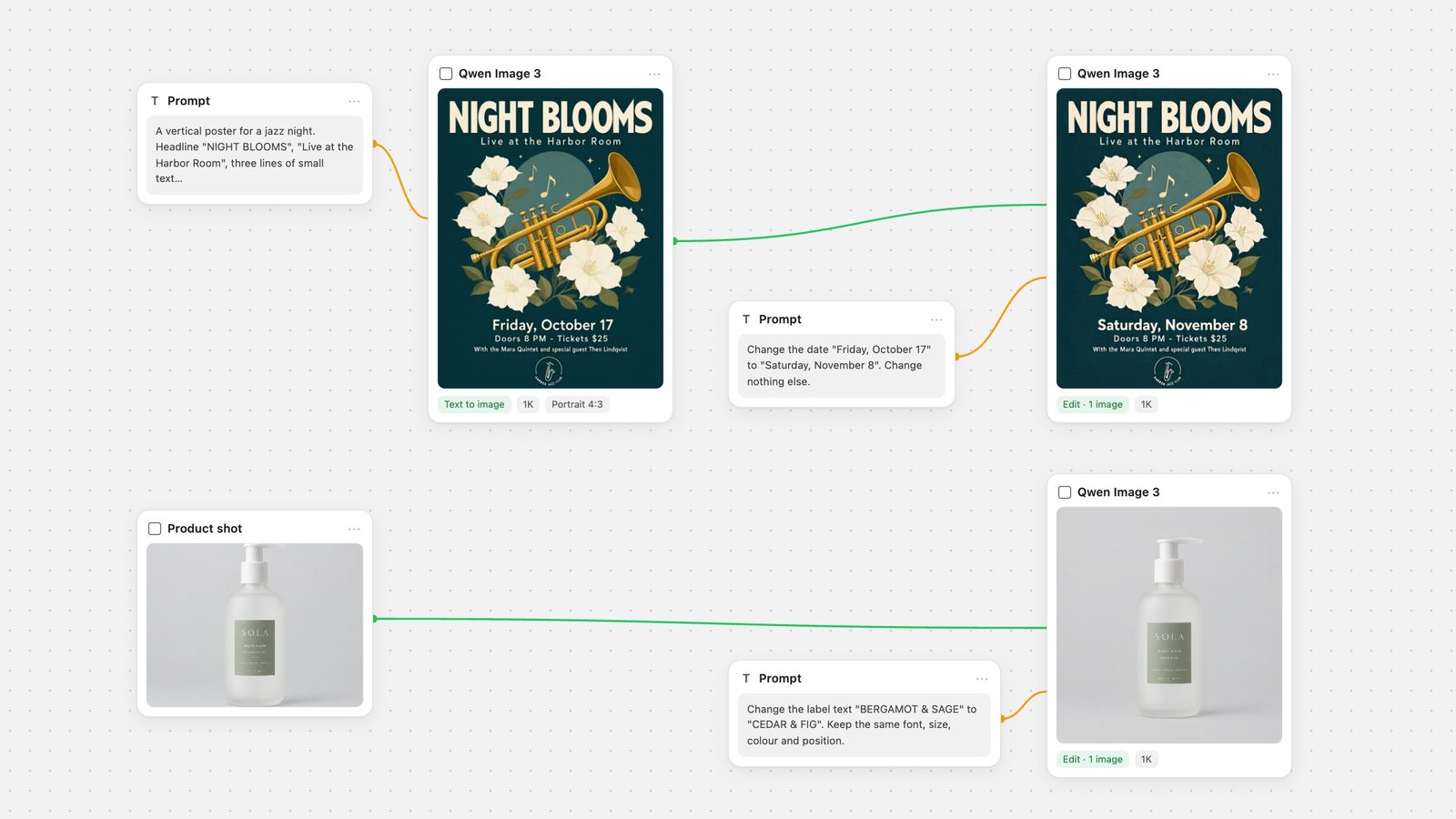
Change one line of text. We connected the same hand-wash product shot used in our Qwen image edit guide and gave the same instruction:
Change the label text "BERGAMOT & SAGE" to "CEDAR & FIG". Keep the same font, size, colour and position. Change nothing else.
Only the scent line changed. The typeface and letter spacing matched, and the smaller "GENTLE · NATURAL · EFFECTIVE" and volume lines stayed sharp. In that earlier guide, Qwen Image 2's version of this edit came back slightly softer in the small print.
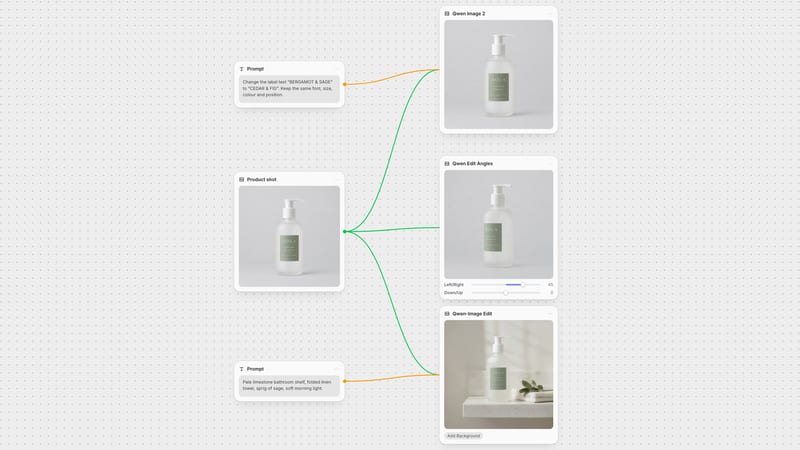
Edit your own output. We connected the generated jazz poster to a second Qwen Image 3 node and asked: Change the date "Friday, October 17" to "Saturday, November 8". Keep the same font, size, colour and position. Change nothing else. The date changed and everything else matched the original, badge included. This is the workflow in the image at the top of this page: generate, then fix copy with a targeted edit instead of re-rolling the whole design.
Combine two images. Image 1 was a bakery counter and image 2 the hand-wash bottle:
Place the hand-wash bottle from image 2 on the wooden counter in image 1, to the left of the bread board. Keep the bottle's label text exactly as it is in image 2. Keep the counter, the bread, the croissants, the cup, the lighting and the camera angle of image 1 unchanged.
The bottle landed where we asked, and the counter, bread, cup and window light stayed as they were. At the bottle's new size, the SOLA wordmark was readable but the small label lines blurred. In our run, fine print at that scale did not survive, so if the label must stay legible, keep the product large in the frame or fix the label afterwards with a one-image text edit.
Match Image Size to your photo. Fuser sends the node's Image Size with every edit, so the output follows that setting, not the shape of your input. We edited the same wide bakery photo twice with the instruction to swap the coffee cup for a glass of orange juice. With Image Size left on Square HD, the swap worked, but the scene was recomposed into a square. With Landscape 16:9, the original framing was kept. Before an edit, set Image Size to the shape of the photo you connected.
Quote every string exactly, one quoted string per line of copy. On the poster, menu and Chinese tests, every quoted string came back right.
Say where each line goes and how big it is, outside the quotes: "At the bottom, in small text: …".
Turn Expand Prompt off when the prompt is the copy. Leave it on for short, loose ideas.
Use 2K when there is body text or fine print, and 1K for headline work.
Name references as "image 1", "image 2", "image 3" in connection order when editing with several images.
Set Image Size to match the input before you edit.
Proofread the smallest line first, especially digits and lines that mix scripts.
For prices, dates or legal lines that must be exact and will change, generate the artwork and set those lines as real text in Fuser's Compositor. Our text-in-images roundup explains that workflow, and the AI poster typography workflow walks through it end to end.
Use Qwen Image 3 for text-heavy layouts such as menus, posters, signage and dense pages, especially with Chinese copy, and for precise copy edits on an existing image. It is a good first pass when a layout carries a lot of words. On a Fuser canvas you can wire the same prompt into other text-capable models and compare them side by side: see Qwen Image 3 vs Nano Banana and the Ideogram 4.5 prompt guide. For other editing models, see the best AI image editing models.
Model facts from Alibaba, node settings from Fuser, results from our own runs.
| Question | Answer | What to do |
|---|---|---|
| The model | ||
| Version in Fuser | Qwen-Image-3.0 standard (not Pro) | One node for generating and editing. |
| Released | 22 July 2026 (Alibaba Cloud) | Hosted API model; no weights mentioned. |
| Edit inputs | 1 to 3 images; 384 to 2048 px per side recommended; up to 10 MB each | Flatten transparent PNGs first. |
| Settings | ||
| Resolution | 1K (default) or 2K longest edge | 2K for paragraphs and fine print. |
| Expand Prompt | On by default | Turn off when you have written all the copy. |
| Image Size | Square HD default; six presets | Match it to your photo before editing. |
| Our results | ||
| English poster and menu | 111/111 and 172/172 | Watch for added badges or logos. |
| Chinese menu | 53/53 | Reliable in our run, footer included. |
| Japanese + Korean footer | 58/61 (Expand on), 60/61 (off) | Have mixed-script small print proofread. |
Alibaba's launch post and API reference don't mention downloadable weights or a licence, and Alibaba offers the model through its Model Studio API. Treat it as an API model. In Fuser you use it as a node on the canvas, with no setup.
Yes. In Fuser, connect one to three images to the Qwen Image 3 node and it switches to edit mode automatically. In our tests it rewrote one line on a product label without changing the rest, changed a date on a poster, and placed a product from one photo into another.
In our runs, Chinese was 53 of 53 characters correct, including small print, and Japanese, Korean and English headlines were perfect. Small lines mixing Japanese and Korean had one to three wrong characters, so have those proofread.
Leave it on for short, loose prompts. Turn it off when your prompt contains the exact copy. In our text-to-image tests, five of seven runs with it on added text we never asked for, such as logos, extra newspaper stories and an invented publisher line. None of the four runs with it off did.
Use 1K for headlines, posters and thumbnails. Use 2K when there is body text or fine print. On a newspaper test, the same paragraph was blurred at 1K and crisp at 2K. 2K costs nearly twice as much as 1K.
No. Fuser's Qwen Image 3 node runs the standard Qwen-Image-3.0 model for both generating and editing.
Run Qwen Image 3, chain an edit node for text changes, and compare it with other text models side by side.