One click, whole workflow
Recipes are here. Package a whole workflow and run it in one click
Explore recipesOne click, whole workflow
Recipes are here. Package a whole workflow and run it in one click
Explore recipesHow Runway Act-Two works as shipped: the driving performance and character inputs it needs, what transfers with an image versus a video, how to shoot the take, the four settings, and the hard limits.
All guides · Runway Act-Two in Fuser
Quick answer: Runway Act-Two animates a character from a video of you acting. You give it two things: a driving performance (a 3 to 30 second clip of one person) and a character, as an image or a video. It transfers facial expression to the character, and with a character image it can also transfer hand and body gestures and adds its own camera and background motion. Shoot the performance waist up, well lit, face visible the whole time, with no cuts, and start with your hands in frame. Runway lists these rules in its Act-Two help article; the input limits are in the API reference.
Act-Two is performance capture without markers or a rig. It reads the face and body of the person in the driving clip and applies that motion to your character, whether the character is a photo, an illustration, a puppet or a 3D render. Runway says it works with "a range of angles, non-human characters, and styles" (Runway).
It is not a text-to-video model. There is no prompt. Everything about timing, delivery and gesture comes from the take you record, so the quality of the output depends mostly on the quality of that take.
The character input decides how much of the shot Act-Two controls.
Character image. Act-Two drives the face from your performance and, with body control on, your gestures and body movement too. It also adds environmental and camera motion on its own; Runway's example shows a subtle handheld shake. Use an image when you want the performance to carry the whole shot.
Character video. The output keeps the subject, background and camera motion from that video. Act-Two replaces the facial movement and expressions, and gesture control is not available. If the character video is shorter than your performance, Runway loops it back and forth ("boomerang") to fill the length, so match the durations when you can.
Pick a video when the camera move or the scene's motion is already right and you only need the face to act. Pick an image for everything else.
Runway's best practices for the performance clip (Runway):
One person in frame. Act-Two drives a single character per generation.
Waist up at most. Runway asks for the subject framed, at furthest, from the waist up.
Face visible throughout. Don't turn away or cover your face.
Good light and clear expressions. Some expressions are not supported, sticking out your tongue among them.
No cuts. One continuous take.
Hands in frame at the start if you want gestures, ideally with palms facing the camera, and start in a pose close to your character's.
Natural movement. Runway recommends natural movement over excessive or abrupt movement.
Keep the clip between 3 and 30 seconds; the API rejects anything outside that range (Runway API). Runway also asks for clean audio with steady volume and little background noise.
The character needs a recognisable face that stays inside the frame: visible eyes and a mouth, one subject, framed waist up at most (Runway API, Runway). Anything you want to see while it talks has to be visible in the input. Runway's example: if the character should have fangs, use an image where the teeth show.
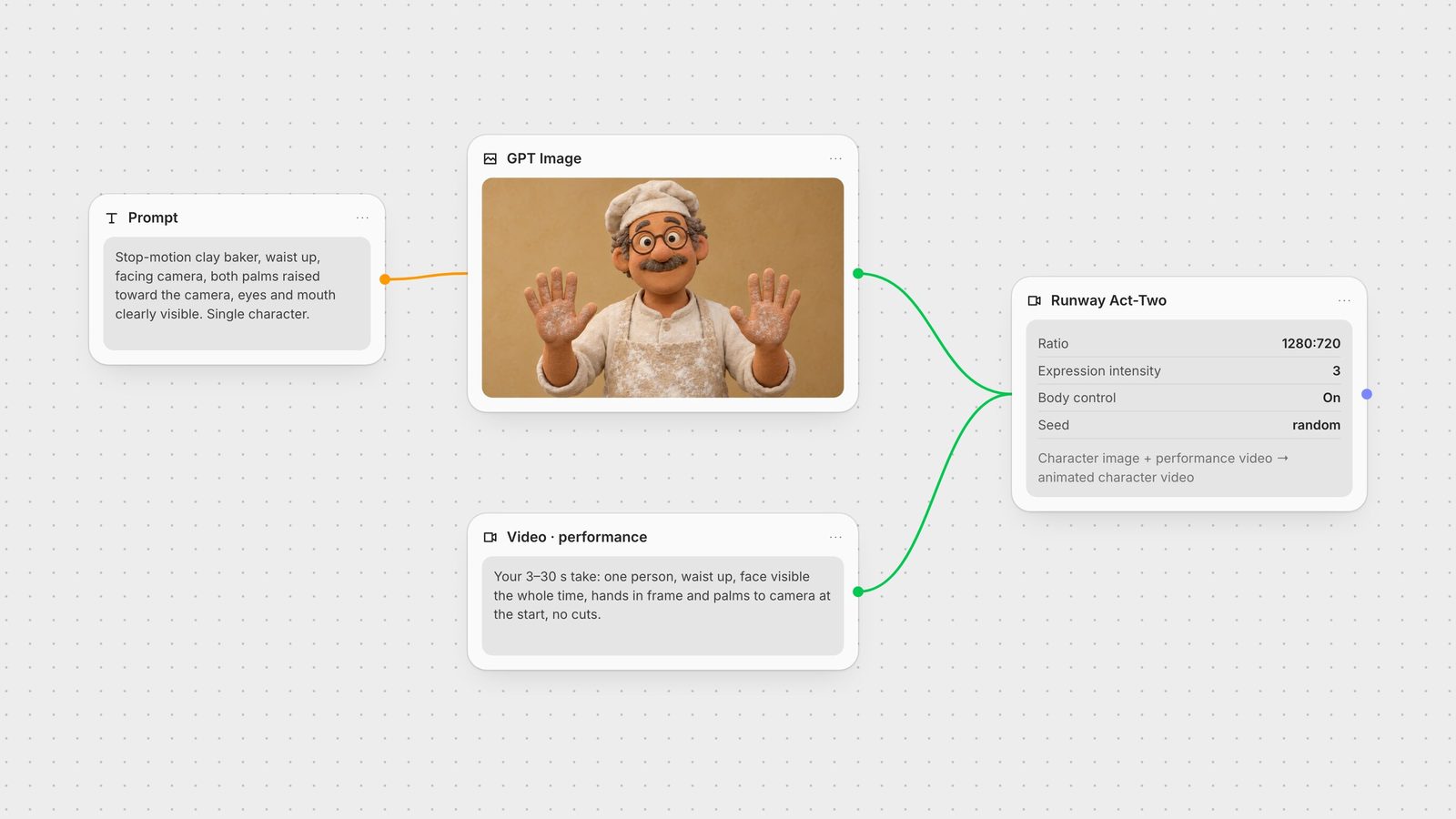
If you're generating the character rather than drawing it, write those rules straight into the image prompt. Both characters above came from one prompt each in GPT Image: "framed from the waist up, facing the camera directly, both hands raised at chest height with palms facing the camera … eyes clearly visible … single character only". The raised palms mirror the start pose Runway recommends for the performance, so body control has a matching pose to start from. For a character you'll reuse across many shots, see consistent characters.
Runway's API accepts JPEG, PNG and WebP images and MP4, MOV, MKV or WebM video, with input aspect ratios between 0.5 and 2.358 and video files up to 32 MB by URL (Runway input requirements).
The Runway Act-Two node has three inputs, Character Image, Character Video and Reference Video (the performance), and four controls:
Ratio: 1280:720 (default), 720:1280, 960:960, 1104:832, 832:1104 or 1584:672. These are the output sizes in pixels; Runway renders at 24 fps (Runway).
Expression Intensity: 1 to 5, default 3. Lower values move the face less but can keep the character more consistent; higher values are more expressive and can introduce artifacts. Runway's advice is to start at 3.
Body Control: on by default. When on, gestures and body motion transfer as well as the face. It only has an effect with a character image.
Seed: reuse a seed to get a similar result from the same inputs; change it for a different take.
Connect either a character image or a character video, not both; the node stops with an error if both or neither are connected. Outside Fuser, the same model is available directly through Runway's own app and API.
Duration: 3 to 30 seconds, set by the performance clip. The output runs as long as your take.
Billing: Runway charges 5 credits per second, so the price scales directly with the length of the take (Runway pricing). Takes shorter than 3 seconds are billed as 3 seconds (15 credits) (Runway). In Fuser, the cost estimate also scales with the length of the performance clip.
One character per generation. For a two-person scene, run each character against its own performance and assemble the shots afterwards.
Faces first. Runway's input rules ask for a face that stays visible and framing no wider than waist up, so wide shots, full-body action and profiles that hide the face fall outside them.
Act-Two is the right tool when a person can act the scene and you want that acting on a different character. Other jobs have better fits:
Full-body movement from a reference clip: Kling 3.0 Motion Control transfers body motion from a reference video to a character image. See the Kling 3.0 Motion Control guide.
Matching lips to new audio on existing footage: a lip-sync model such as LatentSync. Compare options in best AI lip sync tools.
A presenter reading a script with no performance to film: best AI avatar video generators.
Editing an existing video rather than animating a character: Runway Aleph.
In Fuser the character and the performance sit on the same canvas. Generate the character with an image model, drop your recorded take into a Video node, and wire both into Act-Two. From there, send the result to a video upscaler (best AI upscalers) for a sharper master or to VEED subtitles for captions, and keep the character image node in place so the next take uses exactly the same character. The chaining guide covers the pattern in more depth.
What Act-Two does with each type of character input.
| Behaviour | Character image | Character video |
|---|---|---|
| Act-Two behaviour | ||
| Facial expression | Transferred from the performance | Transferred from the performance |
| Gestures and body | Transferred when Body Control is on | Not available; body comes from the character video |
| Camera and background motion | Added automatically | Kept from the character video |
| Length mismatch | Not applicable | Character video loops back and forth to match the performance |
| Best for | Letting the performance drive the whole shot | Keeping an existing camera move or scene motion |
Act-Two is Runway's performance capture model. It takes a video of a person acting and a character image or video, and transfers the facial expressions, and optionally the gestures and body movement, onto the character.
The driving performance must be between 3 and 30 seconds, and the output matches its length. Runway bills a minimum of 3 seconds.
No. Act-Two has no text prompt. Timing, expression and gesture all come from the performance video, and the look comes from the character input.
Yes, as long as the character has clearly defined eyes and a mouth. Runway says it works with a range of angles, styles and non-human characters.
Gesture transfer needs a character image and Body Control switched on. It is not available with a character video. Start the take with your hands in frame and in a pose similar to the character's.
It sets how much facial motion transfers, from 1 to 5 with a default of 3. Lower values can keep the character more consistent; higher values are more expressive but may add artifacts.
Generate the character, add your take and run Act-Two on one canvas.